
Quick answer
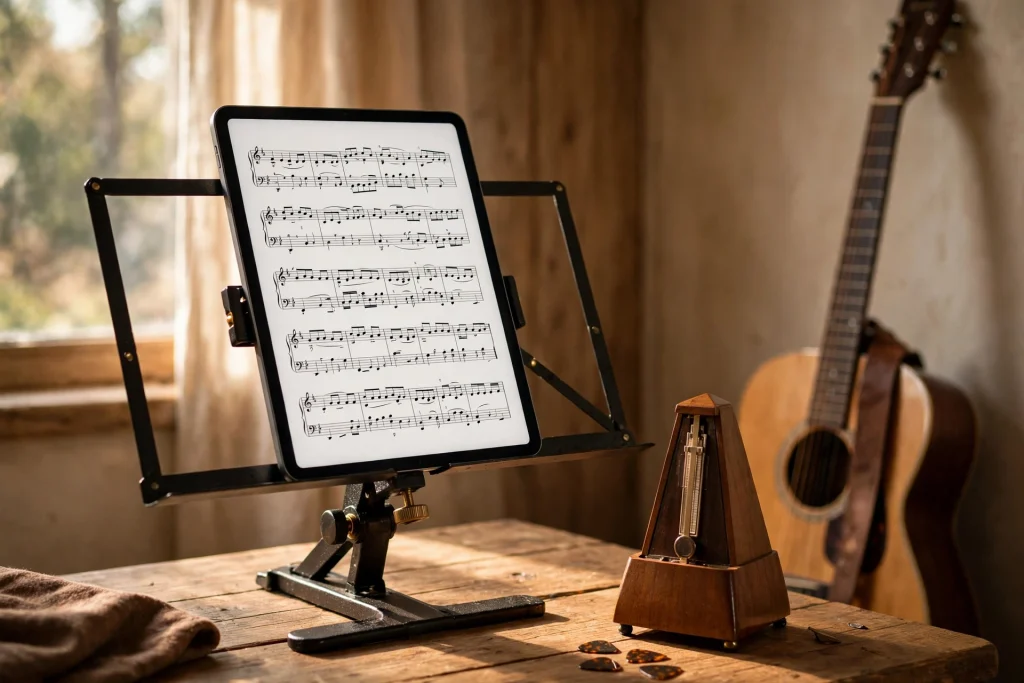
GoodNotes for music practice keeps your sheet music, practice logs and setlists in one searchable place on your iPad. Import scores as PDFs, annotate them with your Apple Pencil, track daily practice with a simple log, and build setlists you can reorder with the lasso tool. It replaces the folder of loose sheets, the dog-eared method book and the practice diary you keep forgetting to fill in.
Every musician knows the same frustrations: sheet music scattered across folders, a practice routine that lives only in your head, and the piece you meant to polish still sounding the same three weeks later. GoodNotes for music practice solves the organisation problem, so your practice time goes into playing instead of searching for pages. This guide shows you how to set it up, whether you play piano, guitar, violin, sing, or conduct a choir.
Why GoodNotes works for musicians
Sheet music is a document problem before it is a playing problem. A working musician juggles method books, exam pieces, ensemble parts, lead sheets and setlists — and paper multiplies fast. GoodNotes turns that pile into a searchable library where every score is findable by title, composer or instrument, and every annotation is saved with the page it belongs to.
The annotation advantage is the real win. On paper, a fingering or bowing mark is permanent; in GoodNotes, you can write it, erase it, move it, or try three fingerings and keep the one that works. You can circle a tricky bar, write “slow — count aloud” above it, and highlight the dynamic change you keep missing. Those marks stay with the score, so next week’s practice starts where this week’s ended instead of from scratch.
GoodNotes also travels better than a music bag. Your whole repertoire fits on one iPad, which matters at rehearsals, auditions and gigs where you need the right chart in seconds. Pair it with a Bluetooth page-turn pedal and you can play through a set without ever touching the screen.
What you need to start
An iPad, an Apple Pencil or compatible stylus, and GoodNotes 6 are the whole setup. A 10.9-inch iPad or larger is worth it for sheet music: smaller screens force constant zooming, which breaks your reading flow mid-phrase. If you only have a smaller iPad, use landscape orientation and split long scores into shorter page turns.
A Bluetooth page-turn pedal is the one accessory that changes gigs. It lets you turn pages hands-free while you play, and it works with GoodNotes’ page navigation. A sturdy music stand or tablet holder matters too — an iPad sliding off a stand mid-performance is a memory you only need once.
For scores, you need PDF files. Buy digital sheet music from a reputable publisher, scan your paper scores, or photograph them with your iPad camera and convert them to PDF. Check that every scan is straight, well-lit and complete before importing: a missing bar on page three is only discovered at the worst possible moment.
Step 1: Build your music library
Start with folders, because a library without structure becomes a junk drawer within a month. In the GoodNotes library, create one folder per category: Repertoire, Method Books, Ensemble Parts, Setlists, Practice Logs. Inside Repertoire, create a folder per instrument or ensemble if you play more than one.
Import each score as its own document and name it clearly: “Bach — Invention No. 8 (Piano)”, not “scan_003.pdf”. A clear name is what makes search work later, and it is what lets you find the right piece on a dark stage in five seconds.
For method books and large collections, import the whole book as one document and use GoodNotes’ outline or bookmark feature to mark the pieces you are working on. Jumping to a bookmarked page beats scrolling through two hundred pages every practice session.
If you are new to importing files, our beginner’s guide to using a digital planner in GoodNotes covers the import basics, and our step-by-step guide to importing a PDF into GoodNotes walks through the exact taps.
Step 2: Annotate scores like a professional
Good annotation is a system, not a scribble. Decide on a simple colour code before you start, and use it on every score so your marks mean the same thing everywhere.
A practical starting code is: red for things to fix (wrong notes, missed accidentals, rushed bars), blue for fingerings and bowings, green for dynamics and phrasing, and yellow highlighter for the section you are working on this week. When you open a score, the colours tell you instantly what needs attention.
Write fingerings small and above the note, not across the staff — crowded notation is unreadable at tempo. Use the zoom window for precise marks in dense passages; it magnifies one line while you write, so your annotations stay legible. Our guide to the GoodNotes zoom window shows exactly how to use it for this kind of detail work.
For repeated markings, save them as Elements. A circled “rit.” or a standard bowing symbol, drawn once and saved, can be stamped wherever it is needed. This keeps your scores tidy and saves the time of redrawing the same symbol forty times.
Step 3: Keep a practice log that actually works
A practice log only works if it takes less than a minute to fill in. The moment logging feels like admin, you stop doing it — and then you lose the record of what you actually practised.
Build a one-page weekly practice log. Across the top, list the days; down the side, list your pieces or exercises. Each day, write the minutes spent and one sentence about what you worked on: “Invention No. 8, bars 9–16, hands separately, still rushing the semiquavers.” That sentence is the whole point of the log — it tells next week’s you exactly where to start.
Review the log every Sunday. It takes two minutes and it answers the question every musician asks: am I actually improving, or just playing the same pieces the same way? If a piece has had three sessions with no progress note, it needs a different approach — slower tempo, hands separately, or a smaller section — not more repetition.
A tabbed notebook makes a good practice-log base, with one tab per month so your whole year of practice stays in a single searchable file. Pair it with the Minimalist Daily Planner if you want your practice sessions scheduled alongside the rest of your day.
Step 4: Plan practice sessions in four blocks
Unstructured practice drifts. A session with four short blocks covers more ground than an hour of playing through pieces from the top, because each block has a different job.
- Warm-up (5–10 minutes): scales, arpeggios or technical exercises. Write the day’s exercise on the log page before you start, so you do not spend the warm-up deciding what to play.
- New material (10–15 minutes): the piece or passage you are learning. Work in small sections — four to eight bars — at a slow tempo, hands separately for pianists, and only join them when each hand is secure.
- Polishing (10–15 minutes): a piece you can already play, worked on for musicality: dynamics, phrasing, tempo changes. This is where your green annotations pay off.
- Performance run (5–10 minutes): play something through without stopping, as if an audience were listening. Note the bars that broke down — they become tomorrow’s new-material block.
Keep a session-plan page at the front of your practice notebook with these four blocks as a checklist. Ticking them off takes seconds, and it stops the common failure mode of spending the whole session on the easy, enjoyable piece while the hard one waits another day.
Step 5: Build setlists you can reorder in seconds
A setlist is a plan, and plans change — the venue asks for a shorter set, a singer is ill, the audience wants an encore. GoodNotes setlists handle change gracefully because the lasso tool lets you drag songs into a new order without rewriting anything.
Build your setlist as a simple page: song title, key, tempo, and one line of notes (“start with guitar intro”, “watch the bridge — it rushes”). Keep each song on its own line so you can lasso and move it. Add a duration next to each title and a running total at the bottom, so you know immediately whether the set fits the slot.
Link each setlist line to its score with a GoodNotes hyperlink, so a tap on the song title opens the chart. During a gig, that link is the difference between finding the chart in two seconds and flipping through your library while the audience waits. Our guide to linking pages in GoodNotes 6 covers the technique.
Keep one setlist per gig in a Setlists folder, dated and named after the venue. After the gig, write two lines at the bottom: what worked, and what to change next time. Those two lines are the most valuable notes a gigging musician writes.
Step 6: Prepare for exams and auditions
Exam and audition preparation is a planning problem as much as a playing problem, and GoodNotes is good at planning. Work backwards from the date: list every piece, scale and sight-reading requirement, then assign each one a weekly slot in your practice log.
For each exam piece, keep a dedicated page: the piece name, the exam board’s requirements, the tempo target, and a checklist of the sections. Tick sections off as they reach performance standard, and write the date beside each tick. The checklist turns a vague “I should practise that” into a visible record of what is actually ready.
Record yourself regularly. GoodNotes lets you add audio notes alongside your score, and hearing your own playing is the fastest way to spot rushing, uneven tone or missed dynamics that you cannot hear while you are playing. Listen back with the score open, mark the bars that need work in red, and make those bars the next session’s focus.
For sight-reading, keep a folder of unseen pieces and work through one a day, timed, without stopping. Write the date and a score out of ten on each one. The routine matters more than the difficulty — daily sight-reading for a month beats a weekend cramming session every time.
GoodNotes vs dedicated sheet music apps
Apps like forScore and Newzik are built specifically for sheet music, and they do some things better than GoodNotes: automatic setlist timing, half-page turns, and deep integration with sheet music stores. If you perform from scores every night, one of those apps may be worth the investment.
But GoodNotes wins for musicians who also plan, journal and organise. It holds your scores, your practice log, your setlists, your lesson notes and your repertoire plan in one app, with handwriting search across all of it. A dedicated score reader is a better music stand; GoodNotes is a better practice room.
Many musicians use both: forScore or a similar app on stage for performance, and GoodNotes at home for practice, planning and study. The scores can live in both places, since they are the same PDF files.
Common mistakes to avoid
Importing bad scans. A crooked, low-contrast scan is unreadable under stage lighting and miserable to annotate. Spend the extra minute getting a clean scan, or buy the digital edition. You will read that score hundreds of times.
Annotating everything. A score covered in marks is as unreadable as a score with none. Annotate only what you need: the fingering that is not obvious, the bar you keep getting wrong, the dynamic you keep missing. If a mark does not change how you play, erase it.
No backup. Turn on iCloud sync and auto-backup, and verify it works by opening GoodNotes on a second device. Losing a library of annotated scores is worse than losing the paper originals, because the annotations are irreplaceable. Our guide to backing up your GoodNotes planner covers the same settings your music library needs.
Practising without a log. Without a record, you practise what you enjoy and avoid what you need. The log is not admin — it is the difference between playing for a year and repeating your first month twelve times.
Frequently asked questions
Is GoodNotes good for sheet music?
Yes. Import scores as PDFs, annotate them with Apple Pencil, and organise them into folders by repertoire, ensemble or instrument. For nightly performance use, a dedicated app like forScore adds features such as half-page turns, but GoodNotes is excellent for practice, study and setlist planning.
Can I use a page-turn pedal with GoodNotes?
Yes. Most Bluetooth page-turn pedals work with GoodNotes on iPad, letting you turn pages hands-free while you play. Test the pedal with your exact iPad and GoodNotes version before a performance, since behaviour can vary between pedal models.
How do I keep a practice log in GoodNotes?
Build a one-page weekly log with days across the top and pieces down the side. Each day, write the minutes spent and one sentence about what you worked on. Review it every Sunday to decide what next week’s practice should focus on.
Can I record audio in GoodNotes?
Yes, GoodNotes 6 supports audio recording alongside your notes, so you can record a tricky passage and listen back with the score open. For longer recordings, the iPad’s Voice Memos app is a good companion, and you can link to the recording from your practice log.
Does GoodNotes work for choirs and ensembles?
Yes. Keep one folder per ensemble, import each part as a separate document, and share scores as PDFs with other members. The conductor’s score can carry rehearsal notes and timings, while each singer’s part carries their own markings.
Start practising with a plan
GoodNotes for music practice is not about the app. It is about the habit: a score you can find, a log you actually fill in, and a session with a plan. Import one score, annotate one page, and log one session — that is enough to start, and the system grows around your playing from there.
Ready to organise your practice? Start with a tabbed notebook for your practice log and repertoire notes, and explore the 2027 Life Planner to schedule practice sessions, lessons and performances alongside the rest of your year.
Temply Studio
Stop chasing your goals with sticky notes and scattered notebooks. Our premium digital planners and Canva templates are designed to help you plan with intention, stay consistent, and actually enjoy the process.
Questions about this guide?
Ask about the planner, share how you use it, or tell us what to cover next. Your email stays private.