
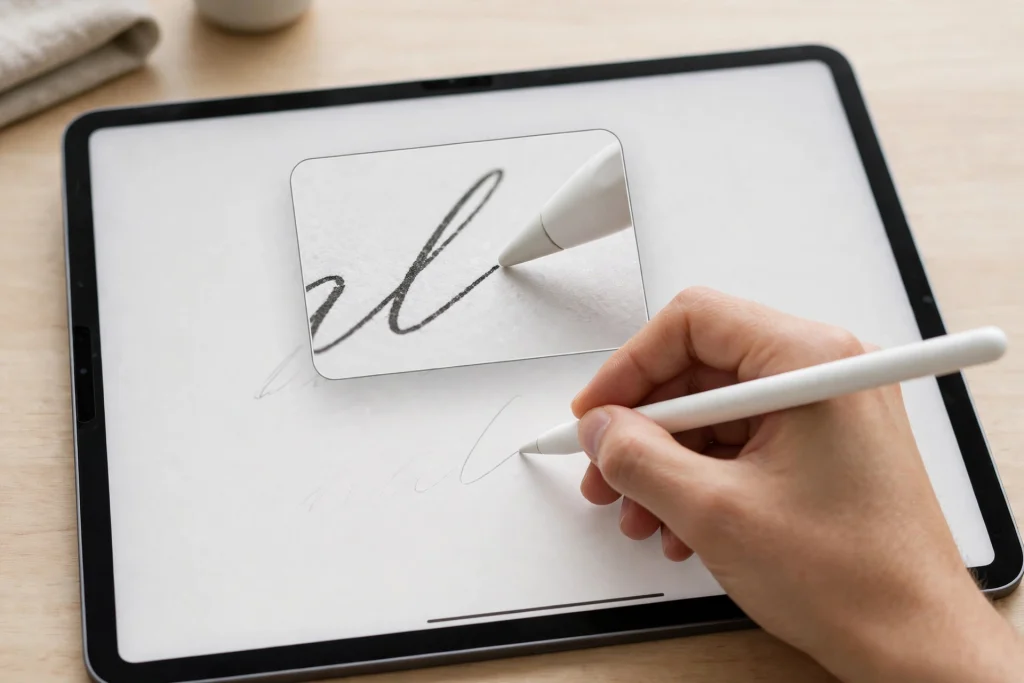
The GoodNotes zoom window is the feature that turns cramped, sloping handwriting into neat, readable notes. If your writing shrinks when you run out of space, if your letters collide at the edge of the page, or if your notes look fine while you write them and messy when you read them back, the zoom window is almost certainly the fix. It gives you a large, comfortable writing area while keeping the full page in view.
Quick answer: Open the zoom window from the toolbar, write in the magnified strip at the bottom of the screen, and let GoodNotes place your writing on the page at normal size. Set the zoom level so two or three words fit comfortably in the strip, keep your wrist steady, and use the auto-advance so the window follows your pen. A digital planner in GoodNotes with well-spaced lines makes the zoom window even easier to use.
What the GoodNotes zoom window actually does
The zoom window splits your screen into two views of the same page. The top shows the page at its normal size, so you can see where you are. The bottom shows a magnified strip of one line, where you actually write. Your handwriting appears in the strip at a large size, but GoodNotes writes it onto the page at the size that matches the page zoom. The result is small, tidy writing produced with large, relaxed strokes.
This matters because most messy digital handwriting is not a handwriting problem at all. It is a size problem. Writing small with a stylus on glass is hard: your strokes are cramped, your letters lose their shape, and your hand covers what you just wrote. Writing large is natural. The zoom window lets you write large and store small, which is the best of both worlds.
How to open the GoodNotes zoom window
- Open any notebook and select the pen tool.
- Look in the toolbar for the zoom window icon — it looks like a magnifier over a line of writing.
- Tap it. A magnified strip appears at the bottom of the screen, with a blue frame on the page showing which part is magnified.
- Write in the strip. Your writing appears on the page inside the blue frame.
- When you reach the end of the strip, the window advances automatically to the next section of the line.
If you cannot see the icon, check that you are in a notebook page rather than in the library view, and that the pen tool is active. The zoom window is a writing aid, so it only appears when you are ready to write.
Set the zoom level for your handwriting
The right zoom level depends on your natural writing size. As a starting point, set it so that about two or three short words fit in the strip at once. If only one word fits, you are zoomed in too far and you will advance constantly. If a whole sentence fits, you are barely zoomed in at all and you lose the benefit.
Drag the edges of the blue frame on the page to resize the magnified area, or use the zoom controls in the strip itself. Try a few sizes on a practice page before you use the zoom window for real notes. Five minutes of calibration saves a week of frustration.
Also set the line height to match your planner. If your 12-Tab Digital Notebook for GoodNotes has lined pages, align the strip with one line so your writing sits on the rule instead of drifting above or below it. Misaligned lines are the most common reason zoom-window notes look untidy.
Write smoothly: technique that helps
Write at your normal speed, not slower. Slow, careful strokes tend to wobble on glass, while a natural pace produces smoother letterforms. Rest your palm on the screen — GoodNotes palm rejection is designed for this — and let your wrist move rather than your fingers alone.
Do not lift your pen at the end of every letter if you normally join letters. The zoom window follows continuous writing well, and lifting constantly breaks the auto-advance rhythm. If the window advances too early or too late, pause for a beat at the end of a word; GoodNotes uses that pause as a signal to move on.
When you need to correct a word, tap it on the page view rather than trying to squeeze a correction into the strip. The lasso tool selects the word, and you can move, resize or delete it cleanly. Corrections made on the page view are faster and tidier than corrections made inside the magnified strip.
Use the GoodNotes zoom window in a planner
Planners are where the zoom window earns its keep. Daily pages, habit trackers and meeting notes all have small boxes that punish normal-sized handwriting. With the zoom window, you can write a full task, a name, or a short sentence into a box that would otherwise fit only a few cramped words.
Work box by box. Tap the blue frame onto the first box, write its contents in the strip, then drag the frame to the next box. It feels slow for the first day and then becomes automatic. The payoff is a planner you can actually read at the end of the week, which is the whole point of keeping one.
An undated digital life planner with generous daily boxes pairs well with the zoom window, because you are not fighting both a small box and small handwriting at the same time. Start with a planner layout that gives your writing room, and let the zoom window do the rest.
Fix common GoodNotes zoom window problems
The window advances too soon
You are probably writing close to the right edge of the strip, which GoodNotes reads as “move on”. Leave a little space at the end of the strip, or reduce the zoom level slightly so more of the line fits.
Writing appears in the wrong place on the page
Check where the blue frame sits before you write. If you scrolled the page after opening the window, the frame may be over a different line than you think. Tap the page view to reposition the frame, then write.
The strip covers the page I need to see
Drag the strip to a different part of the screen, or collapse it while you read and reopen it when you write. The zoom window is a tool to open and close, not a permanent fixture.
My handwriting still looks messy
Try a larger zoom level, a thicker pen, or a slower page zoom. Also check your pen tip: a worn tip drags on glass and makes every stroke shaky. A fresh tip often fixes “messy handwriting” overnight.
Zoom window versus writing normally
Writing normally is faster for short notes, headings, diagrams and anything where placement matters more than neatness. The zoom window is better for sustained writing: lecture notes, journal entries, long task lists and meeting minutes. Most experienced GoodNotes users switch between the two without thinking about it, using the zoom window for lines of text and normal writing for everything else.
There is no prize for using the zoom window all the time. Use it where it helps, close it where it does not, and let neatness serve readability rather than becoming a project of its own.
Frequently asked questions
Does the GoodNotes zoom window work on iPhone?
The zoom window is designed for the larger iPad screen, where there is room for both the page and the magnified strip. On a phone, the page view is usually more practical, and most users write notes on iPad and read them on iPhone.
Can I change the size of the zoom window strip?
Yes. Drag the strip’s edges or the blue frame on the page to change the magnified area, and adjust the zoom level until two or three words fit comfortably. There is no single correct size — it depends on your handwriting.
Why does my writing look smaller on the page than in the strip?
That is exactly how it is supposed to work. The strip is magnified so you can write comfortably; the page shows your writing at normal size. If the page writing is too small to read, reduce the zoom level so your strokes land larger on the page.
Does the zoom window help with handwriting conversion?
Yes, indirectly. Neater, better-spaced handwriting converts to text more accurately when you use the lasso conversion tool, because the recognition engine has clearer letterforms to work with.
Practice for ten minutes, then use it for real
Open a blank page, turn on the zoom window, and copy a paragraph of text. Adjust the zoom level twice, try a different pen thickness, and notice which combination feels easiest. Then use that combination for your next real set of notes. The GoodNotes zoom window rewards a tiny bit of setup with noticeably neater notes from the first day.
Get a lined digital notebook for GoodNotes and try the zoom window on pages made for handwriting.
Temply Studio
Stop chasing your goals with sticky notes and scattered notebooks. Our premium digital planners and Canva templates are designed to help you plan with intention, stay consistent, and actually enjoy the process.
Questions about this guide?
Ask about the planner, share how you use it, or tell us what to cover next. Your email stays private.