

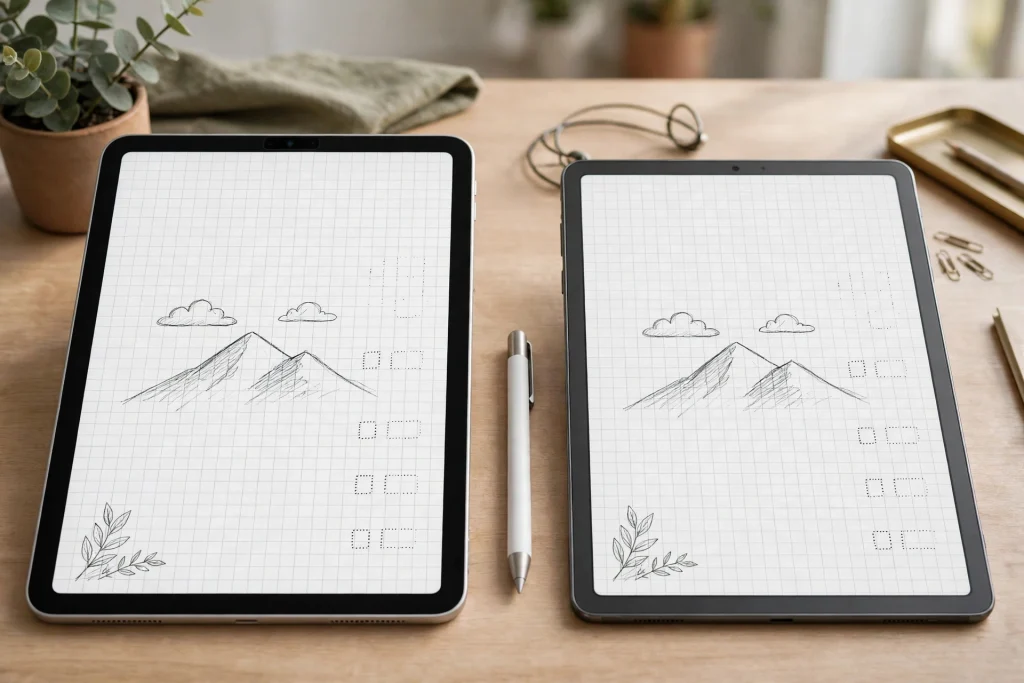
Learning how to duplicate GoodNotes notebook files is one of those small skills that saves a large headache. A duplicate gives you a safe copy to experiment with, a template to reuse for a new project, or a backup before a risky change. Done properly, it takes less than a minute and loses nothing. Done carelessly, it creates two notebooks with the same name and no idea which one is current.
Quick answer: In the GoodNotes library, long-press the notebook, choose Duplicate, and rename the copy immediately. Check that the copy has the same page count, then back up the original before you edit either version. A digital planner in GoodNotes duplicated this way keeps its hyperlinks and page structure intact.
Why duplicate a GoodNotes notebook?
There are four common reasons, and each one deserves a slightly different approach. First, templates: you have a notebook layout that works, and you want a fresh copy for a new month, a new subject, or a new client. Second, experiments: you want to try a new organisation system without destroying the one that currently works. Third, sharing: you want to give someone a copy while keeping your own annotated original. Fourth, safety: you are about to delete pages, restructure sections, or merge notebooks, and you want a way back.
In all four cases, the duplicate is cheap insurance. Storage is plentiful, regret is not. If you are unsure whether you need a copy, make one. Deleting an unnecessary duplicate later costs seconds; rebuilding a lost notebook costs hours.
How to duplicate a GoodNotes notebook, step by step
- Open GoodNotes and go to the library view, where your notebooks are shown as covers.
- Find the notebook you want to copy. Long-press its cover (or right-click on Mac) to open the options menu.
- Tap Duplicate. GoodNotes creates a copy in the same folder.
- Rename the copy immediately — add a date, a project name, or a word like “copy” or “template” so the two notebooks are never confused.
- Open the copy and check the page count and a few key pages. Hyperlinks, tabs and page order should match the original.
- Move the copy to its folder if it belongs somewhere else, so your library stays organised.
That last rename step is the one people skip, and it causes most duplicate confusion. Two notebooks called “Planner” side by side will be edited in the wrong one eventually. Rename first, edit second.
Duplicate versus copy versus export: which do you need?
GoodNotes offers several ways to make a second version of a notebook, and they are not interchangeable. Duplicating creates a second editable GoodNotes notebook in your library, with hyperlinks intact. Exporting as PDF creates a flat file that looks the same but cannot be edited as a GoodNotes notebook and loses working hyperlinks in most cases.
Use Duplicate when you want to keep working in GoodNotes. Use Export when you want to share a finished document, print it, or store a read-only snapshot. If you export a PDF thinking you have “backed up” your notebook, you have a picture of it, not a working copy. For a real backup, duplicate in GoodNotes and also use the app’s backup options, as explained in our guide to backing up your GoodNotes planner.
Keep the original safe: a simple backup routine
A duplicate inside GoodNotes protects you from editing mistakes, but it does not protect you from device loss, since both copies live on the same device and sync account. Pair duplication with a real backup routine. Turn on iCloud sync so your library is mirrored, and run an occasional manual backup to a second location if your notebooks matter to you.
Before a major change — deleting a section, merging two notebooks, or restructuring a planner you have used for months — make a dated duplicate and leave it untouched. Name it with the date, for example “Planner backup 2026-11-04”. If the change goes wrong, you have a clean restore point, and you know exactly when it was made.
Organise duplicates so they do not take over
Duplicates multiply. A folder for templates, a folder for archives, and a rule for naming will keep them under control. Keep one clean template notebook per layout you reuse, and duplicate from the template rather than from last month’s used copy. That way, old notes and completed tasks do not leak into the new month.
Review your library once a month and delete duplicates you no longer need, especially after a project ends. If you are unsure whether a duplicate is safe to delete, check its page count and last-edited date against the original, and keep the newer one. The guide to organising GoodNotes folders shows a folder system that makes this monthly review quick.
Duplicate a notebook for a new month or project
This is the most satisfying use of duplication. Take a monthly planner, duplicate it, rename it for the new month, and clear only the pages that should be fresh — daily pages, task lists, and trackers. Leave the structure, the tabs and the reference pages in place. You get a new month in two minutes instead of rebuilding a planner from scratch.
The same trick works for projects. A notebook set up for one client, one subject, or one trip becomes the template for the next one. Duplicate it, rename it, clear the project-specific pages, and start with a structure you already know works. The 2027 Life Planner is a good base for this: duplicate it per year or per major project, and keep the original as your clean template.
Common problems when you duplicate a GoodNotes notebook
The duplicate has the same name as the original
Rename it immediately, before you open it. If you have already edited the wrong one, compare page counts and recent edits, keep the version with the work you want, and rename both clearly before continuing.
Hyperlinks stopped working in the copy
Duplicating inside GoodNotes normally preserves hyperlinks. If links fail, check that you duplicated rather than exported and re-imported, and that the copy opened fully before you tested it. Large notebooks can take a few seconds to index after duplication.
The duplicate is huge and sync is slow
Notebooks with many images or scanned pages duplicate at full size. If sync stalls, connect to stable Wi-Fi, leave GoodNotes open for a few minutes, and avoid duplicating again until the first copy has finished syncing. Duplicating a half-synced notebook can create partial copies.
I cannot find the duplicate
It lands in the same folder as the original, usually next to it. Sort the folder by date if your library is large, and look for the most recently modified cover. Renaming it as soon as it appears prevents this search entirely.
Frequently asked questions
Does duplicating a GoodNotes notebook copy all pages?
Yes. A duplicate made in the library copies the whole notebook: every page, in order, with its annotations and hyperlinks. It is a full copy, not a shortcut or a link to the original.
Can I duplicate a single page instead of a whole notebook?
Yes, for a different job. Use the page thumbnail view to duplicate individual pages inside a notebook, which is useful for repeating a weekly spread. To copy a whole notebook, use Duplicate from the library view.
Will the duplicate sync to my other devices?
Yes, if iCloud sync is on. The duplicate syncs like any other notebook. Give it time on a slow connection, and check the second device before you rely on the copy there.
Is a duplicate a backup?
Partly. It protects against editing mistakes, but not against losing the device or the account, since both copies share the same sync. Combine duplicates with iCloud sync and an occasional external backup for real protection.
Make the duplicate, rename it, then edit freely
The whole skill is three moves: duplicate, rename, check. Do them in that order, every time, and you will never again wonder which notebook is the real one or mourn a layout you overwrote. A duplicate GoodNotes notebook is a minute of caution that buys you the freedom to experiment.
Start from the 2027 Life Planner and duplicate it into a fresh notebook for your next project.
Temply Studio
Stop chasing your goals with sticky notes and scattered notebooks. Our premium digital planners and Canva templates are designed to help you plan with intention, stay consistent, and actually enjoy the process.
Questions about this guide?
Ask about the planner, share how you use it, or tell us what to cover next. Your email stays private.