


Quick answer: An architect planner in GoodNotes works best as one notebook per project where sketches, site notes, measurements, material ideas, and client feedback live together and stay searchable. Set up a project dashboard, a site visit template, blank sketch pages, a material palette, and a client meeting page, then import plans as PDFs and annotate them by hand. It will not replace CAD, and it will not remind you about a deadline, but for thinking, visiting a site, and keeping a client conversation straight, it is a calm and flexible companion to your design software.
An architect planner in GoodNotes is not a drawing tool in the way CAD is. It will not produce construction documents or issue a drawing set. What it can do is hold the messy middle of a project — the part between the first client call and the finished drawing — in one place you can actually find again. That middle is where most projects get lost: a sketch on a scrap of paper, a measurement on the back of a site photo, a client comment remembered three weeks too late.
Architects work across too many surfaces. There is the sketchbook, the phone camera roll, the email thread, the shared drive, the printed plan with red pen marks, and the notebook left in the car after a site visit. Each one holds a piece of the project, and none of them talks to the others. A GoodNotes notebook does not replace all of them, but it gives you a single working notebook where the thinking happens and where the record lives. If you are new to planning in GoodNotes, start with our beginner’s guide before you build the architect setup below.
An Architect Planner in GoodNotes: Why One Notebook Works
Architecture is a visual profession, and it is also a note-taking profession. The sketch matters, but so does the note written next to it: “client wants the kitchen window lower,” “check ceiling height here,” “soil looks wet at the north corner.” A notebook that holds both the drawing and the words, on the same page, matches how architects actually think.
First, everything is in one place. The concept sketch, the site measurements, the material samples, the meeting notes, and the punch list can all live in one notebook per project. When a client asks why a window moved, you can open the notebook and show the sketch, the site note, and the meeting where the decision was made.
Second, handwriting slows you down in a useful way. Writing a site note by hand — “north wall damp, check flashing” — forces you to look, decide what matters, and record it clearly. A quick hand-drawn plan makes you think about circulation, light, and proportion before you open CAD.
Third, the notebook travels well. An iPad with a pencil fits in one hand on a dusty site, letting you sketch over a photo while you are standing on it, and the same notebook is open on your Mac back at the desk. Finally, the notebook is flexible: when a room grows or a client changes their mind about the stairs, you lasso a sketch and move it instead of starting over.
Set Up an Architect Notebook in GoodNotes
Start with one notebook per project, not one notebook for every project. When projects share a notebook, sketches blur together, measurements get attached to the wrong site, and client notes become impossible to find. Give the notebook a clear name, such as “Nguyen House — Concept to Permit,” and pick a cover that is easy to spot in your library. If you use a template planner, duplicate it and rename the copy for the project.
Step 1: Build a project dashboard
The first page should be a dashboard: a single page that shows, at a glance, where the project stands. Include the client name, the site address, the project type, the current phase, the next milestone, and the three most important open items, plus a short status line you update in your weekly review, such as “Concept approved, waiting on survey.” If it takes more than thirty seconds to read, simplify it.
Step 2: Add a site visit template
Make a reusable site visit page and copy it before every visit. Leave space for the date, the weather, who was there, and the purpose of the visit, plus sections for measurements, observations, photos to take, and questions to ask. Write measurements in the same place every time, in the same format, so you can find them later without hunting.
Step 3: Add blank sketch pages
Keep a generous run of blank and dotted pages after the dashboard. These are your thinking pages: concept sketches, plan studies, section ideas, and detail doodles. Dotted paper works well for freehand plans because it gives you a light grid to keep lines straight without the rigidity of a ruled page. Do not worry about making these pages tidy — they are working pages, not presentation pages.
Step 4: Add a material palette page
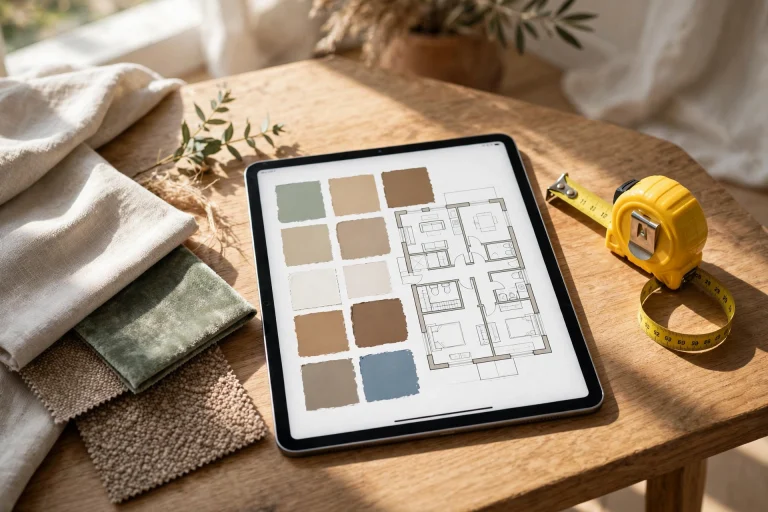
Dedicate a page to materials for each project. Sketch or paste in swatches, and write down the supplier, the finish, the approximate cost band, and where the material will be used. Note alternatives next to each first choice, so that when a material is discontinued or over budget, you already have a second option.
Step 5: Add a client meeting page
Use the same meeting template for every client conversation. Record the date, who attended, the decisions made, the open questions, and who owns each next step. Write decisions in plain language — “client approved the larger kitchen window” — and date them, so a dated note settles the question if a client later remembers a decision differently. If you run a business or manage client work, the 2027 Business Planner gives you meeting, task, and review pages with hyperlinked tabs.
Sketching and Annotating Imported Plans and PDFs
GoodNotes earns its place in an architect’s workflow when you start importing plans as PDFs and drawing on them. Export a plan, a site survey, or a consultant’s drawing as a PDF, import it into the project notebook, and annotate it by hand. Circle a problem area, sketch an alternative wall position, write a dimension next to a doorway, and add a question for the structural engineer in the margin. The annotated PDF becomes a working document, not just a file you viewed once.
Start with a clean import. Keep the original PDF file safe outside GoodNotes, and work on a copy inside the notebook, so you can always return to the unmarked version. Use a consistent pen color system and write it on the dashboard: red for problems and questions, blue for client requests, green for decisions, black for measurements and notes.
Sketch at the right scale for the job. A concept sketch does not need to be to scale — it needs to capture an idea quickly. A site sketch needs measurements written on it, clearly and legibly, with the date and a north arrow. When you photograph a site detail, import the photo onto a notebook page and sketch over it, labeling what the photo shows and what needs to change.
Use the zoom window for detail work: it magnifies a section of the page while you write, which helps with small annotations and dimension strings. Keep your handwriting legible on annotated plans, since handwriting search works best on clear writing, and a note you cannot search for is a note you may never find again.
Tracking Site Visits and Punch Lists
Site visits generate the kind of information that is easy to lose: a measurement taken in the rain, a defect noticed in passing, a verbal instruction from a contractor. A notebook that goes to the site with you, and comes back with a clear record, is worth more than a perfect drawing made later from a fuzzy memory.
Before each visit, copy your site visit template and write down what you need to check, so you do not leave having forgotten the one thing you went to see. During the visit, write measurements as you take them, sketch anything unusual, and note who said what. If a contractor tells you a delivery is delayed, write the date and the name of the person who told you.
Turn observations into a punch list on the spot: a simple list of items that need fixing or finishing, each with a location, a short description, and an owner. “Kitchen, north wall — repaint scuffed skirting, contractor” is a punch list item; “fix kitchen” is not. Keep the punch list in the notebook, update it at each visit, and check items off as they are completed. Take a photo of each defect, import it onto the punch list page, and annotate it.
After the visit, spend ten minutes tidying the notes while they are still fresh: rewrite anything hard to read, add the photos you took, and move new tasks onto the project task list. If you visit several sites in a week, the Minimalist Daily Planner pairs well with a project notebook as one clean daily list of visits, calls, and tasks.
Managing Client Files and Revisions
Client work lives or dies on revisions. A client asks for a change, you make it, they ask for another, and three versions later nobody remembers which one was approved. A GoodNotes notebook cannot manage versions the way a file system can, but it can keep the story of each revision straight — and that story is what prevents confusion.
Keep a revision log at the front of the notebook, after the dashboard. For each revision, record the date, what changed, why it changed, and who asked for it: “12 Nov — moved kitchen window 300 mm east, client request, approved by email” is a complete entry. When a client asks to revert to an earlier idea, the log tells you what that idea was and when it was set aside.
Import client documents into the notebook as PDFs when you need to annotate them: the brief, the survey, the consultant’s report, the email with the approved finishes. Annotate the copy in GoodNotes and keep the original file safe elsewhere. Export annotated pages as a PDF to share with a client or consultant who does not use GoodNotes, labeled clearly with the project name and the date.
Be careful with file size: import images at a reasonable size, delete duplicate imports, and split a long project into phases — one notebook for concept, one for design development — when the file becomes unwieldy. Keep the originals backed up outside GoodNotes, because the notebook is a working copy, not an archive.
Using the Lasso Tool and Handwriting Search
Two GoodNotes features do most of the heavy lifting in an architect’s notebook: the lasso tool and handwriting search. Learn them well, and the notebook stays flexible and findable. Ignore them, and it slowly becomes a stack of pages you cannot move or search.
Use the lasso tool to move sketches, notes, and details instead of redrawing them. When a plan study belongs on a different page, lasso it and move it. When a client changes their mind about a room layout, lasso the furniture, drag it to the new position, and carry on. The lasso also lets you copy a detail you drew once — a stair section, a window detail — onto another page, so you are not redrawing the same element every time.
Use handwriting search to find anything you wrote: search for a room name, a material, or a client’s name, and GoodNotes shows every page where it appears — very useful when someone asks, “Did we ever decide on the floor finish?” Write key terms legibly and use consistent words — “oak floor” every time, not “timber floor” on the next page — because search works best on clear, consistent handwriting. Use the outline feature to bookmark key pages, such as the dashboard and the revision log, so you can jump to them in one tap.
Run a Weekly Review in Twenty Minutes
The weekly review is the habit that keeps an architect’s notebook honest. Without it, site notes pile up unprocessed, punch list items go unchecked, and client decisions fade. With it, the project stays current. It takes about twenty minutes — do it at the same time every week.
- Read the dashboard and write one honest sentence about the project’s status.
- Process the week’s site notes: rewrite anything illegible, add photos, and move measurements to the right pages.
- Update the punch list: check off completed items and add new ones from the latest visit.
- Update the revision log with any client decisions made during the week.
- Choose next week’s top three tasks and write them on the dashboard.
- Note risks and blockers: a survey you are waiting on, a consultant’s reply, a decision only the client can make.
- Plan the first step for Monday, so the week starts with a sketch or a call, not with sorting notes.
If you keep a separate notebook for general notes and ideas, a tabbed GoodNotes notebook works well as a companion: dedicated sections for research, references, and loose ideas, kept apart from the project notebooks where the decisions live.
Honest Limits: What an Architect Planner in GoodNotes Is Not
Honesty matters: the wrong tool wastes more time than no tool at all. An architect planner in GoodNotes is excellent for thinking, visiting sites, and keeping a client conversation straight — but it is not a design production tool, and pretending otherwise will cost you time.
- Not a CAD replacement: GoodNotes cannot produce accurate construction drawings, manage drawing scales, or coordinate a drawing set. Use it for sketches and notes, and do the production work in CAD or BIM software.
- No automated reminders: GoodNotes will not remind you that a permit deadline is tomorrow or that a site visit is at 9 a.m. Pair it with your phone’s calendar for anything time-critical.
- No real-time collaboration: GoodNotes does not let several people edit the same notebook at the same time and see each other’s changes live. Share annotated PDFs instead, and keep the shared drawing set in your design software.
- Large files can slow the app: a notebook stuffed with high-resolution photos and imported PDFs can become slow to open, scroll, and sync. Keep imports reasonable, split long projects into phases, and export a PDF backup regularly.
- Keep originals backed up: GoodNotes syncs through iCloud, but sync is not a backup. If a page is accidentally deleted on one device, the change can propagate before you notice. Keep the original PDFs, photos, and drawing files in a folder you control, and export a PDF copy of important notebooks at each major milestone.
None of this is a reason to avoid GoodNotes — it is a reason to use it where it shines: the thinking, the site, and the conversation around the design, while CAD and BIM handle the production drawings.
Choose the Right Planner Template
The template you choose shapes the system. A blank notebook works, but a planner built for business and client work gives you dashboards, meeting pages, task lists, and hyperlinked tabs without the setup time. If you run a practice or manage several client projects, the 2027 Business Planner is designed for exactly this kind of work. If you want a simple daily page for site visits and calls, the Minimalist Daily Planner pairs well with a project notebook, and a tabbed GoodNotes notebook keeps research and references organized without mixing them into the project record.
Frequently Asked Questions
Can an architect really run a project from GoodNotes?
Yes, for the notebook side of a project — sketches, site notes, measurements, meeting records, punch lists, and revision logs — when one person owns the notebook. The production drawings still belong in CAD or BIM software.
How do I annotate a floor plan in GoodNotes?
Export the plan as a PDF, import it into the project notebook, and annotate it by hand with the pen tool. Use a consistent color system — one color for problems, one for client requests, one for decisions — and write measurements legibly in the margins. Keep the original PDF safe outside GoodNotes, and work on the imported copy.
How do I keep site measurements from getting lost?
Use the same site visit template every time, write measurements in the same place on the page, and spend ten minutes after each visit tidying the notes while the visit is fresh. Add photos to the page, annotate them, and move any new tasks onto the project task list.
What is the best GoodNotes planner for architects?
For client and business work, a planner with hyperlinked tabs, meeting pages, and review sections works best — the 2027 Business Planner is built for that. For research, use a tabbed GoodNotes notebook. For a simple daily page, add the Minimalist Daily Planner.
An architect planner in GoodNotes comes down to a simple idea: one notebook per project, where the sketch, the site note, the measurement, and the client decision live together and stay searchable. Build a dashboard you can read in thirty seconds, use the same site visit and meeting templates every time, annotate imported plans by hand, keep a punch list and a revision log you update weekly, and use the lasso tool and handwriting search to move fast. Be honest about the limits — it is not CAD, it sends no reminders, and large files need managing — and keep your originals backed up outside the app.
Ready to keep your next project in one notebook? The 2027 Business Planner gives you hyperlinked tabs, meeting pages, task lists, and weekly review spreads in a single GoodNotes planner — set up your architect notebook today.
Temply Studio
Stop chasing your goals with sticky notes and scattered notebooks. Our premium digital planners and Canva templates are designed to help you plan with intention, stay consistent, and actually enjoy the process.

Questions about this guide?
Ask about the planner, share how you use it, or tell us what to cover next. Your email stays private.