




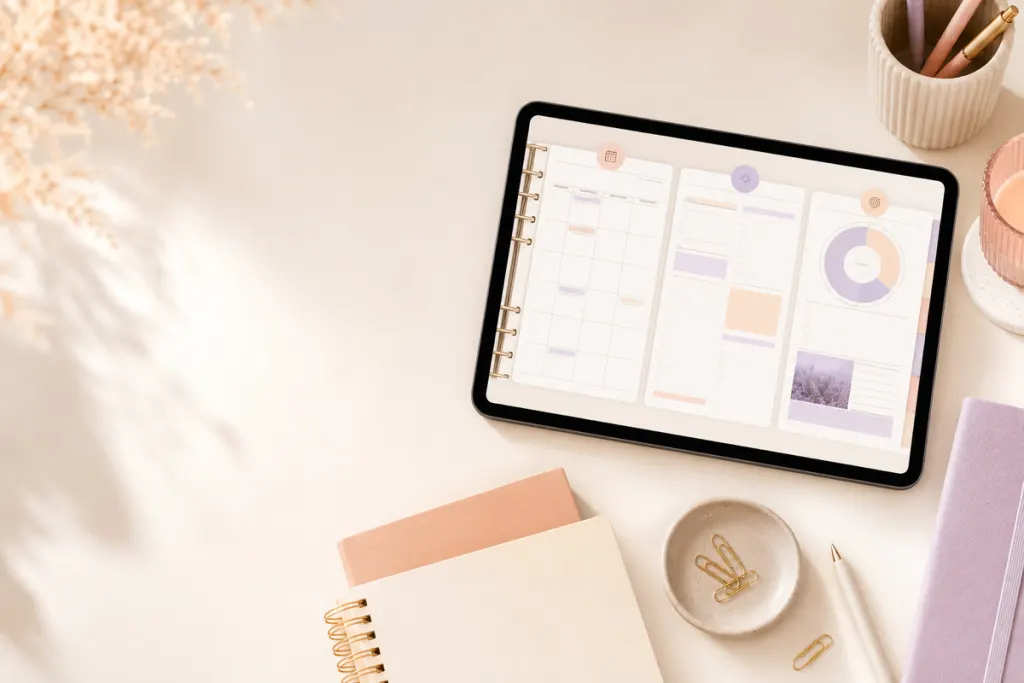
Quick answer: a monthly digital planner is best when you need to see deadlines, appointments, travel, launches, exams, or other commitments across several weeks at once. A weekly digital planner is better when you need enough detail to decide what to do this week, protect time for priorities, and adjust around real-life changes. Many people use both: the monthly view answers when does this matter?, while the weekly view answers what am I doing about it now?
The useful comparison is not which layout is “better.” It is which planning horizon matches the decisions you make most often. A planner with beautiful monthly pages can still feel frustrating if most of your decisions happen day by day, while a detailed weekly layout can become noisy if you mainly need a high-level calendar.
Monthly vs weekly digital planner at a glance
| Question | Monthly view | Weekly view |
|---|---|---|
| Main purpose | See the whole month and major commitments | Turn priorities into a realistic seven-day plan |
| Best for | Deadlines, events, launches, trips, exams, recurring dates | Tasks, meetings, study blocks, routines, follow-up and flexible work |
| Level of detail | Low to medium | Medium to high |
| Review rhythm | At the start/end of a month and before major changes | At least once per week, with small daily adjustments |
| Common risk | Trying to fit too much detail into small date boxes | Overplanning every hour and rebuilding the week repeatedly |
Choose a monthly planner when the big picture drives your decisions
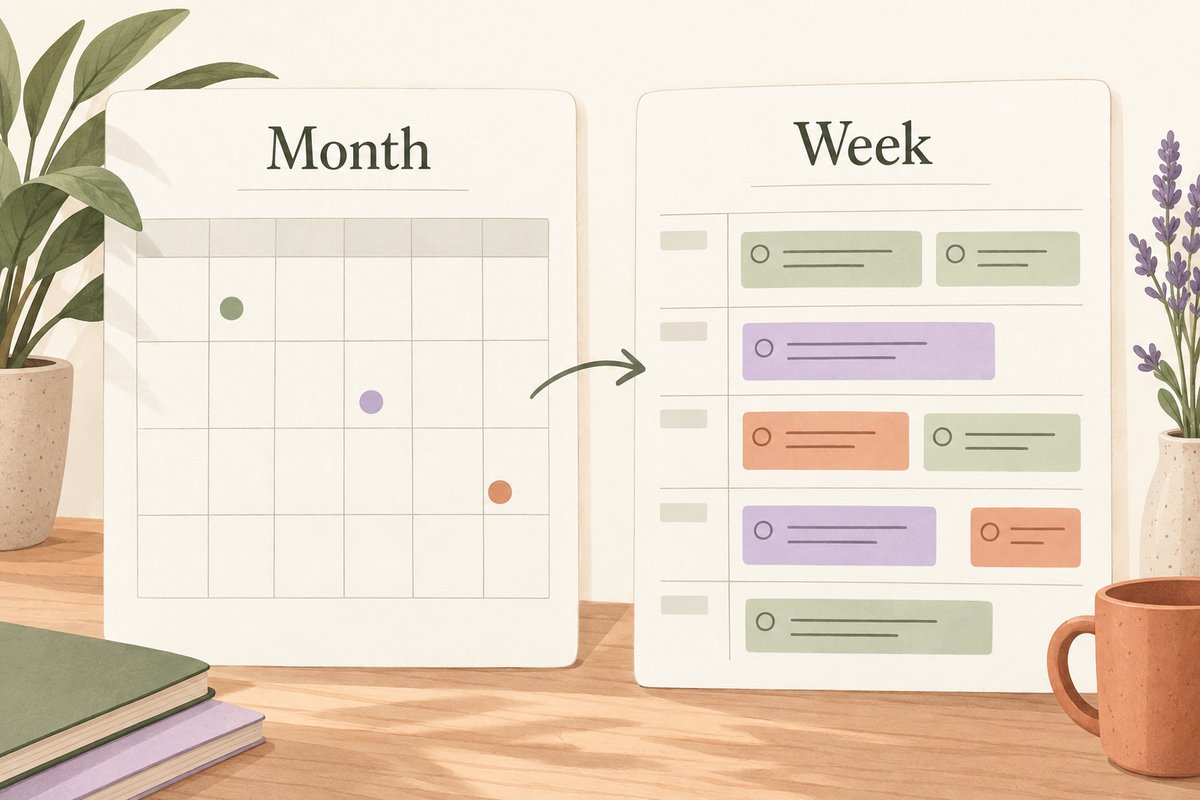
A monthly layout is useful when dates compete for attention. You can see whether three deadlines land in the same week, whether a trip overlaps a recurring commitment, or whether a project milestone needs to move before the month becomes crowded. The page should function as a map, not as a second task manager.
Keep monthly entries short. Use labels such as “client review,” “exam,” “renewal,” or “publish” rather than copying the full task list into the calendar. If an item needs several actions, keep the date on the monthly page and move the actions to a weekly or daily section.
Monthly planning works especially well for
- students tracking assignment and exam dates;
- freelancers coordinating client milestones and payment dates;
- content creators planning campaigns, launches, or publishing windows;
- families coordinating appointments, travel, and recurring commitments;
- anyone who needs to spot busy periods before they arrive.
A monthly layout becomes less useful when you force it to carry every task, note, and habit. If the page requires constant zooming or the date boxes are full of tiny text, move execution details to a closer planning horizon.
Choose a weekly planner when execution is the harder problem
A weekly layout helps when you already know what matters but need to decide where it fits. The strongest weekly plans combine fixed commitments with a limited number of priorities, enough buffer for interruptions, and a place to move unfinished work without treating every change as failure.
Start with commitments that are difficult to move. Then add one to three meaningful outcomes for the week. After that, place smaller tasks around the remaining capacity. If you use time blocking, the daily planner for time blocking guide explains how to turn priorities into realistic blocks without filling every minute.
A weekly view is usually better when you need to
- balance meetings, focused work, admin and personal commitments;
- plan study sessions around classes or shifts;
- review unfinished work and decide what actually moves forward;
- batch similar tasks into one part of the week;
- protect open time instead of using a long undated task list.
Use monthly and weekly views together without duplicating everything
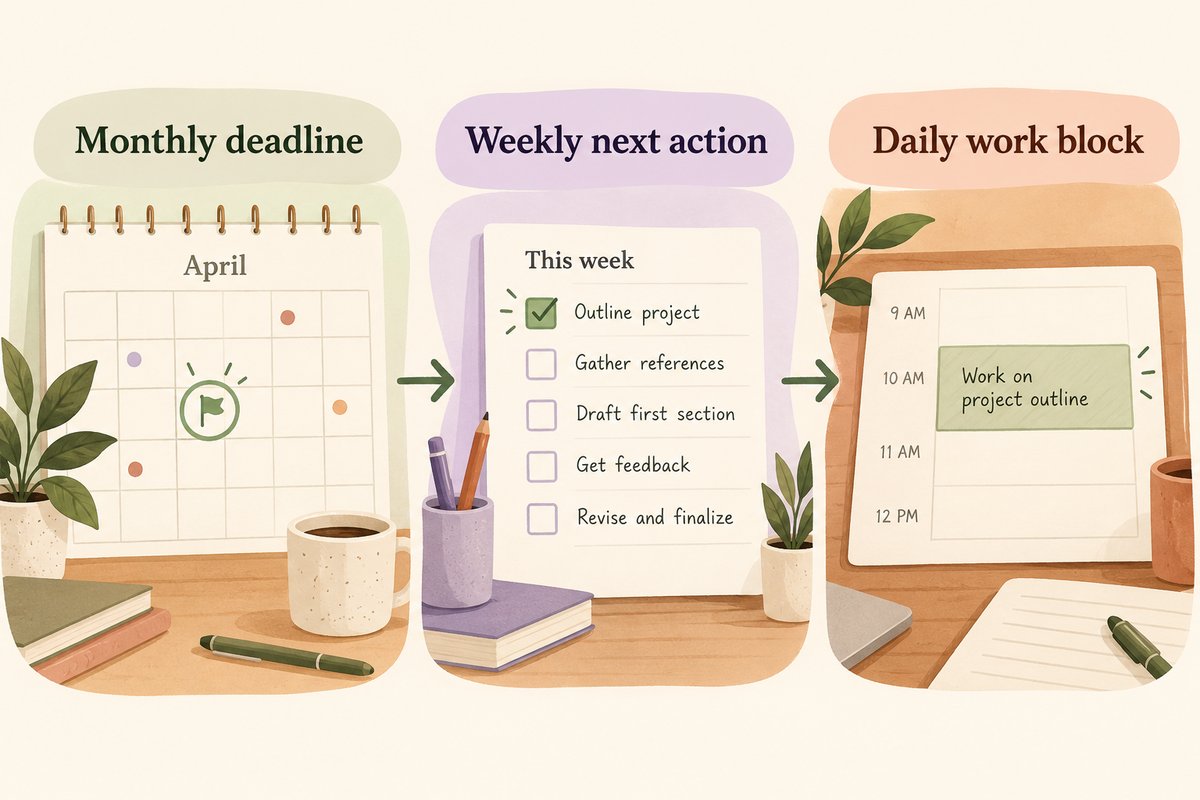
The most practical two-level workflow is simple: keep dates and milestones on the monthly page, then pull only the next relevant actions into the weekly page. You do not need to rewrite the entire month every Sunday.
- Review the monthly page and identify commitments that fall inside the next seven days.
- Move only the actions you can realistically work on this week.
- Add fixed events and deadlines first.
- Choose the most important outcomes and place them around those fixed events.
- Leave space for delays, travel, recovery, or unexpected work.
- At the end of the week, close completed items and deliberately reschedule the rest.
For a simple way to carry those priorities into the next week, follow our weekly reset routine in a digital planner.
If you prefer reusable pages instead of fixed calendar dates, compare the trade-offs in the dated vs undated digital planner guide.
Worked example: turn one deadline into a weekly plan
Imagine a project is due on Friday, October 23, 2026. Put that deadline on the monthly page so you can see it beside other commitments. In the week of October 19–25, record the work needed to reach it:
- Monday: review the source material.
- Tuesday: prepare an outline.
- Wednesday: write a first draft.
- Thursday: revise and resolve missing details.
- Friday: complete the final check and submit before the stated deadline.
Add fixed meetings first, then choose realistic work blocks with some room for delays. The monthly entry remains a short milestone; the weekly entries describe actions. If the deadline changes, update both references and any separate calendar alert. Writing a date in a PDF does not create a notification.
Five questions that make the choice easier
1. How far ahead do you need to see?
If most of your stress comes from overlapping dates several weeks away, start with the monthly view. If you can see the dates clearly but struggle to turn them into action, prioritize the weekly view.
2. How often does your plan change?
A flexible weekly page can absorb changes better than a densely packed month. If your work changes day by day, treat the week as a working plan rather than a contract.
3. How much detail do you actually need?
Choose the smallest level of detail that helps you decide what to do. More sections are not automatically more useful. If a layout asks you to maintain fields you never review, that maintenance becomes friction.
4. Do you plan by dates or by workload?
Date-driven routines benefit from a strong month view. Workload-driven routines benefit from weekly capacity planning. Many real routines need both.
5. What screen orientation feels readable?
Monthly grids can feel very different in portrait and landscape. Review the actual page at your normal zoom level. The portrait vs landscape digital planner comparison can help you separate orientation from planning horizon.
Common mistakes when comparing monthly and weekly planners
- Choosing by appearance alone: a layout can look calm in a preview but become cramped with your real information.
- Duplicating every entry: the month should not become a second weekly task list.
- Planning at maximum capacity: leave room for changes instead of assigning every available slot.
- Ignoring navigation: if the planner uses PDF hyperlinks, verify that the tabs and index work in your intended app.
- Assuming every product contains both layouts: confirm the exact included pages on the individual product page.
Goodnotes documents how PDF hyperlinks are followed across its platforms. If linked navigation matters to your workflow, review the current app instructions and test the file after import rather than assuming every tab behaves the same way.
Frequently asked questions
Is a monthly planner enough on its own?
It can be if you mainly track dates and only keep a small number of tasks. If you regularly need to sequence work, estimate capacity, or protect focus time, a weekly or daily page usually provides more usable detail.
Is a weekly planner better for productivity?
Not universally. A weekly layout can make workload easier to see, but results depend on how realistically you plan and review. The layout itself cannot guarantee productivity.
Should I use a daily planner too?
Use daily pages when the week still contains more detail than you can act on. Daily pages are most useful for the next actions, time blocks, notes, and immediate priorities rather than repeating the whole week.
Can I switch between monthly and weekly views in a digital planner?
Only if the specific file includes those pages and the navigation needed to reach them. Check the product description, delivered files, and current software workflow before purchase.
Choose the planning horizon before the design style
Start with the decision you need the planner to support. If you need visibility across several weeks, make the monthly page easy to scan. If you need help allocating this week’s effort, make the weekly page your working surface. Then evaluate dates, orientation, navigation, file type, and visual style.
A current landscape option for detailed weekly planning
If a wide dated daily-and-weekly layout matches the workflow above, review the 2026 Landscape Daily & Weekly Planner PDF. The current product listing includes Monday-start and Sunday-start 2026 PDF downloads. Check the product page for the current files, requirements, delivery details, and license before purchase.
Browse the Temply Studio digital planner collection only after checking the exact file format, included layouts, software requirements, delivery, and license on the individual product page.
Official reference
Temply Studio
Stop chasing your goals with sticky notes and scattered notebooks. Our premium digital planners and Canva templates are designed to help you plan with intention, stay consistent, and actually enjoy the process.



Questions about this guide?
Ask about the planner, share how you use it, or tell us what to cover next. Your email stays private.