


Quick answer: If GoodNotes is not syncing, start with the safest checks first: confirm iCloud is turned on for GoodNotes, make sure every device uses the same Apple ID, check that you have free iCloud storage, and connect to stable Wi-Fi. Then update the app, restart your devices, and toggle iCloud sync off and back on. Only re-download your library as a last step — and never delete the app until you have confirmed a backup exists.
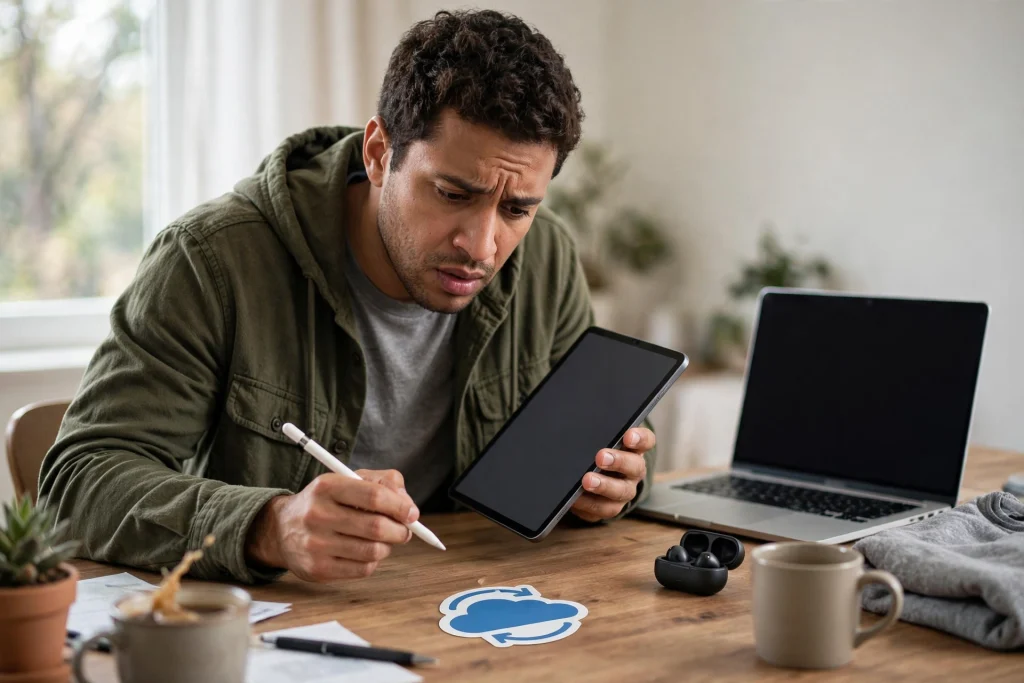
There is nothing quite as unsettling as opening GoodNotes on your iPad and finding that yesterday’s notes have not appeared on your iPhone, or that a planner page you filled in on one device is simply missing on another. If goodnotes not syncing is the problem you are staring at right now, take a breath: in most cases your notes are not gone. They are usually stuck in a queue, waiting on a setting, a storage limit, or a connection issue that you can fix in a few minutes.
GoodNotes syncs through iCloud, which means syncing depends on more than just the app itself. Your Apple ID, your iCloud storage, your network connection, and the version of GoodNotes on each device all have to line up. When any one of those falls out of step, sync stalls — sometimes silently, with no error message at all.
This guide walks you through eight fixes in the correct, safest order. Work through them one at a time, and check whether sync has resumed after each step before moving on. That way you will find the actual cause instead of changing five settings at once and never knowing which one mattered. If you are new to planning in GoodNotes, our guide on how to use a digital planner in GoodNotes covers the basics of setting up your planner so it syncs cleanly from the start.
Before You Touch Anything: Confirm Your Backup Exists
Before you change any sync setting, make sure your notes are backed up somewhere other than iCloud sync itself. This is the single most important step in this whole guide, and it takes less than a minute.
Open GoodNotes, go to the library view, and check that your most important notebooks and planners are present and up to date on at least one device. Then make a manual backup: export your key notebooks as GoodNotes files or PDFs, or use the app’s backup feature to save a copy to Files or another cloud location. Our full walkthrough on how to back up your GoodNotes planner shows exactly how to do this, including how to set up automatic backups so you never have to think about it again.
Why does this matter so much? Because a few of the later fixes — especially toggling sync and re-downloading your library — replace the local copy of your data with the iCloud copy. If the iCloud copy is incomplete or out of date, you could lose recent notes. A confirmed backup turns every fix below from a risk into a routine step. If you cannot confirm a backup, stop here, make one, and only then continue.
GoodNotes Not Syncing: 8 Fixes That Actually Work
Fix 1: Check iCloud Status and GoodNotes iCloud Settings
Start with the simplest possible cause: iCloud sync may be switched off for GoodNotes, or iCloud itself may be having a bad day.
- On your iPad or iPhone, open Settings and tap your name at the top.
- Tap iCloud and confirm that iCloud Drive is turned on.
- In the same iCloud screen, look for GoodNotes in the list of apps using iCloud and make sure its toggle is on.
- Inside GoodNotes itself, open Settings > iCloud Sync and confirm syncing is enabled there too.
- Finally, check Apple’s system status page in your browser to see whether iCloud Drive is reporting an outage. If it is, no setting on your device will fix the problem — you just have to wait it out.
This check alone resolves a surprising number of sync problems, especially after a major iOS update, which can occasionally reset app permissions without telling you.
Fix 2: Make Sure Every Device Uses the Same Apple ID
iCloud sync only works between devices signed in to the same Apple ID. This sounds obvious, but it trips people up more often than you would expect — especially if you share an iPad with family, recently changed your Apple ID password, or set up a new device with a different account.
- On each device, open Settings and check the name and email shown at the top.
- Confirm they match exactly across your iPad, iPhone, and Mac.
- If a device is signed in to the wrong account, sign out and sign back in with the correct one, then wait a few minutes for GoodNotes to reconnect.
If you recently changed your Apple ID password, you may also need to re-enter it on each device before iCloud services resume. Until you do, sync can stall silently while everything else on the device appears to work normally.
Fix 3: Free Up iCloud Storage Space
When your iCloud storage is full, syncing stops — and GoodNotes will not always warn you clearly. Photos and device backups are usually the culprits, quietly filling your storage until there is no room left for your notes.
- Go to Settings > [your name] > iCloud and look at the storage bar at the top.
- If you are at or near your limit, tap Manage Account Storage to see what is using the space.
- Delete old device backups you no longer need, clear out large attachments in Messages, or move photos to another storage service.
- Alternatively, upgrade your iCloud storage plan if you regularly work with large notebooks and planners.
After freeing space, give GoodNotes some time — large notebooks can take a while to upload, especially the first time after storage is cleared. Keep the app open and the device connected to Wi-Fi while it catches up.
Fix 4: Connect to Stable Wi-Fi and Wait
iCloud sync needs a reliable internet connection, and large GoodNotes libraries — particularly planners with many handwritten pages, images, or imported PDFs — can take a long time to transfer. A weak or switching connection can leave sync stuck halfway.
- Connect to a stable Wi-Fi network rather than relying on mobile data, which can be slower and may pause large uploads.
- Turn off any VPN temporarily, since some VPN configurations interfere with iCloud connections.
- Open GoodNotes and leave it in the foreground for several minutes. iCloud sync is much slower when the app is only running in the background.
- Check whether a sync progress indicator is showing in the library view — if it is moving, even slowly, the fix is patience, not another setting change.
If you have just imported a large planner, such as the 2027 Life Planner, or a full digital notebook for GoodNotes, the first sync can take noticeably longer than a normal day’s notes. That is expected, not a fault.
Fix 5: Update GoodNotes on Every Device
Sync problems frequently appear when one device is running an older version of GoodNotes than another. Newer versions sometimes change how sync data is structured, and an outdated app may not be able to read what the newer one uploaded.
- Open the App Store on each device and search for GoodNotes.
- If an update is available, install it.
- Repeat on every device you sync with — iPad, iPhone, and Mac.
- Also check that your devices are running a reasonably current version of iOS, iPadOS, or macOS, since very old operating systems can block newer iCloud features.
After updating, open GoodNotes on each device and allow a few minutes for sync to resume. Updating is one of the lowest-risk fixes available, so it is worth doing early even if you suspect another cause.
Fix 6: Restart Your Devices and Reopen GoodNotes
The classic advice exists for a reason: a restart clears temporary glitches in background processes, including the iCloud sync services that GoodNotes depends on.
- Fully close GoodNotes by swiping it away from the app switcher.
- Restart your iPad or iPhone — a full power cycle, not just locking the screen.
- Once the device is back on, reconnect to Wi-Fi, then reopen GoodNotes.
- Wait several minutes before judging whether it worked. Sync services take a moment to re-establish themselves after a restart.
If you sync across multiple devices, restart the device that is missing the notes rather than the one that has them. That way you are refreshing the device that needs to catch up, not disturbing the one holding the good copy.
Fix 7: Toggle iCloud Sync Off and Back On
If the settings are correct, the Apple ID matches, storage is fine, and the app is up to date, the sync connection itself may be stuck. Toggling it forces GoodNotes to re-establish its link to iCloud.
- First, confirm your backup again. This step is safe when a backup exists, and only when a backup exists.
- In GoodNotes, open Settings > iCloud Sync and turn sync off.
- Wait a full minute, then turn it back on.
- Leave GoodNotes open on Wi-Fi and give it time to re-index and re-upload. For a large library, this can take considerably longer than a normal sync.
Do not panic if your library briefly looks different right after toggling sync back on. The app needs time to reconcile the local and iCloud copies. As long as you confirmed a backup in advance, your notes are protected even if the reconciliation takes a while.
Fix 8: Re-download Your Library from iCloud (Last Resort)
This is the final step, and you should only reach it after trying fixes one through seven. Re-downloading replaces the local library on your device with the copy stored in iCloud, which clears out corrupted local sync data that nothing else will fix.
- Confirm your backup one final time — this step overwrites local data, so a backup is non-negotiable.
- In GoodNotes, go to Settings > iCloud Sync and look for the option to re-download documents from iCloud.
- Start the re-download on a stable Wi-Fi connection and keep the device plugged in if your library is large.
- Do not interrupt the process. Closing the app midway can leave the library half-downloaded and make the problem worse.
- Once it finishes, check your key notebooks page by page before resuming normal work.
If re-downloading does not resolve the issue, the problem is likely on Apple’s side or requires GoodNotes support. At that point, contact GoodNotes support with details of what you have already tried — this list makes that conversation much shorter — and keep your manual backup safe in the meantime.
What Not to Do When GoodNotes Stops Syncing
When notes appear to be missing, the temptation is to act fast. Most sync disasters, however, are caused not by the original problem but by a rushed fix. Avoid these mistakes:
- Never delete the GoodNotes app before confirming a backup exists. Deleting the app can remove the only local copy of notes that have not yet uploaded to iCloud. Once the app is gone, those notes are gone with it unless you have a backup elsewhere. This is the single most damaging mistake you can make, and it is entirely avoidable.
- Do not create a duplicate copy of the same notebook on two devices and edit both. You will end up with two diverging versions and no clean way to merge them. Pick the device with the most complete version and work from that one until sync resumes.
- Do not sign out of iCloud casually. Signing out can remove locally stored iCloud data from the device. If you must sign out, back up first and read every prompt carefully before confirming.
- Do not keep toggling settings rapidly. Each change restarts parts of the sync process. Make one change, wait, and observe before making the next.
- Do not assume your notes are deleted. In the great majority of cases, the notes are still on one of your devices or in iCloud, waiting for the connection to be restored. Panic-driven deletions are what turn a temporary sync stall into a permanent loss.
How to Prevent Sync Problems in the Future
Once sync is working again, a few habits will keep it that way. Keep GoodNotes updated on all devices and avoid letting one device fall several versions behind. Leave enough free iCloud storage that a busy week of notes never pushes you to the limit. Set up automatic backups so that even a worst-case sync failure costs you minutes, not months of work. And if you use a large planner daily, open GoodNotes on Wi-Fi at least once a day so uploads happen in small, regular batches rather than one enormous catch-up.
A well-organised planner also syncs more smoothly than a cluttered one. Keeping your notebooks tidy — archiving finished planners instead of letting them accumulate — reduces the size of each sync and makes problems easier to spot. Our 2027 Life Planner and digital notebook for GoodNotes are designed to work cleanly with iCloud sync, with linked navigation that keeps your library easy to manage.
Frequently Asked Questions
Why is GoodNotes not syncing between my iPad and iPhone?
The most common causes are different Apple IDs on the two devices, iCloud sync turned off for GoodNotes on one device, full iCloud storage, or an outdated app version on one device. Work through the fixes in this guide in order — Apple ID and settings first — and check after each step. In most cases, one of these checks reveals the problem.
How long should GoodNotes iCloud sync take?
Small, everyday changes usually sync within a minute or two on a good Wi-Fi connection. A large first sync — for example, after importing a full planner or restoring a library — can take much longer, sometimes an hour or more for a very large collection. If the sync indicator is still moving, the process is working; give it time before trying another fix.
Will I lose my notes if I toggle iCloud sync off and on?
Not if you have a backup. Toggling sync re-establishes the connection between GoodNotes and iCloud, and your notes should reappear once the app reconciles the two copies. That is why this guide insists on confirming a backup first: the backup is what makes the step safe. Never toggle sync or re-download your library on a device whose notes exist nowhere else.
Should I delete and reinstall GoodNotes to fix syncing?
No — not as a first step, and never without a confirmed backup. Deleting the app removes local data that may not have uploaded yet, which can turn a fixable sync stall into permanent data loss. Try the eight fixes in this guide first. Reinstalling is only worth considering after you have a verified backup and have contacted GoodNotes support.
GoodNotes sync problems are frustrating, but they are almost always fixable — and almost always fixable without losing a single note. Start with the safe checks, confirm your backup, and work through the fixes in order. Your notes are almost certainly still there; they just need a clear path home.
Ready to plan without the sync headaches? The 2027 Life Planner is built for daily use in GoodNotes, with linked tabs and a clean layout that keeps your library organised — and syncing smoothly — all year long.
Temply Studio
Stop chasing your goals with sticky notes and scattered notebooks. Our premium digital planners and Canva templates are designed to help you plan with intention, stay consistent, and actually enjoy the process.
Questions about this guide?
Ask about the planner, share how you use it, or tell us what to cover next. Your email stays private.