
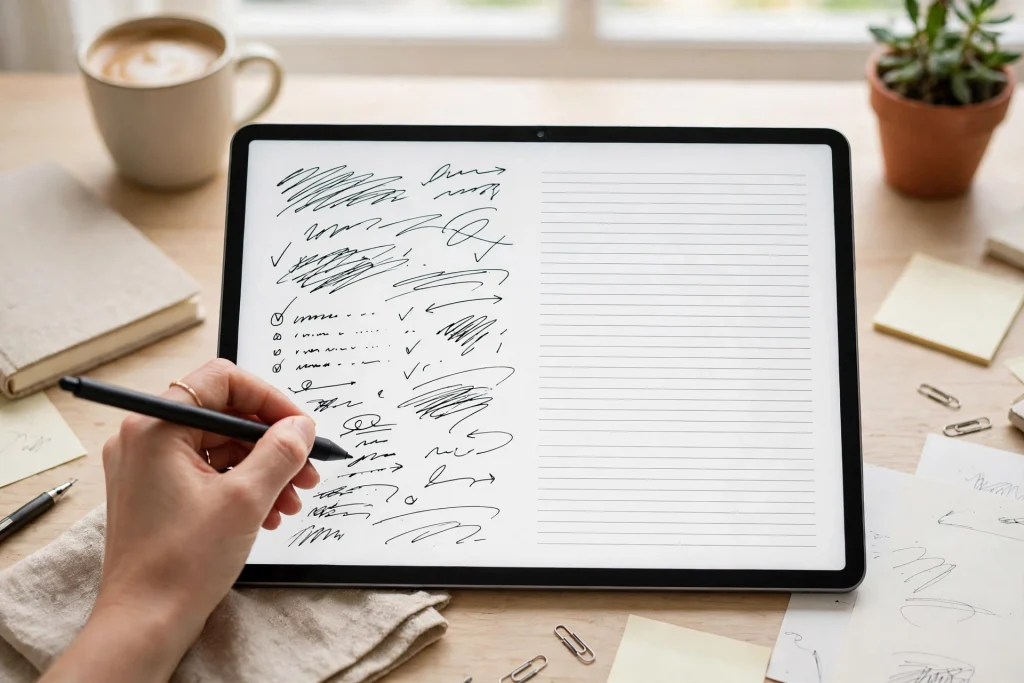
Handwriting feels fast in the moment, but typed text is far easier to reuse. That is exactly where handwriting to text GoodNotes conversion earns its place in a digital planning workflow: you write freely by hand, then turn only the parts you need into clean, editable text that you can paste into an email, a document, a task list, or another page in your notebook. It is not magic, and it is not a whole-page transcription machine. Done well, though, it is one of the most practical GoodNotes 6 features for students, freelancers, and anyone who plans on an iPad.
In this guide, you will learn the exact lasso workflow, how to paste and export the converted text, how to improve accuracy, and where conversion stops and other GoodNotes features take over. If you use a digital notebook for GoodNotes or an undated digital life planner, this is the skill that turns rough handwritten pages into usable, shareable notes.
Quick answer
To convert handwriting to text in GoodNotes 6, tap the Lasso Tool, draw around the handwriting you want to convert, tap the selection, and choose Convert to Text. GoodNotes turns the selected strokes into typed text you can review, copy, paste elsewhere, or place as a text box. Convert one selection at a time — it works on the handwriting you select, not on an entire page or notebook at once.
How Handwriting to Text GoodNotes Conversion Works
GoodNotes 6 recognises your handwriting as ink strokes first and text second. When you write with Apple Pencil, the app stores what you wrote as handwriting, which is why it looks and feels like paper. Conversion is the step that asks GoodNotes to read those strokes and produce typed characters instead.
That distinction matters. Before conversion, your note is a picture of your writing: you can move it, resize it, and change its colour, but you cannot edit a single word, copy a sentence into an email, or paste it into a document as text. After conversion, you have real text. You can edit it, fix a misread word, copy it, and search it like any other typed note.
Conversion is also different from searching. Searching finds handwritten words without changing them, while conversion creates new typed text from them. Our guide to searching handwritten notes in GoodNotes covers the find-it-fast side of the story; this article covers the turn-it-into-text side. You will often use both: search to locate a note, convert to reuse it.
What you need before you start
- GoodNotes 6 on iPad, with Apple Pencil or a compatible stylus for comfortable handwriting.
- A page with handwritten notes. Short, separated lines convert more reliably than dense, overlapping writing.
- A few seconds of patience per selection. Converting in small chunks gives you cleaner results than converting a huge block at once.
Convert Handwriting to Text in 4 Steps
Follow these steps in order. Once you have done them two or three times, the whole process takes under a minute for a typical paragraph.
Step 1: Select your handwriting with the Lasso Tool
Tap the Lasso Tool in the toolbar. It usually looks like a dotted loop or lasso icon. Then draw a loop around the handwriting you want to convert. You do not need a perfect circle — just make sure every stroke you want included is inside the loop, and that strokes you want to leave alone stay outside it.
Start small. A heading, a short list, or one paragraph is a good first selection. If your handwriting runs close together, zoom in before you lasso so you can separate one line from the next. A careful selection is the single biggest factor in getting an accurate result, and it is much faster than fixing a long, messy conversion afterwards.
When you lift the stylus, GoodNotes highlights the selected handwriting. If the highlight grabbed an extra word or missed the end of a line, tap elsewhere to clear the selection and draw the loop again. It is worth redoing a sloppy selection now rather than editing a garbled paragraph later.
Step 2: Tap Convert to Text
With the handwriting selected, tap on the selection to open its menu, then choose Convert to Text (the exact wording may vary slightly by GoodNotes version). GoodNotes reads the selected strokes and shows you the typed result.
Read that result before you do anything else. Check names, numbers, dates, and any unusual words first, because those are the items recognition is most likely to misread. If a word is wrong, fix it while it is still fresh in your mind and the original handwriting is still visible for comparison.
If the result is badly wrong, do not try to rescue it word by word. Undo, split the selection into smaller pieces, and convert each piece separately. Two clean short conversions beat one long confusing one every time.
Step 3: Place, copy, or paste the converted text
Once you are happy with the typed result, you have three useful choices. First, you can keep the text in GoodNotes as a text box on the same page, positioned where the handwriting was or moved somewhere tidier. Second, you can copy the text and paste it into another app — an email, a message, a document, or a task manager. Third, you can paste it into another GoodNotes page or notebook, which is handy when you are consolidating meeting notes or study summaries into one clean page.
Think about what the text is for before you decide. If it is a quote, a task, or a message you need to send, copying it out of GoodNotes is usually the fastest route. If it is a summary you want to keep alongside your handwritten notes, placing it as a text box on the same page keeps the context intact. Either way, keep the original handwriting until you are sure the typed version is correct — deleting the source too early is the one mistake that is hard to undo.
Step 4: Clean up and keep the original (for now)
After conversion, tidy the text box: adjust its size, move it so it does not cover other notes, and check line breaks. Handwritten line breaks do not always match typed line breaks, so a converted paragraph may need a quick reflow. Then decide what to do with the original ink. Many people keep it for a day or two, especially for important notes, and delete it only once the typed version has been used or filed.
A simple habit helps here: convert, verify, use, then clean up. That order protects you from the two common losses — a misread word that slips into an email, and a deleted original you later realise you needed.
Tips for More Accurate Conversion
GoodNotes conversion is good with ordinary handwriting, but it is not a mind reader. These habits make a real difference, especially if your handwriting is fast or compact.
- Write with a little more space. Leave clear gaps between words and lines. Crowded writing is the most common cause of merged or split words.
- Convert short selections. A few lines at a time converts more accurately than a full page, and mistakes are easier to spot.
- Keep abbreviations consistent. If you always write the same shorthand for a project or a person, recognition has a better chance of reading it the same way each time.
- Check numbers and proper nouns. Dates, amounts, names, and codes deserve a second look even when the rest of the paragraph looks perfect.
- Slow down for the lines you plan to convert. You do not need beautiful handwriting throughout a notebook — just slow down slightly on the summary, the action list, or the quote you know you will want as text later.
- Use plain lettering for key lines. Print-style writing converts more reliably than heavily joined cursive, so consider printing headings and action items even if the rest of your notes are cursive.
It also helps to think about conversion while you write, not only afterwards. If you know a page will become an email or a report, leave a little white space around the important lines. That space makes lasso selection easier and gives the converted text box somewhere clean to sit.
What Handwriting Conversion Cannot Do
Knowing the limits saves frustration. Conversion in GoodNotes 6 is a selection-based tool, and it has honest boundaries.
- It does not transcribe a whole page or notebook at once. You select handwriting, convert it, and repeat. There is no single tap that turns every handwritten page into typed text.
- It does not read drawings, diagrams, or maths notation as text. Sketches, arrows, mind-map branches, and equations may be ignored or misread. Convert the words, and keep the diagram as handwriting.
- It does not preserve ink styling. Colours, pen thickness, and underlining do not carry over into the typed result. If colour codes meaning in your notes, keep the original ink or re-apply formatting to the typed text.
- It is not perfect with messy or tiny writing. Very small script, overlapping corrections, and heavily crossed-out words will produce errors. Rewrite the line cleanly and convert again.
- It does not fix your content. Conversion copies what you wrote, including typos and unfinished sentences. Proofread the typed result as you would any draft.
None of this makes conversion less useful — it just means you should use it for what it is good at: turning selected handwritten words into editable text, one clean chunk at a time. For everything else, keep the handwriting itself. A notebook that mixes clean typed summaries with original handwritten diagrams is often more useful than a notebook that is entirely one or the other.
Convert vs Search vs Export as PDF: Which One Do You Need?
GoodNotes offers three features that sound similar but solve different problems. Choosing the right one saves time and avoids the disappointment of converting when you only needed to find something, or exporting when you needed editable text.
| Feature | What it does | Best for | What you get |
|---|---|---|---|
| Convert to Text | Turns selected handwriting into typed text | Reusing notes in emails, documents, and task lists | Editable text you can copy, paste, and edit |
| Search handwritten notes | Finds handwritten words without changing them | Locating a note quickly across pages or notebooks | The original handwritten page, found fast |
| Export as PDF | Saves a page or notebook as a shareable file | Sharing notes that should look exactly as written | A fixed PDF that preserves layout and ink |
Here is a practical way to decide. If you need to find something, search. If you need to reuse the words somewhere else, convert. If you need to share the page exactly as it looks — handwriting, sketches, and all — export it as a PDF. Many real workflows use two of the three: search to find a meeting note, convert the action items into a typed list, and export the full page as a PDF for someone who just needs to read it.
For a deeper look at the searching side, see our guide on how to search handwritten notes in GoodNotes. The two features complement each other: search finds your thinking, conversion makes it portable.
Everyday Workflows That Use Conversion
Conversion shines when handwritten notes need to leave the notebook. Here are workflows that work well in a digital planner in GoodNotes setup.
Meeting notes to follow-up email
During a meeting, write freely and capture decisions as they happen. Afterwards, lasso just the action items, convert them, and paste the typed list into your follow-up email. The rest of the page — doodles, arrows, half-finished thoughts — can stay handwritten, where it belongs.
Study notes to revision summaries
After a lecture, convert the key definitions and headings into typed text on a clean summary page. Typed summaries are easier to scan during revision, and you can still flip back to the full handwritten page when you need the detail.
Journal entries to typed quotes and lists
If you keep a daily journal in an undated digital life planner, conversion lets you lift a favourite quote, a goal list, or a weekly review out of the journal and into a document or message without retyping it.
Brainstorms to project documents
Brainstorms are messy by design. Convert only the ideas that survived — the shortlist, the final wording, the next steps — and leave the crossed-out ideas behind. Conversion becomes an editing step, not just a transcription step.
Frequently Asked Questions
Can GoodNotes 6 convert all my handwriting to text at once?
No. Conversion works on the handwriting you select with the Lasso Tool, one selection at a time. To convert a long set of notes, work through it in short selections, checking each result as you go. This is slower than a single-tap transcription, but it produces far more accurate text.
Is converting handwriting to text the same as searching handwritten notes?
No. Searching finds handwritten words and takes you to the original page without changing anything. Converting creates new typed text from the selected handwriting, which you can then edit, copy, and paste elsewhere. Use search to locate notes and conversion to reuse them.
Why is some of my converted text wrong?
The most common causes are crowded writing, very small script, heavily joined cursive, and selections that are too long. Try converting a shorter selection, zooming in before you lasso, and leaving more space between words. Always proofread names, numbers, and dates in the converted result.
Can I convert handwriting and keep the original handwritten version?
Yes, and for important notes you should. Verify the converted text first, use or file it, and only then decide whether to delete the original ink. Keeping both for a short while protects you against misread words and accidental deletions.
Handwriting to text in GoodNotes 6 works best as a small, deliberate habit: write freely, select carefully, convert in short chunks, and proofread before you share. Used that way, it bridges the gap between the speed of handwriting and the reusability of typed text — and it makes a digital planner or notebook genuinely more useful, not just more digital.
Ready to put it into practice? Set up your notes in the 12-Tab Digital Notebook for GoodNotes, with lined and grid pages that keep your handwriting spaced, selectable, and easy to convert.
Temply Studio
Stop chasing your goals with sticky notes and scattered notebooks. Our premium digital planners and Canva templates are designed to help you plan with intention, stay consistent, and actually enjoy the process.
Questions about this guide?
Ask about the planner, share how you use it, or tell us what to cover next. Your email stays private.