




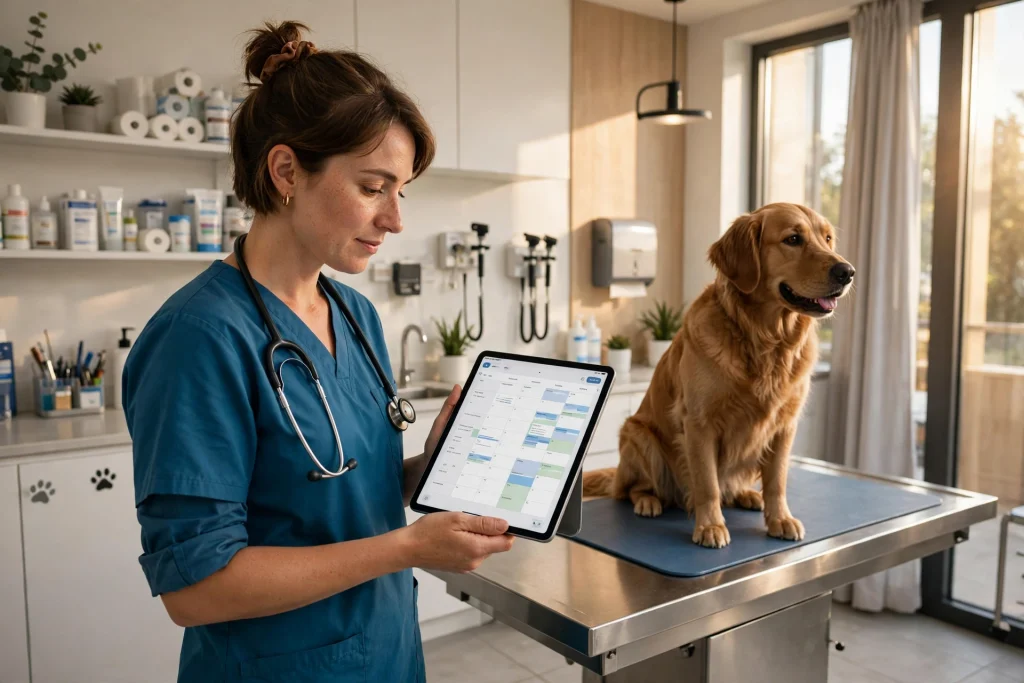
Quick answer: Goodnotes for veterinarians is useful for nonclinical planning: organise continuing professional development (CPD), list administrative priorities and prepare for team meetings. Keep patient records, prescriptions, consent and client communications in your practice’s approved systems. For clinical decisions, use the current references and protocols approved by your practice.
A day in a veterinary practice leaves little time to switch between calendars, meeting notes and training material. A simple iPad planner can help with that administrative work. This guide shows how to build a small Goodnotes workspace without creating a second patient-record system.
Decide what belongs in Goodnotes first
Check your practice’s device, storage and sharing rules before setting up a notebook. On a personal device or cloud account, keep the planner free of patient and client records. Do not add owner names, contact or insurance details, microchip numbers, case IDs, lab reports, referral letters, or identifiable photos. Initials or a case number can still identify a case when combined with other information.
Use the approved practice system for patient history, findings, treatment, consent, discharge instructions, follow-ups and any record you must retain. If a task needs a patient or client identifier, create and assign it there. Keep any reminder in your personal planner generic, such as “Check the callback queue in the practice system.”
Set up three notebooks for nonclinical work
- Weekly planner. Block time for meetings, paperwork and training. Track when you will review the official work queue without copying the queue into Goodnotes.
- CPD and reading. Give each course or article a page with its title, source, date and questions for your team. Use training materials or fictional examples rather than patient files.
- Team operations. Collect agenda topics, administrative reminders and supply-review dates. Keep staff personal details and operational records in the approved system.
A 2027 Life Planner offers dated pages for scheduling and weekly reviews. The Minimalist Daily Planner is a simpler option for an administrative checklist. Neither template is designed for clinical documentation or decision-making.
Keep clinical references and procedures separate
Use Goodnotes to bookmark resources for learning or write questions to discuss at your next CPD session. Do not use personal notes to determine or verify medication doses. At the point of care, work from the current clinical references and prescribing procedures that your practice approves.
The same boundary applies to surgery, anaesthesia, recovery, handover and discharge. Use your practice’s approved procedures, patient-specific plan and clinical documentation. A general planner may remind you to allow time for a team briefing; it cannot serve as a checklist or monitoring record for a procedure.
Set up sync, backup and sharing only for approved material
Decide which material is suitable for each account before you turn anything on. Do not sync, back up, share, export or upload patient or client information from a personal planner. For a clinical handover, referral or patient communication, use your practice’s designated secure channel. A device passcode protects access to the device but does not authorise personal cloud storage.
iCloud sync keeps Goodnotes documents in sync across supported Apple devices. Auto Backup is a separate, one-way copy to a supported storage provider. An Auto Backup filename exclusion does not stop iCloud sync or remove existing copies. For Goodnotes Cloud availability, see the current Goodnotes plan comparison; an app subscription does not change your practice’s data rules.
A quick start-of-day and end-of-day routine
- Before the first appointment: check the official appointment and callback queues in the practice system. Choose one or two administrative priorities for your planner.
- At the end of a shift: finish patient records and hand over open clinical tasks in the approved system. Use your planner to set a time for nonclinical tasks such as a stock review or CPD session.
- At the end of the week: review what you finished and plan the next week’s learning or team meeting. Keep case-specific questions in the approved channel.
Frequently asked questions
Can Goodnotes replace my practice management software?
No. Keep formal records, appointments with client details, billing and clinical workflows in the systems your practice designates.
Can I use the same planner at two clinics?
Use separate notebooks for nonclinical planning and follow each clinic’s rules. Do not copy patient or client information from one clinic to a personal account or to the other clinic.
Do I need a paid Goodnotes plan?
Start with one nonclinical notebook. Whether you need a paid plan depends on the number of files and the features you use. Check Goodnotes’ current plan limits for your account and devices.
Start small: set up one weekly planner for admin and one CPD page. Keep clinical work, records and client data in the systems your practice already approves.
For a reusable continuing-education or clinic administration page, set up custom Goodnotes paper using a blank layout with no patient or client information.
Temply Studio
Stop chasing your goals with sticky notes and scattered notebooks. Our premium digital planners and Canva templates are designed to help you plan with intention, stay consistent, and actually enjoy the process.

Questions about this guide?
Ask about the planner, share how you use it, or tell us what to cover next. Your email stays private.