




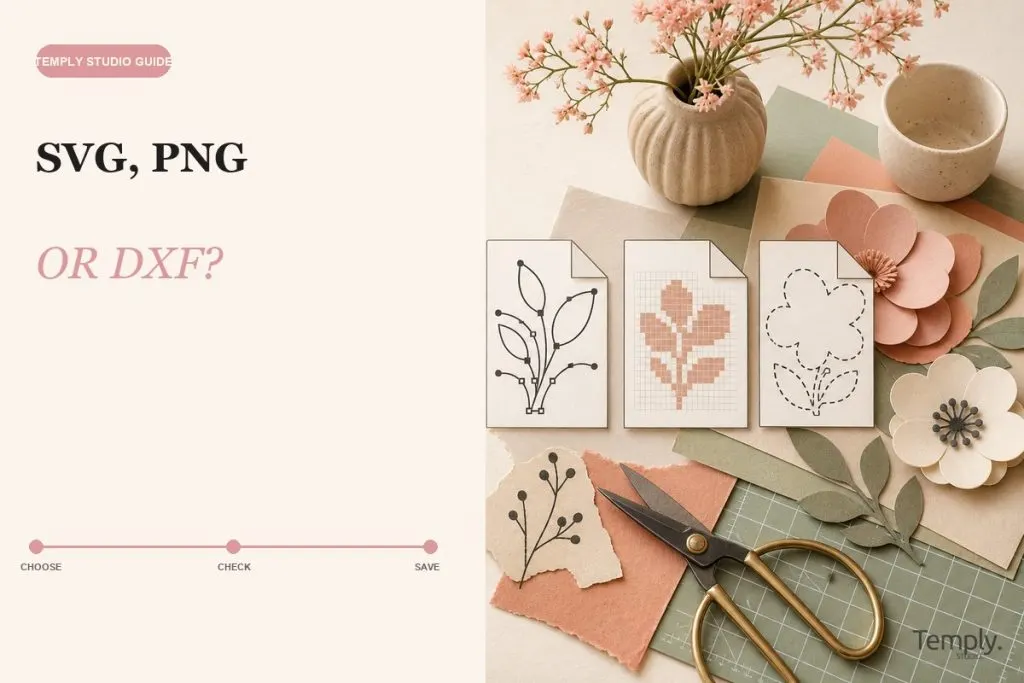
Quick answer: The short answer to DXF vs SVG for Cricut is simple: use the SVG when your bundle includes one. SVG is the better default for most Cricut vinyl, paper, heat-transfer vinyl (HTV), and layered craft projects because it usually carries color and layer information more usefully. Keep the DXF as a compatibility fallback for software or older cut-file workflows that expect CAD-style geometry.
Last updated: November 25, 2026. Cricut software behavior was checked against Cricut Help Center articles on that date; Design Space can change, so use the linked official guides for the latest steps.
If your download contains SVG, PNG, DXF, EPS, PDF, and JPG files, you do not need to master every format. Choose the one that matches your project, device, and software.
DXF vs SVG for Cricut: the quick answer
For a normal Cricut cutting project, choose the SVG first. It is the format most Cricut users expect, it scales cleanly, and Cricut’s upload flow treats it as a vector image. Choose the DXF when the receiving software requires it, when the bundle has no usable SVG, or when you are moving geometry into a CAD, laser, or older cutting workflow.
That is the default, not a guarantee. A poorly exported SVG can lose pieces, arrive at the wrong size, or contain items Design Space cannot use. A clean DXF can cut well on the desktop version of Design Space. Before using either file on real vinyl or cardstock, inspect the upload and test-cut a small shape on scrap material.
What SVG and DXF files actually are
SVG means Scalable Vector Graphics. The W3C SVG specification describes an XML-based format for two-dimensional graphics. In plain language, an SVG stores paths, shapes, colors, groups, and sometimes layers instead of fixed pixels, so it can scale from a small decal to a large sign without becoming blurry.
DXF means Drawing Interchange Format. Autodesk describes DXF as a format used to interchange drawing data between applications in its DXF documentation. It comes from the CAD world, so it is very good at carrying lines, curves, points, and outlines. It usually carries less craft-friendly context than a well-made SVG.
In practice, an SVG often arrives like a well-organized craft file, while a DXF is closer to bare cutting geometry. Both can contain vector paths; the difference is how much helpful design information survives import.
DXF vs SVG in Cricut Design Space
Cricut’s official image-upload guide, edited March 30, 2026 and checked November 25, 2026, lists SVG and DXF as vector image types. It says layered files are separated after upload, SVG uploads are limited to 5,000 paths, and DXF files are not currently supported in Design Space for iOS or Android.
| Check | SVG | DXF |
|---|---|---|
| Best Cricut use | Most vinyl, HTV, cardstock, paper, sign and layered craft projects | Compatibility fallback or a workflow that expects DXF geometry |
| Desktop upload | Supported vector upload | Supported vector upload |
| iOS/Android upload | Supported vector upload in current Cricut guidance | Not supported at the time checked |
| Color and layers | Often preserves craft-friendly colors, grouping, and layer separation when built that way | Often closer to outlines or geometry; results depend on export quality |
| Editing convenience | Usually easier to inspect, recolor, resize, and separate | Can require more cleanup or manual checking |
| Common upload problem | Too many paths, unsupported effects, editable text, clipping paths, or embedded raster items | Wrong scale, missing color separation, grouping surprises, unsupported items, or mobile incompatibility |
The table is a decision aid, not a guarantee. Unsupported effects or construction problems can make either format fail.
Which file should you use for common Cricut projects?
- Vinyl decals and labels: use the SVG when available. Vinyl projects need clean outlines and easy resizing.
- HTV shirts and fabric projects: use the SVG, then mirror the design when the material instructions require it.
- Layered cardstock and paper crafts: use the SVG because separate colors and shapes are easier to inspect. The extension alone does not create layers; the file still has to be built that way.
- Stickers and Print Then Cut: use a PNG or another suitable raster file when you need full-color printed artwork. That decision is covered in Temply’s guide to compare SVG and PNG for Cricut; it is different from the DXF-versus-SVG choice.
- Wood signs and stencil-style projects: start with the SVG. Keep the DXF if the design also needs a CAD, laser, CNC, or other geometry-first workflow.
- Older or mixed-machine craft libraries: keep both files. You may use the SVG in Cricut today and need the DXF in another program later.
When one bundle contains several versions, do not upload all of them at once. Start with the intended SVG, inspect it, and reach for the DXF only when there is a specific reason.
When DXF is still worth keeping
DXF remains valuable as a compatibility format. Some Silhouette, laser, CNC, CAD, and older craft workflows use it to exchange drawing geometry. Behavior depends on the software version, so check the program you actually use.
A DXF can also rescue a project when a bundle has no usable SVG or the supplied SVG is damaged. In that case, the DXF may preserve enough geometry to cut after you confirm sizing and grouping. Keeping the DXF does not mean you should prefer it for everyday Cricut work; it means you have a fallback when the SVG is not practical.
Why a DXF can look wrong after import
The most common surprise is scale. CAD-oriented files may use units that do not match the finished craft size you expected. Check width and height after upload instead of trusting the visual size on the Canvas. If resizing is the main problem, Temply’s guide to resize SVG files without distortion explains proportional scaling.
The second surprise is structure. A DXF may import ungrouped, grouped differently, or without the color separation you expected. That does not automatically mean the file is broken; it may simply contain less craft-oriented organization than the SVG. Inspect the layer panel before deleting anything.
Unsupported contents are another cause. Cricut’s unsupported-items guide says SVG and DXF uploads cannot use pattern fills, clipping paths, editable text, linked images, or embedded unsupported images without causing problems. In beginner terms: textures, masked shapes, live text, external image links, photos, and some gradients need to be flattened, converted, embedded, or exported another way. For detailed path repair, use the guide to clean up problem cut lines.
How to choose the right file inside a multi-format bundle
A craft bundle includes several formats because buyers use different machines and design programs. Here is the practical way to read the folder:
| File in the bundle | Usually use it for | Cricut decision |
|---|---|---|
| SVG | Vector cutting, resizing, color or layer separation | First choice for most Cricut cutting projects |
| PNG | Printing, mockups, transparent-background artwork, some Print Then Cut projects | Use when the project is printed artwork rather than a vector-only cut |
| DXF | Compatibility with geometry-first or older cutting workflows | Fallback or required format; not the usual first choice for Cricut desktop users |
| EPS | Professional vector-design software and some print workflows | Use it in software that supports EPS; do not upload it just because it is vector |
| PDF/JPG | Instructions, reference sheets, previews, or printable versions | Read or print them; they are usually not the main cut file |
Temply product inclusions vary, so check the exact product page before assuming a bundle has DXF. For example, the Welcome Round Sign SVG Bundle and the Back-to-School SVG Bundle list SVG, PNG, DXF, and EPS in product copy checked on November 25, 2026. The Baby SVG Bundle also lists those formats plus a license and file-use guide. By contrast, the Summer Beach SVG Bundle copy checked on the same date lists SVG, PNG, EPS, and JPG, not DXF. That difference is why the folder inventory matters more than the word “bundle.”
When you build a project library, browse SVG and cut-file bundles, then open the individual listing and confirm the exact file list and license terms. If you plan to sell finished items, read Temply’s guide to personal versus commercial SVG use and the license supplied with the product; this article is not legal advice.
How to check the file before cutting real material
- Extract the ZIP first. Keep the original download unchanged and work from a copy.
- Choose one intended file. For most Cricut projects, start with the SVG. Do not upload the PNG, DXF, and EPS “just in case.”
- Use the right platform. If you only have Design Space on iOS or Android, do not plan around a DXF upload; Cricut says that format is not currently supported there.
- Inspect layers and colors. A grouped design can be ungrouped when you need separate pieces, but only attach or weld pieces when the project requires it.
- Confirm dimensions. Compare the imported width and height with the finished size you want before mirroring, duplicating, or slicing anything.
- Preview the cut. Look for missing details, extra shapes, open paths, separated letters, or pieces that no longer line up.
- Test on scrap material. Cut a small section or simplified copy first. A successful screen upload is not proof that fine details will weed cleanly.
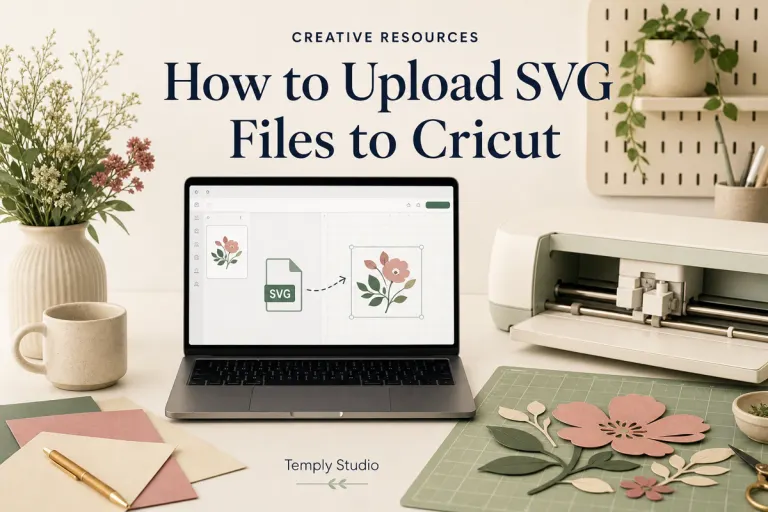
For the full upload workflow, follow Temply’s guide to upload SVG files to Cricut together with current Cricut Help Center instructions. Menus and app behavior can change.
DXF vs SVG FAQs
Can Cricut use DXF files?
Yes, Design Space for Windows and Mac accepts DXF as a vector upload type in current Cricut guidance. Cricut also says DXF files are not supported in Design Space for iOS and Android at this time, so the device matters.
Is SVG always better than DXF for Cricut?
No. SVG is the better default for most Cricut craft projects, but file quality matters more than the extension alone. Use DXF when your software requires it, when no usable SVG exists, or when the project belongs to a geometry-first workflow.
Can I upload a DXF to Design Space on my phone?
Not according to the Cricut upload guide checked on November 25, 2026. It says DXF files are not currently supported in Design Space for iOS and Android. Use the SVG on mobile or upload the DXF through the desktop version if the file is otherwise suitable.
Should I convert DXF to SVG?
Only when conversion solves a real problem, such as mobile access, easier layer handling, or compatibility with another tool. Conversion does not automatically restore missing colors, correct units, close open paths, or repair a poorly constructed design. Keep the original file and test the converted copy before cutting.
Do all SVG bundles include a DXF file?
No. Some bundles include SVG, PNG, DXF, and EPS, while others include a smaller or different set of formats. Always check the exact product listing and the extracted folder before planning a project around DXF.
The bottom line
Use the SVG first for most Cricut cutting, keep the DXF as a compatibility fallback, and inspect every upload before cutting. The right DXF vs SVG for Cricut choice is the file that matches your project, device, and software — not simply the first file in the ZIP. A two-minute layer, size, and test-cut check is much cheaper than wasting vinyl, HTV, or cardstock.
Temply Studio
Stop chasing your goals with sticky notes and scattered notebooks. Our premium digital planners and Canva templates are designed to help you plan with intention, stay consistent, and actually enjoy the process.
Questions about this guide?
Ask about the planner, share how you use it, or tell us what to cover next. Your email stays private.