




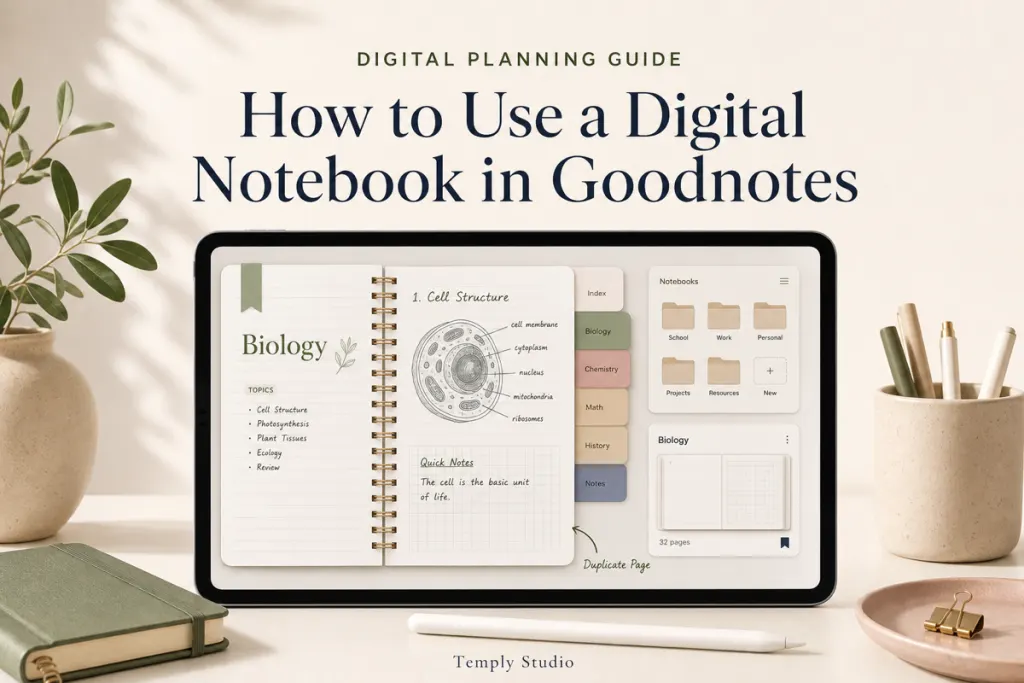
How to use a digital notebook in Goodnotes depends on the file you purchased and the way you organize notes. In most cases, you import a PDF, test its hyperlinks, choose a folder, and then use the notebook for handwriting, typing, images, or annotations. The exact interface can change, so follow the current prompts in Goodnotes and the instructions included with the product.
Quick workflow: download the notebook, unzip it if necessary, import the PDF, test navigation, create a folder system, duplicate only the pages you need, and keep an untouched backup of the original file.
What is a digital notebook?
A digital notebook is usually a PDF designed for use in a note-taking or annotation app. It may contain lined, grid, dotted, blank, project, subject, meeting, or study pages. A hyperlinked notebook may also include tabs, an index, section dividers, and buttons that connect pages.
A PDF notebook is not automatically editable like a Word or Canva template. Goodnotes provides the writing and annotation tools, while the original PDF provides the page design and hyperlinks.
Check the product before importing
- File type
- Page count
- Portrait or landscape orientation
- Hyperlinked or non-hyperlinked structure
- Included covers and dividers
- Software and device requirements
- Whether a ZIP file must be extracted
- Product license and support scope
Do not assume that every notebook works in every annotation app or on every device. Confirm the intended workflow on the current product page.
Step 1: Download and extract the files
Save the purchase to a folder you can locate easily. When the download is a ZIP archive, extract it before importing. The extracted folder may include the main notebook, cover choices, sticker files, instructions, or several orientations.
- Keep the original ZIP file as a backup.
- Identify the main PDF before importing.
- Do not import a preview image or instruction sheet by mistake.
- Check the filename for orientation, date, language, or version.
Step 2: Import the digital notebook
Open the PDF from the Files app or another supported location and use the current Share or Open In workflow to send it to Goodnotes. You may also be able to begin the import from inside the app. Choose a destination folder and import the file as a new document unless you intentionally want to add it to an existing notebook.
Step 3: Test hyperlinks and navigation
Open the notebook and test several tabs, index links, home buttons, and section dividers. Hyperlinks normally need a navigation or reading mode. In writing mode, tapping the page may place ink or select an annotation instead of following the link.
- Test more than one link.
- Check the index and section tabs.
- Confirm that links open the intended pages.
- Keep the original PDF available for comparison.
- Contact product support when the original file appears defective.
Step 4: Create a notebook organization system
| Organization method | Example |
|---|---|
| By area | Work, study, personal, finances |
| By project | Website redesign, course assignment, event planning |
| By time | 2026, semester one, quarterly notes |
| By subject | Marketing, mathematics, clinical notes, languages |
| By status | Active, reference, archive |
Use a small number of folders and consistent document names. A complicated filing system can make the notebook harder to find than the information inside it.
Step 5: Choose a simple page workflow
- Open the index or current section.
- Choose the correct page type.
- Add a clear page heading or date.
- Write, type, highlight, or add images as needed.
- Use consistent colors and symbols.
- Add the next action when the note requires follow-up.
- File or archive completed sections during a regular review.
How to use common digital notebook pages
| Page type | Useful for |
|---|---|
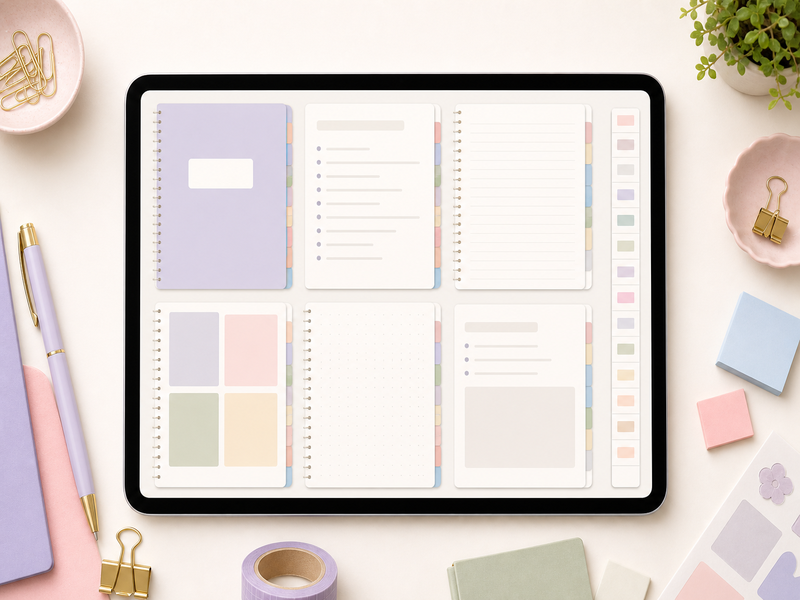
| Lined | Meeting notes, lectures, reflections, writing |
| Grid | Diagrams, structured notes, calculations |
| Dotted | Flexible layouts, sketching, bullet-style notes |
| Blank | Drawing, mind maps, free-form planning |
| Cornell-style | Cues, detailed notes, and summary review |
| Project page | Outcome, tasks, deadlines, notes, and follow-up |
| Index | Finding subjects and sections quickly |
Duplicate and add pages carefully
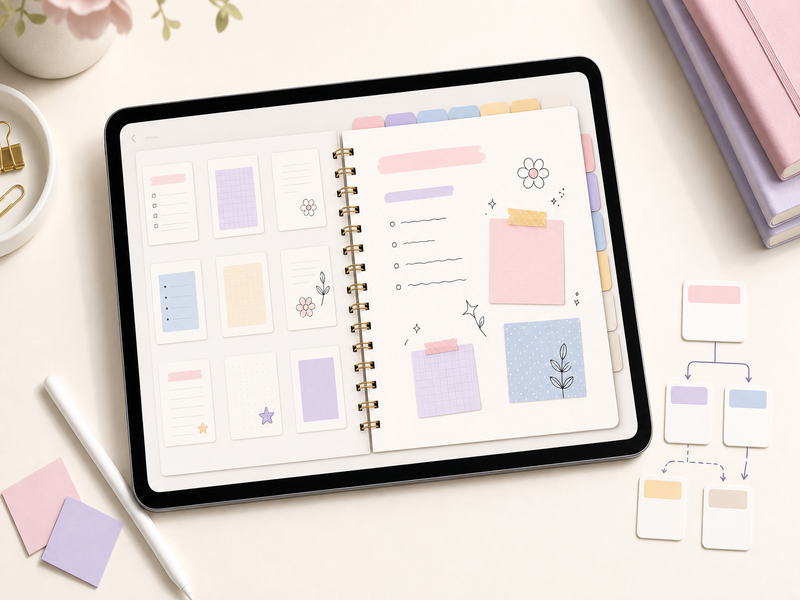
Goodnotes may allow pages to be duplicated or inserted, depending on the current app workflow. Duplicate only the page needed and place it in the correct section. New pages may not automatically become part of the notebook’s original hyperlink structure.
- Keep a clean copy of reusable pages.
- Do not overwrite the only original notebook.
- Check whether duplicated pages retain internal links.
- Use page names or outlines when the app supports them.
- Back up important annotated documents.
Use handwriting, typing, and images consistently
Choose a small set of pen styles, colors, heading formats, and symbols. Consistency makes pages easier to scan and reduces setup time. Use typed text when it improves readability and handwriting when speed or flexibility matters.
Create a weekly notebook review
- Review recent pages.
- Highlight unresolved questions.
- Move actionable items into the correct planner or task system.
- Rename unclear documents.
- Archive completed projects or subjects.
- Remove accidental duplicates.
- Confirm that important notes are backed up.
Common Goodnotes notebook problems
| Problem | What to check |
|---|---|
| Notebook will not import | Confirm the ZIP is extracted and the selected file is a supported PDF |
| Tabs do not work | Switch from writing mode to navigation mode |
| Wrong orientation | Return to the download folder and choose the correct version |
| Duplicate notebook | Confirm which copy contains current annotations before deleting |
| Missing fonts | Check whether fonts are part of an editable file rather than the PDF notebook |
| Pages are slow | Review file size, device storage, and current app guidance |
Frequently asked questions
Can I use the same notebook on several devices?
Device and syncing options depend on the current Goodnotes plan, platform, account, and product license. Check official documentation and the product terms.
Can I add my own cover?
Often, but the method depends on the current app features and the notebook structure. Keep an original copy before changing pages.
Does a digital notebook replace a task manager?
Not necessarily. A notebook is useful for notes and reference. Time-sensitive actions may still need a calendar, planner, or task system.
Build a notebook system you can review
Start with a small folder structure, test navigation, use consistent pages, and review notes regularly. Browse the Temply Studio digital planner collection, read what a hyperlinked digital planner is, or review the Goodnotes planner guide. Verify the exact included files, compatibility, license, and delivery information on each product page.
Official reference
Temply Studio
Stop chasing your goals with sticky notes and scattered notebooks. Our premium digital planners and Canva templates are designed to help you plan with intention, stay consistent, and actually enjoy the process.



Questions about this guide?
Ask about the planner, share how you use it, or tell us what to cover next. Your email stays private.