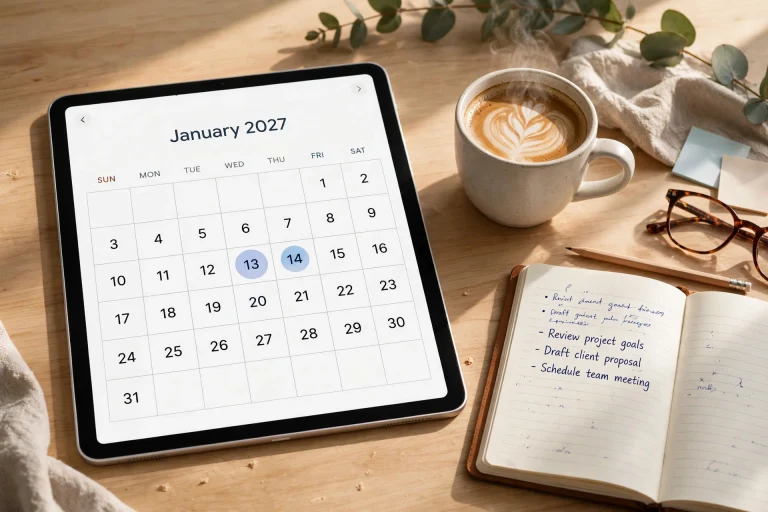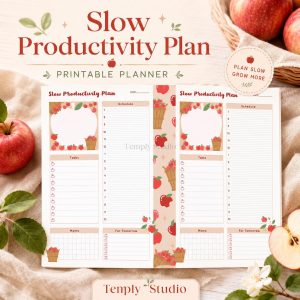

A planner goodnotes is more than just a digital notebook — it’s your command center for managing tasks, goals, and creative ideas. Whether you’re a busy entrepreneur, a student juggling deadlines, or a creative professional, using a digital planner inside GoodNotes transforms how you organize your life. With the right setup, you can replace dozens of paper notebooks and sticky notes with one elegant, searchable, and endlessly customizable system.
Many people jump into digital planning without understanding the full potential of a planner goodnotes. They download a template, write a few notes, then abandon it after a week. The secret to long-term success lies in choosing the right layout, setting up hyperlinks correctly, and building daily habits around your planner. In this guide, we’ll walk through every step — from selecting your first template to mastering advanced productivity workflows — so you can finally stick with digital planning and see real results.
Why a Digital Planner Outperforms Paper Planners
The debate between paper and digital planning has raged for years, but when you experience a planner goodnotes for the first time, the advantages become immediately clear. Digital planners offer flexibility that paper simply cannot match — you can erase mistakes without white-out, duplicate pages instantly, and carry thousands of pages in a device that weighs less than a pound. For people who value both aesthetics and functionality, the digital route is a no-brainer.
One of the biggest pain points with paper planners is commitment. You buy a beautiful leather-bound planner in January, use it faithfully for two weeks, then miss a day. That blank page stares at you, guilt creeps in, and eventually you abandon the entire system. A planner goodnotes eliminates this problem entirely. If you miss a day, you simply delete the page or move your tasks forward. There’s no wasted paper, no guilt, and no sunk cost fallacy keeping you stuck in a system that doesn’t work.
Another overlooked benefit is searchability. In a paper planner, finding a note from three months ago means flipping through dozens of pages. In GoodNotes, you can search your handwriting instantly. Need to find that meeting note about the marketing campaign? Type “campaign” into the search bar, and your planner goodnotes will surface every relevant page. This alone saves hours over the course of a year.
Hyperlinks: The Superpower of Digital Planners
The most underrated feature of a planner goodnotes is hyperlinking. A well-designed digital planner includes clickable tabs that let you jump from your monthly calendar to a specific weekly spread, then to a notes page, and back again — all with a single tap. This creates a non-linear navigation experience that mirrors how your brain actually works. You’re not forced to flip through pages in order; you can access any section instantly.
When you’re setting up your planner goodnotes, pay close attention to the hyperlink structure. The best templates include a table of contents page with links to every major section, plus back-buttons on every page so you never get lost. Some advanced planners even include hyperlinked checkboxes that automatically move tasks to a “done” page. This level of automation is impossible with paper and transforms your planner from a passive notebook into an active productivity tool.
To get the most out of hyperlinks, take time to learn how GoodNotes handles them. Tap once to follow a link, and use the “back” gesture (swipe from the left edge) to return to your previous page. Many users don’t realize this feature exists, which leads to frustration. Once you master navigation, your planner goodnotes becomes lightning-fast to use.
Choosing the Right Planner Goodnotes Template
Not all digital planners are created equal. When you search for a planner goodnotes, you’ll find thousands of options ranging from minimalist black-and-white layouts to elaborate artistic designs with watercolor florals. The key is to match the template to your personal workflow and aesthetic preferences. A planner that looks beautiful but doesn’t support your actual planning habits will collect digital dust.
Start by identifying your primary planning needs. Are you a daily task manager who needs hour-by-hour scheduling? Or do you prefer a big-picture weekly view with space for reflection? Some planner goodnotes templates specialize in goal setting with vision boards and habit trackers, while others focus purely on appointments and to-do lists. The best approach is to download a few free samples and test them for a week before committing to a full purchase.
At Temply Studio, we design our planner goodnotes templates with versatility in mind. Each planner includes multiple layout options — daily, weekly, and monthly views — so you can switch between them depending on your workload. We also embed custom hyperlinks that match our unique navigation system, making it easy to jump between sections without confusion. Our templates are fully compatible with GoodNotes, Notability, and any PDF annotation app.

Key Features to Look For in a Template
When evaluating a planner goodnotes template, there are several non-negotiable features that separate high-quality designs from amateur ones. First, check the hyperlink quality. Click every tab and button to ensure they all lead to the correct pages. Broken links are the number one cause of frustration with digital planners. Second, examine the page size and margins. The template should fit perfectly on your iPad screen without awkward cropping or tiny text.
Another critical feature is the use of layers. The best planner goodnotes templates include separate layers for the background design, the text elements, and the hyperlinks. This allows you to customize colors, hide elements you don’t need, and even add your own stickers without damaging the underlying structure. If a template doesn’t support layers, you’ll be stuck with the designer’s choices forever.
Finally, consider the sticker and accessory pack that comes with the template. Many premium planner goodnotes bundles include hundreds of digital stickers — habit trackers, mood trackers, project icons, and decorative elements. These aren’t just for looks; they serve functional purposes. For example, a habit tracker sticker that you place on your weekly spread can help you visualize your progress at a glance. At Temply Studio, we include comprehensive sticker packs with every planner purchase to help you personalize your experience.
Setting Up Your Planner Goodnotes for Maximum Efficiency
Once you’ve chosen your template, the setup process is crucial. Many users make the mistake of importing a planner goodnotes and immediately starting to write, without configuring the app settings for optimal performance. Take fifteen minutes to set up your planner correctly, and you’ll save hours of frustration down the line.
Start by adjusting your GoodNotes writing settings. Go to the tool settings and enable “Pressure Sensitivity” for the pen tool. This allows your handwriting to vary in thickness based on how hard you press, creating a more natural feel. Set your preferred pen color and thickness — most people find 0.5mm to 1.0mm works best for daily writing. Also, enable “Zoom Window” mode, which gives you a magnified area for precise writing. This is especially useful when filling in small calendar boxes in your planner goodnotes.
Next, organize your planner within the GoodNotes library. Create a dedicated folder for your planner and any associated files — sticker packs, extra templates, or reference PDFs. Name the folder clearly, such as “2026 Planner” or “Business Planner.” Within the planner itself, use the page thumbnail view to rearrange sections if needed. Some users like to move their monthly overview to the front, while others prefer starting with the yearly goals page. Your planner goodnotes should flow in the order that makes sense to you, not the designer.
Importing and Organizing Stickers
Digital stickers are one of the most enjoyable aspects of using a planner goodnotes. They add personality, color-code your tasks, and make planning feel less like a chore. To import stickers, save them as individual PNG files with transparent backgrounds. In GoodNotes, use the “Add Image” tool to place stickers onto your planner pages. You can resize, rotate, and layer them however you like.
For efficient sticker management, create a “Sticker Book” page within your planner. This is a dedicated page where you paste all your stickers in one place. When you need a sticker, simply copy it from the sticker book and paste it onto your current page. This eliminates the need to dig through your photo library every time. Many premium planner goodnotes templates from Temply Studio include pre-designed sticker book pages with hyperlinks to quickly jump to them.
Another pro tip is to organize stickers by category. Create separate sections in your sticker book for “Work,” “Personal,” “Health,” and “Finance.” This way, when you’re planning your work week, you can quickly grab project-related stickers without scrolling past personal ones. The time you invest in organizing your stickers upfront pays off every single day you use your planner goodnotes.
Building a Daily Planning Routine with GoodNotes
Having a beautiful planner goodnotes is useless without a consistent routine. The most successful digital planners treat their planner like a daily meeting with themselves. Set aside ten to fifteen minutes every morning and evening to review and update your planner. This habit transforms your planner from a passive document into an active productivity engine.
Start your morning routine by opening your planner goodnotes to the current day’s spread. Review your scheduled appointments and tasks from the previous day. Move any unfinished tasks to today’s list. Then, identify your top three priorities for the day — the tasks that must get done no matter what. Write them at the top of your page or mark them with a special sticker. This simple act of prioritization prevents you from wasting energy on low-value activities.
Your evening routine is equally important. Before closing your planner goodnotes for the night, do a quick review. Check off completed tasks, write a brief reflection on what went well, and set up tomorrow’s page. Many users find that a “brain dump” section at the end of the day helps clear their mind for better sleep. Write down any lingering thoughts, ideas, or worries so you can address them tomorrow.

Weekly and Monthly Reviews
Beyond daily check-ins, your planner goodnotes should support weekly and monthly reviews. A weekly review takes about thirty minutes and involves looking back at the past week’s accomplishments, challenges, and lessons learned. Use your planner’s weekly spread to identify patterns. Did you consistently miss a certain type of task? Did you overcommit your time? Adjust your approach for the following week.
Monthly reviews are more strategic. Open your planner goodnotes to the monthly calendar and goal pages. Compare your actual progress against the goals you set at the beginning of the month. Celebrate wins, no matter how small, and honestly assess where you fell short. Use the insights from this review to set more realistic goals for the next month. Many digital planners include dedicated reflection pages for this purpose, with prompts like “What worked well?” and “What can I improve?”
The beauty of a planner goodnotes is that all your historical data is preserved. You can look back at your weekly reviews from six months ago and see how far you’ve come. This long-term perspective is incredibly motivating and helps you stay committed to your planning habit. Without a digital archive, these insights would be lost in a pile of discarded paper notebooks.
Advanced Productivity Techniques Using Planner Goodnotes
Once you’ve mastered the basics, you can unlock advanced productivity techniques that take your planner goodnotes to the next level. These methods go beyond simple task tracking and turn your planner into a comprehensive life management system.
One powerful technique is “Time Blocking” within your planner goodnotes. Instead of listing tasks, assign each task to a specific time slot on your daily spread. Use different colors for different types of work — blue for deep work, green for meetings, yellow for administrative tasks, and red for urgent items. This visual approach helps you see at a glance whether your day is balanced or overloaded. Time blocking also prevents multitasking because you commit to one activity per block.
Another advanced method is “Project Chunking.” For complex projects that span weeks or months, create a dedicated project page in your planner goodnotes. Break the project down into phases, each with its own checklist and deadline. Link this project page to your weekly spreads so you can assign project tasks to specific weeks. This creates a cascade from big-picture goals down to daily actions, ensuring nothing falls through the cracks.
Integrating Your Planner with Other Apps
Your planner goodnotes doesn’t have to exist in isolation. Many users integrate their digital planner with other productivity tools for a seamless workflow. For example, you can export your weekly task list from GoodNotes as a PDF and import it into a project management tool like Notion or Trello. Alternatively, use the Apple Calendar to manage appointments and then manually transfer key events into your planner for a more tactile overview.
Some advanced users create a “Dashboard” page in their planner goodnotes that pulls in data from multiple sources. For instance, you might have a section that shows your current project status, a habit tracker that syncs with your health app, and a finance tracker that mirrors your budgeting spreadsheet. While this requires manual updates, the act of writing the information down helps reinforce it in your memory.
At Temply Studio, we offer templates that are designed to complement other tools rather than replace them. Our planner goodnotes bundles include dedicated pages for “App Logins” and “Tool Integrations” so you can keep all your systems organized in one place. This holistic approach ensures you have a single source of truth for your entire workflow.
Customizing Your Planner Goodnotes with Canva
One of the biggest advantages of using a planner goodnotes from a brand like Temply Studio is the ability to customize it using Canva. Our templates are built as editable Canva files, which means you can change colors, fonts, and layouts to match your personal brand or aesthetic preferences. This level of customization is impossible with pre-designed PDFs that lock you into the original design.
To customize your planner goodnotes, start by opening the Canva template file. Browse through the pages and identify elements you want to change. Maybe you prefer a different shade of blue for your headers, or you want to replace the default stickers with your own designs. Canva’s drag-and-drop interface makes these changes simple, even if you have no design experience. Once you’re happy with the look, export the file as a PDF and import it into GoodNotes.
Customization goes beyond aesthetics. You can also rearrange the page order, add new sections, or remove pages you don’t use. For example, if you don’t need a “Meal Planning” section, simply delete those pages from the Canva file before exporting. This creates a truly personalized planner goodnotes that fits your exact needs, without the clutter of unused features.
Adding Your Own Branding Elements
For creative entrepreneurs and small business owners, a branded planner goodnotes can serve as a powerful client-facing tool. Imagine sending a beautifully branded digital planner to your coaching clients or team members. You can add your logo, brand colors, and even custom watermarks to every page. This not only reinforces your brand identity but also adds a professional touch that sets you apart from competitors.
To brand your planner goodnotes, use Canva’s “Brand Kit” feature to save your brand colors, fonts, and logos. Apply these consistently across all pages. You can also create custom cover pages with your business name and tagline. Some of our customers at Temply Studio use their branded planners as lead magnets — offering them as free downloads in exchange for email signups. This strategy builds your audience while showcasing your design skills.
Remember that a branded planner goodnotes should still be functional. Don’t sacrifice usability for aesthetics. Ensure that all hyperlinks work correctly, text remains readable, and the layout supports efficient planning. The best branded planners strike a balance between beautiful design and practical utility.
Troubleshooting Common Issues with Planner Goodnotes
Even the most experienced digital planners encounter issues with their planner goodnotes from time to time. Knowing how to troubleshoot common problems will save you from frustration and keep your planning habit on track.
One frequent issue is hyperlinks not working. This usually happens when the PDF file wasn’t exported correctly from the original design tool. To fix this, re-export your planner goodnotes from Canva or your design software, making sure to select “PDF for Print” or “PDF Standard” rather than “PDF for Web.” Some export settings strip out interactive elements. If links still don’t work, test the PDF in Adobe Acrobat Reader before importing into GoodNotes — this isolates whether the problem is with the file or the app.
Another common problem is handwriting lag or inaccuracy. If your strokes appear delayed or misaligned, check your iPad’s screen protector. Matte screen protectors, while great for a paper-like feel, can interfere with the Apple Pencil’s precision. Try removing the protector temporarily to see if performance improves. Also, ensure your Apple Pencil tip is clean and not worn down. A fresh tip makes a significant difference when writing in your planner goodnotes.
Backing Up Your Planner Data
Losing your planner goodnotes data is a nightmare scenario. Always maintain multiple backups. GoodNotes offers iCloud sync, which keeps your planner updated across all your Apple devices. Enable this in the app settings. Additionally, periodically export your entire planner as a PDF and save it to Google Drive, Dropbox, or your computer. This gives you a static backup that preserves all your handwriting and stickers.
For the most important data — like business notes or client information — consider printing key pages from your planner goodnotes and filing them physically. While this might seem old-fashioned, it provides an irreplaceable backup in case of device failure or data corruption. Some users also take screenshots of critical pages and store them in a secure folder.
If you ever need to transfer your planner goodnotes to a new iPad, use GoodNotes’ built-in backup and restore feature. This transfers your entire library, including page thumbnails, hyperlinks, and handwritten annotations. Avoid manually copying PDF files, as this can break hyperlinks and lose metadata. Always use the official backup methods.
Conclusion: Make Your Planner Goodnotes Work for You
A planner goodnotes is only as effective as the habits you build around it. The templates, stickers, and customization options are tools — the real transformation comes from consistent daily use. Start small. Commit to opening your planner every morning for just five minutes. Gradually expand your routine to include weekly reviews and goal setting. Over time, your planner will become an indispensable part of your productivity system.
At Temply Studio, we’re passionate about creating planner goodnotes templates that make organization feel effortless and enjoyable. Our premium bundles include everything you need to get started — hyperlinked planners, matching sticker packs, and editable Canva files for customization. Whether you’re a busy professional, a creative entrepreneur, or a student looking to get organized, we have a template that fits your style and workflow. Explore our collection today and discover how a beautifully designed digital planner can transform your productivity.
Frequently Asked Questions
Can I use a planner goodnotes on Android or Windows?
GoodNotes is currently available only on Apple devices — iPhone, iPad, and Mac. However, many planner goodnotes templates are saved as PDFs, which can be imported into other PDF annotation apps like Noteshelf, Flexcil, or Xodo on Android and Windows. The hyperlinks and interactive elements will work in most PDF readers, though handwriting experience may vary depending on the app and stylus you use.
How do I add more pages to my planner goodnotes template?
Most planner goodnotes templates include a set number of pages, but you can easily duplicate existing pages to extend their use. In GoodNotes, tap the “Pages” icon, select the page you want to duplicate, and choose “Duplicate.” This is especially useful for weekly or daily spreads. If you need completely new page types, consider purchasing a template with an “Undated” section that provides blank pages in various layouts.
Will using a planner goodnotes drain my iPad battery faster?
Using GoodNotes itself is not particularly battery-intensive, but keeping the screen on for long periods while writing will drain your battery faster than passive activities like reading. To extend battery life, reduce your screen brightness, turn off Bluetooth when not using the Apple Pencil, and close other apps running in the background. On a modern iPad, you can comfortably use your planner goodnotes for several hours before needing a charge.
Can I share my planner goodnotes with someone else?
Yes, you can share your planner goodnotes with others by exporting it as a PDF and sending the file. However, if the recipient wants to edit the planner, they will need a PDF annotation app that supports handwriting. GoodNotes also allows real-time collaboration on the same document if both users have GoodNotes and are signed into the same iCloud account. For team planning, consider using a shared folder where everyone can access and update the same planner.
Temply Studio
Stop chasing your goals with sticky notes and scattered notebooks. Our premium digital planners and Canva templates are designed to help you plan with intention, stay consistent, and actually enjoy the process.