




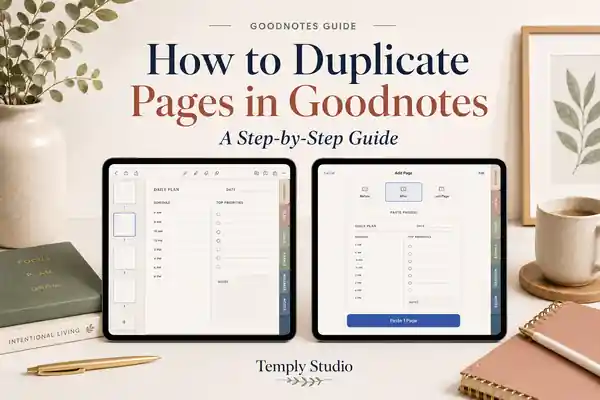
Duplicating a planner page is one of the easiest ways to make a digital planner fit your real routine. You can reuse a weekly review, add another notes page, create extra meal-planning spreads, or copy a project template without rebuilding the layout from scratch.
This guide explains how to duplicate a page in Goodnotes, copy several pages at once, move pages between notebooks, and keep a hyperlinked digital planner organized. Button names can vary slightly by device and Goodnotes version, but the core workflow remains similar.
Quick answer: Open the document’s Pages sidebar, select the page you want, tap Copy, choose where the new page should go with Add Page, and tap Paste Page(s).
Why Duplicate Digital Planner Pages?
A well-designed planner often includes reusable layouts such as blank daily pages, project sheets, trackers, reflection prompts, and notes templates. Instead of keeping only one copy of each layout, you can duplicate the page whenever you need more space.
Common reasons to copy a page include:
- Adding an extra daily or weekly planning page.
- Creating a fresh habit, budget, meal, or wellness tracker.
- Reusing a project-planning template for a new client or assignment.
- Keeping an untouched master page while working on a separate copy.
- Moving useful pages from one notebook into another.
If you have not added your planner to the app yet, begin with our guide on how to import a digital planner into Goodnotes. It is easier to organize copies after the complete PDF has been imported and its original navigation has been tested.
How to Duplicate One Page in Goodnotes
The most reliable method is to copy the page from the Pages sidebar and paste it back into the same document. Goodnotes documents the same copy-and-paste workflow for moving pages between notebooks in its official page copying guide.
Step 1: Open the planner or notebook
Open the Goodnotes document that contains the page you want to reuse. Navigate to that page first so it is easier to identify in the sidebar.
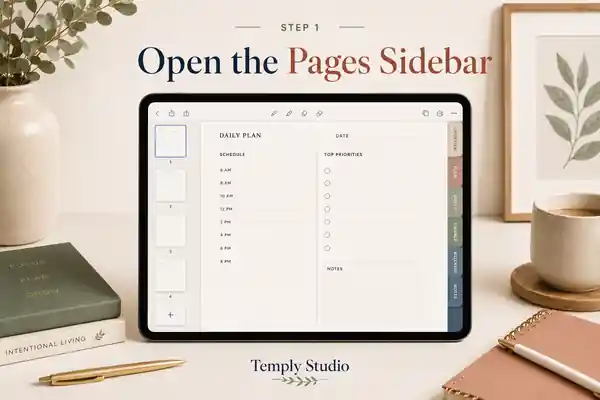
Step 2: Open the Pages sidebar
Tap the sidebar icon near the top-left of the document view, then choose the Pages panel. The sidebar displays page thumbnails and provides controls for copying, moving, deleting, exporting, and reorganizing pages. Goodnotes explains the current sidebar options in its Sidebar guide.
Step 3: Select the page
Open the page-selection menu, choose Select Pages, and tap the thumbnail you want to duplicate. A selected page should display a check mark or selection indicator.
Step 4: Copy the page
Tap Copy. This places a complete copy of the selected page on the Goodnotes clipboard, including the page background and the content currently on that page.
Step 5: Choose the insertion point
Return to the document and navigate to the page near which you want the copy to appear. Tap the Add Page control and choose an available position such as before the current page, after the current page, or at the end of the document.
Step 6: Paste the copied page
Select Paste Page(s). Goodnotes will add the duplicated page at the selected position. Open the Pages sidebar again to confirm that it appears where expected.

Useful habit: Keep one blank version of every reusable planner template. Duplicate the blank master first, then write on the copy.
How to Duplicate Multiple Pages at Once
You can use the same workflow to copy a group of pages. This is helpful when a planner section contains several connected layouts, such as a project overview, task list, notes page, and review page.
- Open the Pages sidebar.
- Choose Select Pages.
- Tap every page you want to reuse.
- Tap Copy.
- Choose the destination position with Add Page.
- Tap Paste Page(s).
After pasting, check the thumbnail order before adding notes. A multi-page section is easier to correct while the copied pages are still blank.
How to Copy Pages to Another Goodnotes Notebook
Copying pages into another notebook is useful when you want to combine a planner with course notes, client work, a digital journal, or a separate project file.
- Open the source document and go to the Pages sidebar.
- Select one or more pages and tap Copy.
- Open the destination notebook.
- Tap Add Page and choose the insertion location.
- Select Paste Page(s).
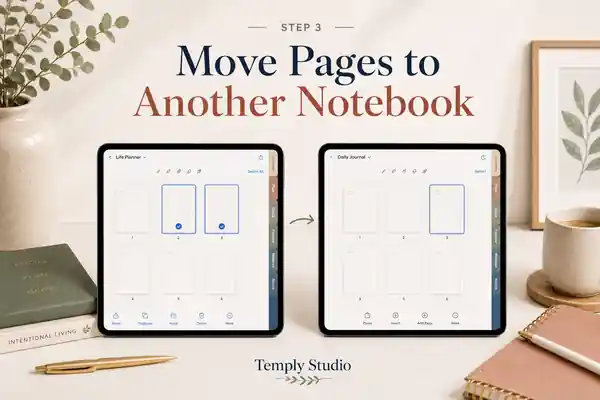
Goodnotes also supports moving pages and, on compatible Apple devices, drag-and-drop workflows between windows. Copying is usually safer when you want to keep the original section intact. Moving is better when the page belongs only in the destination notebook.
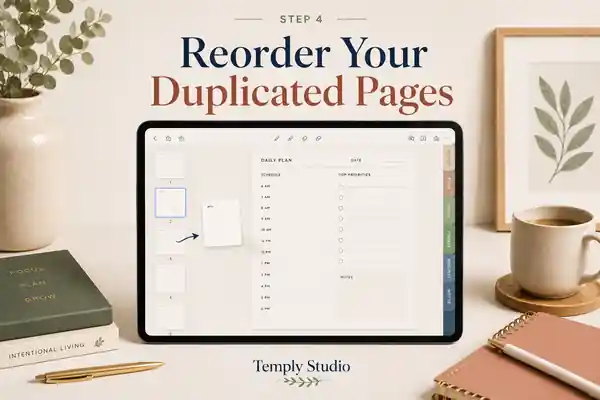
How to Move the Copied Page into the Right Position
If the page appears in the wrong place, you do not need to delete it and start again. Open the Pages sidebar, press and hold the page thumbnail, then drag it to the correct location. You can also select several pages and move them as a group.
The official Goodnotes page reordering guide describes both individual and grouped page movement.
For large planners, use a consistent structure:
- Place extra daily pages immediately after the related date.
- Keep project pages together rather than scattering them across the planner.
- Put reusable blank masters near the back of the document.
- Use bookmarks or outlines for sections you revisit frequently.
What Happens to Hyperlinks When You Duplicate a Planner Page?
A hyperlinked planner is usually an imported PDF whose tabs, index buttons, and navigation areas connect to specific pages. Goodnotes supports following these PDF links; on some platforms you may need navigation or read-only mode, while edit mode may require a long press and Open Link. See the official PDF hyperlink instructions for current device-specific behavior.
Duplicating a page does not rebuild the planner’s entire link map. A copied page may preserve the clickable objects already embedded in it, but those links can still lead to the original destinations. For example, a copied daily page may contain a “Month” button that returns to the same original monthly overview rather than a new custom section.
After duplicating a page:
- Switch to navigation or read-only mode.
- Test every tab or button on the copied page.
- Confirm where each link opens.
- Keep important navigation controls clear of stickers, images, or writing.
For a fuller explanation of planner navigation, read what a hyperlinked digital planner is.
Best Practices for Reusable Goodnotes Planner Pages
Keep a blank master section
Create a clearly labeled section at the end of the planner for blank daily, weekly, notes, tracking, and project templates. Duplicate from this section instead of erasing an old page.
Copy before adding handwriting or stickers
If you duplicate a completed page, the copied handwriting, images, and stickers may come with it. Start from a blank template when possible. You can then add reusable graphics with the workflow in our guide to adding digital stickers to Goodnotes.
Use one page for one purpose
A page is easier to reuse when its layout has a clear role. Separate project planning, meeting notes, habit tracking, finances, and reflection instead of placing every function on one crowded template.
Choose the correct orientation
A copied page keeps its original dimensions and orientation. Before building a large planner system, compare portrait and landscape digital planner layouts so your reusable pages fit the way you hold and use your device.
Back up important documents
Before reorganizing a large planner, create a backup or duplicate the entire document from the library. This gives you a recovery copy if pages are moved, deleted, or pasted into the wrong section.
Common Problems and How to Fix Them
I cannot find Paste Page(s)
Make sure you copied a complete page from the Pages sidebar rather than copying only handwriting or an image with the Lasso tool. Then open the destination document and use Add Page to look for the page-paste option.
The copied page appears at the end of the planner
Open the Pages sidebar and drag the thumbnail to the correct place. For a large document, move it in stages rather than trying to drag it through hundreds of pages at once.
The copied page contains old handwriting
You copied a completed page instead of a blank master. Use Undo immediately, delete the copy, or remove the old content with the appropriate selection tool. Keeping untouched template pages prevents this problem.
The hyperlinks do not open
Switch from editing mode to navigation or read-only mode and try again. On some devices, you can long-press the linked area and choose Open Link. Also test the original page; if the original link is broken, duplicating the page will not repair it.
I moved the original page instead of copying it
Use Undo if the action was recent. Otherwise, locate the page in its new position and move it back. When the original page must remain untouched, use Copy rather than Move.
The page order became confusing
Rename the document, add bookmarks, or use outline entries for major sections. A simple naming system such as “Blank Templates,” “Projects,” “Notes,” and “Trackers” makes duplicated pages easier to manage.
Frequently Asked Questions
Can you duplicate a page in Goodnotes?
Yes. You can copy a complete page from the Pages sidebar and paste it into the same document or another Goodnotes notebook.
How do I duplicate a page without copying my handwriting?
Duplicate an untouched blank template rather than a page you have already completed. Keep blank master pages in a separate section for future use.
Can I duplicate several Goodnotes pages together?
Yes. Use Select Pages in the sidebar, choose multiple thumbnails, tap Copy, and paste the group at the desired position.
Can I copy a planner page into another notebook?
Yes. Copy the page in the source document, open the destination notebook, choose Add Page, and tap Paste Page(s).
Will duplicated pages keep hyperlinks?
Existing clickable areas may remain on the copied PDF page, but they usually continue pointing to their original destinations. Test every link after copying because duplicating a page does not automatically rebuild the planner’s navigation structure.
Does duplicating a page change the original?
No. Copying and pasting creates another page. Moving a page, however, changes its location and may remove it from the original section.
Can I duplicate a whole Goodnotes notebook?
Yes. From the library, open the document menu and use the available Duplicate option. This is useful before making major changes to a planner.
Create a Planner System You Can Reuse
Once you know how to duplicate a page in Goodnotes, a fixed planner becomes much more flexible. Keep blank masters, copy only the pages you need, organize the duplicates immediately, and test any embedded hyperlinks before relying on the new section.
Ready to build your planning setup? Browse the Temply Studio digital planner collection and review each product’s orientation, dating format, included files, and compatible apps before choosing your planner.
Temply Studio
Stop chasing your goals with sticky notes and scattered notebooks. Our premium digital planners and Canva templates are designed to help you plan with intention, stay consistent, and actually enjoy the process.



Questions about this guide?
Ask about the planner, share how you use it, or tell us what to cover next. Your email stays private.