




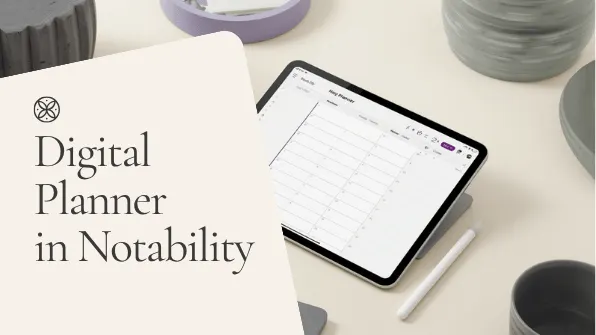
A free digital planner for Notability should be selected by its actual file, layout, navigation, and license—not by the word “free” in the title. Start with a complete PDF from an identifiable source, confirm that it is not password-protected, and test the planner on your own device before adding important notes.
This is a guide to evaluating a free digital planner for Notability, not a free planner download or a promise that Temply Studio supplies one.
Quick answer
Look for a planner PDF with clear page previews, the correct dated period, readable writing space, documented hyperlinks where included, and usage terms you understand. Keep an untouched backup and evaluate a duplicate in Notability for one normal week.
What makes a planner suitable for Notability?
Notability can import PDFs and other supported file types, but successful import is only the first check. A useful planner also needs pages that remain readable on your screen, navigation that behaves as described, and a structure that fits your daily or weekly routine. The creator should identify the main planner file and explain whether any covers, stickers, instructions, or editable files are included.
| Decision factor | What to verify | Why it matters |
|---|---|---|
| File type | The complete planner PDF is included | Preview images and instruction sheets are not the working planner |
| File access | The PDF is downloaded locally and not password-protected | Protected or incomplete files can fail during import |
| Orientation | Portrait or landscape suits your device position | The wrong format can require constant zooming |
| Calendar period | The year is correct or the planner is undated | Old calendar pages do not become current automatically |
| Navigation | Any advertised index, tabs, and return links work | A static PDF should not be mistaken for a hyperlinked one |
| Page structure | Daily, weekly, monthly, notes, and trackers fit your needs | More pages do not automatically create a better workflow |
| License | Personal, shared, classroom, client, and commercial use are clear | Free access does not grant redistribution rights |
8 checks before choosing a free digital planner for Notability
1. Verify the publisher or creator
Use the creator’s own website, an official resource library, a recognized organization, or a marketplace page that identifies who supplied the file. The download page should describe the contents and provide a route for questions. Repeated redirects, hidden filenames, and unrelated software requirements are reasons to stop and find another source.
2. Locate the complete PDF
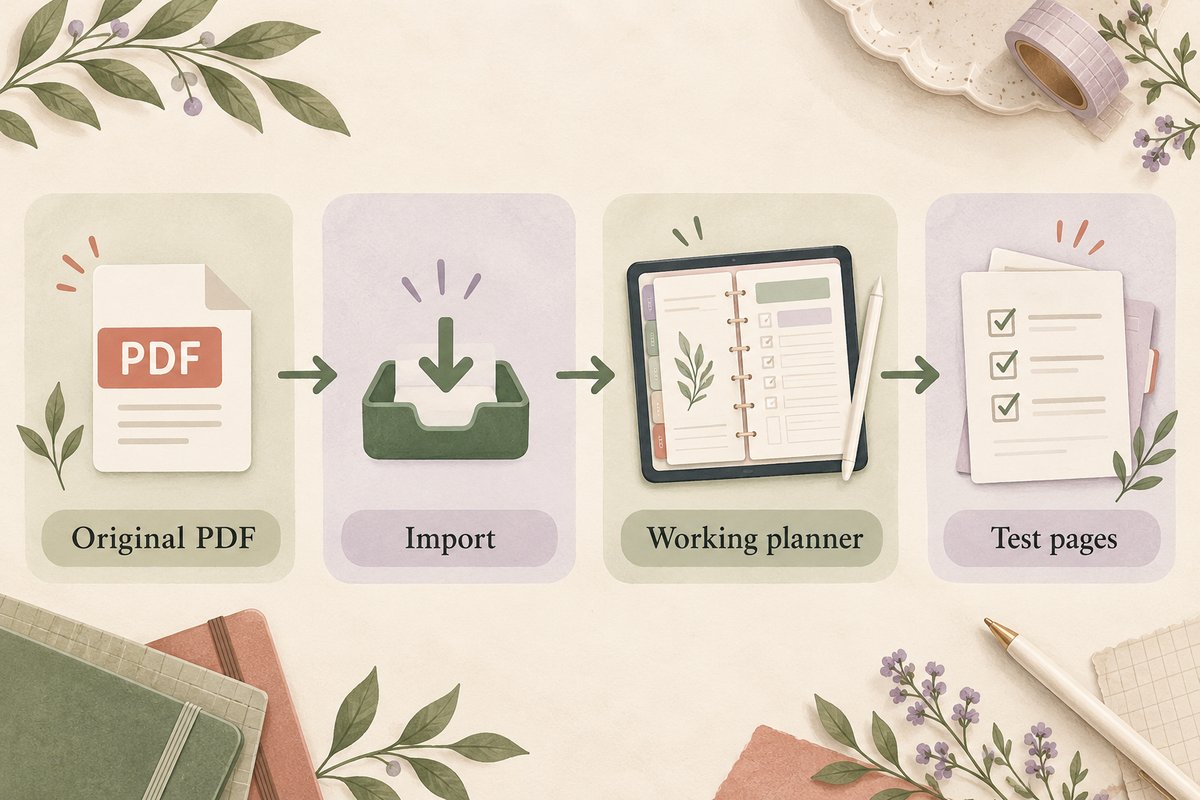
A download may arrive as a ZIP containing a planner, covers, stickers, instructions, and previews. Extract it and identify the main PDF. Do not import a JPG product mockup and assume it is the planner. Keep the original archive and instructions together in case you need to restore the file later.
3. Check for password protection
Notability’s official troubleshooting guidance notes that password-protected PDFs cannot be imported. If a legitimate source supplies a protected file, follow the creator’s access instructions rather than using an unknown unlocking service. A free resource should clearly explain any access requirement before you download it.
4. Match the layout to your screen
Portrait planners suit a vertically held tablet and provide a familiar page shape. Landscape planners offer more horizontal room for weekly schedules, time blocks, and side-by-side sections. Review a full-size sample on your intended device. A design that looks attractive in a small thumbnail may be too dense for comfortable writing.
5. Confirm the dated period
Check the year, week start, calendar conventions, and whether the planner is dated or undated. An undated file may be easier to restart after a break, while a dated planner reduces manual setup. Use the dated versus undated planner comparison to decide which trade-off suits your routine.
6. Inspect hyperlink claims
A hyperlinked planner should show an index, tabs, or buttons that connect sections. After import, test several destinations and return links using the current navigation controls in Notability. If the source describes only printable pages, do not assume that digital tabs have been added.
7. Review the usable pages
Choose the pages that solve your task: a monthly calendar for deadlines, a weekly spread for appointments, daily pages for detailed schedules, or notes for flexible planning. Large bundles can create more navigation and setup work when most pages are irrelevant.
8. Keep the license with the file
Free files can still be copyrighted and restricted to personal use. Check whether you may duplicate a clean working copy, use pages with clients or students, edit the design, print it, or share it. Do not redistribute the original download unless the creator expressly permits that use.
A safe first-use checklist in Notability
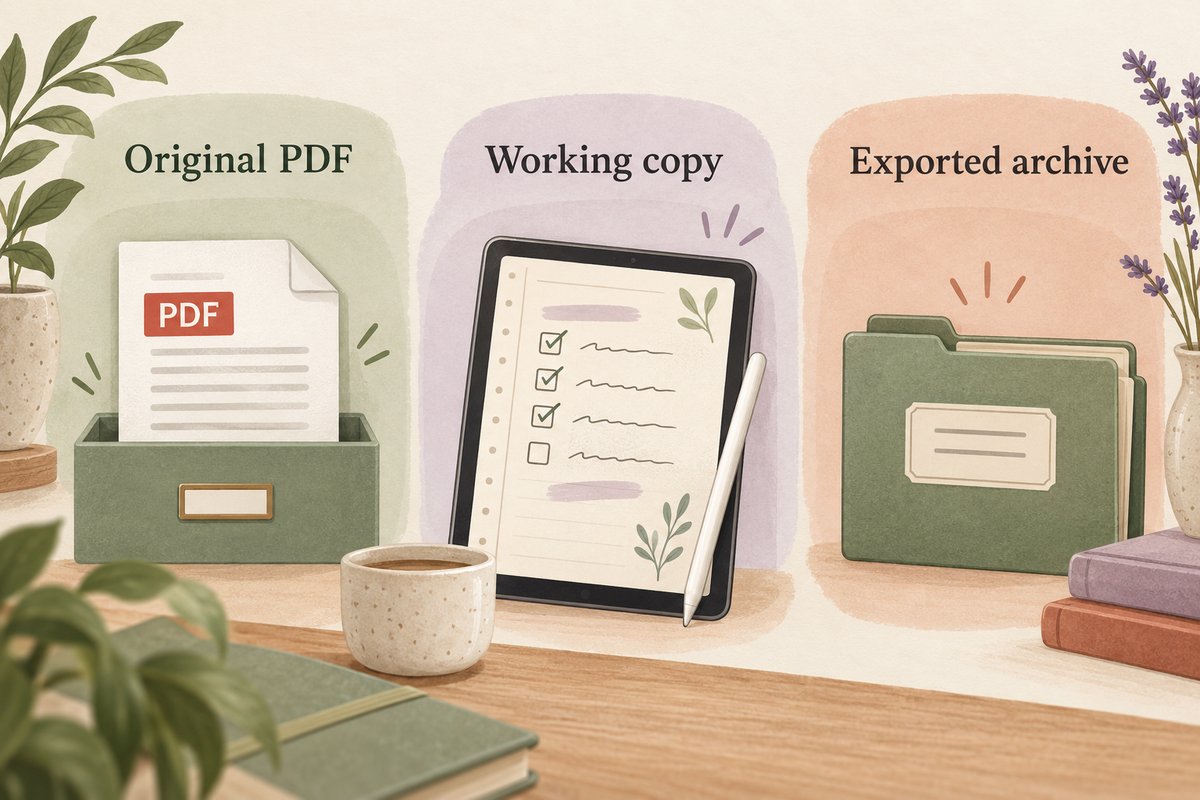
- Save the source files. Keep the original PDF, archive, instructions, and license in a named folder.
- Download the file completely. If it is stored in the cloud, make sure it is available locally before import.
- Import a duplicate. Use a working copy rather than your only original.
- Review the page order. Confirm that the index, calendars, planning pages, notes, and extras appear as described.
- Test navigation. Open multiple section links and return to the index.
- Add sample annotations. Try handwriting, typed text, highlighting, and one image only if those tools are part of your intended workflow.
- Close and reopen the note. Confirm that the content remains available.
- Back up before regular use. Keep a recovery copy of your annotated note using the documented backup or export options for your account and platform. Sync and an independent backup serve different purposes; reopen a test copy before relying on it.
Notability’s current import instructions describe pressing and holding +New in the Library, choosing Import, then Files to select the locally available PDF. Follow the controls shown on your platform. This guide helps you select and evaluate a planner; it does not replace app-specific support.
Notability’s third-party backup guide distinguishes one-way backup from two-way sync. Choose a documented recovery format that preserves what you need, then check that a recent annotation is present in the reopened copy.
Which planner format should you choose?
Choose a simple weekly planner when
- You want one view for appointments and priorities.
- You do not need a separate page for every day.
- You prefer less navigation and fewer repeated pages.
Choose a daily planner when
- Your schedule needs detailed time blocks.
- You want separate space for tasks, notes, meals, or reflection.
- You are comfortable navigating a larger document.
Choose an undated planner when
- You are beginning partway through the year.
- You do not plan every day and want to skip unused periods.
- You are willing to add dates and labels yourself.
Choose a dated planner when
- You want calendars ready for a specific year.
- You prefer less setup before planning.
- The listed week start and calendar format match your needs.
Notability versus Goodnotes for a free planner
The same PDF may import into more than one annotation app, but that does not make the experience identical. Navigation controls, writing tools, storage, sync, export, and account limits can differ. Choose the app based on the workflow available in your current platform and plan, then test the specific planner file.
For a feature-focused decision, read Goodnotes versus Notability for digital planning. For broader device considerations, see the digital planner for iPad guide.
When a paid planner may be the better fit
A free planner is appropriate when you are testing the app, learning your layout preferences, or need a basic calendar and notes structure. A paid planner may be more suitable when you need a particular dated period, verified page set, documented navigation, clear product instructions, or a support route. Compare the evidence on the current product page rather than assuming that payment guarantees quality.
Choose by file details, not by labels
Use the free digital planner checklist to evaluate any no-cost resource. When you are ready to compare paid options, browse the Temply Studio digital planner collection and verify the current files, date range, compatibility, delivery, and license on each product page.
Frequently asked questions
Can Notability import a free planner PDF?
Notability supports PDF import, but the file must be accessible and compatible with the app. Password protection, incomplete downloads, or damaged files can prevent import. Follow the current official instructions for your device.
Will every PDF planner have clickable tabs?
No. Tabs work only when hyperlinks are embedded in the PDF. A printable planner may display tab graphics without interactive navigation.
Can I share a free planner with another person?
Only when the creator’s license allows sharing. Free access does not automatically include redistribution, group use, or commercial rights.
Does Temply Studio offer a free Notability planner?
This guide does not promise a Temply Studio free planner file. Check the current product or resource page for the actual price, files, delivery, compatibility, and license.
Official Notability sources
- Notability: Importing files
- Notability: Importing external planners
- Notability: Troubleshooting import errors
Temply Studio
Stop chasing your goals with sticky notes and scattered notebooks. Our premium digital planners and Canva templates are designed to help you plan with intention, stay consistent, and actually enjoy the process.



Questions about this guide?
Ask about the planner, share how you use it, or tell us what to cover next. Your email stays private.