




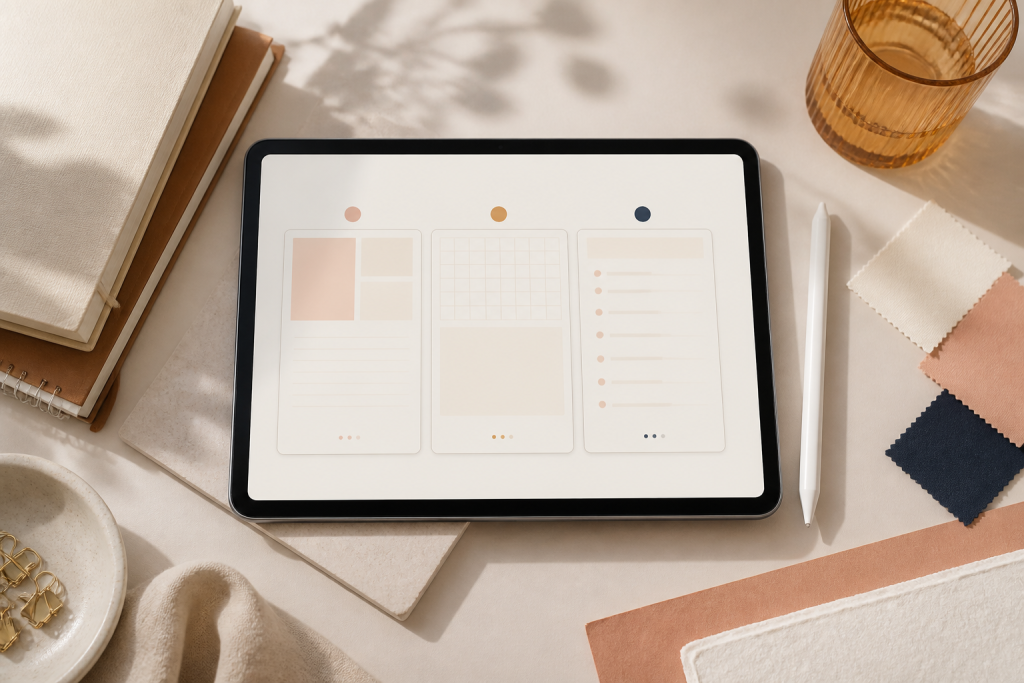
A digital planner free resource can be a useful way to test digital planning before paying for a more complete system. The right file should match your device, open in your chosen app, provide enough writing space, and include clear usage terms. “Free” alone does not prove that a planner is hyperlinked, editable, secure, or compatible with every note-taking app.
Quick answer
Choose a free digital planner by checking five things first: the source, file type, navigation, app requirements, and license. Save an untouched backup, import a clean copy, test several links, and use the planner for a normal week before deciding whether the layout fits your routine.
What does “digital planner free” actually mean?
The phrase may describe several different resources. It can mean a downloadable planner PDF, a sample from a larger paid product, a printable page that can also be annotated digitally, an editable template, or a free tier inside a planning app. These options do not work in the same way.
| Resource type | What you may receive | What to verify |
|---|---|---|
| Planner PDF | A finished document for a compatible annotation app | Page size, orientation, hyperlinks, dated period, and license |
| Sample planner | A limited set of pages from a larger design | Which pages are included and whether the sample is reusable |
| Printable planner | A PDF intended primarily for paper | Print size, margins, ink use, and whether digital navigation is absent |
| Editable template | A design link or source file that can be customized | Required account, editable elements, export format, and usage rights |
| Planner app | Software with a free plan or limited features | Platform support, account requirements, storage, export, and current plan limits |
Read the download page carefully. A preview image is not the planner file, and a ZIP archive may contain instructions, covers, stickers, and several planner versions. The listing or source page should explain what is included rather than making you guess.
A practical checklist before you download
1. Confirm the source
Prefer the creator’s own website, an official template library, a recognized educational organization, or a marketplace page that identifies the publisher and terms. Check that the page has a clear domain, contact route, privacy information, and a description of the actual file. Avoid downloads that redirect repeatedly, hide the filename, or require unrelated software.
2. Identify the real file
Most device-based digital planners are supplied as PDFs, although a product may also include images, stickers, instructions, or an editable template link. Confirm the extension and open only the file described by the source. If the download is a ZIP, extract it and locate the main planner PDF before importing anything into your note-taking app.
3. Check dated versus undated
A dated planner gives you calendars for a specific period, while an undated planner lets you add dates when you begin. An old dated file may still open, but its calendars will not match a new year. An undated file may be more flexible, although it requires setup. Compare the trade-offs in the dated versus undated digital planner guide.
4. Match the orientation to your screen
Portrait layouts resemble a traditional notebook page. Landscape layouts provide more horizontal room for weekly schedules and can suit a tablet held sideways. Neither is universally better. Review a full-page preview at a realistic size and choose the format that leaves enough space for your handwriting or typed notes.
5. Verify hyperlinks instead of assuming
A planner can be useful without hyperlinks, but it should not be described as hyperlinked unless the PDF contains working links. After import, test the home or index button, at least two section tabs, and a return link. Goodnotes explains that imported PDF links can be opened in read-only mode or through the link command in edit mode. Interface labels can change, so use the current controls shown in the app.
6. Read the license
Free does not automatically mean public domain, commercial use, resale, redistribution, or permission to share the file with a group. Look for written terms covering personal use, editing, duplication, classroom use, client work, and sharing. When the source provides no clear license, treat the resource as personal-use only and ask the creator before using it commercially.
7. Check privacy and account requirements
Some resources are delivered after an email signup or require an account with a third-party platform. Decide whether the requested information is proportionate to the download. Review the platform’s privacy and account terms rather than assuming that a free file has no ongoing conditions.
8. Look for usable writing space
A visually attractive planner may still be difficult to use if the page is crowded, text is tiny, or decorative elements cover the writing area. Inspect daily, weekly, monthly, notes, and tracker pages. Choose only the sections you expect to use instead of selecting a file because it advertises a large page count.
How to choose a free planner for Goodnotes
For Goodnotes, begin with a PDF that the source clearly identifies as the planner. Goodnotes’ current documentation explains that files can be imported from the library with New > Import, from supported cloud storage, through the system share menu, or by drag and drop on compatible devices. The exact interface can vary by platform and version.
Selection is separate from importing. Before adding the file, check its page orientation, dated period, navigation, and license. Then follow the full Goodnotes digital planner import guide. For everyday use after setup, see the Goodnotes planner workflow guide.
How to choose a free planner for Notability
Notability supports importing PDFs and other supported files, but a file being a PDF does not prove that every planner feature will work as expected. Check that the source provides the complete planner rather than a preview, that the document is not password-protected, and that the layout remains readable on your device. Notability’s official help center documents file import and a separate workflow for external planners.
For a broader app comparison, read Goodnotes versus Notability for digital planning. App capabilities and plan limits can change, so verify current details in the developer’s documentation rather than relying on an old planner listing.
Test a free digital planner in ten minutes
- Keep the original. Save an untouched copy in a clearly named folder.
- Import a duplicate. Use the working copy for your test.
- Open three page types. Review a monthly page, a weekly or daily page, and a notes page.
- Test navigation. Try the index, two tabs, and one return link.
- Write normally. Add handwriting or typed text at the size you would use every day.
- Duplicate one page. Confirm that the app and license support the workflow you need.
- Close and reopen the file. Make sure your annotations remain and the document loads correctly.
- Use it for one real week. Note which sections you actually open and which ones you ignore.
This test does not prove that the file works on every device or app version. It tells you whether that specific file fits your current setup.
Free printable planner versus free digital planner
A printable planner is often the simpler choice when you want a visible page on your desk and do not need tabs or app tools. A digital planner is more suitable when you already plan on a tablet, want to annotate a PDF, or prefer keeping pages on one device. Printing costs, device costs, and app requirements vary, so neither format is automatically cheaper.
Use the detailed printable daily planner versus digital planner comparison to choose by setup, portability, writing experience, reuse, privacy, and file requirements.
Free digital planner versus paid planner
| Choose a free option when | Consider a paid option when |
|---|---|
| You are testing whether digital planning suits you | You already know the exact layout and period you need |
| A basic monthly, weekly, or notes structure is enough | You need a specific dated system, page set, or verified navigation |
| You are comfortable checking the file and license yourself | You want clear product documentation and a support route |
| You do not need guaranteed updates or customization | You need product-specific files, instructions, or license terms |
A paid planner is not automatically better, and a free planner is not automatically incomplete. Compare the actual files and terms. The useful option is the one that solves your planning task without adding unnecessary setup.
Important Temply Studio offer note
This page is an educational guide and does not promise a Temply Studio free planner file. At the time of this update, no current Temply Studio product has been verified for this article as a free digital planner download. Products linked from the shop should be treated as paid unless the individual product page explicitly states otherwise.
Ready to compare current planner formats?
Browse the Temply Studio digital planner collection, then open the individual product page to confirm the current files, dated period, orientation, compatibility, delivery, and license before purchasing.
Common mistakes to avoid with free digital planners
- Starting too big: begin with a simple weekly spread and a daily page instead of a full dashboard system. Master the basics before adding trackers and extras.
- Fighting your app: free planner PDFs are designed for note-taking apps like Goodnotes, Notability, Xodo, or Samsung Notes. Pick the app first, then choose a file built for it.
- Skipping backups: a digital planner is a single file, so sync it to iCloud, Google Drive, or another cloud service. Losing the file means losing months of plans.
Frequently asked questions
Is every free digital planner a PDF?
No. Some resources are PDFs, while others are printable pages, editable template links, images, or features inside an app. Confirm the actual deliverable before downloading.
Do all free planners have working hyperlinks?
No. Hyperlinks must be built into the source PDF. Test the index, section tabs, and return links after importing the untouched file.
Can I use a free planner commercially?
Only when the creator’s license permits that use. Free access does not automatically include client work, resale, redistribution, or commercial rights.
Do I need an Apple Pencil?
Not necessarily. Depending on the app and file, you may be able to type, use another supported stylus, or navigate with touch or a mouse. Confirm device and app requirements for your setup.
Can I print a digital planner?
Only when the page size and design are suitable for printing and the license allows it. A planner designed for a tablet may have tabs, margins, or proportions that do not print cleanly.
How do I reset a free digital planner for a new year?
If your planner is dated, you will need a fresh file for the new year. If it is undated, duplicate a clean copy of the original file and archive the finished one. Keep the untouched original separate from your working copy so you can always start fresh.
Can I use a free digital planner on my iPhone?
Yes, as long as the file and app support your phone’s screen size. Goodnotes, Notability, and Xodo all run on iPhone. A portrait PDF with working hyperlinks is usually the easiest to navigate on a smaller screen — test the index and tab links after importing.
Official app resources
- Goodnotes: Import files into Goodnotes
- Goodnotes: Navigate PDF hyperlinks
- Notability: Importing files
- Notability: Importing external planners
Temply Studio
Stop chasing your goals with sticky notes and scattered notebooks. Our premium digital planners and Canva templates are designed to help you plan with intention, stay consistent, and actually enjoy the process.



Questions about this guide?
Ask about the planner, share how you use it, or tell us what to cover next. Your email stays private.