




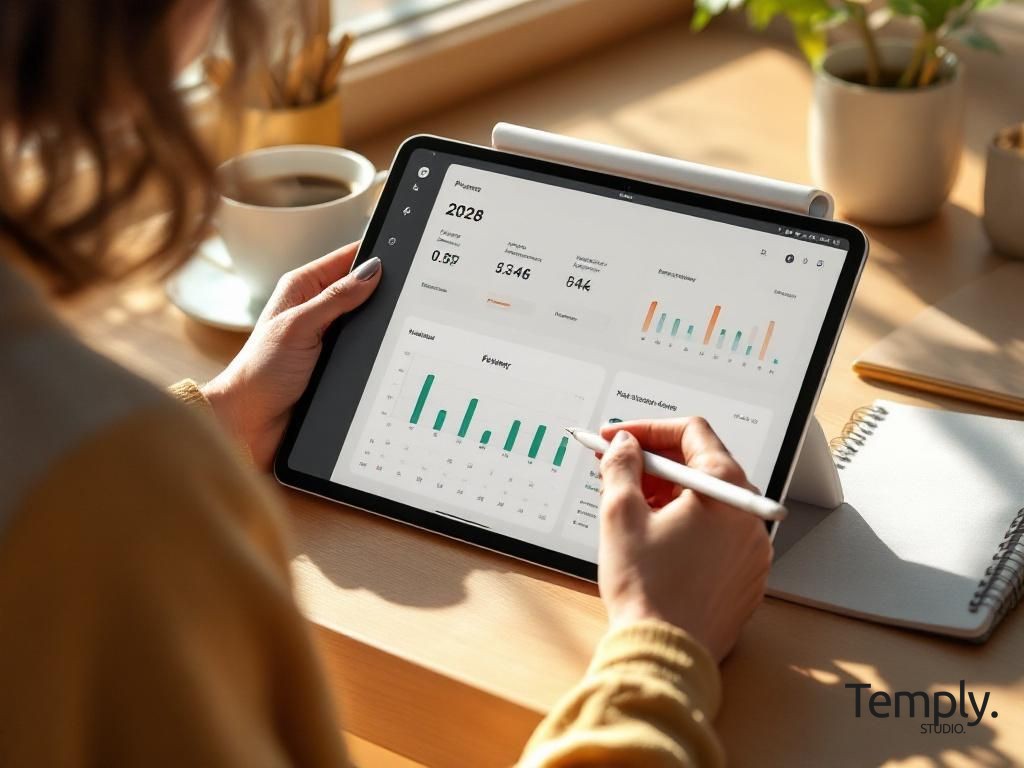
Quick answer: Start with one calendar view and one task list. If you prefer writing with a stylus, try a linked PDF in a compatible note-taking app. If reminders or shared appointments are essential, keep them in your calendar app and use your planner for weekly review.
Choose the format before choosing the design
| Format | Useful when | Test this first |
|---|---|---|
| Hyperlinked PDF | You want to write on pages and move through dates or sections with tabs. | Open a sample in your app, test two tabs, and add a handwritten note. |
| Calendar and task app | You need reminders, reusable tasks, or shared events. | Test reminders and sharing with a single practice event. |
| Printable planner | You want a weekly page you can keep by your desk. | Print one page and check margins, paper size, and writing room. |
When comparing a dated 2027 planner with an undated one, check the week start and whether you need to see dates already filled in. A dated layout can make it easier to turn to the right week. An undated layout is useful if you start partway through the year or plan only during busy periods. See the dated and undated planner comparison for examples.
Pick a layout using your next seven days
Open your actual calendar. Count the appointments you need to see at once and choose two deadlines you want to plan around. A weekly spread suits someone who regularly moves work between days. A daily page can help when one day has several appointments, tasks, and notes.
For example, a student could use the monthly view for assignment deadlines and the weekly view for study blocks. A freelancer could mark client calls on the calendar, then use a small weekly task area for work that moves with each delivery. Add separate pages for bills, routines, or reading only when you have a specific reason to review them.
Import a planner PDF and test the links
- Save the original file somewhere you can find again. Extract the download first if it arrives as a ZIP file.
- Import the PDF as a new notebook or document in your app. In Goodnotes, follow the official import instructions.
- Open the index and tap one month tab. Check the return link, then try a date. In Goodnotes, use Read Only Mode if a tap draws on the page.
- Switch back to writing mode, add a short note, close the file, and reopen it. If you expect to use another device, test it while the notebook is still small.
For more help, follow the Goodnotes planner setup guide or Android import walkthrough. When a tab fails, the PDF hyperlink troubleshooting guide walks through how to isolate the issue.
Build a weekly review you can repeat
At the start of the week, bring in fixed appointments, choose two or three tasks that matter, and set aside space for changes. Give each priority a next action. “Plan taxes” might start with “find the last two invoices.” Move the next action into a specific day when you know you have time.
On Friday or Sunday, check what is still open. Reschedule it, rename it as a smaller action, or remove it if it no longer matters. If a tracker remains empty for a few weeks, see whether you already keep the same information somewhere else.
Keep a backup you can open
Save an independent copy of your planner after you add important notes. Check the app’s export settings and reopen the saved file so you can confirm the pages and notes are there. In Goodnotes, its PDF export guide explains how format affects the original hyperlinks. If you rely on app-native features, keep a native backup where the app supports it.
Frequently asked questions
Can I start with a free planner?
Yes. A free sample can show whether the page size, linked tabs, and writing area suit your device before you commit to a full layout.
Will a planner PDF send me reminders?
A regular PDF is a set of pages. Use a calendar or task app for notifications and carry over only the events or priorities you need in the weekly view.
Should I build my own or choose a template?
Try a sample first. Build your own when you know which time blocks, page sizes, and links are missing from the templates you have tried.
Compare 2027 layouts
See how the three Temply Studio 2027 planners differ if you are choosing between everyday planning, finance, and guided reflection.
Temply Studio
Stop chasing your goals with sticky notes and scattered notebooks. Our premium digital planners and Canva templates are designed to help you plan with intention, stay consistent, and actually enjoy the process.


Questions about this guide?
Ask about the planner, share how you use it, or tell us what to cover next. Your email stays private.