




Quick answer: A clean resume format makes the evidence easy to scan: one restrained layout, readable type, consistent spacing, standard section headings, truthful bullets, and a final file named and exported exactly as the employer requests. Start with the application instructions; when none exist, use the checks in this guide before submitting.
This guide consolidates Temply Studio’s shorter formatting notes into one workflow. It is for editing a real application document, not for hiding missing experience behind design. Examples marked as fictional are writing illustrations, not claims about real candidates.
Start with the employer’s instructions
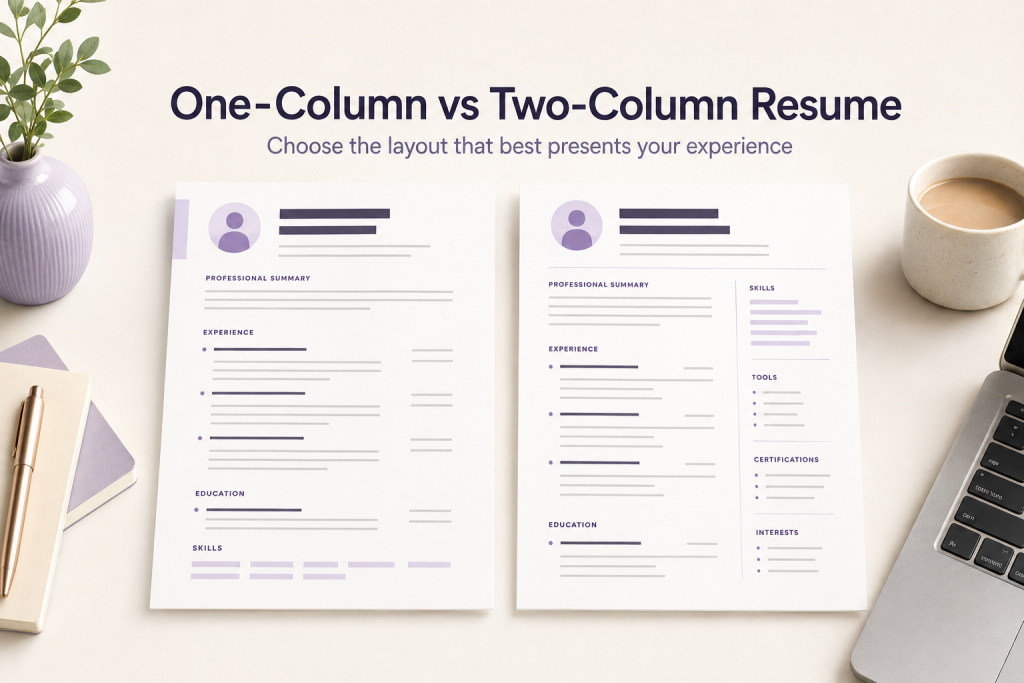
Follow the posting first: requested file type, page limit, naming convention, required sections, and any statement about work authorization or location. If no format is specified, CareerOneStop recommends a clean, consistent layout and notes that a simple single-column layout is easier for applicant tracking systems to read accurately. Do not use white-text keyword stuffing, graphics that replace text, or a filename that does not match the document inside.
Before changing design, copy the master resume into a working file. Keep the master version intact so you can return to it for another application.
Choose margins and spacing that stay readable
CareerOneStop recommends one-inch margins to provide white space. Start there when the employer has not specified a format. Use consistent space before and after section headings and between bullets; keep the same indentation throughout.
Illustrative page check: Set 1-inch margins, a consistent bullet indent, and consistent paragraph spacing. These are sample settings, not an application requirement. If the content no longer fits, shorten repetitive wording or remove lower-priority detail instead of compressing the type until it is difficult to read.
Export to PDF, inspect every page at normal size, and make sure contact details, bullets, and dates are not clipped. If a federal or other application specifies its own margin or page limit, follow that instruction instead.
Source: https://www.careeronestop.org/JobSearch/Resumes/ResumeGuide/Formatting.aspx
Pick a readable font size and stick to it
CareerOneStop recommends a basic font at 10–12 points when no font is specified and says section headings can be a few points larger. One illustrative Word document might use 11 pt body copy, 13 pt section headings, and a larger name line. This is a starting layout, not a rule for every résumé or application.
Use the employer’s format instructions first. Keep one font family or a restrained second heading font, then check that dates, company names, and bullets remain easy to scan. Export the final file as the requested format; if no format is given, CareerOneStop recommends PDF to preserve formatting. Open the exported PDF, read it at normal size on a phone and computer, and print one page if the job application calls for a hard copy. Do not shrink everything to force a page count.
Source checked 21 Nov 2026: CareerOneStop resume formatting.
Use color sparingly and check contrast
Use color to make section labels easier to scan, not to carry information by itself. This fictional palette uses dark text (#1F2937), a white background (#FFFFFF), and one blue accent (#1D4ED8) for a small heading rule or hyperlink. The calculated contrast ratios are 14.68:1 for dark text on white and 6.70:1 for blue on white. These examples exceed WCAG 2.2 AA’s 4.5:1 minimum for normal text color pairs, but do not certify an entire document or guarantee how a hiring system will process it.
Keep body text dark, use the accent sparingly, and ensure headings still make sense in black and white. Export to PDF and inspect a grayscale print; verify that links, section titles, and bullet text remain readable. Follow the employer’s requested format and avoid decorative elements that obscure content.
Source checked 21 Nov 2026: W3C Understanding Contrast (Minimum).
Write bullets as evidence, not filler
A useful bullet gives an action, its scope, and a result the applicant can support. Use numbers only when records confirm them.
Before: Helped with the weekly project report.
After — fictional wording example: Prepared the weekly project report by checking status entries, identifying missing updates, and sending open questions to the project lead.
The revised bullet explains the work and what happened next without inventing a percentage or claiming a business result. If the applicant can verify a result, add it in plain language: “This allowed the team to review unresolved items before the meeting.” Use that sentence only when it is true. Keep verb tense consistent within current and past roles.
Build a skills section you can defend
Read the posting and list only skills you can explain with an example. A customer-support applicant could use short groups such as:
- Customer communication: written case updates; call-note documentation
- Workflow: ticket triage; escalation handoff
- Software: list the support platform, spreadsheet, or collaboration tool only if you have used it
Keep each item specific. “Excellent communicator” is difficult to verify on its own; a work-history bullet can show the context. Do not label yourself “expert” or “advanced” unless you can support that level and the employer’s definition makes sense. If a skill is learned in a course but not used at work, say so clearly or include it under Education/Projects.
Use a project section when it proves fit
Place Projects below Education when coursework or portfolio work is the strongest evidence; move it above Education when the project directly matches the target role. For each entry, identify the project, your own contribution, tools actually used, and a result you can verify. Link to a public sample only when the work is yours to share.
Fictional two-bullet example:
Community garden volunteer schedule — sample project
- Organized volunteer availability into a shared weekly schedule and flagged uncovered shifts for the coordinator.
- Documented the update process so another volunteer could maintain the schedule.
This is a writing example, not a real project or outcome. Replace it with evidence from the applicant’s work and name only the tools they actually used. If you cannot share the work publicly, describe it without exposing private client or community data.
Name the final file clearly
Use a filename that identifies the document without revealing unnecessary private details. Follow the employer’s requested format and naming rules first.
Fictional examples:
- If the application asks for a PDF: Jordan-Lee-Resume.pdf
- If a role label is useful and the employer allows it: Jordan-Lee-Project-Manager-Resume.pdf
- Editable working file, not for submission: Jordan-Lee-Resume_v3_EDITABLE.docx
Keep drafts, revision notes, and private phone/address information out of a public portfolio filename. Before uploading, open the final file and check that the name matches the document inside. Do not add a company or job ID unless the application asks for it or it clearly helps distinguish the requested copy.
Add and test portfolio links
Place a portfolio link where a reader can find it quickly: in the contact line if the portfolio supports the whole application, or next to a project when that page provides evidence for the project. Use a short, descriptive label. Do not link to private client files or an account-only page.
Illustrative layout:
Jordan Lee · City, State · [professional email address]
Portfolio: [portfolio link]
The URL above uses example.com for demonstration; replace it with your own approved public portfolio page.
Microsoft Word example: Select the displayed portfolio text, choose Insert > Link, enter the web address, and confirm. Save a working copy. Export the document as PDF using File > Save As (or Save a Copy), select PDF, and save the PDF under the requested application filename. Microsoft documents these hyperlink and PDF steps; exact labels can vary by Word version.
Open the exported PDF in a browser or PDF reader while signed out. Click the portfolio link, confirm it opens the intended public work, and check that the page does not expose private client material. If the PDF link fails, repair the Word hyperlink, export again, and test the new PDF rather than assuming the source document’s link survived.
Sources checked 21 Nov 2026:
- Microsoft hyperlink steps: https://support.microsoft.com/en-us/word/create-or-edit-a-hyperlink
- Microsoft Word-to-PDF steps: https://support.microsoft.com/en-gb/office/collab-files/save-or-convert-to-pdf-or-xps-in-office-desktop-apps
Adapt the same structure to your situation
The formatting rules stay stable, but the strongest section order depends on your evidence:
- Recent graduates can lead with education, coursework, internships, or projects when those are the clearest proof.
- Career changers can use a combination format that connects transferable evidence to the new role without hiding real job titles or dates.
- Remote-job applicants should show real documentation, communication, and handoff practices rather than claiming remote experience they do not have.
- If you are deciding which file type to submit, compare resume PDF vs DOCX before exporting.
Pre-submission formatting checklist
- The employer’s requested format, filename, page limit, and required sections are followed exactly.
- Body text is readable at normal zoom; headings, bullets, dates, and indentation are consistent.
- Color is decorative rather than required for meaning, and important text remains readable in grayscale.
- Every bullet is evidence you can explain; numbers and results are included only when you can substantiate them.
- Skills, projects, and portfolio links are relevant, public where appropriate, and do not expose private client material.
- The exported PDF opens correctly, links click through to the intended pages, and the filename matches the document inside.
Templates that can help you start
If you already have your evidence and want a clean Microsoft Word layout, Temply Studio sells the Single-Column ATS Resume Template for Microsoft Word and the Executive Resume Template for Microsoft Word. Check each product page for the current included files, editability, license, and price before buying; a template can organize real evidence but cannot guarantee an interview or hiring outcome.
Sources checked 24 Nov 2026
- CareerOneStop resume formatting guide
- W3C Understanding Contrast (Minimum)
- Microsoft Word hyperlink steps
- Microsoft Word-to-PDF steps
If your margins and type look right but the content is still hard to scan, check how to arrange your resume sections and choose clear headings for an ATS-friendly resume.
If your source file is a Canva layout, follow the Canva resume editing guide to check the export after replacing text and resizing sections.
Temply Studio
Stop chasing your goals with sticky notes and scattered notebooks. Our premium digital planners and Canva templates are designed to help you plan with intention, stay consistent, and actually enjoy the process.
Questions about this guide?
Ask about the planner, share how you use it, or tell us what to cover next. Your email stays private.