




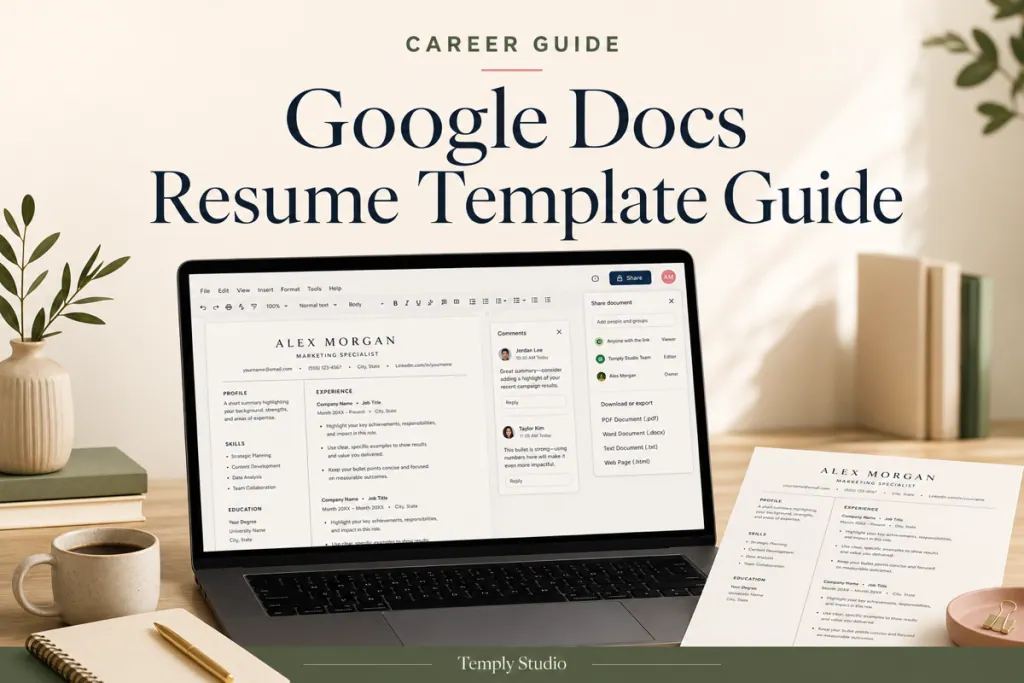
A Google Docs resume template guide should help you make a working copy, replace every placeholder, preserve the layout, tailor the content, and export the file in the format requested by the employer. Google Docs can be convenient for browser-based editing and collaboration, but a template still needs careful review before submission.
Quick answer: make your own copy, confirm fonts and page size, edit one section at a time, check the reading order, remove all placeholders, and download the final version only after reviewing every page.
What to confirm before using a Google Docs resume template
- The product actually includes a Google Docs version or access link.
- The link allows you to make a copy rather than edit the seller’s master file.
- The required fonts are available or have suitable alternatives.
- The page size matches the intended market or employer requirement.
- The template includes only the pages and sections shown in the listing.
- The license permits your personal job-search use.
- The employer accepts the final file type you plan to submit.
Step 1: Make a private working copy
Open the provided access document and follow the seller’s instructions to create your own copy. Rename it clearly, such as Firstname-Lastname-Resume-Master. Keep an untouched backup so you can restore formatting if a section is accidentally changed.
Review the sharing settings. A resume contains personal information, so it should not remain publicly editable or accessible through an unrestricted link unless you intentionally choose that setting.
Step 2: Replace contact information
- Name
- Professional email
- Phone number
- Location when relevant
- LinkedIn or portfolio link
- Professional website when relevant
Delete every placeholder. Test hyperlinks and avoid relying only on icons to communicate email, phone, or portfolio information.
Step 3: Rewrite the professional summary
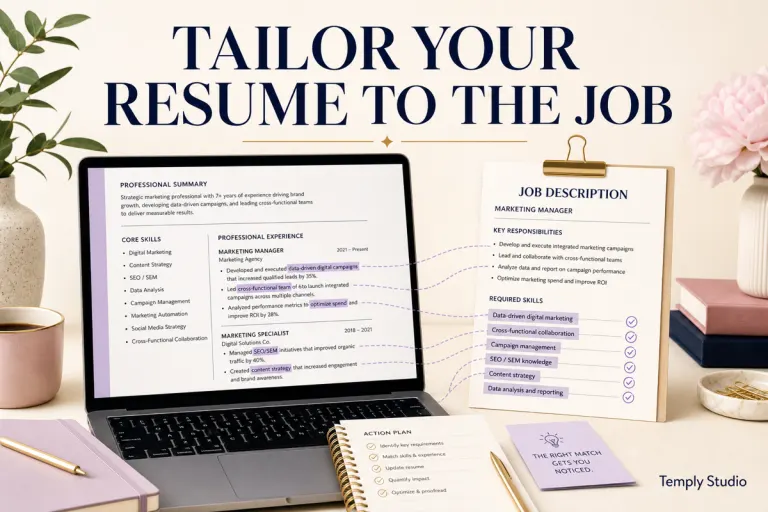
Replace generic sample text with a concise summary that reflects your actual experience and the target role. Focus on professional direction, relevant background, and a small number of strengths supported elsewhere in the resume.
- Do not copy the job description word for word.
- Do not add qualifications you do not have.
- Avoid vague adjectives without evidence.
- Use role-specific terms only when they accurately describe your background.
Step 4: Edit work experience carefully
- Replace the employer, job title, location, and dates.
- Delete all sample bullets.
- Add responsibilities and achievements relevant to the target role.
- Use consistent verb tense.
- Include scope or results only when accurate.
- Keep bullets concise enough to preserve readability.
- Check that dates remain connected to the correct position.
Step 5: Review education, skills, and additional sections
| Section | Include | Avoid |
|---|---|---|
| Education | Credential, institution, location when relevant, completion date | Inconsistent date formats |
| Skills | Relevant tools and competencies | Unsupported rating bars or stars |
| Certifications | Verified name, issuer, and current status | Expired or unconfirmed credentials |
| Projects | Contribution, tools, result, and context | Claiming team work as individual work |
| Volunteer work | Relevant responsibilities and impact | Long descriptions unrelated to the role |
Step 6: Keep the layout stable
Google Docs may behave differently from the program where a template was originally created. Avoid using repeated spaces or blank lines to position text. Use the existing paragraph structure, tabs, page breaks, and styles where possible.
- Do not drag text boxes or tables without understanding the layout.
- Check whether fonts have been substituted.
- Review line spacing after replacing sample text.
- Use page breaks rather than many empty paragraphs.
- Keep headings and dates consistent.
- Review the document at normal zoom.
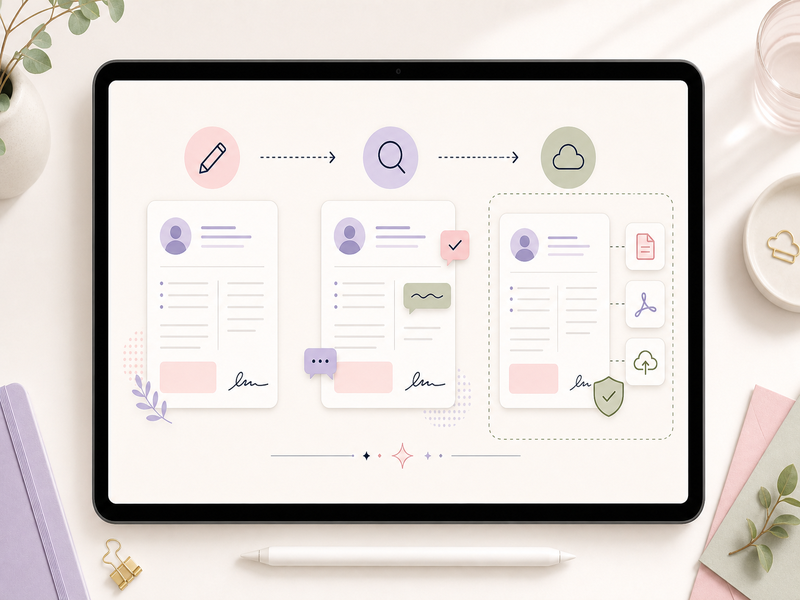
Step 7: Review ATS-aware readability
No template can guarantee universal ATS parsing. A cautious resume uses clear section headings, selectable text, a logical reading order, and minimal decorative complexity around essential information.
- Use headings such as Work Experience, Education, Skills, and Projects.
- Keep contact information as real text.
- Avoid placing essential content only in images.
- Review columns, tables, headers, and footers carefully.
- Use the employer’s requested file type.
- Check application fields after the portal parses the document.
Step 8: Export the final resume
Keep the editable Google Docs master and create a separate application file. Google Docs supports downloading documents in formats such as PDF and Microsoft Word, but the correct choice depends on the employer’s instructions.
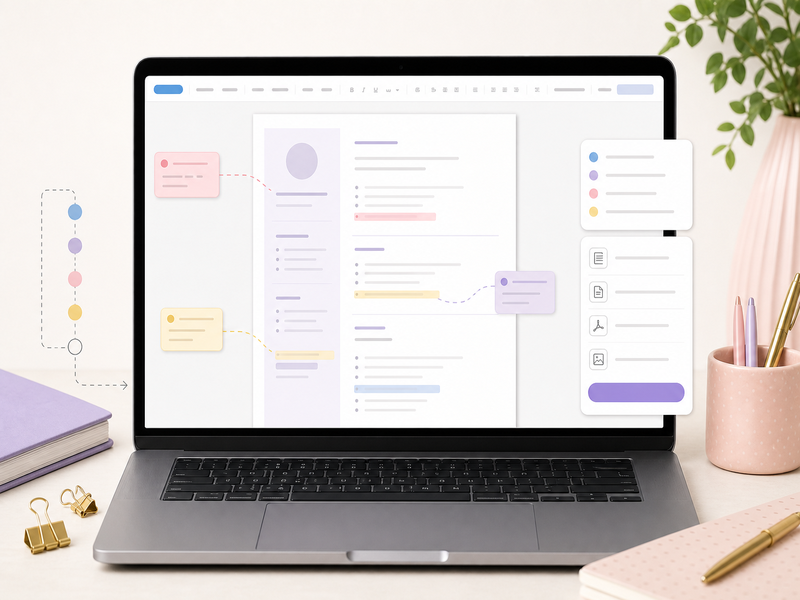
- Proofread the master document.
- Check page breaks and spacing.
- Download the required format.
- Open the downloaded file outside Google Docs.
- Test links and selectable text.
- Use a professional filename.
- Upload the file and review any parsed application fields.
Google Docs vs Word vs Canva
| Editor | Strength | What to check |
|---|---|---|
| Google Docs | Browser access and collaboration | Font substitution, page layout, access permissions |
| Microsoft Word | Detailed text formatting and common office workflows | Fonts, text boxes, tables, version compatibility |
| Canva | Visual control and easy design editing | Reading order, export, text boxes, portal requirements |
Read the Word vs Canva resume template comparison for a broader look at editing workflows.
Common Google Docs resume mistakes
- Editing a public master instead of making a copy
- Leaving sample names or links in the document
- Using a font that changes on export
- Sharing the resume with public edit access
- Forcing content onto one page with tiny text
- Submitting without opening the downloaded file
- Assuming the layout guarantees ATS performance
- Failing to tailor content to the role
Frequently asked questions
Can I edit a Word resume template in Google Docs?
Sometimes, but conversion can change fonts, spacing, text boxes, tables, and page breaks. Use a version designed for Google Docs when available and inspect every page after conversion.
Should I submit a Google Docs link?
Only when the employer specifically requests a link. Most applications require an uploaded document, and sharing permissions can expose personal information if configured incorrectly.
Is PDF always the correct export?
No. Use the format requested by the employer or application portal. Open and review the exported file before submitting.
Use a template as a starting structure
A template should make editing clearer, not replace accurate content and final review. Browse the Temply Studio resume and CV collection and verify the exact included software, pages, fonts, license, and delivery information on each product page.
Official reference
Temply Studio
Stop chasing your goals with sticky notes and scattered notebooks. Our premium digital planners and Canva templates are designed to help you plan with intention, stay consistent, and actually enjoy the process.
Questions about this guide?
Ask about the planner, share how you use it, or tell us what to cover next. Your email stays private.