




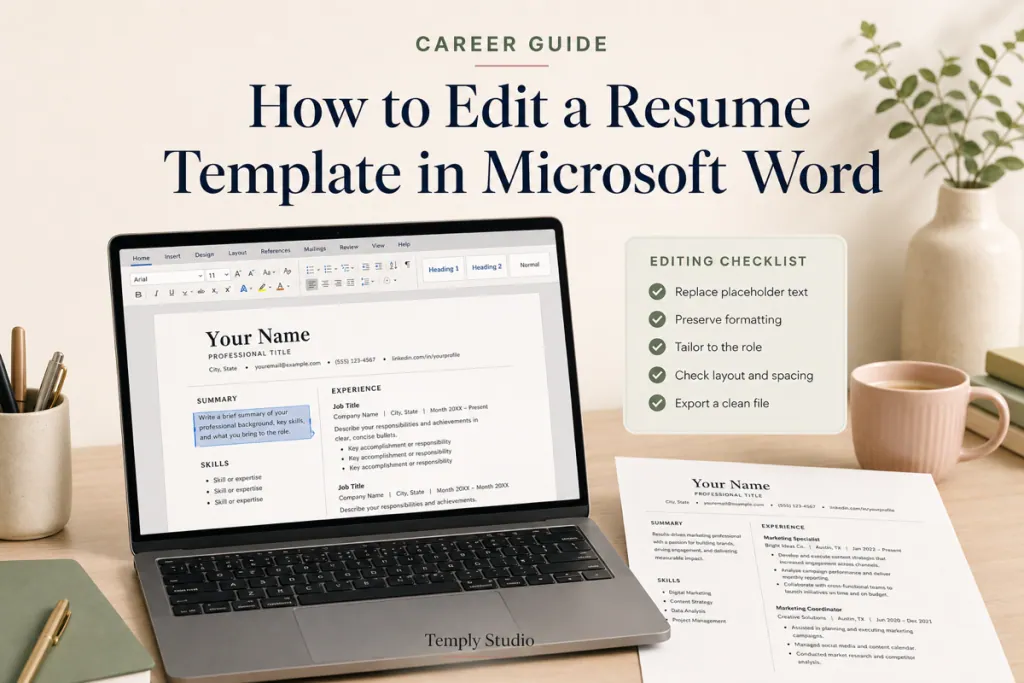
Editing a resume template in Microsoft Word is easiest when you treat the template as a layout starting point rather than a finished application. Replace the sample content with your own information, keep the structure easy to scan, and review the document carefully before sending it.
This workflow focuses on practical editing decisions: what to change first, how to protect the layout, how to improve readability, and how to prepare a final submission file.
1. Open a copy of the resume template
Before making changes, save a working copy with a clear filename. Keeping the original template untouched gives you a fallback if a formatting change affects the page layout.
Work through the document from top to bottom. Identify the main sections before editing, such as your contact information, professional summary, work experience, education, and skills. This helps you understand which text belongs in each placeholder.
2. Replace placeholder text with your information
Click each text area and replace the sample content with information that is accurate for the role you are pursuing. Pay close attention to names, dates, job titles, employer names, contact details, and links.
Update the contact section
- Use your current name as the main heading of the document.
- Check your email address and phone number character by character.
- Include location details only when they are useful for your application.
- Review any portfolio or professional profile link after replacing the sample URL.
If you want to include a LinkedIn profile, see how to add a LinkedIn URL to a resume for a focused guide.
Rewrite the summary
Replace a generic summary with a short description of your professional direction, relevant experience, and the type of value you can bring to the role. Avoid leaving template language in place, even if it sounds polished.
Rewrite experience and education sections
For each position, use the supplied structure consistently. Include the organization, role, dates, and a concise description of relevant responsibilities or results. Remove empty sections instead of leaving unfinished placeholders in the final document.
Keep your education and skills sections relevant to the application. If a template includes more entries than you need, delete the extras carefully rather than filling them with unrelated information.
3. Preserve the template’s readable structure
A template can save time, but its visual structure still needs to support quick reading. CareerOneStop’s official resume formatting guidance emphasizes readable formatting, consistent spacing, and making important information easy to find.
As you edit in Word, avoid making isolated changes that create inconsistent formatting. Check the following areas after replacing text:
- Use consistent heading styles for comparable sections.
- Keep bullet formatting consistent across work experience entries.
- Check that dates align in the same way throughout the resume.
- Watch for large blank spaces created by deleting text.
- Make sure headings stay with the content they introduce.
Longer text can push a section onto another page. If that happens, revise unnecessary wording before making major font or spacing changes. The goal is a clear document, not simply the smallest possible page count.
4. Check the resume for application relevance
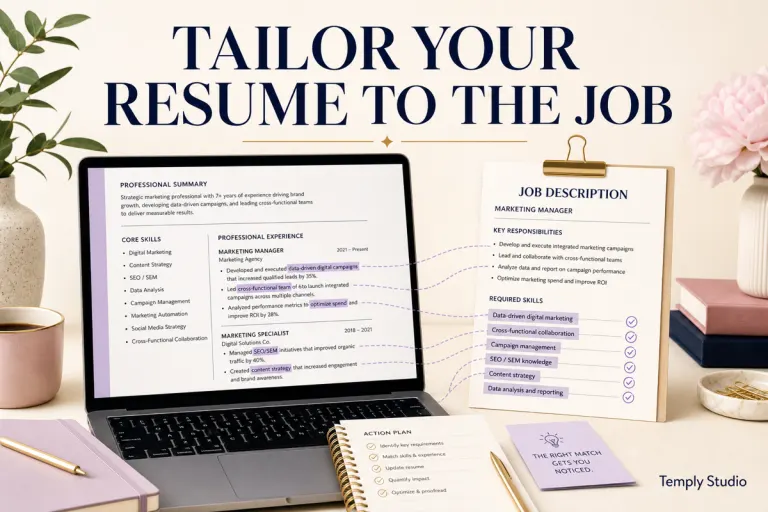
Read the edited resume as if you were reviewing it for the role. The most relevant experience should be easy to locate, and each section should support the direction of your application.
For advice on adapting your document to a specific work arrangement, read how to adapt a resume template for remote jobs. If you are using a template with prominent section labels, you may also find the guide to ATS-friendly resume headings useful when reviewing your structure.
5. Proofread the edited document
Proofreading should happen after the content and layout are in place. Read the document once for meaning and once for details. Look for spelling errors, repeated words, inconsistent punctuation, missing dates, and leftover sample text.
- Confirm that every placeholder has been replaced or removed.
- Check that names and job titles are spelled consistently.
- Verify that all dates follow the same format.
- Open every included link to confirm it points to the intended destination.
- Review the document at normal zoom and in print preview.
A second reader can notice errors that are easy to overlook when you have edited the same text repeatedly. Make any corrections in the Word file before creating the final submission copy.
6. Save an editable copy and a final PDF
Keep the editable Word version for your records, then create a PDF when the application instructions call for one. Microsoft explains that Office desktop applications can save or convert documents to PDF or XPS; you can review its official instructions for saving or converting an Office document to PDF.
CareerOneStop also notes that applicants should follow the requested file format when submitting a resume. If no different format is specified, review the final PDF before sending it to make sure the pages, spacing, headings, and links appear as intended.
Use a straightforward filename that identifies you and the document, such as FirstName-LastName-Resume.pdf. For more guidance, see the resume file naming guide before you apply.
7. Do a final visual review
Close the editing window and review the exported file from beginning to end. Check for clipped text, unexpected page breaks, missing characters, uneven spacing, and accidental blank pages. Also confirm that the contact information is visible and that the document opens correctly on the device you plan to use for submission.
If the template needs a fresh starting point, browse the CV template collection and choose a layout that matches the type of application you are preparing.
Resume template editing checklist
- Save a working copy before editing.
- Replace every sample detail with accurate information.
- Remove unused sections and unfinished placeholders.
- Keep headings, bullets, dates, and spacing consistent.
- Review the document for relevance to the role.
- Proofread the content and check all links.
- Save the editable Word file.
- Export a PDF when the application instructions call for it.
- Open the final file and inspect every page before submitting.
The best result is a resume that reflects your experience while retaining the template’s clear structure. Edit deliberately, review the final file outside the editor, and follow the employer’s instructions for the required submission format.
Temply Studio
Stop chasing your goals with sticky notes and scattered notebooks. Our premium digital planners and Canva templates are designed to help you plan with intention, stay consistent, and actually enjoy the process.
Questions about this guide?
Ask about the planner, share how you use it, or tell us what to cover next. Your email stays private.