

Can You Lock a Notebook in GoodNotes?
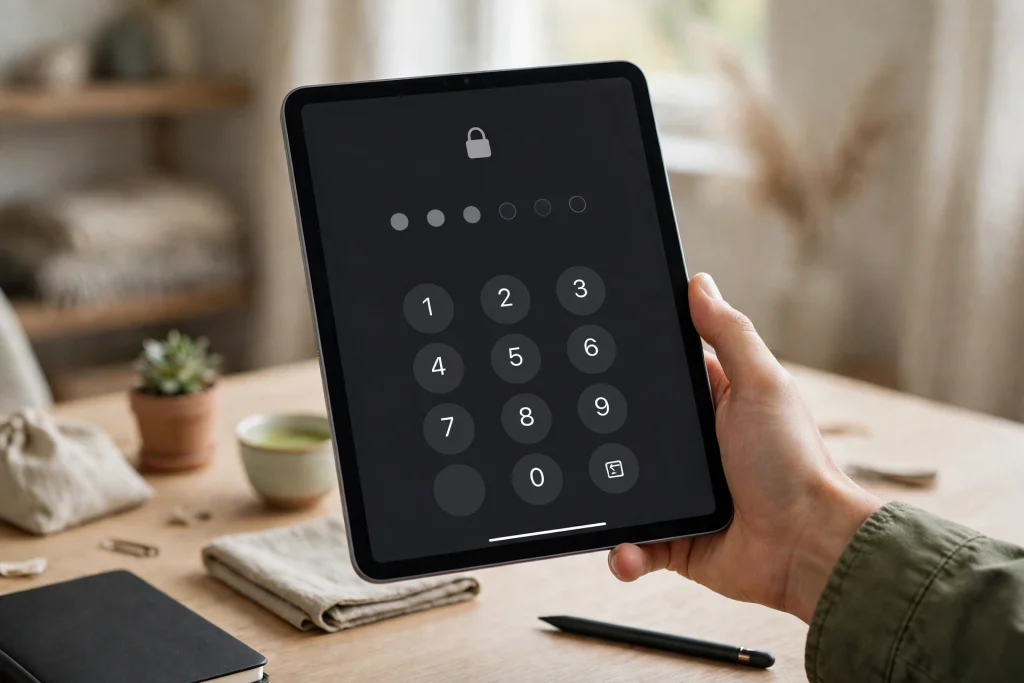
Yes — you can lock a GoodNotes notebook with a passcode, and on supported devices you can unlock it with Face ID or Touch ID. Locking is useful when you share an iPad with family, hand your device to someone, or simply want a private journal, diary or work notebook to stay private. But locking has limits that are easy to misunderstand, and this guide explains exactly what it does, what it does not do, and how to set it up safely.
The short version: locking a notebook protects it from casual snooping on your device. It does not encrypt your notebook against someone with full access to your iPad or your iCloud account, and it does not replace a backup. If you lock a notebook and then forget the passcode, recovery options are limited — so the setup steps below include a safety routine you should follow before you lock anything important.
Quick answer: To lock a GoodNotes notebook, open the library, tap the notebook’s options, choose Lock, and set a passcode (Face ID or Touch ID can unlock it on supported devices). Locked notebooks show a lock icon and require the passcode to open. Locking hides content on your device only — it does not encrypt backups, and a forgotten passcode may mean losing access, so back up first.
How to Lock a GoodNotes Notebook: Step by Step
- Open your library. From the GoodNotes documents view, find the notebook you want to lock. Make sure you have saved any recent changes first.
- Open the notebook options. Tap the three-dot menu (or long-press the notebook, depending on your GoodNotes version) to open its options.
- Choose Lock. Select the lock option. GoodNotes will ask you to create a passcode for this notebook.
- Set a memorable passcode. Choose a passcode you will remember but others cannot guess. Avoid birthdays and simple sequences. If your device offers it, enable Face ID or Touch ID unlocking at this step — it makes daily use far more convenient.
- Confirm the lock. The notebook now shows a lock icon in the library. Tap it to test: GoodNotes should ask for your passcode or biometric unlock before opening the notebook.
- Test unlocking twice. Lock it, unlock it, lock it again, unlock it again. This sounds paranoid, but it confirms both the passcode and the biometric unlock work before you rely on them.
If you cannot find a lock option, check two things: first, that you are looking at a notebook rather than a folder or a PDF opened from Files; second, that your GoodNotes app is updated to the latest version. Locking applies to notebooks in the GoodNotes library, and older app versions may place the option in a different menu.
How to Unlock a GoodNotes Notebook
Tap the locked notebook and enter your passcode, or use Face ID or Touch ID when prompted. Once unlocked, the notebook stays open until you leave it or lock it again. GoodNotes locks the notebook again when you navigate away, so you do not need to remember to re-lock it manually — but do not assume a notebook left open on screen is protected. If you hand your iPad to someone with the notebook already open, locking cannot help you. Close the notebook (or lock the iPad itself) before handing the device over.
How to change or remove a lock
To change the passcode, unlock the notebook, open its options again, and look for the lock settings to set a new passcode. To remove locking entirely, unlock the notebook, open its options, and choose to unlock or remove the lock — you will need the current passcode to do this. If you remove a lock, the notebook becomes an ordinary notebook again, openable by anyone who can open GoodNotes on your device.
What Locking a GoodNotes Notebook Actually Protects
Locking is best understood as a privacy screen, not a vault. Here is what it does well:
- Stops casual snooping. A family member, colleague or child browsing your library cannot open the notebook without the passcode.
- Protects against brief access. If someone picks up your unlocked iPad for a minute, locked notebooks stay closed.
- Separates private from shared content. You can keep a private journal locked while leaving study or work notebooks open, which is handy on a shared family iPad.
That is genuinely useful — most privacy problems are casual, not criminal. But it is important to be honest about the limits, because overconfidence in a lock is worse than no lock at all.
What Locking Does NOT Do
- It does not encrypt your data against a determined attacker. Someone with your unlocked device, your Apple ID credentials or access to your backups may still reach the content through other routes.
- It does not protect iCloud or other backups. If your notebook is backed up to iCloud, the backup’s security depends on your iCloud account security, not the notebook passcode. Keep your Apple ID protected with two-factor authentication.
- It does not hide the notebook’s existence. The locked notebook still appears in your library with its title. If the title itself is sensitive, rename it to something neutral before locking.
- It does not protect exported files. A PDF or image you exported from the notebook is an ordinary file, unaffected by the notebook lock. Check your Files app and Downloads for exported copies of sensitive notebooks.
- It does not protect individual pages. GoodNotes locks whole notebooks, not single pages. If only one page is sensitive, consider moving it into its own locked notebook.
For genuinely sensitive material — legal notes, medical details, passwords — a notebook lock is one layer, not the whole security plan. Combine it with a strong iPad passcode, Face ID on the device itself, two-factor authentication on your Apple ID, and careful handling of exports. If you keep sensitive work in GoodNotes, our GoodNotes backup guide explains how to protect your notebooks against loss as well as prying eyes.
Before You Lock Anything: Back Up First
This is the step people skip, and it is the one that matters most. If you forget a notebook passcode, GoodNotes has no “email me my passcode” recovery — that is the point of a passcode, but it means a forgotten passcode can lock you out of your own notes permanently. Before locking a notebook that matters:
- Back it up. Enable iCloud sync and, if you use it, GoodNotes auto-backup, and confirm the backup completed. A locked notebook that is backed up can still be a problem if the passcode is forgotten, so step two matters just as much.
- Store the passcode somewhere safe. Write it in your password manager, not in a note inside GoodNotes and not on a sticky note on the iPad case. A password manager entry labelled “GoodNotes — [notebook name]” takes ten seconds and saves real heartbreak.
- Export a copy if the content is irreplaceable. For a journal or work notebook you could never recreate, export a PDF to a secure location before locking. Keep that export somewhere only you can access.
If you organise your library before locking, our guide to organising GoodNotes folders helps you put private notebooks in one folder so nothing sensitive hides in the wrong place.
Forgot Your GoodNotes Notebook Passcode? What to Try
First, try Face ID or Touch ID if you enabled biometric unlock — biometrics often still work even when you cannot recall the digits. Second, check your password manager, including any entry you made under a slightly different name. Third, try passcodes you commonly use for low-stakes locks, but do not guess wildly: repeated failed attempts may lock you out further depending on your device settings.
If none of that works, be honest with yourself about the options: there is no official passcode recovery for a locked GoodNotes notebook, and third-party tools that promise to break the lock should be treated with extreme suspicion — many are scams or malware. Your realistic fallback is a backup or exported copy made before locking. If you have no backup and no passcode, the notebook may be unrecoverable, which is exactly why the back-up-first routine above exists. If you are in this situation with a notebook that is also failing to sync, check our GoodNotes not syncing fixes before assuming the worst — sometimes the problem is sync, not the lock.
Locking vs. Other Ways to Keep Notes Private
Locking is not the only privacy tool, and for some situations another tool fits better:
- iPad Screen Time or Guided Access: useful when handing the iPad to a child or colleague, because it limits them to one app or locks them out of GoodNotes entirely.
- Separate GoodNotes folders: good for organisation, but folders are not locked — they only reduce accidental discovery.
- Device-level passcode and Face ID: the most important layer of all. A notebook lock on an iPad with no device passcode is a locked drawer in an unlocked house.
- Encrypted notes apps: for material that genuinely needs end-to-end encryption, a dedicated encrypted notes app may be a better home than a locked GoodNotes notebook.
The sensible setup for most people is layered: device passcode plus Face ID, iCloud two-factor authentication, notebook locks on the two or three notebooks that are actually private, and regular backups. You do not need to lock every notebook — locking everything trains you to enter passcodes all day, which trains you to pick weak ones.
Should You Lock Your Planner?
For most planners, no. A daily planner or habit tracker contains appointments and tasks, not secrets, and locking it adds friction to the habit you are trying to build. Lock the notebooks that contain genuinely private writing — journals, therapy notes, private work notes, personal finances — and leave everyday planners open. If your planner does contain sensitive items (a medical appointment, a private meeting), consider whether a neutral title or a separate locked notebook for those entries serves you better than locking the whole planner.
FAQ
Can I lock a single page in GoodNotes?
No. GoodNotes locks whole notebooks. To protect one page, move it into its own notebook and lock that notebook, or export the page elsewhere and remove it from the shared notebook.
Does locking a notebook stop it syncing to iCloud?
No. Locked notebooks still sync normally, so your content stays up to date across devices. The lock controls opening the notebook on a device, not syncing. Keep your Apple ID secured with two-factor authentication.
Can I use Face ID instead of typing a passcode every time?
Yes, on devices with Face ID or Touch ID, if you enable biometric unlocking when you set the lock. If biometrics fail, you will be asked for the passcode, so keep the passcode stored safely.
What happens if I forget my notebook passcode?
There is no official recovery, so a forgotten passcode can mean permanent loss of access to that notebook. Try biometrics and your password manager first, and fall back to a backup or exported PDF made before locking.
Does a locked notebook still appear in my library?
Yes, with a lock icon and its title visible. Rename a notebook to something neutral before locking if the title itself would give away private information.
Lock wisely: back up, store the passcode in your password manager, then lock only the notebooks that are truly private. Browse Temply Studio’s digital planners for organised, hyperlinked planners to keep the rest of your GoodNotes library tidy.
Temply Studio
Stop chasing your goals with sticky notes and scattered notebooks. Our premium digital planners and Canva templates are designed to help you plan with intention, stay consistent, and actually enjoy the process.
Questions about this guide?
Ask about the planner, share how you use it, or tell us what to cover next. Your email stays private.