




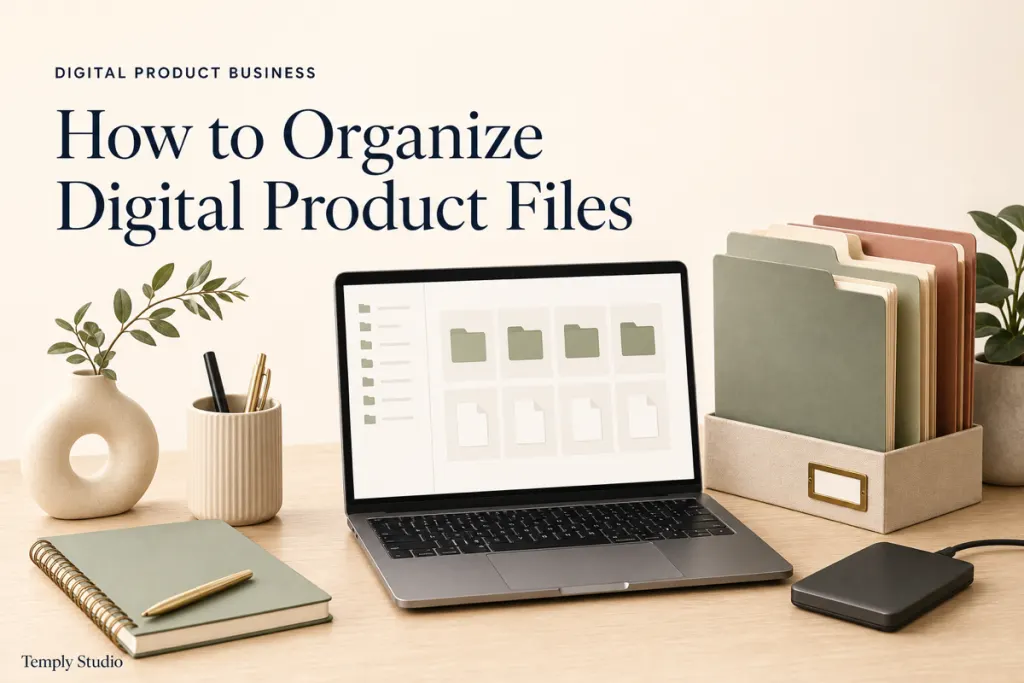
Build a listing gallery that answers buyer questions
A digital-product gallery should make the file, format, and use case clear before someone buys. Give each image one job; repeating the cover with a different background does not answer another question.
The following is a fictional example for a weekly planner PDF. It is a layout demonstration, not a Temply product preview or a claim about any real download.
Choose the marketplace before setting export dimensions. For Etsy, current seller help recommends listing images at least 2000 × 2000 px and says the first listing photo should be at least 635 × 635 px to avoid reduced search display. Treat these as Etsy recommendations, not universal marketplace rules or a promise of search placement. For a digital download with visual content, show a preview of the actual file buyers receive; use a mockup only if it does not make the file look different.
- Cover at thumbnail size. Show the name and one accurate product image. Shrink the design until it appears roughly the size of a marketplace search card. If the title becomes unreadable, simplify the cover. Alt: “Fictional weekly planner PDF cover, shown at small listing size.”
- Inside-page preview. Show a real export of one weekly page, straight and uncropped. Add a small label such as “Weekly page preview.” Alt: “Fictional planner weekly page with days, priorities, and notes areas.”
- How it looks in use. Place the actual page screenshot inside a neutral device frame. Keep its proportions; do not repaint text, add controls, or imply the PDF is an app. Alt: “Fictional planner PDF page displayed on a tablet mockup.”
- What is included. List only verified files and page types from the package. For this fictional example: “One PDF file; weekly overview and notes pages.” If a count, paper size, or included file is unknown, omit it until checked.
- Compatibility. Name the file format and the apps/devices the seller has actually checked. Separate “opens as a PDF” from “tested with hyperlink navigation.” Never promise compatibility from the extension alone.
- How navigation works. If the actual file has clickable tabs, show a genuine screenshot with a clear “tap a tab to jump” note and test at least two links after export. If it has no links, do not suggest that it does.
- Download and license summary. State whether this is a digital file, how the buyer receives it, and the relevant license limits using the seller’s current policy. Do not invent return, personal-use, or redistribution terms.
- What is not included. Clarify any material limitation, such as no physical notebook or device, only when that is true for the actual offer.
Gallery QA before upload
Export the final images and inspect them at listing-thumbnail size and on a phone. Confirm the preview matches the actual download, text is legible, no extra file or license claim was added, and each alt describes that image rather than repeating the title. Keep product screenshots and license wording tied to the current SKU. If the file changes, recheck the image sequence.
FAQ
How many listing images should I prepare? Use enough images to answer the main buyer questions without repeating the same view. The eight-image sequence above is a working example, not a marketplace rule.
Can I use a mockup? Yes, when you have rights to the frame and place the actual product screenshot inside it without distortion. Label any fictional or illustrative preview clearly.
Should I show every page? Show representative pages and the exact included-file list. Do not imply that a preview image is a separate deliverable.
See Etsy’s current listing-image recommendations.
Create truthful preview mockups from the actual file
A mockup should help the buyer understand scale, layout, and use context. It should not make the product look more interactive, more complete, or more polished than the file really is. Build the mockup after the deliverable is final enough that the preview will not need to be reinvented.
- Export representative pages. Choose the pages buyers need to evaluate: overview, core layout, detail view, instructions, and any variations that affect use.
- Use real content. Blur or replace private data, but do not fill the preview with impossible perfect handwriting or features the file does not include.
- Keep device behavior honest. Do not imply animation, syncing, typing, or app features unless the actual file and stated workflow support them.
- Show what is included. If a device, stylus, physical print, frame, font, or third-party app is not included, avoid making it look like part of the download.
- Check rights. Use only device frames, stock elements, fonts, and artwork you are allowed to use in commercial listing graphics.
- Compare against the final file. Before upload, place the exported product beside the mockup and check colors, page count, orientation, labels, and visible features.
Mockup pre-publish checks
- The first image communicates the product type without requiring the buyer to read the description.
- At least one image shows a representative interior page rather than only a cover.
- Text in preview images remains legible at marketplace thumbnail size where possible.
- Image file names and alt text describe the real product without stuffing keywords.
- Any composite scene is consistent with the actual deliverable and does not hide important limitations.
If the gallery uses AI-assisted photo editing, use it to improve clarity or presentation, not to invent pages, materials, device compatibility, or results. The buyer should receive the product they reasonably expected from the images.
Related guides
If you use AI assistance to restyle product photography, keep the underlying product accurate and compare the result with the real file. Temply Studio’s 10 ChatGPT Photo Editing Prompts includes a luxury product-photography prompt; treat it as an editing aid, not as permission to misrepresent the item.
Temply Studio
Stop chasing your goals with sticky notes and scattered notebooks. Our premium digital planners and Canva templates are designed to help you plan with intention, stay consistent, and actually enjoy the process.

Questions about this guide?
Ask about the planner, share how you use it, or tell us what to cover next. Your email stays private.