




DIGITAL PLANNING BASICS
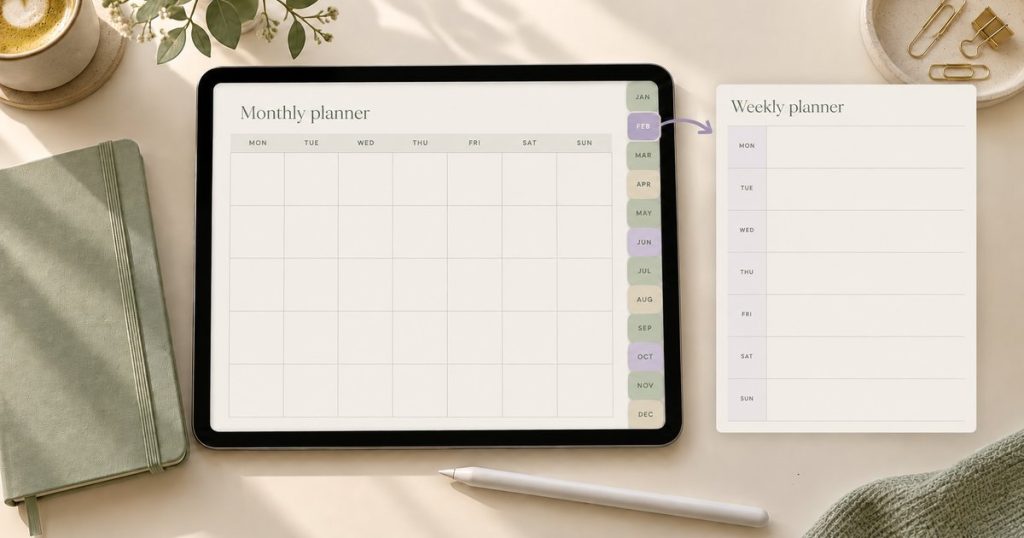
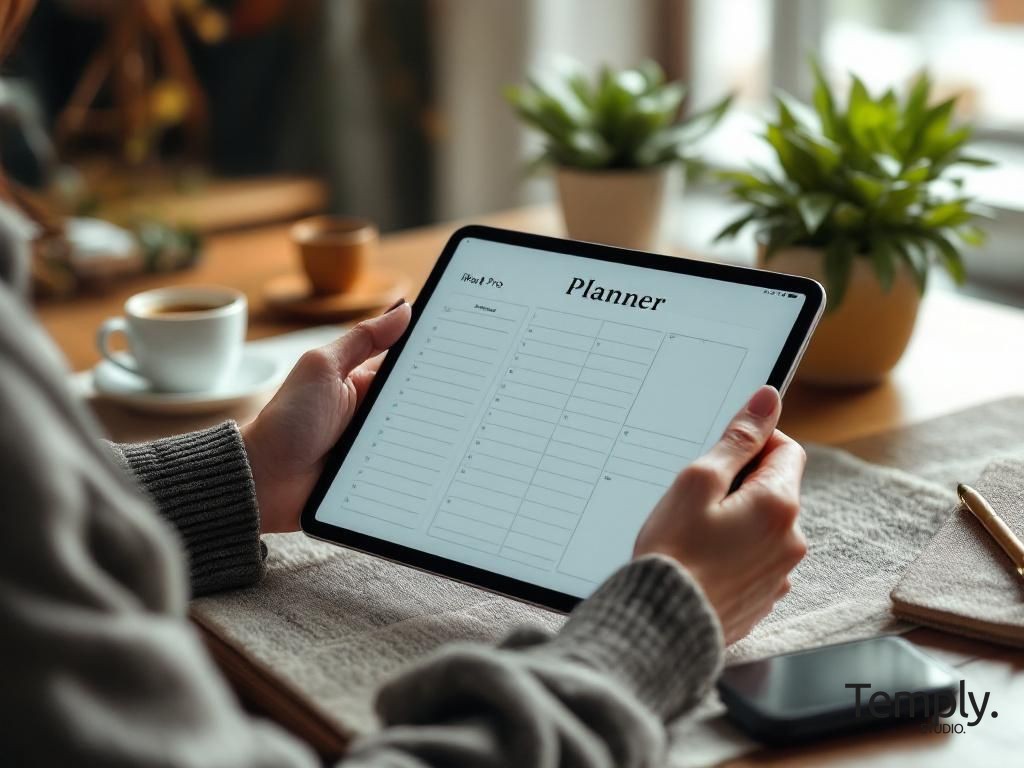
A hyperlinked digital planner is usually a PDF with clickable tabs, buttons, or index items that move you directly to another page in the same document. You open it in a compatible annotation app, use the links to navigate, and add handwriting, typed notes, highlights, or images on top of the planner pages.
The key idea
A hyperlinked digital planner provides navigation between linked destinations. Its links do not automatically add appointments, sync every page with a calendar, or replace the app used to write on the PDF. The exact tapping behavior depends on the planner, device, app, and editing mode.
How does a hyperlinked digital planner work?
- The planner is designed as a multi-page document. It may contain calendars, weekly pages, daily pages, notes, trackers, or project sections.
- Internal links are assigned to tabs and buttons. Each clickable area points to a defined page in the PDF.
- You import the original planner file into a compatible app. The app displays the PDF and supplies the writing and annotation tools.
- You use the app’s navigation control to tap links. This may be a reading mode, pointer, link tool, or long-press action depending on the software.
- You switch back to an editing tool to write. Your handwriting and annotations sit above the underlying PDF while the original links remain part of the document.
What sections does a hyperlinked digital planner connect?
Year and month tabs
Open a yearly index, monthly calendar, quarterly section, or dated planning page.
Weekly and daily links
Move from a calendar date to the corresponding weekly or daily page when the planner includes those destinations.
Section dividers
Open notes, projects, habits, finance, wellness, study, or other modules included in the file.
Home buttons
Return to the dashboard or main index without scrolling through the full document.
Back buttons
Return to an index, overview, or previous navigation page defined by the designer.
External links
Open a website or calendar service only when that external link is explicitly built into the product.
Not every visible label is necessarily clickable. A simple notebook may link only its section dividers, while a detailed planner may include many internal destinations. Check the product page and included instructions rather than assuming that every planner has the same navigation system.
Hyperlinked digital planner vs regular PDF planner
| Feature | Hyperlinked planner | Regular PDF planner |
|---|---|---|
| Navigation | Tabs and buttons can jump to linked pages | Usually relies on scrolling, search, or page thumbnails |
| Writing | Supports annotation in a compatible app | Can also support annotation in a compatible app |
| Best use | Frequent movement between dates and sections | Printing, short workbooks, or linear page use |
| Setup | Import the original linked PDF and test navigation | Open or print the file as instructed |
| Main limitation | Links can appear inactive in the wrong mode or file | Finding distant pages may take longer |
A regular PDF is not automatically inferior. It may be more suitable for a printable checklist, short workbook, or document used from beginning to end. Hyperlinks become most useful when a planner has many sections and you move between them repeatedly.
What do you need for a hyperlinked digital planner?
- The original planner file: normally the complete PDF, not a screenshot, JPG, or product-preview image.
- A supported device: the requirements vary by planner and software.
- A compatible PDF annotation app: confirm that it can import the file, preserve internal links, and provide the writing tools you need.
- A stylus or keyboard: optional, depending on whether you prefer handwriting or typed notes.
- Storage and a backup: image-heavy notes and repeated use can increase the document size over time.
Compatibility is product-specific
A hyperlinked digital planner described for one app should not automatically be presented as compatible with every PDF editor. A finished hyperlinked digital planner PDF is also different from an editable Canva source template. Confirm the intended app, device, file format, and import method on the current product page.
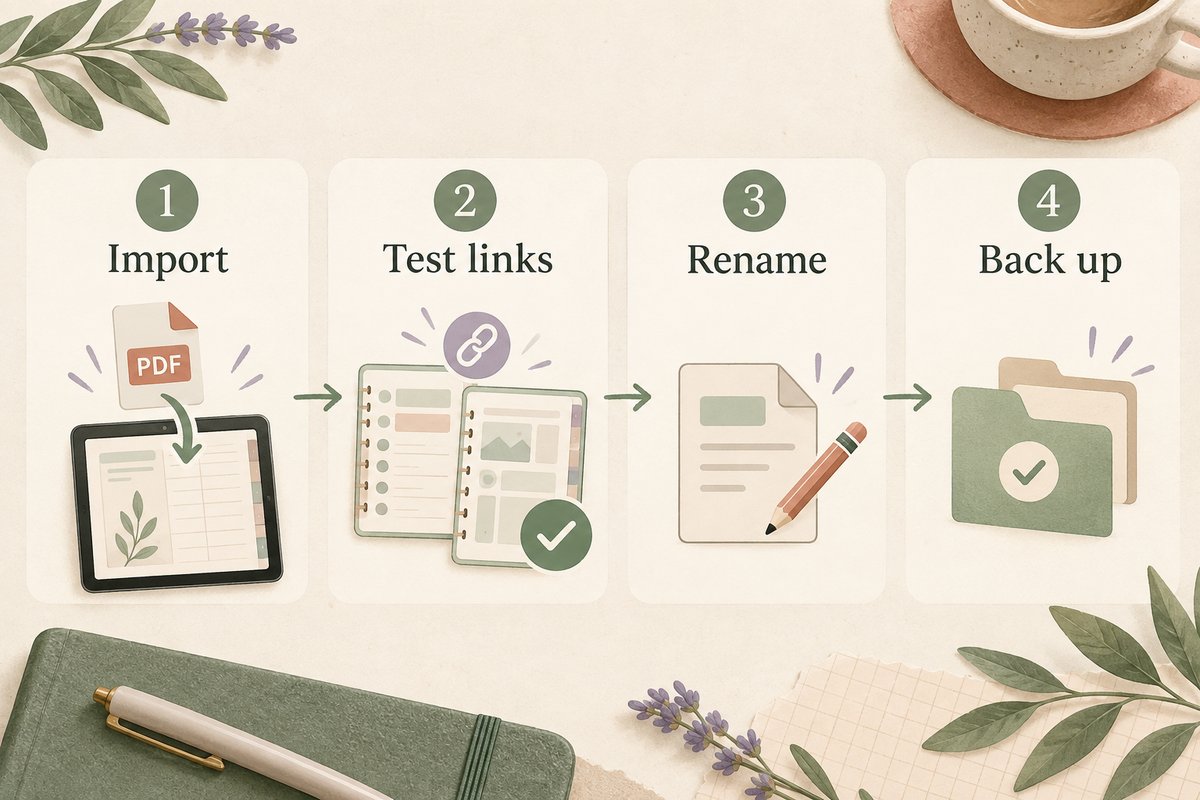
7 easy steps to set up a hyperlinked digital planner
- Download the complete product files. Keep the original download in a clearly named folder.
- Extract the ZIP archive when required. Locate the planner PDF identified in the instructions.
- Import the PDF into the intended app. Create a new document rather than inserting it into an unrelated notebook unless instructed otherwise.
- Test several links before writing. Try a month tab, weekly page, notes section, and home button.
- Learn the navigation control. Switch between link navigation and annotation tools as needed.
- Rename and organize the working copy. Store it in a dedicated folder.
- Keep an untouched backup. A clean copy makes it easier to restart when pages are deleted or the working file is damaged.
For a detailed setup walkthrough, read how to import a digital planner into Goodnotes. You can also review the digital planner for iPad guide before choosing a device-based workflow.
What hyperlinks can—and cannot—do
Hyperlinks can
- Move between pages inside the planner.
- Open a defined index, date, or section.
- Open an external destination when the product includes that link.
Hyperlinks cannot
- Automatically write appointments or tasks.
- Turn an undated planner into a dated planner.
- Add calendar syncing or features not built into the file.
Some products may include separate calendar links, shortcuts, stickers, or editable source files. Treat those as product-specific features and verify them on the listing.
Hyperlinked digital planner benefits and limitations
Why people use them
- Faster movement between dates and sections.
- Calendars, tasks, notes, and trackers can live in one file when included.
- Handwriting, typing, highlighting, shapes, and images can be combined through the app.
- An undated structure may be reusable when the product and app allow it.
- The workflow can reduce the need to print every page.
What to consider
- You need to learn how the selected app handles links and writing tools.
- The planner depends on the intended device and software.
- Working copies and backups need clear file organization.
- Page count, sections, dates, orientation, and compatibility vary by product.
- Deleting or rearranging pages may affect the expected navigation in some workflows.
How to choose the right hyperlinked digital planner
- Choose dated or undated. A dated planner is ready for a specific period; an undated layout may provide more flexibility.
- Choose portrait or landscape. Match the orientation to how you normally hold or position the device.
- Review the included sections. Choose a planner that supports your real workflow rather than the longest possible feature list.
- Verify the intended software. Confirm the app, device, import method, and file format named on the listing.
- Check whether the design is editable. A finished PDF and an editable source template are different products.
- Read the current license and delivery details. Usage, file sharing, redistribution, and support terms can vary between products.
The digital planner templates guide explains common planner styles and can help narrow the choice before purchasing.
Try a complete hyperlinked digital planner navigation route
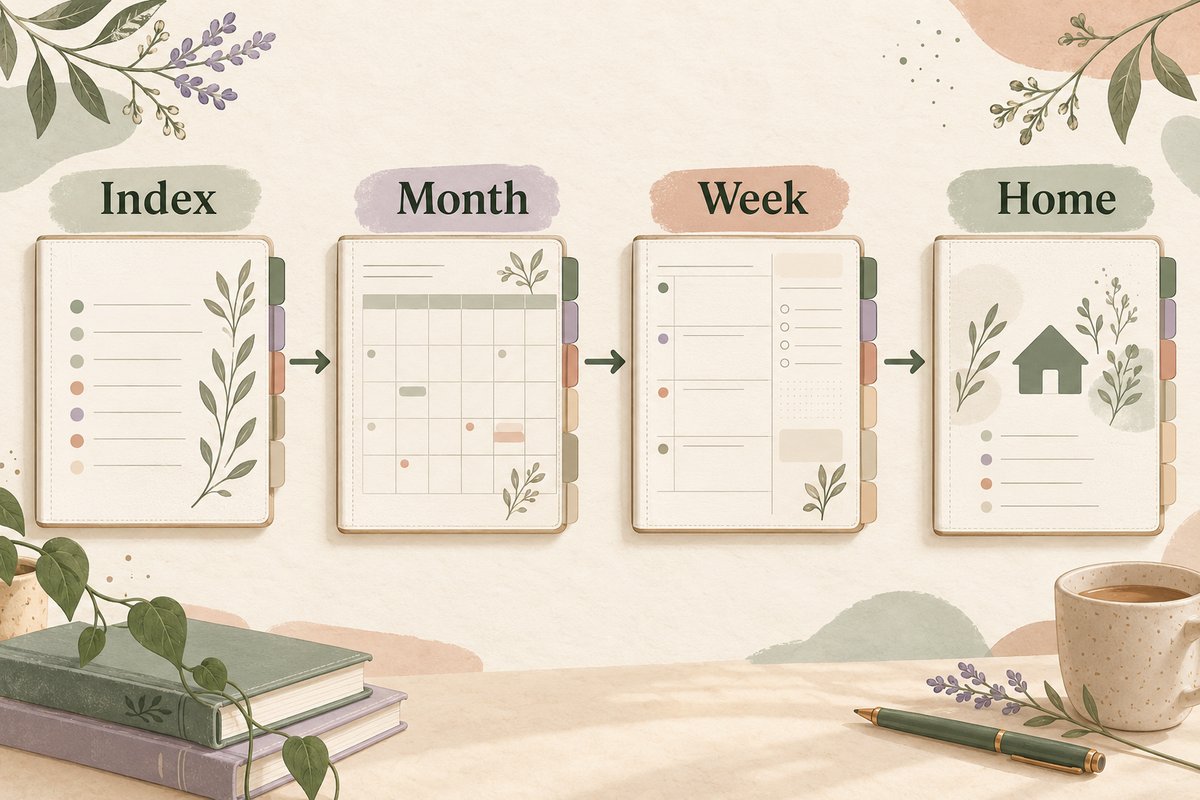
A useful first test follows an actual planning task. Imagine you need to add a project session next week, then return to today’s notes. In a hyperlinked digital planner, the route might be index, month, week, and home. The exact route depends on the links supplied in that file; a decorative date or tab may have no destination.
- Start at the index. Tap a month label using the app’s link-opening method. Check that the destination heading matches the label.
- Move to a week. If the monthly page includes weekly links, choose one and confirm its date range. If not, use the planner’s index or page thumbnails.
- Make one test annotation. Add a short task in an empty writing area, away from the tab. Confirm that you can read it at your normal zoom level.
- Return home. Tap the supplied home or index link and repeat the route. Your annotation should still be on the same weekly page.
Repeat with a distant month and a notes section. A hyperlinked digital planner can have one incorrect destination even when its other tabs work. Testing a few different sections is more informative than tapping the same tab repeatedly. If a link fails, record its starting page, label, expected destination, and actual result before contacting the seller.
Open hyperlinked digital planner tabs in Goodnotes
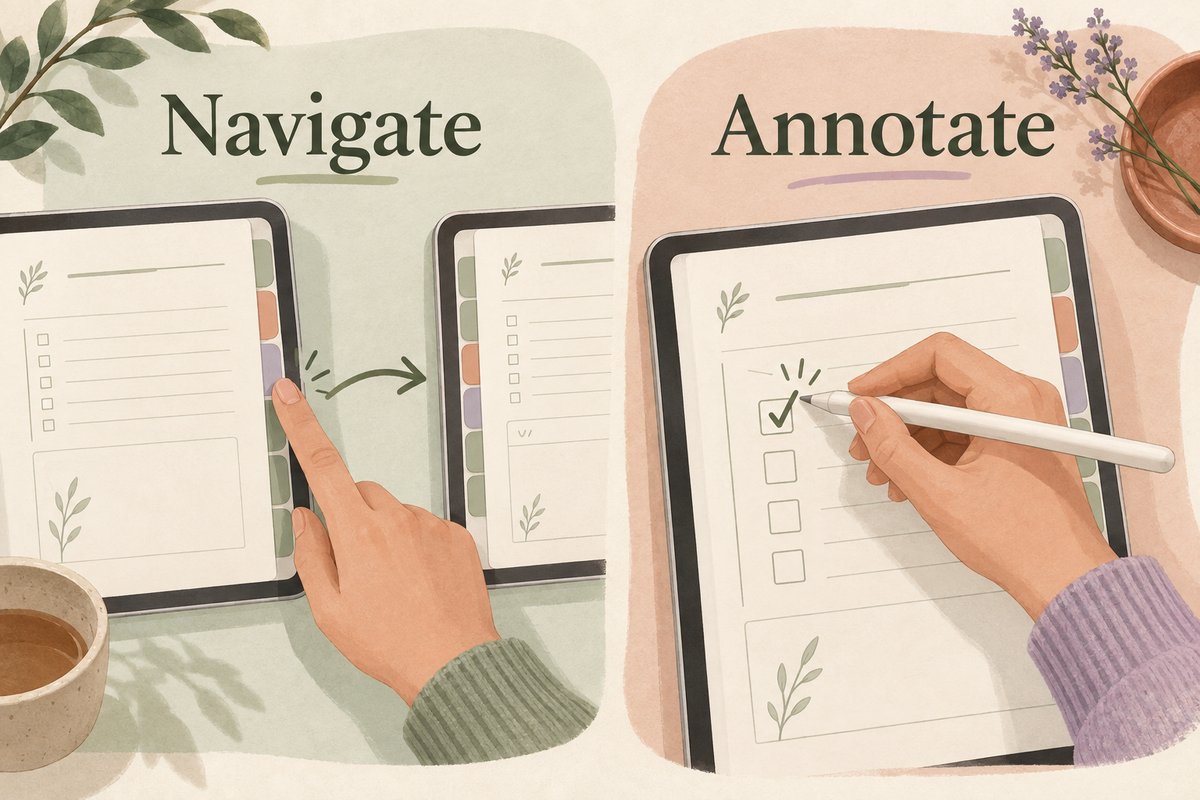
Goodnotes’ current hyperlink instructions distinguish platforms. On iOS, select the linked planner element. On Android, Windows, or Web, enter Read Only Mode and select it; in Edit Mode, press and hold the link and choose Open Link. Check the current instructions if your app version presents different controls.
These controls tell the app how to open a link already in the PDF. They do not create a missing destination. When a hyperlinked digital planner tab is unresponsive, first distinguish an app-mode problem from a file problem: test a second link, then compare the untouched original with your working copy.
Troubleshoot a hyperlinked digital planner without losing notes
Every tab seems inactive
Check that the file is a multi-page PDF rather than a screenshot or flattened preview. Confirm the app’s navigation method and try a known index link. If the file came in a ZIP, extract the archive and follow the included filename instructions. Do not repeatedly import unrelated preview assets while looking for the planner.
One tab opens the wrong page
Test the same tab in an untouched copy. If both copies open the wrong place, the supplied hyperlink may need correction by the creator. If only the working copy behaves differently, review whether pages were deleted, moved, or replaced. Preserve your notes before experimenting. A hyperlinked digital planner backup is most useful when it predates the change you are trying to undo.
A copied weekly page is not in the month navigation
Copying a page does not promise that other PDF links will be rebuilt around it. Use a bookmark or the app’s supported navigation tools for your copy, or return to the supplied structure. Ask the creator which customization workflow is supported before duplicating many pages. An undated hyperlinked digital planner still has a defined link structure.
Writing covers the tab
Move or erase only the annotation that overlaps the linked area, using the app’s normal editing tools. Test the tab again. Avoid covering navigation with stickers until you know where the clickable regions are. Keep decorative additions inside the writing area when possible.
Check a sample before choosing your main file
Use a sample hyperlinked digital planner, when the seller supplies one, on the same device and app you will use daily. Zoom to your normal writing size and try a short sentence. Check whether the tabs remain easy to tap and whether the page has enough room for your handwriting. A layout can look spacious in a desktop preview but feel cramped when you open two apps beside each other on a tablet.
Also test the route you use most often. If you mainly move between a weekly plan and project notes, those links matter more than dozens of trackers you will rarely open. Choose a hyperlinked digital planner with clear destinations, legible labels, and a manageable page structure. If no sample exists, ask for screenshots showing the relevant pages and read the documented compatibility requirements before paying.
Maintain one working copy and a recoverable backup
Give the hyperlinked digital planner a clear working filename, such as Work Planner 2026, and keep the untouched download separately. Make a backup before major page changes. Then open the backup once to confirm that it contains the expected pages and recent notes; an export that was never checked is not a verified recovery copy.
A short weekly review helps too. Clear obsolete tasks, check the next week’s deadlines, and test navigation after any structural change. You do not need to decorate every page or use every tracker. A hyperlinked digital planner earns its place when its navigation makes your real planning tasks easier to repeat.
Common problems and FAQs
The tabs do not respond
Confirm that you imported the complete planner PDF rather than a preview image. Then switch to the app’s navigation or reading control. An active pen tool may write over a tab instead of opening its link.
The planner opened as one image
You may have selected a JPG or PNG preview. Return to the extracted download folder and locate the complete PDF identified in the instructions.
Is a hyperlinked digital planner an app?
No. A hyperlinked digital planner is usually a PDF document opened inside a compatible app. The app supplies the annotation and file-management tools; the planner supplies the pages and links.
Do I need a stylus?
No. A stylus can make handwriting more natural, but many apps also support typing, shapes, highlights, images, and other annotation tools.
Can I print a hyperlinked digital planner?
A PDF may be printable when the product allows it, but printed pages cannot retain clickable navigation. Review the product instructions and license before printing.
Can hyperlinks connect to Google Calendar or Apple Calendar?
Internal PDF links normally move between planner pages. Calendar integration requires separate external links or features that must be explicitly included and documented by the product.
Explore digital planners
Browse current planner options and review each product page for its included files, orientation, dates, intended software, delivery details, and license.
Compare orientations
Read the portrait versus landscape comparison before choosing how the planner should fit your screen and writing position.
Set up Goodnotes
Follow the step-by-step import guide when your planner is intended for a Goodnotes workflow.
Official setup references
Choose a planner that matches your real workflow
Start with the device and app you already use, decide which sections you genuinely need, and verify the current product details before downloading.
Updated buyer check: separate links from editability
A hyperlink is a navigation connection inside a file. It may take you from a tab to a month, week, day, index, or another section. It does not by itself prove that the page design is editable, that every link is correct, or that every PDF reader will respond in the same way.
| Question | Evidence to request |
|---|---|
| What is delivered? | The exact file format, any ZIP or instruction file, and the supported import route. |
| What is linked? | Preview pages, a link map, or a test showing the sections a buyer will use. |
| What can be edited? | A clear distinction between PDF annotation and changes to the source layout or text. |
| Where does it work? | The individual product’s named app/device requirements, not a universal app claim. |
| What period is covered? | The exact dated range, week start, or undated setup stated for that file. |
If a sample is available before buying, import it and test several links in the app you intend to use. Otherwise, inspect the documented navigation and test the purchased file before adding extensive notes. Goodnotes’ official import guidance explains that file support and limits vary by platform. That is why the product page and supplied instructions remain the authority for a specific Temply Studio file.
Use the import guide for the first test, then compare current file details in the Temply Studio digital planner collection.
Temply Studio
Stop chasing your goals with sticky notes and scattered notebooks. Our premium digital planners and Canva templates are designed to help you plan with intention, stay consistent, and actually enjoy the process.



Questions about this guide?
Ask about the planner, share how you use it, or tell us what to cover next. Your email stays private.