




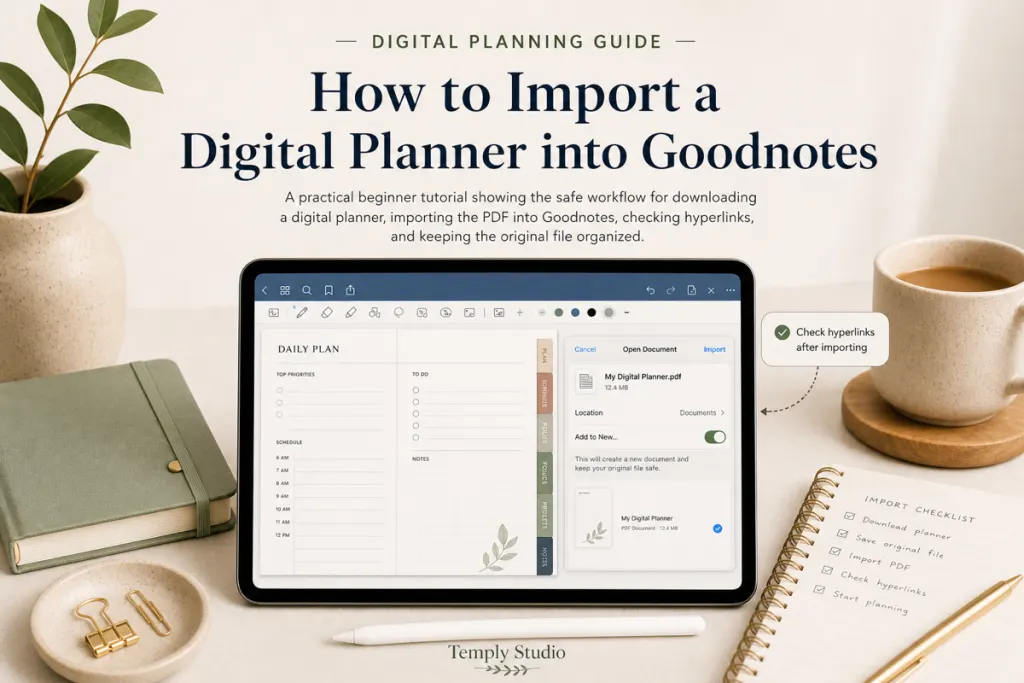
A free digital planner for Goodnotes is usually a PDF that you import and annotate inside the app. Before downloading one, confirm that the file is complete, the page layout fits your screen, the hyperlinks work, and the license allows your intended use. A planner can open successfully in Goodnotes and still be a poor match for your routine.
Quick answer
Choose the planner first; import it second. Check the source, PDF format, orientation, dated period, page structure, hyperlink behavior, and license. Keep an untouched backup and test a working copy before adding important notes.
What should a free Goodnotes planner include?
There is no universal feature list. A simple free planner may include a monthly calendar and weekly pages, while another resource may add daily pages, notes, trackers, covers, or stickers. The useful question is not how many pages the download advertises. It is whether the included pages support the way you actually plan.
| Check | Why it matters | What to look for |
|---|---|---|
| Main file | Goodnotes needs a supported document to import | A clearly identified PDF rather than only preview images |
| Orientation | Writing comfort changes with screen position | Portrait for vertical use or landscape for a wider workspace |
| Dated period | Calendar pages may expire | The correct year or an undated structure |
| Navigation | Hyperlinks can reduce page-by-page browsing | An index, section tabs, and return links that work |
| Writing space | Decorative pages may leave little room for notes | Readable labels, useful margins, and uncluttered fields |
| License | Free access does not define usage rights | Personal, classroom, client, sharing, and commercial terms |
| Instructions | Downloads may contain several files | A setup guide that identifies the main planner and extras |
Seven checks before importing a free planner
1. Download from an identifiable source
The source should identify the creator or publisher, describe the file, and provide usage terms or a contact route. A recognizable website or official marketplace page is easier to verify than a shortened link passed between unrelated accounts. Avoid pages that hide the filename, require an unfamiliar installer, or make claims that do not match the preview.
2. Make sure you have the planner PDF
A listing may include JPG or PNG previews, a ZIP archive, an instruction document, covers, and sticker images. Identify the complete planner PDF before importing. If the download is compressed, extract it first and keep all supplied instructions with the original files.
3. Choose dated or undated intentionally
A dated planner provides ready-made calendar pages for a stated period. An undated planner can be started later, but you may need to add dates manually. Do not assume that “reusable” means the license permits redistribution or that every dated element can be edited. Read the file description and compare dated and undated planner formats before choosing.
4. Review the layout at a realistic size
Open full-page previews on the device you expect to use. Check whether headings remain readable and whether time blocks, checkboxes, and note areas are large enough for your handwriting. A design that looks polished in a product thumbnail may feel crowded when used every day.
5. Confirm that hyperlink claims are specific
Hyperlinked planners should explain what the tabs connect to. Common examples include an index, months, weeks, days, notes, and return buttons. Goodnotes’ official documentation states that imported PDF hyperlinks can be opened in read-only mode; in edit mode, the link can be opened through the link command. A static PDF without embedded links can still be annotated, but it should not be presented as a hyperlinked planner.
6. Separate planner compatibility from app access
The planner file and the Goodnotes app are separate products. A free planner does not include a device, stylus, subscription, cloud storage, or every feature available in Goodnotes. App features and account limits can change. Check Goodnotes’ current documentation and the planner source instead of relying on an old compatibility badge.
7. Read the license before duplicating or sharing
Duplicating a working copy for your own planning may be allowed, but sharing the original file with friends, students, clients, or team members can be restricted. Free does not automatically mean commercial use or redistribution. Keep the license with the download so you can refer to it later.
How to test the planner without risking your original
- Save the untouched download. Keep the original PDF, ZIP, instructions, and license in one folder.
- Create a working copy. Rename it clearly so it is not confused with the backup.
- Import it as a separate document. Avoid inserting it into an existing notebook during the first test.
- Test the index and tabs. Open the home link, two section links, and at least one return link.
- Write on three page types. Try a calendar, a planning page, and a notes page.
- Close and reopen the document. Confirm that annotations remain and the file loads normally.
- Use one ordinary week. Track which pages help and which ones create extra work.
For the complete import workflow and troubleshooting steps, use the dedicated guide to importing a digital planner into Goodnotes. This article focuses on choosing and checking a free resource rather than repeating that tutorial.
Which free planner layout fits your routine?
Daily planning
Choose a daily page when you need room for appointments, priorities, tasks, and notes. Check whether the time scale matches your schedule and whether the page becomes too repetitive for the way you plan.
Weekly planning
A weekly spread is useful when you want to see commitments and priorities together. Compare vertical columns, horizontal rows, and dashboard-style layouts. The best structure is the one you can scan without constant zooming.
Monthly planning
Monthly pages suit deadlines, appointments, launches, study dates, and recurring tasks. Check whether the calendar starts on your preferred day and whether the dated period is correct.
Notes and trackers
Trackers are useful only when they support a real decision or routine. Do not choose a planner because it contains dozens of specialized pages you are unlikely to use. Blank, lined, grid, or dot-grid notes may provide more long-term flexibility.
Common warning signs
- The page promises a complete planner but provides only a preview image.
- The file year, orientation, or page list is not stated.
- The source claims universal compatibility with every device and app.
- Hyperlinks are advertised without showing an index or navigation structure.
- No license or usage terms are available.
- The download requires unrelated software or several unexplained redirects.
- The planner includes tiny text, crowded fields, or decorative pages with little usable space.
When a paid Goodnotes planner may be more suitable
A free planner is a sensible choice when you are testing digital planning or need only a basic structure. A paid planner may be worth considering when you already know the exact dated period, orientation, navigation, page types, instructions, or product support you need. Payment does not guarantee quality, so evaluate the current product page with the same checklist.
Compare current digital planner options
Start with the free digital planner evaluation guide. When you know the layout you need, browse the Temply Studio digital planner collection and verify each product’s current files, date range, compatibility, delivery, and license.
Frequently asked questions
Does a PDF automatically work as a planner in Goodnotes?
A supported PDF can normally be imported and annotated, but that does not guarantee useful page design, working hyperlinks, or compatibility with every platform feature. Test the specific file in your current setup.
Why do planner links select my pen marks instead of opening?
The document may be in an editing mode. Goodnotes documents separate methods for opening PDF links in read-only and edit modes. Use the current navigation controls shown in your app.
Can I reuse an undated free planner?
The design may allow you to add new dates, but reuse and duplication must still follow the creator’s license. Keep a clean copy and do not share or redistribute it unless the terms permit that use.
Does Temply Studio provide a free Goodnotes planner?
This article does not promise a Temply Studio free planner file. Check the current product or resource page for the actual price, files, delivery, and license before downloading or purchasing.
Official Goodnotes sources
Temply Studio
Stop chasing your goals with sticky notes and scattered notebooks. Our premium digital planners and Canva templates are designed to help you plan with intention, stay consistent, and actually enjoy the process.



Questions about this guide?
Ask about the planner, share how you use it, or tell us what to cover next. Your email stays private.