




Quick answer: Use a Canva Template Link when someone should start from a reusable design, a Public view link when they only need to see a design, and an Anyone with the link — Can edit permission only when you intend to grant edit access to the shared design. These link types serve different purposes; do not use an edit link to a working master as a substitute for a template.
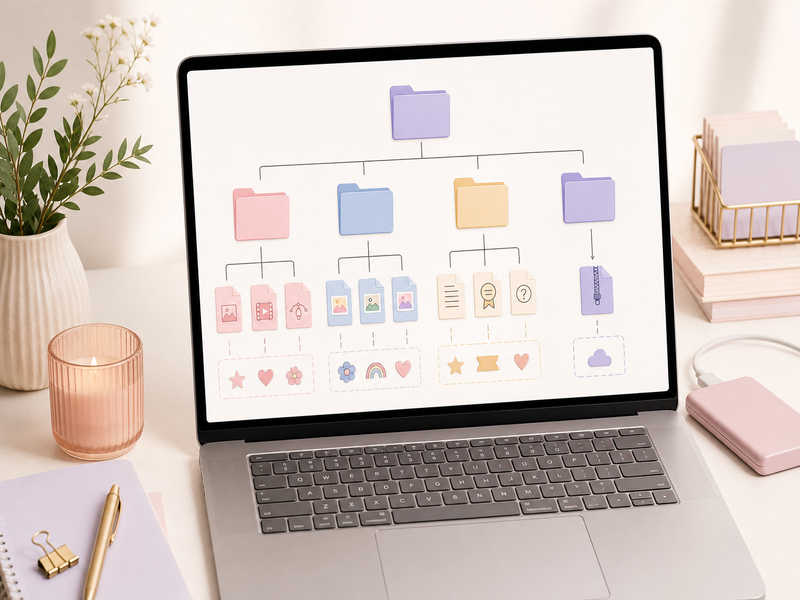
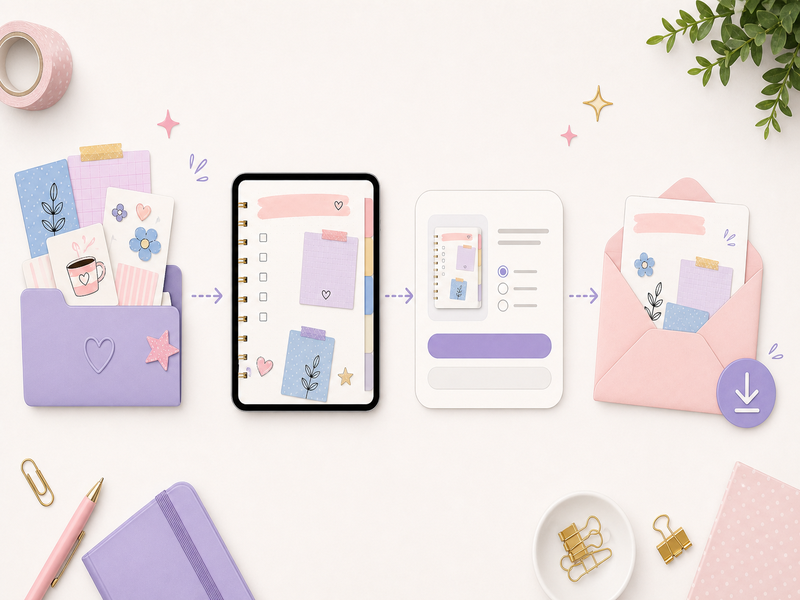
This guide uses a fictional weekly planner to explain access choices. It does not include a real Temply link or verify a product’s contents. Canva’s help pages can change, so check them again when setting up a new delivery.
Choose the link that matches the job
Template Link: let buyers use a design as a template
Canva says anyone with a valid Template Link can view and use the design as a template. To create one, open the design, choose Share → Template link → Create template link → Copy. Canva currently lists Canva Pro, Canva Teams, Canva Enterprise, Canva for Education, and Canva for Nonprofits as eligible creator plans. If the creator uses a work email domain, a recipient on that same domain must have a paid plan; Canva says recipients with a general email domain or outside the organization can continue to open and edit Template Links. Check the exact design and buyer prompts before making asset or plan claims.
Treat a Template Link as shareable access information: anyone who gets a valid link may be able to use it. Share it only where the intended buyers can reach it, and keep private notes, unreleased pages, and assets out of the delivery copy.
Public view link: let people preview
A Public view link shares the design in a viewing experience. Use it when the reader needs to look at a preview, not when the buyer needs a reusable template. Canva lets the owner delete a Public view link to remove access and make the design private again. A preview link is not the same as a Template Link or an invitation to edit the master.
Anyone with the link — Can edit: grant editing access to the shared design
Canva’s collaboration guide says a design is private by default, then an owner or someone with edit access can change sharing to Anyone with the link and choose Can edit, Can comment, or Can view. A guest with edit access can change or delete elements and pages in that design. This is direct editing access, not a buyer’s copy-making Template Link. Keep the working master restricted unless that access is intentional.
A safer workflow for a fictional planner
- Keep a private master. Canva says a new design is set to Only you can access by default. Leave the source restricted to the people who need it.
- Prepare a delivery copy. For a fictional weekly planner, remove internal comments, test notes, unreleased pages, and assets that should not ship. Review every page and its visible content before creating a link.
- Choose one access path. For a buyer who should start their own reusable planner, create a Template Link from the delivery design. For a portfolio preview, use a Public view link. Do not grant Can edit on the private master when a Template Link is the intended outcome.
- Check the buyer handoff. From a separate test account with no customer data, open the Start Here PDF, follow the intended link, confirm the correct design appears, and check any sign-in, plan, or asset prompts. If the file or access does not match the listing, fix the delivery copy before sending it.
- Keep the PDF and listing in sync. Record which link type and design version the buyer receives. If you intentionally replace a link, update the delivery file and the locations where it is offered.
What happens when a link changes
Canva says deleting a Template Link makes its URL inactive; creating a new Template Link creates a new URL. A deleted Public view link is also removed, and a new one has a new URL. A buyer who has an old PDF or saved link may therefore lose access to that destination. Before rotating an active link, plan how you will replace it in the download, listing, or buyer message and how you will tell previous buyers where to find the current version. Do not change a live buyer link just to test it.
See Canva’s official steps for Template Links, Public view links, and edit and view permissions. For a sample Start Here PDF and package checklist, read how to package Canva templates for customers.
Frequently asked questions
Does a Template Link give buyers edit access to my source?
Canva describes it as a way for anyone with the link to view and use the design as a template. That is a different sharing option from Anyone with the link — Can edit, which lets guests edit the shared design. Keep the working master private and make a separate delivery copy.
Can a Public view link be used as a template?
It is intended for a viewing experience. Use the Template Link option when buyers should use the design as a template, and verify your actual delivery link before including it in a PDF.
Can I disable a link after sending it?
Canva’s help says deleting a Template Link makes its URL inactive, and a replacement link has a new URL. Update any PDFs or listings that contained the old link; otherwise an earlier copy can keep pointing to the inactive address.
Conclusion
Keep the master private, remove anything that should not be shared, and choose the link type for the buyer’s task: Template Link for a reusable starting point, Public view for a preview, or Can edit only when direct editing access is intended. Test the exact buyer-facing package with a separate account before using it in a real delivery.
Temply Studio
Stop chasing your goals with sticky notes and scattered notebooks. Our premium digital planners and Canva templates are designed to help you plan with intention, stay consistent, and actually enjoy the process.

Questions about this guide?
Ask about the planner, share how you use it, or tell us what to cover next. Your email stays private.