




Quick answer: A Canva-template delivery should tell the buyer exactly what is included and provide one verified Canva Template Link that lets them use the design as a template. In the fictional example below, the only download is a one-page Start Here PDF; add a source file or ZIP only when the listing promises it.
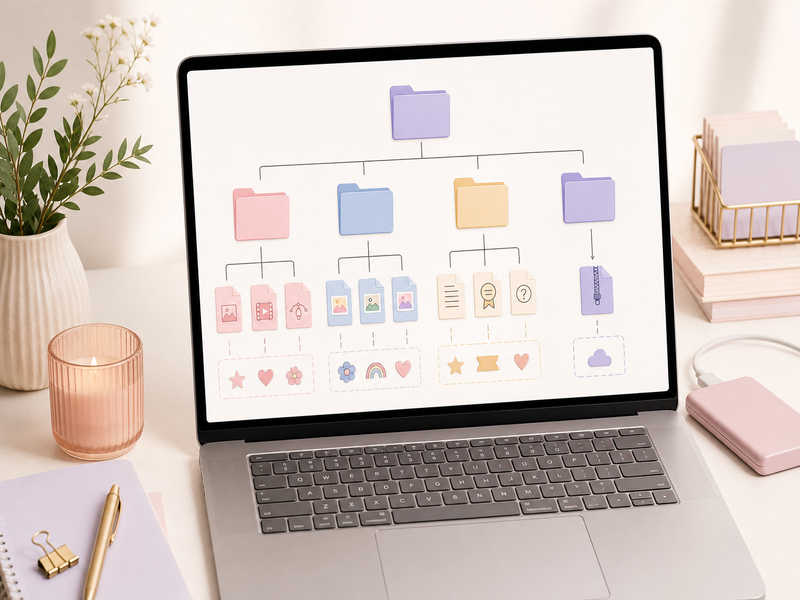
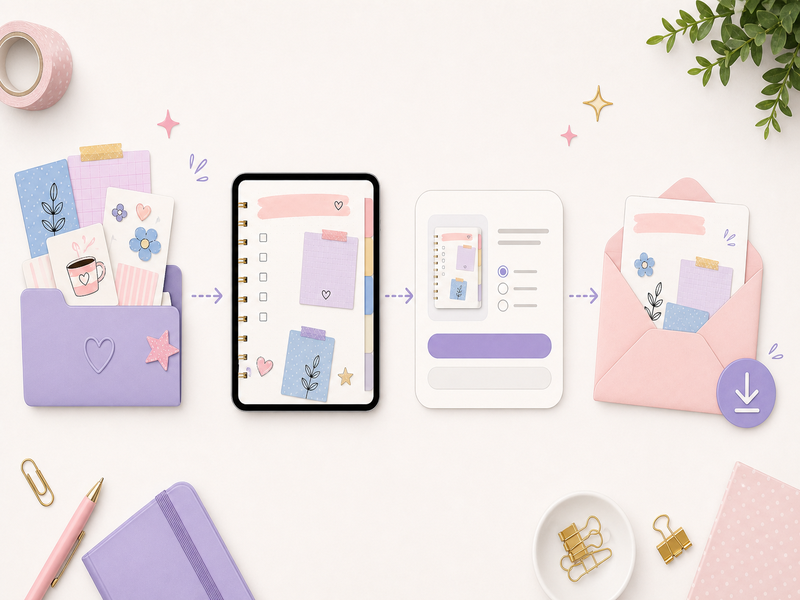
Example scope: This is a fictional weekly planner, not a Temply product specification or a tested buyer download. Its page count, assets, license wording, support channel, and example link are illustrative. Verify those details against the actual item before using a handoff.
A one-file package for a fictional weekly planner
Assume the listing promises a Canva template link and nothing else. The package is one Start Here PDF. The Canva design in this example contains a cover and 12 undated weekly spreads. The PDF explains how to open the link, what the buyer receives, the seller’s usage terms, and where to get help. It does not include an editable source file or ZIP because this example’s listing promises only the link.
Start Here text for the example
Weekly Planner — example only
- Included: one Canva Template Link to a fictional planner with a cover and 12 undated weekly spreads. Your download is this one-page Start Here PDF.
- Open your copy: [Insert the tested Canva Template Link here]. The seller should copy the link created from Share → Template link → Create template link → Copy. A Public view link is for viewing; an Anyone with the link — Can edit permission gives editing access to the shared design.
- Before opening: Canva says the creator needs Canva Pro, Canva Teams, Canva Enterprise, Canva for Education, or Canva for Nonprofits to create and share a Template link. If the creator uses a work email domain, a recipient on that same domain needs a paid plan; Canva says general email domains and people outside the organization can continue to open and edit Template links. Check any plan or asset prompt for the actual design with a separate buyer test account before describing it as a requirement.
- Usage: [Insert the seller’s actual license terms.] For this fictional example only: use your copy for personal planning; do not redistribute the template link or resell the design. These are sample seller terms, not Canva’s terms or legal advice.
- Version and support: Example v1.0. Replace this with the tested version and the seller’s real support route; ask buyers to use the purchase platform’s message thread and an order reference.
Do not publish the bracketed link as if it works. Replace it only with the tested buyer-facing link for the exact design being sold. Canva’s Template Link instructions explain who can create one and how the link is generated.
Build and check the buyer handoff
- Match the listing. Write down the exact promised files, design contents, format, and usage terms. If the offer is one template link, do not add a ZIP or source file to the checklist as a required deliverable.
- Prepare a buyer-facing design. Keep the working source private. Make a separate delivery copy, remove internal notes and pages or assets that should not be included, then create the Template Link from that copy.
- Write one short Start Here PDF. State what the buyer gets, paste the verified Template Link, list only prerequisites confirmed for that design, give the license note that matches the listing, and name the real version and support route.
- Test a clean handoff. With a separate test account and no customer data, open the PDF, follow its link, confirm it reaches the intended template, and check that the buyer can start a copy. If the listing promises exported files, open each export too. Record the tested version and date; fix broken links or unexpected prompts before delivery.
- Keep the source and delivery version distinct. Save the original separately, record what changed, and update the PDF whenever the tested buyer link or included files change.
Common packaging mistakes
- Calling a view link a copy-making Template Link.
- Using an edit link to the working master when buyers should receive their own template starting point.
- Listing a plan or premium-asset requirement without checking the exact design in a representative buyer account.
- Adding a source file, ZIP, or export that the listing does not promise, or omitting a file it does promise.
- Leaving a placeholder, old version number, private page, or untested link in the final PDF.
Frequently asked questions
Does a template link mean I must send the Canva source file?
No. If the offer promises only a Template Link, say so and make the PDF the only download if that is the actual delivery. Do not describe a source file or ZIP as included unless it is.
Can I use a Public view link instead?
Only if the buyer needs a preview rather than a copy-making template. Canva describes a Template Link as a way for anyone with the link to view and use a design as a template. A public view link opens the design’s viewing experience. See Canva’s Template Link help and Public view link help.
What should I verify before using this example for a real product?
Check the actual delivered PDF, exact template, included pages and assets, recipient prompts, seller license, version, and support route using a separate test account. The fictional example above does not establish those facts for any Temply item.
Before uploading the release, standardize the buyer-visible archive and file names with the digital download file naming conventions.
Conclusion
A useful Canva handoff is small and exact: one clear Start Here PDF, the correct tested Template Link, a truthful contents list, seller terms that match the listing, and a support path. Verify the real design before making claims about its assets or recipient requirements, and provide only the files the offer promises. For access choices and link handling, continue with how to share Canva Template Links safely.
Temply Studio
Stop chasing your goals with sticky notes and scattered notebooks. Our premium digital planners and Canva templates are designed to help you plan with intention, stay consistent, and actually enjoy the process.

Questions about this guide?
Ask about the planner, share how you use it, or tell us what to cover next. Your email stays private.