




An organized SVG library should help you answer four questions quickly: What is this design? Which file format should I open? Where did it come from? What license applies? A simple folder and naming system protects the original downloads while making active projects easier to find.
> Quick answer: Keep the original ZIP, extract each purchase into its own folder, separate formats only when useful, preserve the license, and use consistent names that include the design, source, and purchase reference.
Start with one intake folder
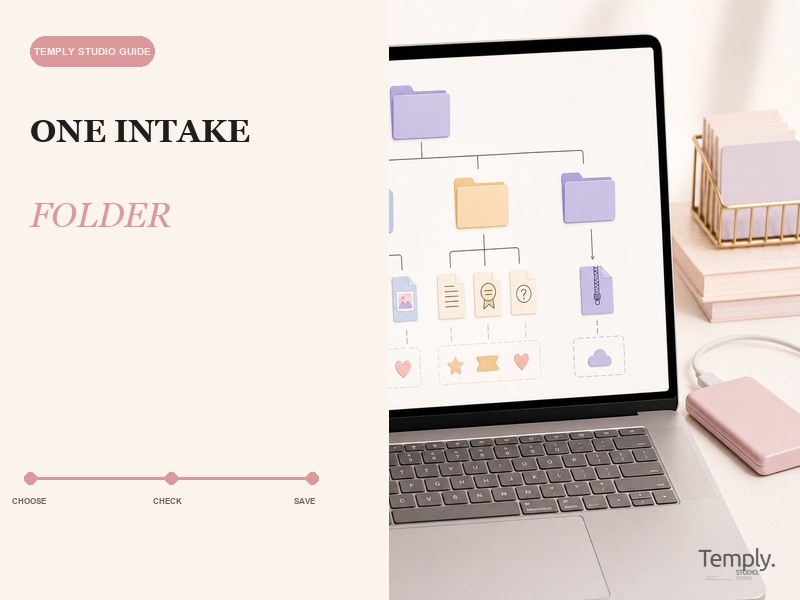
Create a temporary folder called Craft Downloads - To Organize. Save new downloads there before moving anything into your permanent library. This prevents files from becoming scattered across Downloads, Desktop, email attachments, and cloud storage.
Process the intake folder regularly:
1. Confirm the download finished.
2. Identify the store, creator, and order.
3. Keep the original archive.
4. Extract it into a new bundle folder.
5. Review the included formats and license.
6. Rename the bundle folder consistently.
7. Move it to the permanent library.
Do not delete the original archive until the extracted files open correctly and a backup exists.
Use a predictable folder structure
A practical top-level structure is based on how you search:
SVG Library
– Animals
– Holidays
– Home and Signs
– Kids
– Sports
– Work in Progress
– Completed Projects
– Licenses and Receipts
Inside a bundle folder, use:
Original ZIPSVGPNGDXFPreviewLicenseProject Files
Not every bundle needs every subfolder. If a purchase contains six clearly named files, extra nesting may slow you down. Use the smallest structure that keeps formats and rights understandable.
Keep the original bundle intact
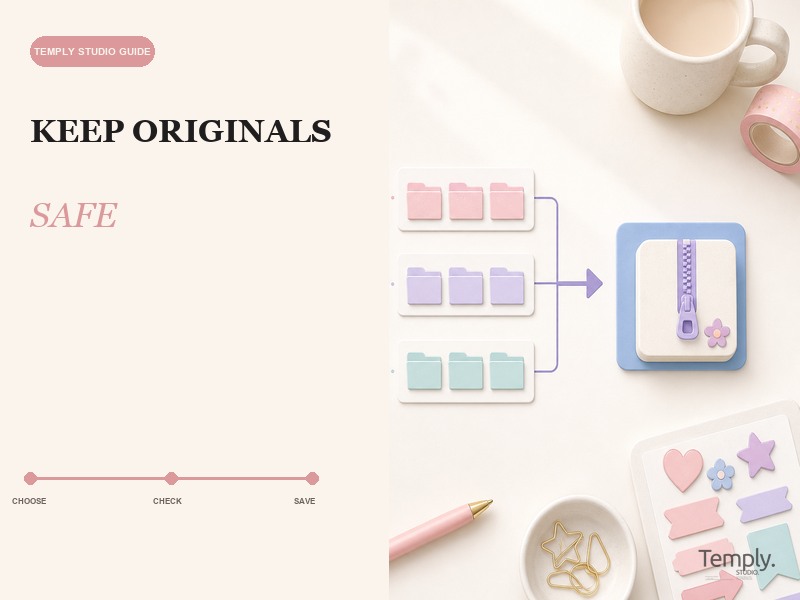
The original ZIP is useful evidence of what was delivered. Rename it without changing the extension:
Creator_Design-Name_Order-Reference_Original.zip
Store it inside the bundle folder or in a separate read-only archive. Do not edit files inside the archive and treat that archive as the recovery copy, not the active project.
If you receive an updated download, keep both versions until you confirm which is correct. Add a date or version note rather than overwriting the only copy.
Create names that work in search
Good file names are short, descriptive, and consistent. Google Drive’s official organization guidance recommends meaningful names and simple folder structures; the same principle works locally.
Example bundle folder:
Halloween_Witch-Silhouette_CreatorName_Order1234
Example active files:
Halloween_Witch-Silhouette.svgHalloween_Witch-Silhouette_Print.pngHalloween_Witch-Silhouette.dxf
Avoid names such as final-final2.svg, image1.png, or new design.svg. Do not remove the creator or source information if that would make the license difficult to trace.
Separate formats by purpose
SVG, PNG, and DXF files are not interchangeable.
- SVG is a vector format commonly used for layered cut paths.
- PNG is a raster format commonly used for flattened printable artwork.
- DXF is a vector exchange format included in some desktop cutting workflows.
Read the SVG vs PNG vs DXF guide before deleting any format. Cricut currently documents a mobile limitation for DXF, and Silhouette Studio SVG support depends on the software edition. Keep formats that may be needed by another supported workflow.
Preserve licenses and receipts
Put the license supplied with the bundle in the same folder as the artwork. If the license exists only on a web page, save a PDF or screenshot with the page URL and access date, subject to the site’s terms. Store the receipt or order reference without exposing payment details in shared project folders.
Create a short note:
“`text
Source:
Creator:
Order:
Purchase date:
License file:
Permitted uses checked:
Restrictions checked:
“`
Do not infer commercial use from the file format or marketplace. A working SVG does not grant permission to redistribute, resell, share, or transfer the source file.
Review Temply Studio license terms for Temply Studio products and the product-specific license when one is supplied.
Organize on macOS
Apple’s Finder documentation supports organizing with folders and tags. Tags can add a second layer of classification without duplicating files. For example:
- green: tested;
- yellow: needs cleanup;
- blue: licensed project;
- red: license needs review.
Use tags sparingly and document what the colors mean. A folder remains easier to move between platforms than a tag-only system.
Organize on Windows
Microsoft describes File Explorer as the place to find, open, organize, and manage local and cloud files. Use Details view to see names, types, and modification dates. Pin the active craft library to Quick access and keep original archives separate from working files.
Turn on visible file extensions so that similarly named SVG, PNG, and DXF files are distinguishable. Avoid changing an extension manually; renaming .png to .svg does not convert the file.
Organize in cloud storage
Cloud storage can add backup and cross-device access, but sync is not a substitute for a separate recovery copy. Google Drive supports folders, subfolders, meaningful naming, stars, colors, and descriptions. OneDrive supports folder structures and version history.
Choose one primary cloud location instead of syncing the same active library through several services. Conflicting sync tools can create duplicate files and unclear versions.
Build a project folder without altering the source
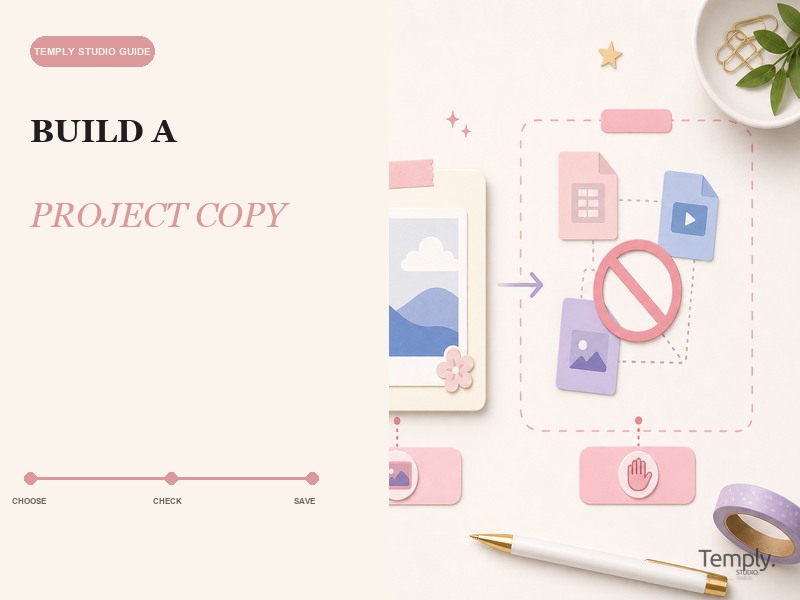
When starting a craft:
1. Create a project folder.
2. Copy the needed source file into it.
3. Keep the purchased original unchanged.
4. Save machine-specific edits under a new name.
5. Add a photo or note showing material and settings you tested.
6. Archive the completed project separately.
This separates source assets from experiment files and makes it easier to return to a clean original.
Back up the library
Maintain at least one recovery copy outside the device holding the active library. A simple approach is:
- active working library on the computer;
- synchronized copy in one cloud service;
- periodic archive on a separate drive.
Test recovery occasionally by restoring one non-sensitive bundle to a temporary folder. A backup process is only useful if the files can be opened.
Review the library quarterly
Every few months:
- process the intake folder;
- find bundles without license notes;
- remove genuine duplicate working copies;
- keep original archives;
- verify that backups complete;
- move finished projects out of the active area;
- update names that are impossible to search.
Do not run bulk duplicate-removal software across source files without reviewing the proposed deletions.
Find compatible design files
Browse the Temply Studio SVG and silhouette collection after confirming the formats and software workflow you need. Check the current product page for exact included files and license terms.
If you want a real multi-format bundle to practice this folder structure, the Welcome Round Sign SVG Bundle has a verified archive containing SVG, DXF, EPS, PDF, and PNG files. Cutting-machine import behavior was not independently tested in the current package QA.
Frequently asked questions
Should I organize by theme or file format?
Theme is often faster for discovery, while format folders help inside each bundle. Use the method that matches how you search and avoid excessive nesting.
Can I delete PNG or DXF files if I use SVG?
Only after confirming you will not need them for another supported workflow and that the original archive is backed up. Formats serve different purposes.
Should licenses be stored separately?
Keep a license copy with each bundle. A central license index can be useful, but it should not be the only connection between rights and files.
Is cloud sync a backup?
Sync improves access, but changes and deletions may propagate. Keep an independent recovery copy and test restoration.
Sources
- Apple: Use the Finder on Mac
- Microsoft: File Explorer in Windows
- Google Drive: Organize your files
- Microsoft: Organize files and folders in OneDrive
- Cricut: How to upload images into Design Space
Temply Studio
Stop chasing your goals with sticky notes and scattered notebooks. Our premium digital planners and Canva templates are designed to help you plan with intention, stay consistent, and actually enjoy the process.
Questions about this guide?
Ask about the planner, share how you use it, or tell us what to cover next. Your email stays private.