


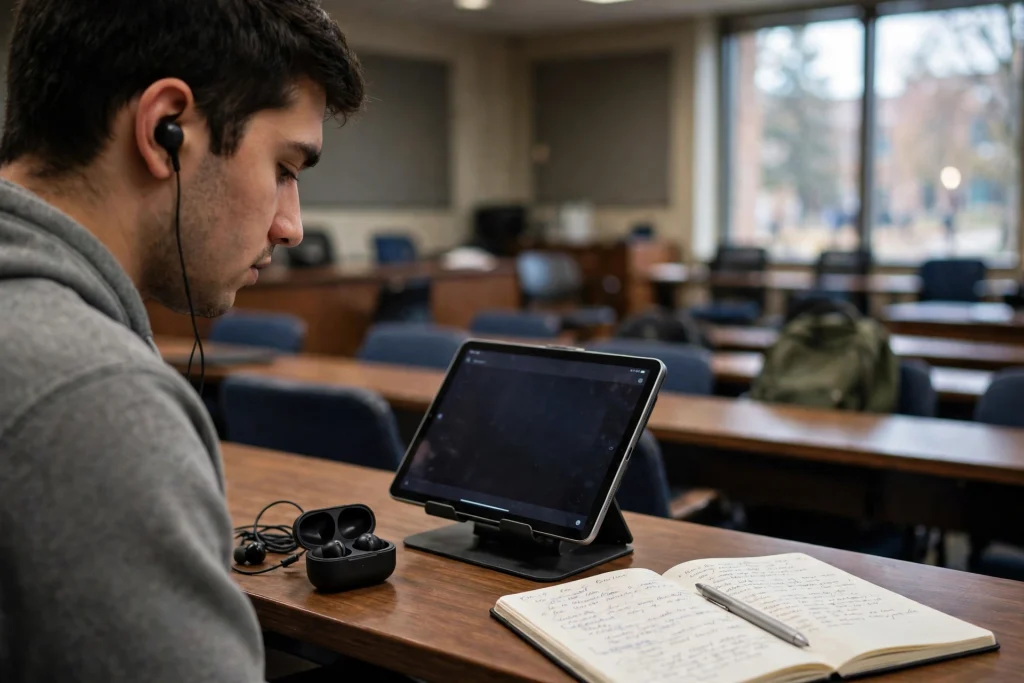
Quick answer: To record lectures in GoodNotes, open your notebook, tap the audio recording button, and write normally while it records. Every handwritten word is time-stamped to the audio, so tapping a word later plays exactly what the lecturer said at that moment. Set your iPad to Do Not Disturb, sit near the speaker, and record lectures in GoodNotes in short, labeled sessions for the easiest review.

Recording lectures changes how you take notes. Without audio, you write frantically, miss half the explanation, and end up with notes you cannot decode a week later. When you record lectures in GoodNotes, you can write less and listen more, because the audio holds everything you did not write down. Your handwritten notes become an index into the recording: tap a heading, hear the explanation. This guide covers the full workflow to record lectures in GoodNotes — setup, recording, playback, review, sharing, storage, and fixes for the problems students hit most.
Before you start, check your institution’s rules. Many lecturers allow personal recording, some require permission, and a few prohibit it. When you record lectures in GoodNotes, a quick “is it okay if I record audio for my own revision?” takes five seconds and avoids any problem later.
Table of Contents
How audio notes work when you record lectures in GoodNotes
When you record lectures in GoodNotes, the app captures audio while you write, and it links each pen stroke to a timestamp in the recording. Playback is the magic: tap any word you wrote and the audio jumps to the moment you wrote it. A confusing diagram becomes clear when you hear the thirty seconds of explanation that accompanied it. A half-written sentence becomes complete when the audio fills in what you missed.
This is fundamentally different from a separate voice recorder app. A standalone recording has no link to your notes, so finding one explanation means scrubbing through an hour of audio. When you record lectures in GoodNotes, your notes are the table of contents for the audio. Review becomes targeted: tap the headings you flagged, listen to those five minutes, skip the rest.
What you need to record lectures in GoodNotes
You need an iPad with GoodNotes, enough free storage for audio (roughly 100–200 MB per hour depending on quality), and a quiet seat. No extra hardware is required to record lectures in GoodNotes, though a few additions help: a cheap lapel microphone improves clarity in large halls, and a full battery matters more than any accessory. Check that audio recording is available in your GoodNotes version before the lecture, not during it.
Do a two-minute test before your first real lecture. Record yourself reading a paragraph, write three lines while recording, then tap each line and confirm the audio jumps correctly. Students who skip this test are the ones who discover problems after an irreplaceable lecture. When you record lectures in GoodNotes for the first time, test first, every time, in a new room.
Setup: prepare to record lectures in GoodNotes in 5 minutes
- Create a lecture notebook. One notebook per course, one section per week. When you record lectures in GoodNotes, organized notebooks make review possible; a single dumping-ground notebook makes it painful.
- Prepare the page. Title, date, and three headings: key ideas, questions, and to-do. You will write under these headings while you record lectures in GoodNotes, which makes playback navigation effortless later.
- Silence everything. iPad on Do Not Disturb, notifications off, other apps closed. A single notification ping in the middle of a recording is a distraction you will hear on every replay.
- Check storage and battery. One hour of audio needs a few hundred megabytes and modest battery. Plug in if you can. Nothing ruins a recording faster than a dead iPad at minute forty.
- Sit near the speaker. Audio quality when you record lectures in GoodNotes depends more on seat position than on any setting. Front third of the room, away from doors and air vents, beats any microphone upgrade.
Recording: how to record lectures in GoodNotes step by step
- Open the lecture page and tap the audio recording button before the lecturer starts.
- Write the lecture title and date at the top while the recording runs — this anchors your first timestamp.
- Write headings and keywords, not transcripts. When you record lectures in GoodNotes, your job is to build an index, not to copy the lecture. Short phrases, arrows, and stars for “exam likely” beat full sentences.
- Mark confusion immediately. Draw a question mark next to anything unclear and keep listening. You can tap that mark during review and hear the exact explanation again.
- Pause, do not stop, for breaks. Pausing keeps one clean recording per lecture instead of fragments. When you record lectures in GoodNotes across a two-hour session, one file per lecture is far easier to manage.
- Stop the recording at the end and name the session with the lecture topic and date. “Week 7 — cell respiration” beats “Audio 14” when you search in December.
Speak to your lecturer if a session is especially important. A seat near the front plus permission to place the iPad closer to the speaker can double clarity. When you record lectures in GoodNotes regularly, small courtesies like this compound into much better recordings.
Playback and review: the real payoff
Review within 24 hours. Open the lecture page, tap the headings you starred, and listen to those moments. Fill in the gaps in your notes while the audio is fresh. Students who review the same day retain dramatically more than students who review before the exam, and the tap-to-play link is what makes same-day review fast when you record lectures in GoodNotes.
Turn playback into study material. After listening, write a five-line summary at the bottom of the page: the three key ideas, one thing you still do not understand, and one exam-style question. This summary is what you revise from later — not the raw recording. A fitness of habit beats a library of recordings: when you record lectures in GoodNotes, the summary step is what converts audio into knowledge.
Use playback speed. Most students review at 1.25x without losing comprehension, which turns an hour of lecture into 48 minutes of review. Slow down only for the hard parts. When you record lectures in GoodNotes, variable speed is a genuine study advantage, not a gimmick.
Sharing and exporting your lecture recordings
Share carefully. Recordings made for personal revision should stay personal unless your lecturer and classmates agree otherwise. When you record lectures in GoodNotes for a study group, share your written summaries freely and share audio only with explicit agreement. A good compromise: share the page with timestamps noted (“the enzyme example is at the diagram on page 2”) so classmates can record their own sessions more effectively.
Export finished lectures as PDF for your archive. The PDF preserves your notes and structure; keep the original GoodNotes file too, because the audio link lives in it. A sensible archive habit when you record lectures in GoodNotes is one folder per course, one file per lecture, exported at the end of each week.
Storage, battery and file management
Audio files add up. A semester of recordings can reach several gigabytes, so check storage monthly and archive finished courses to cloud storage or a computer. Delete practice recordings and duplicates promptly. When you record lectures in GoodNotes all semester, storage hygiene is the difference between a smooth app and a full iPad in exam week.
Battery: recording plus writing uses moderate power, but a full day of back-to-back lectures needs a top-up. Carry a small power bank on heavy days. If battery is low, audio alone (screen dimmed) uses less power than recording with the screen at full brightness while you record lectures in GoodNotes.
Troubleshooting when you record lectures in GoodNotes
Audio is too quiet. Move closer to the speaker next time, reduce background noise, and check the iPad microphone is not covered by a case. A lapel microphone is the single best upgrade if quiet recordings persist.
Playback does not jump to the right moment. This usually means strokes were written before recording started or after it stopped. Always start recording before you write the first word, and stop it after the last. Timestamps only exist for strokes made while you record lectures in GoodNotes.
The file is huge. Long recordings in high quality grow fast. Split multi-hour sessions per lecture, archive finished courses, and avoid recording breaks and chatter. Quality settings matter less than most students think; clarity comes from seating, not bitrate.
GoodNotes will not record. Check microphone permission in iPad Settings, confirm storage is not full, and restart the app. If recording still fails, test in a fresh page to rule out a corrupt notebook before reinstalling anything.
You forgot to record. It happens. Borrow a classmate’s notes for that lecture, write a summary from them, and note the gap honestly. One missed recording in a semester of recordings changes nothing when you record lectures in GoodNotes consistently otherwise.
FAQ: record lectures in GoodNotes
Does audio recording work on all iPads? Audio recording is available in GoodNotes on supported iPads; check your version’s feature list before relying on it. When you record lectures in GoodNotes, confirm the feature exists on your exact device and app version first.
Does recording drain the battery fast? Moderately. A full day of lectures benefits from a power bank, but a single one-hour lecture costs a small fraction of a charge. Dim the screen while you record lectures in GoodNotes to save power.
Can I export the audio? Exports depend on version: PDFs preserve notes, while the linked audio lives in the GoodNotes file. Keep originals archived per course if you want playback later.
Is it allowed to record lectures? Rules vary by institution and lecturer. Always ask permission before you record lectures in GoodNotes, and keep recordings for personal revision unless sharing is explicitly agreed.
Does it work with imported PDFs? Yes. Import lecture slides as PDF, annotate them while recording, and your annotations link to the audio the same way handwritten notes do. This is one of the strongest ways to record lectures in GoodNotes, because slides plus audio plus your notes become one revision document.
Start with your next lecture: test the feature for two minutes, sit near the front, and record lectures in GoodNotes with headings instead of transcripts. Review the same day, write the five-line summary, and watch how much less you need to cram later. For a planner to organize those lectures, see the Student Planner in GoodNotes, grab free GoodNotes templates for students, and start with how to use a digital planner in GoodNotes if you are new to the app. GoodNotes documents its audio features at GoodNotes support, and the Temply Studio shop has the planners to organize everything you record.
Temply Studio
Stop chasing your goals with sticky notes and scattered notebooks. Our premium digital planners and Canva templates are designed to help you plan with intention, stay consistent, and actually enjoy the process.
Questions about this guide?
Ask about the planner, share how you use it, or tell us what to cover next. Your email stays private.