




Quick answer: How to print planner pages at home is easiest when you start with the outcome, use a simple structure, verify the file or platform details, and review one small example before scaling it. A printable template is successful when the page size, margins, printer settings, and binding or writing space all match the way you will use it. The checks below help you prepare a file without promising identical results across printers.
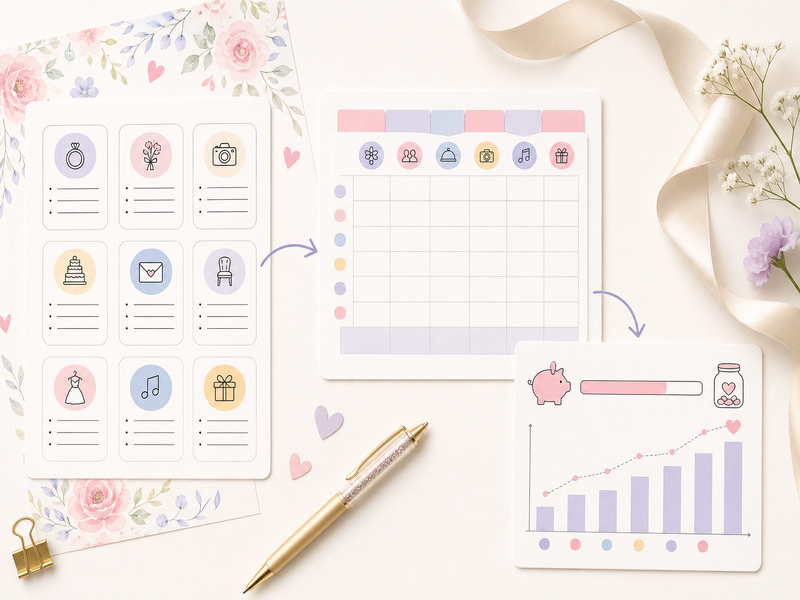
What to decide before you begin
Write down the decision the template, file, or workflow should make easier. Then check the paper size, printable margins, scaling, ink coverage, writing space, and the final physical use. A clear decision prevents a common problem: adding more sections, decoration, or settings before the basic task works.
- What is the next action after this page or file is complete?
- Which details must be visible without extra clicking or searching?
- What source copy, permissions, or original file must be preserved?
- Which platform, device, printer, or recipient will receive the final version?
Step-by-step workflow
- 1. Choose the paper size and orientation before editing.
- 2. Check margins and any area that will be trimmed or bound.
- 3. Enter only the information the page needs to support.
- 4. Export a print-ready copy and keep the editable source.
- 5. Print one test page at actual size and inspect alignment.
- 6. Adjust the file or printer settings before producing more pages.
Match the loaded paper to the planner PDF. Select Actual Size when the layout must print at its specified dimensions, then print a single test sheet. Check for clipped edges and confirm there is room for your hole punches or binding before printing the rest.
Use a small checklist to protect quality
- The title, filename, and first instruction describe the same purpose.
- The important information is readable at the intended screen or paper size.
- The original or editable source is stored separately from the final export.
- Links, permissions, dimensions, formats, and stated compatibility are verified.
- Any third-party claim is linked to the relevant official documentation.
- The final version tells the next person what is included and what is not included.
Common mistakes to avoid
- Printing with fit to page when the design requires actual size.
- Ignoring the non-printable edge of a home printer.
- Using heavy backgrounds where light ink coverage is more practical.
- Binding through a writing area.
- Assuming A4 and US Letter are interchangeable.
How this fits a reusable system
Once the first version works, turn the repeatable parts into a short routine. Keep a named source folder, a version note, and one place for the final link or export. Review the workflow after a few uses and remove any field that creates work without helping a real decision. A template should reduce friction; it should not require constant maintenance to remain understandable.
Continue with the Printables and Templates hub, review the related Temply Studio products, or read the Temply Studio shop for a connected workflow.
For help changing print scale, see Adobe Acrobat’s PDF page-size and scaling instructions.
Frequently asked questions
Do I need an advanced setup to start?
No. Start with the minimum structure that supports the immediate task. Add complexity only after you can explain the decision it improves.
Should I keep an editable source copy?
Yes. Keep the source separate from the final export or customer package so you can correct, update, or reuse the work without overwriting the original.
Will the same file work for every app, device, printer, or recipient?
Not necessarily. Verify the stated format, permissions, dimensions, and compatibility in the current official documentation and test the file in the context where it will be used.
Can a template guarantee a specific result?
No. A template provides structure and a starting point. The result still depends on the content, settings, software version, device, materials, audience, and decisions made by the user.
Conclusion
How to Print Planner Pages at Home becomes more useful when it answers one clear need, protects the original source, and includes a short review before the final handoff. Use the checklist above, document the assumptions you verified, and adjust the next version from real use. If you are still choosing between a paper workflow and an on-device workflow, use the printable daily planner vs digital planner comparison. When you want a ready-made starting point, explore the relevant Temply Studio collection.
If you intend to assemble a booklet or use a ring binder, check the planner binding guide for margin and page order before printing the whole set.
If your annotated pages are still in Goodnotes on an Apple device, follow the Goodnotes printing walkthrough to get a sample PDF or print one page before running the full set.
Temply Studio
Stop chasing your goals with sticky notes and scattered notebooks. Our premium digital planners and Canva templates are designed to help you plan with intention, stay consistent, and actually enjoy the process.



Questions about this guide?
Ask about the planner, share how you use it, or tell us what to cover next. Your email stays private.