
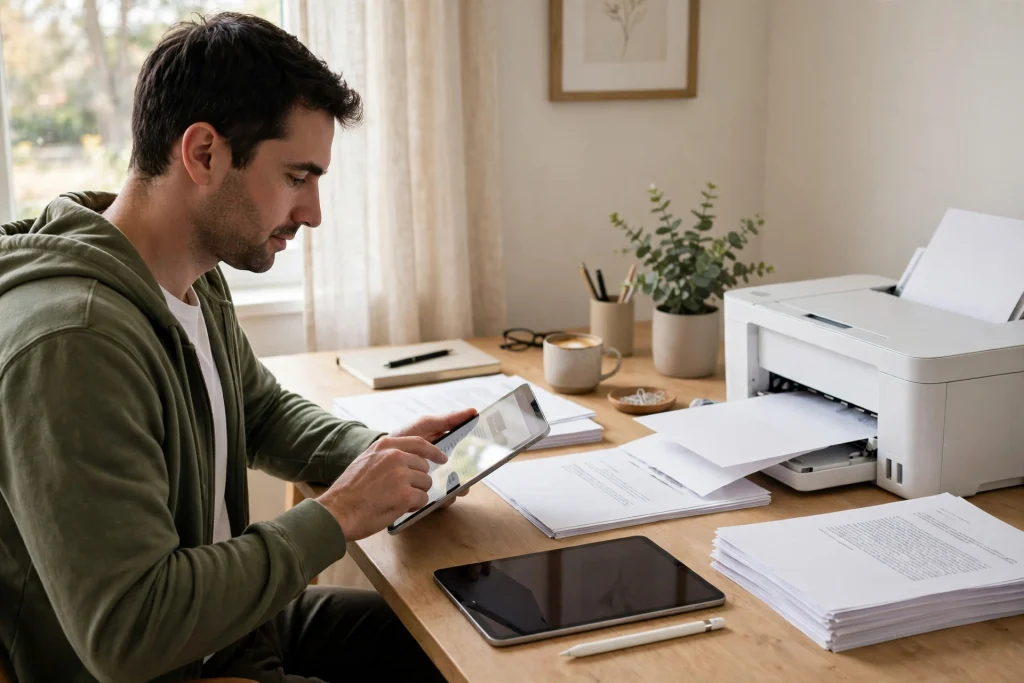
Quick answer: To print from GoodNotes, open the page, tap Share, choose Print, and pick an AirPrint printer — or export as PDF first if you want exact page size and margins. PDF export gives you far more control, so for planners, worksheets, and anything that must look right on paper, export first and print from the Files app or a computer.
GoodNotes is built for screens, so printing feels like an afterthought — until you need a paper copy of a planner page, a worksheet for a student, or a signed form. The good news is that you can print from GoodNotes cleanly once you know which route to take and which settings actually matter. This guide covers both methods, the page-setup choices that prevent cut-off margins, and fixes for the most common printing problems.
Method 1: Print Directly with AirPrint
AirPrint is the fastest route when you just need a quick copy and your printer supports it. Most printers made in the last decade do.
- Open the page or document you want to print in GoodNotes.
- Tap the Share icon, then tap Print.
- Choose your printer. If it does not appear, make sure your iPad and printer are on the same Wi-Fi network.
- Set the number of copies and, if offered, the page range.
- Tap Print.
That is genuinely all there is to it. The limitation is control: AirPrint from GoodNotes does not give you detailed scaling or paper-size options, so pages can come out slightly resized or with unexpected margins. For a quick reference copy that is fine. For anything you will hand to someone else, use Method 2.
Method 2: Export as PDF, Then Print (Recommended)
Exporting first is the method that produces professional-looking results, and it is the one to use for planner pages, templates, and documents you care about.
- Open the document in GoodNotes and tap Share, then Export All or Export This Page.
- Choose PDF as the format.
- Select the pages you want. Exporting a single page is usually what you need; exporting a whole notebook makes sense only for archives.
- Save the PDF to Files, or send it to a computer via AirDrop or email.
- Open the PDF and print it from there, where you control paper size, orientation, scale, and margins.
Why this extra step is worth it: a PDF freezes your layout exactly as it appears on screen. What you see in the preview is what comes out of the printer, with no surprise rescaling. If you use a planner such as the 2027 Life Planner, exporting the week or month view as PDF before printing keeps your hyperlinked tabs and layout intact on paper.
Getting Page Size, Orientation, and Scale Right
Most printing complaints come down to three settings. Get these right and everything else falls into place.
Paper size: match the page, not the printer default
GoodNotes pages are usually created at a fixed size — commonly US Letter or A4. If your printer defaults to the other size, content gets scaled or cropped. In the print dialog, set the paper size to match the original page size. When in doubt, check the page size in GoodNotes document settings before exporting.
Scale: use “Actual Size” for planners and templates
Print dialogs love to default to “Fit to Page,” which shrinks your content to leave margins. For planner pages, checklists, and worksheets, choose “Actual Size” (100%) so lines, boxes, and writing spaces print at the size you designed them. Use “Fit” only when a page is slightly larger than the paper.
Orientation: check before you print
A landscape planner page printed in portrait orientation will come out tiny or cut in half. Match orientation to the page: portrait pages print portrait, landscape pages print landscape. The PDF preview shows this instantly, which is another reason to export first.
Printing Only Part of a Notebook
You rarely want the whole notebook. GoodNotes lets you export a single page, a range of pages, or selected pages. For a weekly spread, export just those two pages. For a meeting handout, export the one page. Smaller exports also print faster and waste less paper when something goes wrong.
A practical habit: keep a “Print” folder in the Files app. Export PDFs there, print from there, and delete them at the end of the week. It keeps your printer queue and your device tidy.
Printing in Colour vs Black and White
Handwritten notes in colour print beautifully, but colour ink is expensive. Two rules of thumb:
- Colour for anything you will present, teach from, or keep long-term — colour-coded notes lose meaning in greyscale.
- Black and white for drafts, personal reference copies, and anything you will annotate again by hand.
If your handwriting uses light colours such as yellow or pale pink, switch to black-and-white printing with caution: pale ink can vanish entirely. Darken those strokes before printing, or print in colour for that page.
Fixes for Common GoodNotes Printing Problems
Blank pages
Blank output usually means the export range was wrong or the page genuinely is empty in the selected range. Re-export with the page range checked, and preview the PDF before printing. Also confirm the printer has paper and ink — the obvious cause is the most common one.
Cut-off margins
Content touching the edge of the paper usually means the page size and paper size do not match, or the printer’s own unprintable margin is clipping content. Export as PDF, set the correct paper size, and if needed scale to 95% instead of 100% to buy a small safety margin.
Blurry handwriting
Blur comes from scaling a page up beyond its resolution or from low-quality export settings. Print at actual size, export at the highest quality, and avoid enlarging a small page to fill a large sheet. Handwriting that looks crisp on an iPad screen can still soften on paper if it is scaled up.
Printer not showing up
First, confirm both devices are on the same Wi-Fi network — guest networks and VPNs break AirPrint discovery. Restart the printer, then the iPad’s Wi-Fi. If the printer still does not appear, check the manufacturer’s app: many printers offer their own iPad printing app as a fallback, and you can print the exported PDF through it.
Wrong page order
When printing a range, GoodNotes exports in document order. If your pages print out of sequence, check that the notebook’s page order is what you expect, and re-export just the pages you need in the right order rather than fighting the print dialog.
Printing Planner Pages: A Practical Workflow
If you print planner pages regularly — for a paper backup, a classroom, or a fridge-door weekly plan — set up a weekly routine:
- On Sunday evening, export the coming week’s pages as one PDF.
- Preview it once: orientation, margins, and legibility.
- Print at actual size on the correct paper.
- File the PDF in your Print folder so you can reprint without reopening GoodNotes.
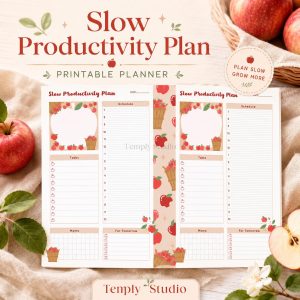
This turns printing from a fiddly chore into a two-minute habit. Pair it with a paper-friendly layout like the Minimalist Daily Planner, whose clean design prints well in both colour and black and white, and your paper copies will look as good as the digital originals.
For the full GoodNotes setup behind all of this — notebooks, templates, and organisation — see our beginner’s guide to using a digital planner in GoodNotes.
FAQ: Printing from GoodNotes
Can I print from GoodNotes without AirPrint?
Yes. Export the pages as PDF, then print the PDF from a computer connected to any printer, or use the printer manufacturer’s iPad app. AirPrint is convenient, but PDF export works with every printer.
Why does my printed page look smaller than on screen?
Your print dialog is probably set to “Fit to Page” or the paper size does not match the page size. Set scale to 100% (Actual Size) and match the paper size to the GoodNotes page size.
Can I print just one page from a large notebook?
Yes. Use Share, then Export This Page, and print only that PDF. You do not need to export or print the whole notebook.
Does printing from GoodNotes work on Android or Windows?
GoodNotes is primarily an iOS, macOS, and Windows app, and printing works through the same Share and export routes on each platform. On Windows, export as PDF and print from any PDF reader for the most control.
How do I print a GoodNotes page double-sided?
Choose double-sided (duplex) printing in the print dialog after exporting as PDF. If your printer does not support automatic duplex, print odd pages first, flip the stack, then print even pages.
Printing from GoodNotes does not need to be a gamble. Export as PDF, match your paper size, print at actual size, and preview before you commit ink. Once that habit is in place, you get the best of both worlds: a flexible digital planner and clean paper copies whenever you need them. If you are setting up a planner worth printing, start with the 2027 Life Planner and build your weekly print routine around it.
Temply Studio
Stop chasing your goals with sticky notes and scattered notebooks. Our premium digital planners and Canva templates are designed to help you plan with intention, stay consistent, and actually enjoy the process.
Questions about this guide?
Ask about the planner, share how you use it, or tell us what to cover next. Your email stays private.