
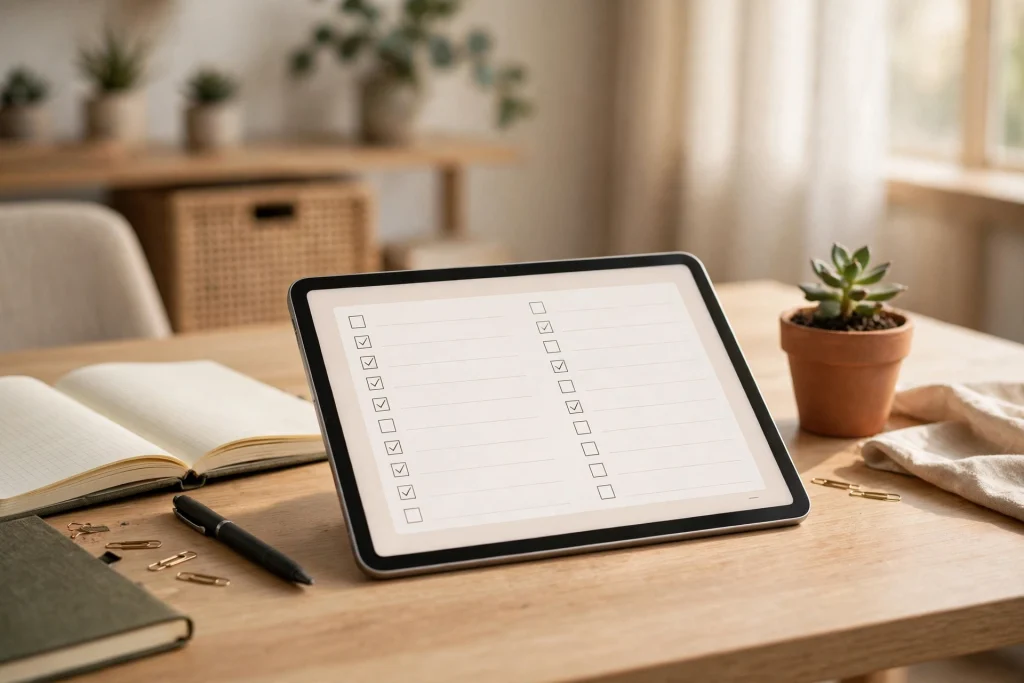
Quick answer: Use GoodNotes for blank onboarding checklists, interview scorecard templates, and low-sensitivity planning if your employer approves it. Keep employee and candidate records in your employer’s approved HR system or managed storage. A GoodNotes notebook lock does not encrypt the document.
GoodNotes for HR teams can make everyday planning more repeatable, from designing a first-day checklist to preparing a blank interview scorecard. Use it for templates, not as a replacement for your HR information system (HRIS) or recruiting system.
Here is a practical setup for reusable onboarding, interview and 1:1 templates, with a clear boundary between planning documents and personnel records. Before you start, ask your HR and IT teams which devices, accounts and tools are approved.
Where GoodNotes fits in an HR workflow
A reusable template saves you from rebuilding the same checklist before every hire. Keep blank templates easy to find so the team can use them consistently without moving actual personnel records into GoodNotes.
Use handwriting search to find headings and tasks in permitted planning notes. Locked documents do not appear in GoodNotes Library Search until unlocked. Look up individual candidate and employee records in the approved HR system.
Second, templates make every process identical. Onboarding, interviews, and exit conversations all follow the same structure when the template forces it. That consistency is not just tidy — it is fair. Every candidate gets the same questions in the same order, and every new hire gets the same first-week checklist.
An iPad can be handy for sketching a workshop agenda or marking up a blank template. For identifiable interview or 1:1 notes, use the recording workflow your employer has approved.
What an HR Setup in GoodNotes Actually Looks Like
Start with four template or planning areas if your employer approves GoodNotes for that use. Keep blank examples here and enter completed records in the approved system.
1. The Onboarding Notebook
Keep one reusable set of blank pages: a first-day checklist, an IT and access checklist, a 30-60-90 day plan, and a first-week feedback form. Put the actual hire’s details and completed checklist in the approved HR system.
2. The Interview Notebook
Design a blank scorecard with the role, date, standard questions, a 1–5 scoring scale and space for factual observations. Record candidate names, ratings and interview notes in the employer-approved recruiting system, not in the GoodNotes template.
3. The 1:1 Agenda Template
Keep a blank agenda with space for meeting topics, agreed actions and follow-up dates. Put employee-specific notes and performance records in the approved HR system, where access and retention can be managed.
4. The HR Planning Notebook
Use this notebook for permitted non-confidential planning, such as a training calendar, generic meeting agendas or draft process checklists. If your team also runs structured meetings, our guide to GoodNotes meeting notes offers a reusable format.
Onboarding in GoodNotes: A Repeatable First-Week System
Good onboarding is a checklist problem, and checklists are exactly what a digital planner does best. Here is a first-week system that works for teams hiring anywhere from one person a quarter to five a month.
- Build the master template once. Create a 6-page onboarding template: Day 1 checklist, access and equipment checklist, meet-the-team schedule, 30-60-90 day plan, first-week feedback form, and a notes page. Save it as a reusable template.
- Set up the actual hire in the approved system. Keep the GoodNotes master blank. Add the employee’s name, start date, scheduled meetings and buddy assignment in the system your employer uses for onboarding.
- Run day one from the checklist, not from memory. Use the template to plan steps such as access setup, the safety briefing and team introductions. Record signed documents and completed onboarding tasks in the approved system.
- Review the 30-60-90 plan. Check progress at the agreed milestones and keep individual goals and reviews in approved HR storage.
- Ask for first-week feedback. Use a blank set of prompts in the template. Record any identifiable responses in the approved system, if the employer’s process calls for it.
- Follow the retention policy. Use the approved HR system to retain or delete completed onboarding records on schedule; keep only the blank master in your template library.
For teams that also plan work around these milestones, a GoodNotes project management setup helps you track the onboarding pipeline alongside every other HR project, from hiring rounds to policy rollouts.
Interview Notes That Stay Fair and Comparable
Interview notes may form part of the hiring record. Use a consistent, job-related scorecard and keep completed records in your employer’s approved recruiting system.
Start with a scorecard, not a blank page. A blank page invites free-form impressions; a scorecard forces structure. Each candidate’s page should carry the same questions, the same rating scale, and space for direct quotes rather than summaries. “Strong communicator” is an impression. “Gave a clear example of resolving a team conflict in under two minutes” is evidence.
Agree before the round who will record observations and where they will be stored. Use the employer’s approved workflow to document factual, job-related observations and apply its access and retention rules.
Summarise relevant evidence for the hiring manager in the approved recruiting system. Give access only to people who need it, and retain or delete the records according to your employer’s process.
Employee Notes, 1:1s and Performance Conversations
A blank 1:1 template can keep the meeting focused: three questions, agreed actions, owners and follow-up dates. Record any employee-specific details in the approved HR system, not in the GoodNotes template.
For a useful follow-up, document what was agreed, who owns the next step and when it is due. Use the employer-approved place for those notes so permissions and retention can be managed.
Keep performance improvement plans, grievances and disciplinary records in the employer-approved HR system, with the required access and retention controls. Record facts and agreed actions under your organisation’s recordkeeping policy.
Use the same distinction for contractors: the freelancer planner in GoodNotes can inspire blank templates. Keep identifiable contractor records in the system your employer approves.
Set boundaries for sensitive HR notes
Agree with HR and IT which information, if any, may go into GoodNotes. Keep confidential employee and candidate material in approved HR storage by default.
- A lock is not encryption. GoodNotes Password Protection uses one password for all protected documents on supported iPhone and iPad apps. Do not share that password or use it as a substitute for individual access permissions.
- Separate planning from personnel records. Use folders to organise blank templates, not to control who can see private records. Assign individual access in the employer-approved system.
- Keep sensitive details out of templates. National ID numbers, bank details, medical information and salary details belong only in the systems your employer authorises for that data.
- Follow your employer’s retention rules. Use the approved records system to retain or delete employee and candidate information under your organisation’s policy.
- Use approved devices and accounts. Follow your employer’s screen-lock, device and account rules. A work device and a notebook lock do not replace approved storage or access controls.
- Do not confuse sync with backup. Use sync only if the employer has approved that workflow. Keep official HR records and tested backups in approved systems.
Sharing HR Notes with Managers Without Losing Control
Share the minimum information an authorised manager needs through the employer-approved system. A PDF export does not retain the GoodNotes lock, and an ordinary PDF can be copied or forwarded. If an export is permitted, use approved file protection, recipients and retention controls.
Keep completed interview scorecards, 1:1 summaries and other personnel records in the approved HR system, with access limited to individually authorised recipients. Do not use public notebook links or ordinary exported PDFs to share those records.
If your employer permits GoodNotes collaboration, use it for non-confidential material such as blank templates and general training schedules, not for personnel records.
An HR Notebook Structure You Can Copy Today
| Planning area | GoodNotes template | Where completed records belong | Who can access them |
|---|---|---|---|
| Onboarding | Blank day-one checklist, access checklist and 30-60-90 plan | Approved HR system | Individually authorised staff |
| Interviews | Blank questions, scoring rubric and comparison sheet | Approved recruiting system | Authorised hiring team |
| 1:1s | Blank agenda and action prompts | Approved HR system | Only authorised recipients |
| HR planning | Non-confidential training calendar and process checklists | Employer-approved planning workspace | Approved collaborators |
Start with one blank onboarding template. Once it works for the team, add a blank scorecard or 1:1 agenda. Keep the completed records in the relevant approved system.
Common Mistakes HR Teams Make in GoodNotes
Too many notebooks. Twelve notebooks for twelve processes means nobody can find anything. Four notebooks, clearly named, beats a library nobody navigates.
No template discipline. If every interviewer designs their own scorecard, the notes are not comparable. One template, used by everyone, every time.
Oversharing. Do not share a whole notebook or send an ordinary exported PDF of confidential notes. Give an authorised manager access to only the records they need in the approved system.
Treating a notebook as the system of record. Keep contracts, employee and candidate records, and other sensitive material in the approved systems, with the required access and retention controls.
Assuming a lock includes backup. GoodNotes Auto Backup excludes locked notebooks, and exported files do not keep the GoodNotes lock. Sync is not a separate backup. Use your employer’s approved backup and recovery process, including restore tests.
Frequently Asked Questions
Is GoodNotes secure enough for HR notes?
Not on the strength of a notebook lock alone. Password Protection does not encrypt notebooks. Use GoodNotes only for low-sensitivity planning or blank templates if your employer approves the workflow. Keep employee and candidate records in an approved HR system or managed repository.
Can multiple HR team members use the same notebooks?
For non-confidential planning, collaborate only if your employer approves the tool. Share confidential material through the approved HR system with individually authorised recipients. A GoodNotes export loses the notebook lock, so any permitted export needs separate protection.
How do I keep interview notes fair across candidates?
Use the same scorecard template for every candidate: identical questions, a 1–5 scale per question, and space for direct quotes. Write notes during the interview, not afterwards, and compare candidates on the same criteria — not on overall impressions.
What should an onboarding template include?
At minimum: a day-one checklist, an IT and access checklist, a meet-the-team schedule, a 30-60-90 day plan, and a day-five feedback form. That covers the practical tasks and the early feedback that improves the next onboarding.
Can I use GoodNotes for HR teams on Android or Windows?
GoodNotes is available on Android and Windows, but Password Protection is available only on iOS and iPadOS. You cannot open protected notebooks in GoodNotes on Android, Windows or the web. Check platform support before rolling out any approved planning workflow.
Ready to organise your HR notes? Start with the onboarding template and a planner built for the job. The 2027 Business Planner gives your HR team dated pages, project tracking, and meeting sections in one GoodNotes-ready file — open it, duplicate the onboarding pages, and your first hire is covered.
Temply Studio
Stop chasing your goals with sticky notes and scattered notebooks. Our premium digital planners and Canva templates are designed to help you plan with intention, stay consistent, and actually enjoy the process.

Questions about this guide?
Ask about the planner, share how you use it, or tell us what to cover next. Your email stays private.