
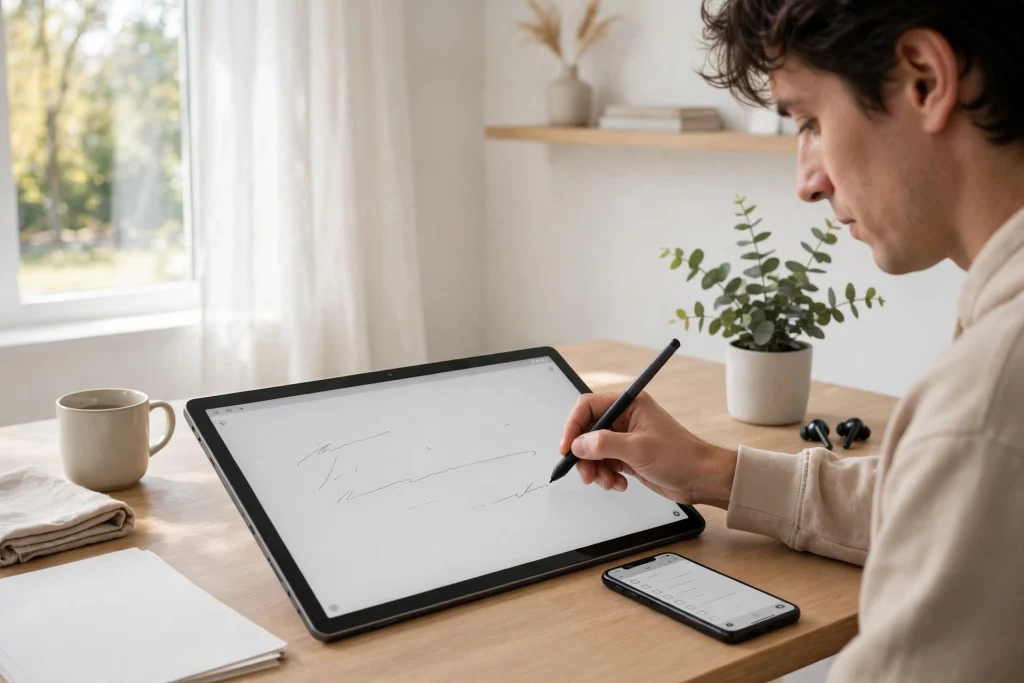
Learning how to use GoodNotes on Android is the fastest way to bring a proper digital planner to a Samsung Galaxy Tab or any other Android tablet. GoodNotes started on the iPad, but it now runs on Android tablets and Chromebooks too — with real handwriting, PDF annotation, searchable notes, and hyperlinked planners. If you own an Android tablet with a stylus, you no longer need an iPad to plan digitally.
In this guide, you will learn exactly how to use GoodNotes on Android: which devices work and which do not, how to install it from Google Play or the Galaxy Store, how to set up sync so your notes survive a broken tablet, how to import a planner and use its hyperlinks, and which features are missing compared with the iPad — so you buy with your eyes open. Everything here was checked against GoodNotes’ own documentation in November 2026.
Quick answer: To use GoodNotes on Android, install it from Google Play or the Galaxy Store on a tablet running Android 14 or later with at least 4 GB of RAM and an 8-inch or larger screen. The free plan gives you 3 notebooks with 5 MB imports; Essential ($11.99/year) removes those limits, and Pro ($35.99/year) adds cross-platform sync. Import your planner PDF, open hyperlinks in Read Only Mode or by pressing and holding, and keep in mind that Android does not have the full GoodNotes 6 feature set found on iPad.
Will GoodNotes Run on Your Android Tablet?
Before you install anything, check your device against GoodNotes’ own system requirements. Getting this right first saves you an afternoon of frustration.
GoodNotes recommends an Android tablet running Android 14 or later, with at least 4 GB of RAM and a screen of 8 inches or larger. Lower-spec devices may run it, but GoodNotes warns that performance will vary. The app is designed for tablets: a phone can install it, but handwriting and planning on a small phone screen is cramped, and the experience is genuinely better on a tablet.
The best experience is on a Samsung Galaxy Tab with an S Pen. Samsung’s stylus is included with most Galaxy Tabs, it needs no charging, and it feels natural for handwriting. GoodNotes also works on other Android tablets and Chromebooks (ChromeOS 128 or newer, also 4 GB of RAM minimum), and with third-party styluses — but if you are buying a tablet specifically for GoodNotes, a Galaxy Tab is the safe choice.
GoodNotes also recommends an internet connection for the best Android experience. Core handwriting and PDF annotation work offline, but sync, AI features, and some library functions need connectivity, and offline availability on Android is more restricted than on iPad. Plan accordingly if you often work without Wi-Fi.
How to Install GoodNotes on Android
Installation takes about five minutes. Follow these steps in order.
Step 1: Install from Google Play or the Galaxy Store
Open Google Play on your tablet, search for GoodNotes, and install the app published by Goodnotes Limited. On a Samsung tablet you can also install it from the Galaxy Store — same app, same account. Make sure you are installing the genuine app: check the developer name before you tap install.
Step 2: Create your account and choose a plan
Open GoodNotes and create an account with your email. The free plan gives you up to 3 notebooks and imports of up to 5 MB per file — enough to try a planner and see whether the workflow suits you. Essential costs $11.99 per year and removes the notebook limit, raises the import limit, and unlocks AI features and Google Calendar integration. Pro costs $35.99 per year and adds cross-platform sync through Goodnotes Cloud, Google Drive integration, private link sharing, and real-time collaboration. Both paid plans usually offer a 7-day free trial.
If you own an eligible Galaxy Tab S9, S10, or S11 series device, GoodNotes has offered one year of Essential free — check the live offer and its terms in the app before assuming it applies to you, as eligibility, region, and redemption windows change.
Step 3: Set up your notebook library
Once you are in, create your first notebook. Tap the plus button, choose a paper template — lined, grid, or dot grid — and pick a cover. Name it clearly: “Daily Planner”, “Meeting Notes”, “Study Notebook”. A tidy library from day one saves you from the folder chaos that hits every new user by month three.
Step 4: Turn on sync before you write anything important
This is the step people skip and regret. GoodNotes on Android syncs through Goodnotes Cloud, which requires the Pro plan to sync your library across platforms — for example, between your Android tablet and your iPad, Mac, or the web app. If you only use one Android tablet, iCloud-style sync is less critical, but still set up GoodNotes’ auto-backup: on Android, Google Drive Auto Backup sends your files one way to Google Drive. It is a backup, not a two-way sync, but it means a broken tablet does not mean lost notes. Turn it on now, while your library is still small.
How to Import a Planner into GoodNotes on Android
This is the step most new Android users get wrong, so follow it carefully. A hyperlinked digital planner is a PDF, and GoodNotes treats it like any other PDF — but the import limits and the hyperlink behaviour are different from iPad.
First, check your planner’s file size. Free-plan users can import files up to 5 MB, and many full planners are larger than that. If your import fails, file size is the most likely reason — upgrade to a paid plan, or use a smaller planner file. Subscribers can import PDFs up to 1 GB, so size stops being an issue once you pay.
To import, download the planner PDF to your tablet, open GoodNotes, tap Import, and select the file — from your downloads, from Google Drive, or from an email attachment. GoodNotes will ask whether to import it as a new document or into the current one: choose new document. Your planner opens as a notebook, with its tabs and links intact.
Now the important part: how to use the hyperlinks. On Android, hyperlinks in imported PDFs work, but the gesture is different from iPad. Enter Read Only Mode and tap the link, or stay in Edit Mode, press and hold the link, and choose “Open Link”. Both work — pick whichever feels natural and stick with it. If you tap a link in Edit Mode and nothing happens, you are not doing anything wrong: that is simply how Android handles it.
The Light Grey Hyperlinked Digital Planner for GoodNotes is a good first planner for Android: its links are large and clearly placed, which makes them easier to tap on a tablet, and its clean layout keeps pages fast even on mid-range hardware. Pair it with the 2027 Life Planner when you want a full-year system with monthly and weekly spreads.
Writing, Drawing and Annotating on Android
Once your planner is imported, the daily experience is close to the iPad. The pen tool writes smoothly with an S Pen, the highlighter works the same way, and you can add typed text boxes, images, and shapes. Handwriting search works on Android too — GoodNotes can find words in your handwritten notes, which is the feature that makes a digital planner genuinely better than paper.
A few practical tips make a real difference. First, learn the zoom window: it magnifies a small section of the page so you can write neatly even on a crowded planner page, and it is essential if your handwriting is large. Second, set your palm rejection up properly — rest your palm naturally and write a test sentence; if you see stray marks, adjust the stylus settings before you write anything important. Third, use the lasso tool to move things: circle a block of handwriting, drag it somewhere better, and your page stays tidy without rewriting.
For typed notes, the text box tool works well with an external keyboard if you use your tablet at a desk. Many Android users end up with a hybrid: handwriting for planning and thinking, typing for long meeting notes and lists. GoodNotes handles both in the same notebook, which is exactly the flexibility that makes it worth using.
What Is Missing on Android Compared with iPad?
Honesty matters here, because the gap is real and you should know about it before you pay. GoodNotes states plainly that Android, Windows, and the web do not have the full GoodNotes 6 feature set available on iPad. Do not buy it expecting iPad parity.
The most noticeable gaps are in advanced features. Some GoodNotes 6 features — such as the full AI toolset, certain study tools, and some collaboration features — are limited or absent on Android. The free plan’s AI allowance is small, and the more advanced AI features, including Meeting AI and Create Mode, are Pro-only. If a feature you saw in an iPad review matters to you, check GoodNotes’ Android feature list before subscribing.
Backup is also different. GoodNotes’ FAQ states that a full manual library backup is not currently available on Android, Windows, or the web. Google Drive Auto Backup covers your files one way, but it is not the same as the complete library export iPad users get. Keep your important notebooks exported as PDFs regularly — once a month is a good habit — so you always have a copy outside the app.
None of this makes GoodNotes bad on Android. For planning, note-taking, PDF annotation, and handwriting search — the things most people actually do every day — it works well. But if you need the complete GoodNotes 6 feature set, the iPad remains the fullest version of the app.
GoodNotes vs Samsung Notes for Planning on Android
Every Galaxy Tab ships with Samsung Notes, so the obvious question is whether you need GoodNotes at all. The honest answer depends on what you plan to do.
Samsung Notes is free, built for the S Pen at the hardware level, and excellent for quick notes, PDF markup, and syncing between Galaxy devices through your Samsung account. If your needs are simple — jot notes, annotate a PDF, keep a few notebooks — Samsung Notes is genuinely good, and it costs nothing.
GoodNotes earns its subscription when you want a structured planner system. Its strength is hyperlinked PDF planners: tabbed notebooks where you tap a link to jump from a monthly overview to a daily page, from an index to a section. Samsung Notes does not document that kind of planner navigation, and it is not built around imported planner PDFs the way GoodNotes is. GoodNotes also syncs across platforms — Android, Windows, web, and iOS with Pro — while Samsung Notes stays inside the Samsung and Windows ecosystem.
Many Android users end up using both: Samsung Notes for fast capture and S Pen sketches, GoodNotes for their planner and long-form notebooks. There is no rule that says you must pick one, and trying both free costs nothing but an afternoon.
A Daily Planning Routine on Android
A planner only works if you open it. The routine below takes ten minutes a day and keeps your GoodNotes system alive.
- Morning (3 minutes): Open your planner, check today’s page, and write your top three tasks. Check your calendar for anything you forgot.
- During the day: Capture notes in the right notebook as they happen — meeting notes in the meeting notebook, ideas in the ideas notebook. Do not let everything pile into one inbox page.
- Evening (5 minutes): Review tomorrow’s page, move unfinished tasks forward, and write one line about what went well today. That evening review is what stops tasks from quietly disappearing.
- Sunday (10 minutes): Plan the week ahead, check your goals page, and tidy any notebook that got messy. Export a PDF backup of anything important once a month.
Keep the routine small enough that you will do it on a bad day. A ten-minute routine you follow for a year beats a one-hour routine you abandon in January.
Troubleshooting Common Android Problems
Most Android problems with GoodNotes have simple fixes. Work through this list before assuming the app is broken.
Import fails or the planner will not open. Check the file size first: free users are limited to 5 MB imports. Try a smaller file, or upgrade to Essential or Pro. Also check that the file is a proper PDF and not a corrupted download — re-download it and try again.
Hyperlinks do nothing when tapped. You are probably in Edit Mode. Switch to Read Only Mode and tap the link, or press and hold the link in Edit Mode and choose “Open Link”. This is the single most reported Android issue, and it is a gesture difference, not a bug.
Writing feels laggy or imprecise. Check your device meets the recommended specs — Android 14 or later and at least 4 GB of RAM. Close background apps, and make sure your tablet’s software is up to date. On older or lower-spec tablets, reducing the page zoom can also help.
Notes are not syncing to another device. Cross-platform sync needs the Pro plan and Goodnotes Cloud. If you are on the free or Essential plan, your library will not sync to iPad, Mac, or the web app. Check your plan first, then check your internet connection, then sign out and back in.
The app feels different from iPad tutorials. It is different. iPad tutorials show features and gestures that may not exist on Android. When following a tutorial, check whether the feature is listed for Android in GoodNotes’ own help centre before assuming your app is broken.
Frequently Asked Questions
Is GoodNotes available on Android?
Yes. GoodNotes is available for Android tablets and Chromebooks from Google Play and, on Samsung devices, from the Galaxy Store. It needs Android 14 or later, at least 4 GB of RAM, and an 8-inch or larger screen for the recommended experience.
Is GoodNotes free on Android?
GoodNotes is free to download on Android with up to 3 notebooks and 5 MB file imports. Essential costs $11.99 per year and Pro costs $35.99 per year, with 7-day free trials usually available. Some Galaxy Tab S9, S10, and S11 owners have been offered a year of Essential free — check the live offer in the app.
Can I use a GoodNotes planner on Android?
Yes. Import the planner PDF into GoodNotes and use its hyperlinks in Read Only Mode, or press and hold a link in Edit Mode and choose “Open Link”. Keep the file under the 5 MB free import limit, or subscribe to import larger planners.
Does GoodNotes on Android sync with iPad?
Yes, but only on the Pro plan, which includes cross-platform sync through Goodnotes Cloud. Free and Essential users cannot sync a library between Android and iPad. Google Drive Auto Backup is available as a one-way backup, but it is not a two-way sync.
Is GoodNotes on Android as good as on iPad?
Not quite. GoodNotes says Android, Windows, and the web do not have the full GoodNotes 6 feature set available on iPad. For everyday planning, note-taking, and PDF annotation, Android works well — but check the Android feature list before paying if you need a specific advanced feature.
Android tablets are finally good enough for serious digital planning, and GoodNotes is the app that makes it work. Install it, try the free plan on one planner, and give the system two weeks before you judge it — the first week is always clumsy, and the second week is when it starts to feel like yours. How to use GoodNotes on Android is a short learning curve with a long payoff: one searchable, portable notebook system that follows you from your desk to the train to the meeting room.
Ready to start planning on Android? Grab the Light Grey Hyperlinked Digital Planner for GoodNotes as your first planner, build your year around the 2027 Life Planner, and keep your days simple with the Minimalist Daily Planner. If you are new to digital planning, our guide on how to use a digital planner in GoodNotes walks you through the basics first.
Temply Studio
Stop chasing your goals with sticky notes and scattered notebooks. Our premium digital planners and Canva templates are designed to help you plan with intention, stay consistent, and actually enjoy the process.

Questions about this guide?
Ask about the planner, share how you use it, or tell us what to cover next. Your email stays private.