




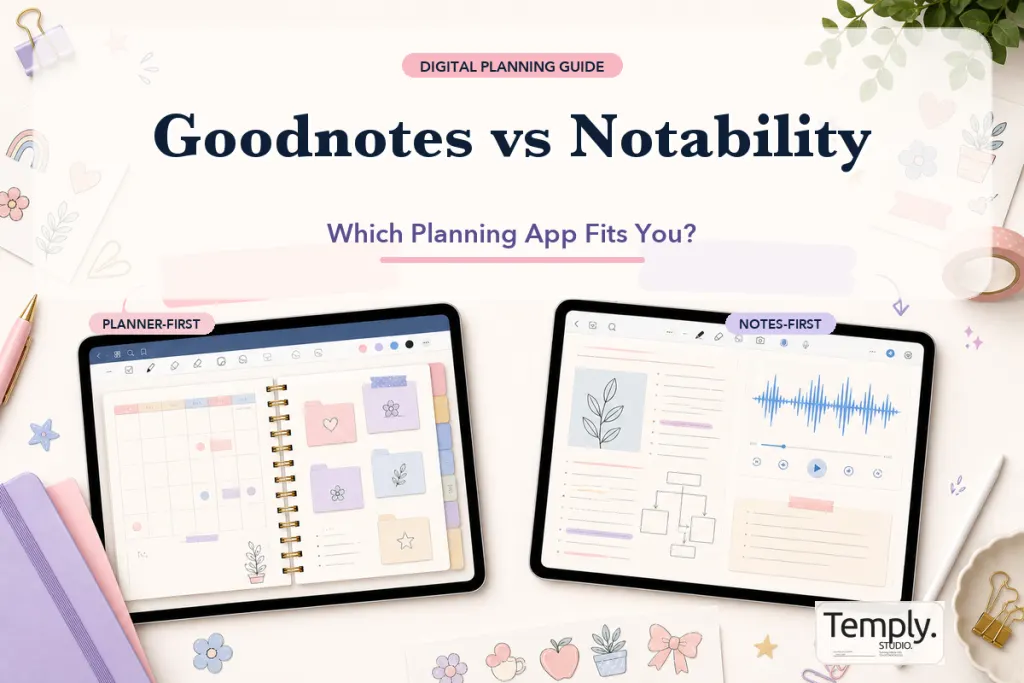
Goodnotes vs Notability for digital planning is less about finding one universally better app and more about matching the app to your daily workflow. Goodnotes is often a practical fit for users who prioritize notebook-style organization, reusable templates, and structured planner libraries. Notability may be more suitable when note-taking, document annotation, and audio-supported study are central to the same workflow. Features, platform access, and subscription terms can change, so confirm current details with each developer before deciding.
The decision in one minute
- Choose Goodnotes when you want a notebook-and-folder system, frequent template use, and a planner-centered library.
- Choose Notability when audio, lecture notes, fast document markup, and mixed-media notes are important.
- Test both when you rely on a large hyperlinked PDF, cloud syncing, or a specific device combination.
- Check the planner listing because an app recommendation does not replace product-specific compatibility information.
Goodnotes vs Notability comparison
| Decision factor | Goodnotes | Notability |
|---|---|---|
| Planner organization | Notebook and folder workflows suit structured libraries | Subject and divider workflows can feel direct for class or project notes |
| Hyperlinked PDFs | Commonly used for imported digital planners; test navigation after import | Can import and annotate PDFs; test the exact planner and link workflow |
| Handwriting | Strong emphasis on digital handwriting and notebook use | Strong handwriting and annotation workflow |
| Audio-centered notes | Availability and behavior should be checked in the current version | Audio-linked note-taking is a prominent part of the app’s workflow |
| Template use | Well suited to users who build a reusable notebook and template system | Useful for notes and imported documents, with a different organization model |
| Best choice | Planner-first and notebook-first users | Lecture, meeting, annotation, and audio-first users |
Start with your main planning task
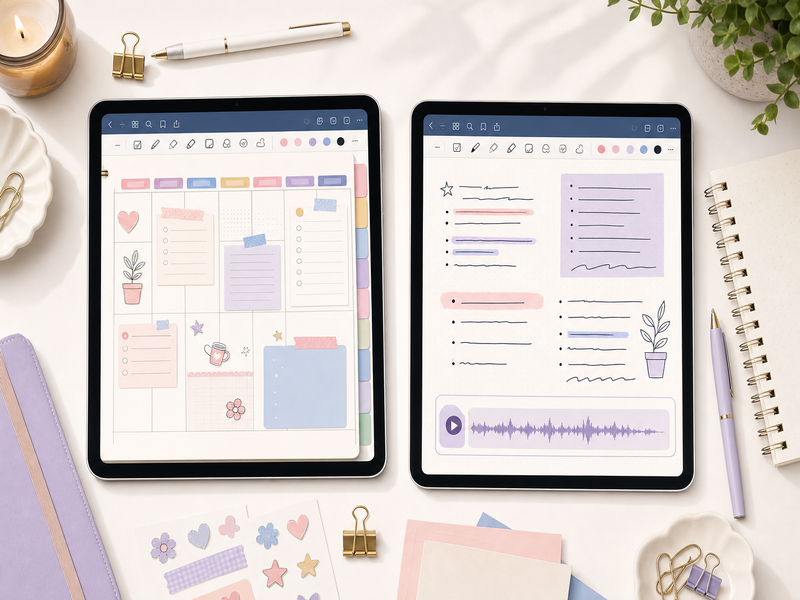
The most useful comparison begins with the task you repeat every day. A student who records lectures, marks up slides, and reviews audio has different priorities from a small-business owner who opens the same weekly planner each morning. List the three actions you perform most often, then compare how many taps, menus, and folder changes each app requires.
- Opening today’s page from a planner index
- Switching between monthly, weekly, and project views
- Searching handwritten or typed notes
- Importing PDFs and adding extra pages
- Using stickers, images, or reusable page templates
- Recording information while writing
- Accessing the same notes on multiple devices
Which app is better for hyperlinked digital planners?
Both apps can be considered for PDF-based planning, but the correct answer depends on the file and the current app behavior. A hyperlinked planner contains internal PDF links that connect tabs, calendars, indexes, and detail pages. The app must preserve those links during import and provide a mode that lets the user follow them without drawing on the page.
Goodnotes is frequently chosen by planner users because its notebook metaphor and folder structure make it natural to keep annual planners, journals, notebooks, and sticker books together. Notability can also work with imported PDFs, especially for users who already manage school or meeting material there. The safest approach is to import a sample PDF or a small planner, then test navigation, writing, page duplication, search, and backup before committing to a large yearly file.
Organization and document management
Goodnotes typically appeals to people who think in notebooks, shelves, and folders. That can be helpful when a digital planning system includes separate notebooks for goals, finances, projects, wellness, and work. A consistent naming system keeps a growing library manageable.
Notability’s organization model may feel faster to users who think in subjects and dividers or who want notes, PDFs, and recordings grouped around a class or project. Neither structure is automatically more productive. The better structure is the one that lets you find the correct page without maintaining a complicated filing system.
Handwriting, typing, and annotation
For handwriting, evaluate more than how a pen stroke looks in a demonstration. Test palm rejection, selection tools, erasing, shape tools, text boxes, zoom behavior, and how quickly you can change colors or pen settings. Planner users should also check whether handwriting remains responsive on dense pages with many links or decorative elements.
Typing matters when you use a planner for meeting notes, project briefs, or repeated labels. Check how text boxes resize, whether formatting remains consistent, and whether the app makes it easy to reuse common text. An attractive planner can become frustrating when basic editing takes too many steps.
Audio, classes, and meeting workflows
Notability has long emphasized combining notes with audio, which can be useful for lectures, interviews, and meetings when recording is permitted. Audio should never be recorded without following applicable consent, school, workplace, or privacy rules. Goodnotes users should review the current official feature documentation if audio is a deciding factor, because app capabilities can change over time.
If audio is only an occasional need, it may not justify choosing an app whose organization system feels less natural to you. If synchronized review is central to your study process, it deserves more weight than decorative planner features.
Devices, syncing, and backup
Before selecting either app, list every device you expect to use. Confirm the current supported platforms, whether the same features are available on each platform, and how syncing works. A web or desktop version may not behave exactly like an iPad version. Also distinguish syncing from backup: syncing keeps a working library aligned across devices, while a separate backup can help recover files after an error.
- Confirm your operating systems and device models.
- Check whether handwriting, links, search, and audio work on every required platform.
- Review available cloud and backup options.
- Test one non-critical notebook before moving an entire planning library.
- Keep an unused copy of purchased planner files outside the note-taking app.
Pricing and subscriptions
Do not choose based on an old comparison table that hardcodes a price. App plans, regional pricing, included features, trial options, and platform availability can change. Compare the current official plans and identify which paid features you would actually use. A lower-cost option is not better when it lacks a workflow you need, and a feature-rich plan is not better when most features remain unused.
A practical test before you decide
- Import the same small PDF into both apps.
- Write on three different page types.
- Follow several internal hyperlinks.
- Add an image, text box, and extra page.
- Search for a typed and handwritten term when supported.
- Close the app and confirm the file has synced or saved as expected.
- Export a copy and check the resulting PDF.
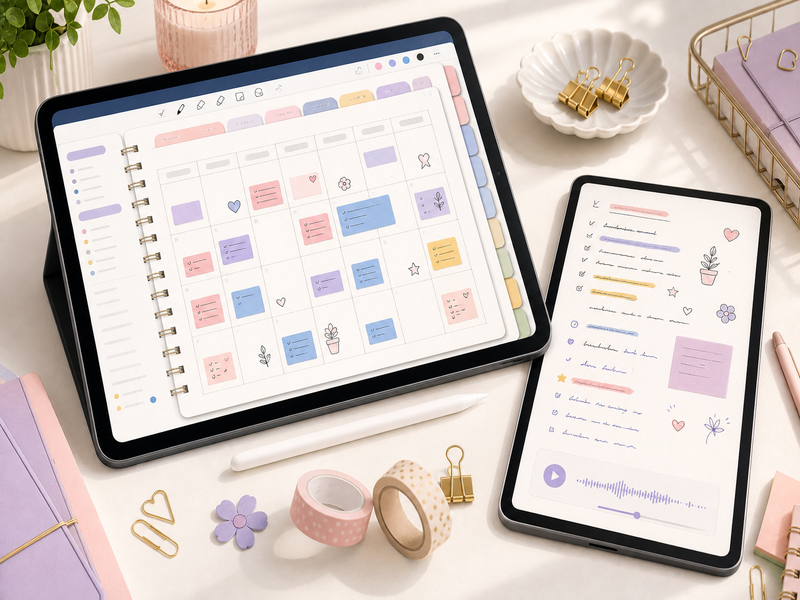
This short test reveals more than a long feature list because it measures the actions you will repeat. Use a non-sensitive sample file and avoid moving your only annotated planner until the workflow is reliable.
Frequently asked questions
Is Goodnotes always better for digital planners?
No. Goodnotes is popular for notebook-style planning, but the best app depends on your devices, organization preferences, annotation habits, and need for audio or collaboration. Test the exact planner workflow you intend to use.
Can the same purchased planner be used in both apps?
Technically, a compatible PDF may be importable into more than one app. However, usage rights, device limits, included files, and product support are product-specific. Review the current product license and listing.
Will annotations transfer perfectly between apps?
Exporting an annotated PDF may flatten or change some app-specific elements. Test a copy before moving an important planner and keep the original source file.
Choose the app that reduces friction
Choose Goodnotes when structured notebooks, templates, and planner organization match your habits. Choose Notability when annotation and audio-centered notes are more important. Then verify the current app features and the planner’s listed requirements. Explore the Temply Studio digital planner collection, review the digital planner app comparison, and read the digital planner for iPad guide before selecting a workflow.
Official references
Updated comparison method: test the same planner file
A fair Goodnotes versus Notability comparison uses the same PDF, the same device context, and the same small set of tasks. Current official documentation confirms that Goodnotes supports PDF import and that Notability supports importing PDFs and other files, but menu names, supported formats, export options, and account features can change. Use the current app help pages for the final control labels.
| Test | What to record |
|---|---|
| Import | Where the file came from, how long it took, and whether the full page sequence opened. |
| Navigation | Whether the planner’s own tabs and return links respond in the mode you used. |
| Writing | Whether pen, highlighter, text, and undo controls feel usable for your normal planning session. |
| Export | Which output formats are offered and whether the exported copy contains the pages and annotations you expected. |
| Organization | How easily you can name, move, duplicate, and find the working planner later. |
For the import side of the test, use Goodnotes’ official import documentation and Notability’s official file-import guide. For export, compare the current Goodnotes export options with the current Notability sharing and export options.
Choose the workflow you can repeat
Do not select an app from a feature list alone. Repeat the import, link, writing, and export checks with a file you actually plan to use. If one app feels better for a particular workflow, describe it as a fit for that workflow rather than a universal winner. Then review the current digital planner collection against the file and software details shown on each product page.
Temply Studio
Stop chasing your goals with sticky notes and scattered notebooks. Our premium digital planners and Canva templates are designed to help you plan with intention, stay consistent, and actually enjoy the process.



Questions about this guide?
Ask about the planner, share how you use it, or tell us what to cover next. Your email stays private.