
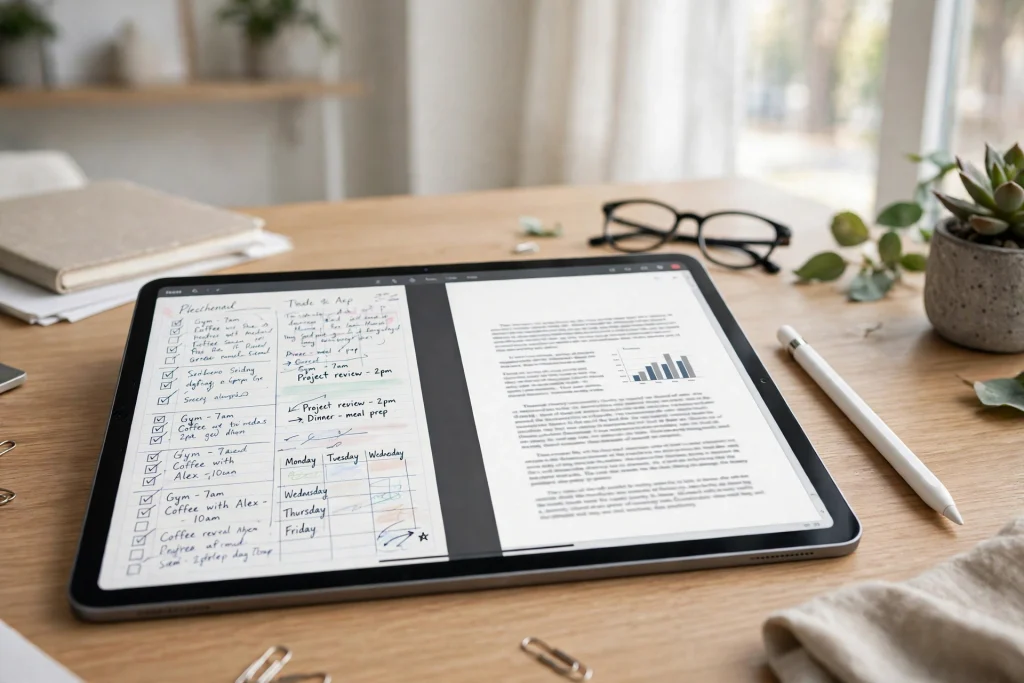
Quick answer: GoodNotes split view on iPad puts your planner next to another app on the same screen, so you can take notes beside a PDF, copy tasks from an email, or follow a video lesson without switching back and forth. Open GoodNotes, drag a second app to the edge of the screen (or use the multitasking menu), and adjust the divider to give each app the space it needs. It takes about a minute to set up.
GoodNotes split view on iPad is one of those features that sounds small until you use it for a real task. The usual way of working is one app at a time: read the PDF, remember the important part, switch to GoodNotes, write it down, switch back to check the next detail, and repeat. Every switch costs a little attention, and by the third or fourth round trip you have lost the thread. Split View removes the switching entirely. Your planner stays open on one side, your source material stays open on the other, and your eyes move between them instead of your whole workflow. If you are new to planning in GoodNotes, start with our beginner’s guide first, then come back here to add multitasking to your setup.
GoodNotes Split View on iPad: What It Is and Why It Changes How You Plan
Split View is the iPad’s way of showing two apps on screen at the same time, side by side. Each app gets its own share of the screen, and both stay live: you can scroll the PDF on the right while your pen is active in GoodNotes on the left, and neither app closes or reloads when you switch your attention between them. It is different from simply switching apps, because nothing is hidden — the reference and the notebook are both visible, all the time.
For planners, that visibility is the whole point. Planning is almost never a single-app job: you plan from a syllabus, a project brief, a recipe, a meeting agenda, an email full of dates, or a video lesson. When the source and the planner share the screen, copying stops being a memory exercise and becomes a reading exercise — you look, you write, you look again. Mistakes drop, because you are not relying on what you remembered from five seconds ago. Split View also changes how long you can work in one sitting: app switching is a small interruption, but interruptions add up, and with both apps visible the work settles into a rhythm of read, write, read, write. One thing to understand before you start: Split View is an iPadOS feature, not a GoodNotes feature. GoodNotes works inside it like any other app, so the gestures and menus you use belong to the iPad, and they work the same way whether the second app is Safari, Files, or your email.
How to Open GoodNotes Split View on iPad
There are two reliable ways to open GoodNotes beside another app. The drag method is fastest once you know it; the menu method is easier to learn. Both take under a minute, and both end in the same place.
Method 1: Drag a second app from the Dock
- Open GoodNotes and go to the page you want to write on — your daily page, a project page, or a blank note.
- Slowly swipe up from the bottom edge of the screen until the Dock appears, then pause. Do not swipe all the way up, or you will leave the app.
- Touch and hold the second app’s icon in the Dock until it lifts, then drag it toward the left or right edge of the screen. A dark strip appears along that edge — that is where the app will land.
- Release the icon when the strip appears. The screen splits, with GoodNotes on one side and the new app on the other.
- Drag the divider in the middle of the screen to change how much space each app gets.
If the app you want is not in the Dock, open it once so it appears in the Dock’s recent apps section. If you drag an icon and the screen does not split, you probably dragged it to the center instead of the edge — try again, aiming for the thin strip right at the edge.
Method 2: Use the multitasking menu
- Open GoodNotes to the page you want.
- Tap the multitasking button — the three dots at the top center of the screen.
- Choose Split View from the menu. GoodNotes slides to one side, and the Home Screen appears on the other side.
- Tap the second app on the Home Screen or in the App Library. It opens beside GoodNotes.
- Drag the divider to adjust the split.
The menu method is the better one to learn first, because it shows you the options instead of asking you to remember a gesture. It also works when the second app is not in the Dock. Once you are comfortable, the drag method becomes faster for apps you use every day.
How to close Split View and swap sides
When you are done, drag the divider all the way to one edge of the screen. The app on the side you drag toward disappears, and the other app takes over the full screen. GoodNotes keeps your work either way — closing Split View never closes the app or loses a note. If GoodNotes ends up on the side you do not want, drag its three-dot handle toward the opposite side. Handedness matters: if you write with your right hand, GoodNotes usually works best on the right, so your hand does not cover the reference app.
The Best App Pairings for GoodNotes Split View
Split View is only as useful as the pairing you choose. The rule is simple: one app is the reference, and GoodNotes is where the thinking happens. These are the pairings that work best in practice.
GoodNotes + Safari or a PDF reader
This is the classic pairing, and the one most people should set up first. Open a webpage, an article, or a PDF in Safari or your PDF reader on one side, and take notes in GoodNotes on the other. It works for research, for reading a report and pulling out action items, for following a tutorial, and for studying: the source stays visible while you write your summary, and you can scroll the source without touching your notes. If you study or research regularly, consider a tabbed GoodNotes notebook with plenty of blank or lined pages so you can keep one subject per tab while the source sits beside it.
GoodNotes + Apple Notes or another notes app
Pairing two notes apps sounds redundant, but it solves a real problem: your quick notes and your planner live in different places. Maybe you capture ideas in Apple Notes because it is fast, or a colleague shares notes with you in another app. In Split View, you can read those notes on one side and rewrite the important ones into your planner on the other — turning a messy capture into a clean plan, without retyping from memory.
GoodNotes + Calendar
Open your calendar beside your planner and planning a week becomes a single pass: see the appointments, deadlines, and events on one side, and write them into your daily and weekly pages on the other. It also catches conflicts you would miss by switching apps. Do this once a week — Sunday evening or Monday morning — and your planner stays honest. An undated digital planner with weekly spreads gives you pages you can fill straight from the calendar beside it, without ever leaving the split screen.
GoodNotes + YouTube or a video app
Watching a lesson, a tutorial, or a lecture while taking notes is one of the best uses of Split View. Put the video on one side and GoodNotes on the other, and take notes as you watch — pause when you need to write more, rewind when you missed a step. It is far better than watching the whole video first and then trying to remember it, because you capture each idea while it is fresh. Give the video the smaller share of the screen, since you mostly need to hear it and glance at it, and use timestamps in your notes (“12:40 — the part about color choices”) so you can find the moment again later.
GoodNotes + Files
The Files app holds the PDFs, images, and documents you want to bring into your planner, and in Split View you can drag them straight across: a reference image onto a vision-board page, a PDF worksheet into a notebook, a photo into a journal page. You can also browse a folder of reference material on one side while you write about it on the other, which is useful for trip planning (hotel confirmations, maps, screenshots) or project work (briefs, invoices, reference photos). If you keep planner materials in Files, set up one folder for them so the drag-and-drop step is quick.
Drag and Drop Between Apps
Drag and drop is the feature that makes Split View feel like one workspace instead of two apps that happen to share a screen. You can pick something up in one app and drop it into GoodNotes, and in many cases you can drag things the other way too.
- Images: touch and hold a photo in Safari, Files, or Photos, drag it across the divider, and drop it onto your GoodNotes page. It lands as an image you can resize, move with the lasso tool, and annotate around.
- Text: select text in Safari, Mail, or Notes, touch and hold the selection, drag it across, and drop it into GoodNotes. It arrives as a text box you can position and resize.
- PDFs: touch and hold a PDF in Files or Safari and drag it into GoodNotes. Depending on where you drop it, GoodNotes imports it as a new document or inserts pages into the current notebook.
- Links: drag a link from Safari into GoodNotes and it drops as a tappable link on the page — useful for keeping a source attached to your notes.
Dragging across a split screen while holding an Apple Pencil sounds awkward, until you know the trick: use two hands. Touch and hold the item with one finger to pick it up, then use another finger to tap around, scroll the destination, or switch pages in GoodNotes before you drop. The item stays “held” while you do this. If the item is small or hard to grab, use the share menu instead: tap Share in the source app, choose GoodNotes, and pick the notebook and page. It is one more tap than dragging, but it never misses.
You can also drag the other way: select handwriting or an image in GoodNotes with the lasso tool, touch and hold the selection, and drag it into the other app — into an email, a message, a document, or Files. GoodNotes exports the selection as an image when you drop it elsewhere. This is the fastest way to share a sketch, a diagram, or a handwritten note without exporting a whole page as a PDF first.
Copy Tasks and References Across Without Retyping
The most common reason to use Split View with a planner is also the most boring one: moving information from one place to another. An email has three dates, a message has an address, a webpage has a list of ingredients, a document has a quote you need. Retyping all of it is slow and error-prone, so here is how to move it cleanly.
For short text — a date, a name, an address — select it, copy it, and paste it into a GoodNotes text box. For longer passages, drag the selection across instead of copying and pasting: it is one gesture instead of three, and you can see exactly where it will land.
For tasks, use a small ritual. When a task arrives in an email or a message, read it in the source app, then write it in your planner as an action: start with a verb, add a due date, and note where it came from (“per email from Ana, 13 Nov”). That last part matters more than it looks — three days later, when you wonder why a task is on your list, the source note tells you. Keep a daily task page open for this, and at the end of the day review what you copied in: check off what is done, move what is not, and delete anything that turned out not to matter. The Minimalist Daily Planner is built for exactly this kind of day — a clean daily page with room for tasks copied in from elsewhere, and nothing else competing for attention.
For references — a link, a quote, a statistic, a price — drag the link or text onto the planner page where it belongs, and add a word or two of context in your own handwriting next to it. A link with no context is a mystery a week later; a link with “price for the March trip” written beside it is still useful. If you collect references often, keep one notebook page per project or topic as a reference page, so the links and quotes for that project live together instead of scattered across daily pages.
Slide Over: The Alternative When Split View Is Too Much
Split View is not always the right tool. Sometimes you want your planner full screen and a second app available for quick glances — a calculator, a timer, a message thread, a reference photo. That is what Slide Over is for: a second app floats in a narrow window on top of your full-screen app, and you can swipe it away or bring it back in a second.
To open Slide Over, drag an app from the Dock toward the center of the screen instead of the edge. It lands as a floating window you can drag to either side and dismiss by swiping it off the edge — it stays available in a small handle you can pull back at any time. To turn a Slide Over window into Split View, drag its top handle to the edge of the screen; to go the other way, drag the Split View divider toward the app you want to float.
Use Slide Over when the second app is a quick reference you will check a few times, and Split View when both apps need sustained attention. A calculator, a translation app, or a short message thread belongs in Slide Over. A PDF you are studying, a video you are learning from, or a calendar you are planning against belongs in Split View.
Stage Manager Notes
Stage Manager is the iPad’s newer multitasking layout, and it changes how Split View behaves. Instead of two apps locked side by side, Stage Manager lets you arrange apps in overlapping, resizable windows, group apps together, and switch between groups. GoodNotes works in Stage Manager like any other app — you can resize its window, place it beside another window, and keep a group of apps together for a recurring task, such as “research” (GoodNotes plus Safari) or “planning” (GoodNotes plus Calendar).
A few things worth knowing. First, Stage Manager and Split View are different modes, and your iPad uses one or the other depending on your settings — if you turn Stage Manager on, the classic Split View gestures change, and apps open in windows instead of splitting the screen. Second, groups are the real power of Stage Manager: set up GoodNotes beside your reference app once, and you can return to that exact pair later with a tap instead of rebuilding it each time. Third, windows can overlap, which means you can keep GoodNotes large and let a smaller reference window sit on top of it — a layout Split View cannot do.
If you like the simplicity of Split View, there is no need to switch. Stage Manager is best for people who juggle three or more apps, or who want the same app pair every day. If you try it and find it fiddly, turn it off and go back to Split View — the feature you actually use every day beats the one with more options that you never open.
Split View lets you give one app more room than the other, and the ratio you choose changes how the apps behave. GoodNotes at half the screen is comfortable for most writing; at a third, it is cramped but workable; at a quarter, it is really only good for reading. Here is how to make each ratio work.
- Give GoodNotes the larger share when you are writing. Handwriting needs width. If your planner is squeezed into a third of the screen, your writing gets small and tapping hyperlinked tabs turns into a precision exercise. Let the reference app take the smaller share — you mostly need to read it, not interact with it.
- Flip the ratio when you are reading. If the reference is a dense PDF or a detailed webpage, give it the larger share and let GoodNotes take a third. You can still jot short notes and page numbers in the smaller space, then expand GoodNotes again when it is time to write properly. Slide the divider back and forth as the task changes.
- Use landscape orientation. Split View in portrait gives each app a tall, narrow column, which is poor for handwriting and poor for reading wide pages. Rotate the iPad to landscape and both apps get a usable shape.
- Use the zoom window when space is tight. GoodNotes has a zoom window that magnifies a section of the page while you write, which helps enormously when the app is in a narrow split. It takes a few minutes to get used to, but it turns a cramped third-of-screen planner into a workable writing surface.
- Close the second app when you stop needing it. Split View is a tool for a specific job, not a permanent layout. When the copying is done and the notes are written, drag the divider away and give GoodNotes the full screen again.
Honest Limits: What Split View Cannot Do
Not every app supports Split View. Most major apps do — Safari, Files, Mail, Calendar, Notes, YouTube, and GoodNotes itself — but a few apps do not, usually older apps or games. If an app refuses to split, that is the app’s choice, not a setting you can change. Slide Over sometimes works for apps that do not support Split View, so it is worth trying as a fallback.
Two apps means two smaller apps. Every feature that needs space gets harder in a split. Handwriting is smaller, toolbars are tighter, hyperlinked tabs are closer together, and long lines of text wrap sooner. If you find yourself fighting the layout, the task may simply need a full screen — do the split-screen work first, then close the second app and finish in full screen.
GoodNotes can open a second window. A common question is whether you can put two GoodNotes notebooks side by side, and the answer is yes — GoodNotes supports opening a second window. From a notebook’s options, open it in a new window, then arrange that window beside the first using the same multitasking gestures. In practice, most people use this to compare two notebooks, or to copy between a reference notebook and a daily planner. It is a little more setup than splitting GoodNotes with another app, and the second window can be easy to lose track of, so check which window you are writing in before you start. If you only need two notebooks occasionally, it is often simpler to use the tabs and hyperlinks inside one planner instead.
Split View does not sync your attention. The iPad will happily show you two apps, but it cannot stop you from drifting. If the second app is a messaging app or a social feed, Split View becomes a distraction machine — every notification sits right next to your planner. When the second app is not part of the work, close it. Split View works best when both apps serve the same task.
Keyboard shortcuts and the Pencil behave differently per app. If you use a keyboard, shortcuts apply to whichever app is active, and the active app is the one you tapped last. The Apple Pencil, meanwhile, writes in GoodNotes but only taps and scrolls in most other apps. None of this is a problem once you expect it, but the first time a shortcut does nothing, it is usually because the other app is the active one.
Frequently Asked Questions
How do I open GoodNotes in Split View on iPad?
Open GoodNotes, then drag a second app from the Dock to the left or right edge of the screen, or tap the three dots at the top of the screen and choose Split View, then pick the second app. Drag the divider in the middle to adjust how much space each app gets. To close Split View, drag the divider all the way to one edge.
Can I have two GoodNotes notebooks open side by side?
Yes. GoodNotes supports multiple windows, so you can open a second notebook in a new window and place it beside the first using the iPad’s multitasking gestures. It is useful for comparing two notebooks or copying between a reference notebook and your daily planner. For everyday use, though, most people find it simpler to split GoodNotes with a different app — a PDF reader, a browser, or a calendar — and use hyperlinked tabs to move around inside one planner.
Why is GoodNotes so small in Split View?
Because the screen is shared. Drag the divider to give GoodNotes more space, rotate the iPad to landscape so both apps get a wider shape, and use the GoodNotes zoom window to write comfortably in a narrower space. If the layout still feels cramped, close the second app once you have copied what you need and finish in full screen.
Can I drag a PDF or image from another app into GoodNotes?
Yes. In Split View, touch and hold an image, a PDF, or selected text in the other app, drag it across the divider, and drop it onto your GoodNotes page. Images land as movable images, text arrives as a text box, and PDFs can be imported as new documents or added to the current notebook. You can also drag the other way — lasso handwriting or an image in GoodNotes and drop it into an email, a message, or Files.
GoodNotes split view on iPad is a small change with an outsized effect: the reference and the planner on one screen, no switching, no retyping from memory, and a working rhythm of read, write, read, write. Learn the two ways to open it, pick the pairing that matches your task — a PDF reader for study, a calendar for weekly planning, a video app for lessons, Files for reference material — and use drag and drop instead of retyping whenever you can. Give GoodNotes the larger share when you are writing, use Slide Over for quick references, and remember the limits: not every app splits, two small apps are still two small apps, and a second GoodNotes window is there when you need two notebooks side by side. Start with one pairing this week, use it for a real task, and Split View will become part of how you plan rather than a feature you meant to try.
Ready to plan with a second app beside you? The Temply Studio shop has digital planners built for side-by-side work — tabbed notebooks for research, undated life planners for weekly planning from your calendar, and clean daily planners for tasks copied in from anywhere. Pick the one that matches how you work, open it in GoodNotes, and set up your first Split View session today.
Temply Studio
Stop chasing your goals with sticky notes and scattered notebooks. Our premium digital planners and Canva templates are designed to help you plan with intention, stay consistent, and actually enjoy the process.
Questions about this guide?
Ask about the planner, share how you use it, or tell us what to cover next. Your email stays private.