
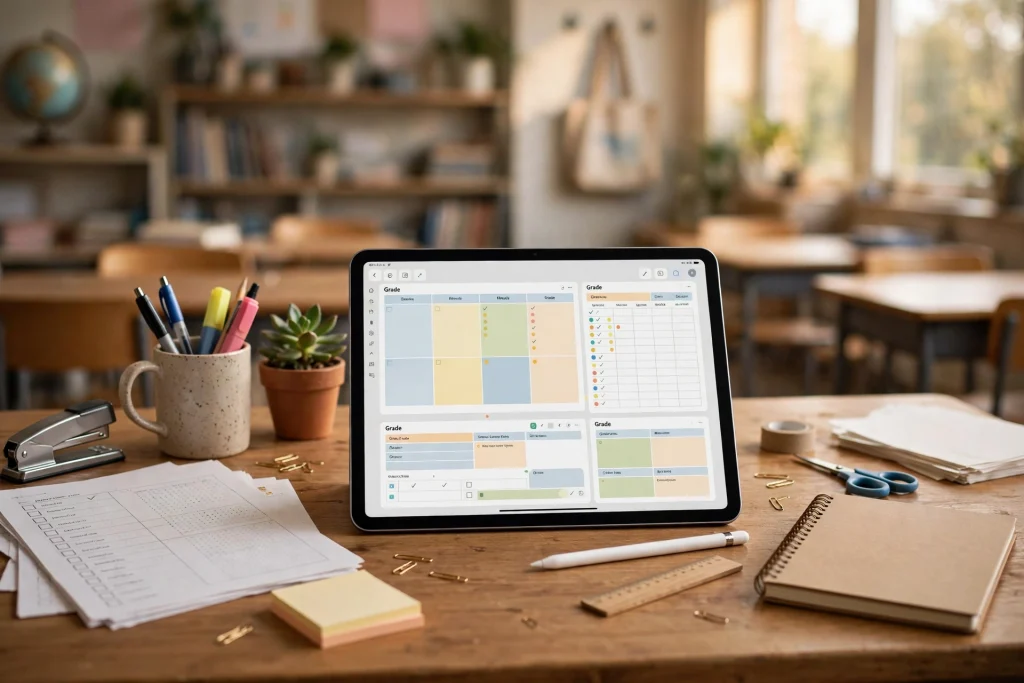
Quick answer: A good digital teacher planner in GoodNotes combines weekly lesson-plan pages (Monday to Friday, with objective, activity, materials, standards and homework for each period), a year and month view with class and bell schedules, grade and attendance grids per class, a student roster and seating chart, a substitute-information page, and a parent contact and accommodations log. GoodNotes makes it work with internal links from calendar to lesson pages, reusable Elements stickers, presentation mode as a classroom whiteboard, handwriting search, and password protection for confidential pages.
Teaching runs on paper — or it used to. Lesson plans, grade books, attendance sheets, seating charts, substitute notes, parent contacts: a teacher’s week is a stack of documents that all need to be in the right place at the right time. A digital teacher planner goodnotes setup puts that whole stack on one iPad, searchable, linked and backed up, instead of spread across a desk, a bag and a filing cabinet.
This guide describes what a teacher planner must contain, how GoodNotes features serve each part, and how to choose between dated and undated planners — without assuming any specific product. Check a planner’s actual page list before you buy: two planners both called “teacher planner” can contain very different pages.
What a teacher planner must contain
Weekly lesson-plan pages
The core of any teacher planner is the weekly lesson plan: Monday to Friday, with multiple period blocks per day. Each period block needs fields for the lesson objective, the activity, the materials required, the standards covered, and the homework set. That structure is what separates a teacher planner from a general weekly planner. A general planner gives you a blank box for Tuesday period 3. A teacher planner gives you labelled fields, so you plan the lesson instead of redesigning the page every week.
Look for a weekly spread that matches your actual timetable. If you teach six periods, a five-period template will force you to squeeze or spill over every day. Count your periods, check the page, and only then check the cover design.
Year and month views, class and bell schedules
A teacher planner also needs a year view for term dates and school events, month views for planning units and assessments, and dedicated pages for your class schedule and the school bell schedule. The bell schedule page is easy to overlook and painful to miss: when periods shift for assemblies or early dismissals, you need the day’s timings in the planner, not in a separate email you cannot find.
Add a goals and professional-growth page for the year: the courses you plan to take, the observations you are preparing for, the teaching goals you set in September and actually want to revisit in June. A planner that only holds this week’s lessons is a diary; a planner that also holds the year’s direction is a professional tool.
Grade grids and attendance grids
Per class, a teacher planner needs a grade grid — students down one side, assessments across the top — and an attendance grid in the same layout. Keeping grades and attendance in the planner, next to the lesson plans they relate to, means you can see at a glance that a student’s grade dipped in the same weeks their attendance did. That context is the point: the planner connects the data that separate systems keep apart.
One caution, stated plainly: a planner grade grid is your working record. Your school’s official gradebook and attendance system remain the official record, and the planner should never be the only place a grade or an attendance mark exists. Use the planner to teach; use the school system to report.
Roster, seating chart and substitute information
Three pages that save real time: a student roster per class, a seating chart you can redraw when you rearrange the room, and a substitute-information page. The substitute page is the one teachers write in a panic on a sick morning, so a good planner has it pre-structured: class schedules, bell timings, where materials live, which students need particular support, and who to contact in the building. Fill it in during a calm week, not during a sick morning.
In GoodNotes, a seating chart works especially well: draw the room layout once, duplicate the page for each class, and drag student names around as seating changes. On paper, every rearrangement means redrawing the chart. Digitally, it is a two-minute edit.
Parent contact log and accommodations log
A parent and guardian contact log — who you contacted, when, about what, and what was agreed — turns “did I call them?” from a memory test into a lookup. Next to it, an IEP and 504 accommodations log helps you keep each student’s agreed accommodations visible when you plan lessons: extended time, preferential seating, modified materials. Again, the planner log is a personal organising tool only. It is not a substitute for the school’s official documentation, and confidential information in it deserves the protection described below.
Dated vs undated: which type should you choose?
Undated planners never expire. You fill in the dates yourself, reuse the same planner every school year, and start mid-year without wasting pages. Dated planners come pre-filled for a specific school year: open to September and the dates are already there, which saves setup time but means the planner expires at the end of that year.
Choose undated if you start mid-year, want one planner to reuse, or like setting up your own dates. Choose dated if you want zero setup and you are buying for the school year the planner was made for. Before recommending one type for a specific product, verify which type that product actually is — do not assume from the title. Check the product page’s page list and description, and if it does not say, ask the seller. A dated planner bought for the wrong year is a wasted purchase, and an undated planner bought by someone who wanted dates filled in is a setup chore they did not expect.
GoodNotes features that sell it to teachers
Internal links from calendar to lesson pages
This is the feature that makes a digital teacher planner feel different from a paper one. Tap a date on the year or month view and land on that week’s lesson plan. Tap a week tab and land on the day. When a student asks about last Tuesday’s homework, you tap back to last Tuesday instead of flipping through a term of pages. Our guide to linking a planner, notebook and sticker book shows how to extend this: link the planner to a separate notebook for unit materials, so the lesson plan and its resources are one tap apart.
Elements for reusable stickers and stamps
Teachers reuse the same marks constantly: stars, “great work,” homework reminders, assessment flags. Save them once with the Elements tool and drop them onto any page in seconds, instead of redrawing or resticking them every time. Build a small personal set — five to ten elements you actually use — rather than a library of hundreds you never open.
Presentation mode as a classroom whiteboard
GoodNotes’ presentation mode turns the iPad into a classroom display: show a lesson page, a diagram or a worked example on the classroom screen, annotate it live, and keep your private notes hidden. A planner page you already wrote for yourself becomes the lesson visual with no extra preparation. That dual use — private plan and public display in one document — is something paper cannot do.
Handwriting search, password protection and sharing
Handwriting search across the whole library means a student’s name, a topic or a standard you wrote months ago is findable in seconds. Password protection lets you lock confidential pages — grade grids, contact logs, accommodations notes — so a shared iPad or a screen shown to the class does not expose them. And when you need to share, export a worksheet or a lesson page via AirDrop or email directly from GoodNotes, without scanning or photographing paper.
Password protection deserves one extra note: protect the planner document itself if it holds confidential student information, not just individual pages, and know your school’s policy on storing student data on personal devices before you put grades or contacts on an iPad at all. The tool makes protection easy; the policy decision is yours and your school’s.
A teacher’s weekly workflow in GoodNotes
Monday morning: open the week view, check the bell schedule for the week, and confirm each period’s objective and materials. During the day, tick off completed activities and note what overran — that note is tomorrow’s planning data. At the end of the week, duplicate next week’s blank lesson pages if needed, move unfinished activities forward, and update the grade and attendance grids while the week is fresh. Friday’s ten-minute review is what keeps Monday’s plan honest.
At term boundaries, use the month and year views to map units and assessments, check the substitute page is current, and archive the finished term’s notebook rather than deleting it — last year’s lesson notes are next year’s starting point, and a searchable archive beats a filing cabinet every time.
Choosing a teacher planner: a checklist
- Does the weekly spread match your number of periods per day?
- Does it include grade and attendance grids per class, not just one generic grid?
- Is there a substitute-information page, pre-structured?
- Is it dated or undated — and does that match when you are starting?
- Does it link internally from calendar to week to day, or will you flip pages by hand?
- Can you try the page list before buying — does the product page show the actual pages?
Run any planner you consider through that checklist before you buy. The cover design is the least important thing in the planner; the period blocks, grids and links are the planner.
For related planning setups, see our GoodNotes planner beginner’s guide for importing and setting up any planner PDF, our college study planner guide for student-side planning, and the 2027 Life Planner and Minimalist Daily Planner as general GoodNotes planners you can adapt alongside a dedicated teacher layout. The 2026 Academic Student Planner for GoodNotes is the student-facing counterpart if you also plan from the learner’s side.
FAQ
What should a teacher planner include?
Weekly lesson-plan pages with objective, activity, materials, standards and homework per period; year and month views; class and bell schedules; grade and attendance grids per class; a roster, seating chart, substitute page, parent contact log and accommodations log.
Is a digital teacher planner better than paper?
For navigation, search and reuse, yes: linked calendar-to-lesson navigation, handwriting search, reusable Elements stickers and presentation mode are hard to replicate on paper. Paper still wins for teachers who prefer writing without a device, or whose school restricts device use in class.
Dated or undated teacher planner — which is better?
Undated never expires and can be reused every year or started mid-year; dated comes pre-filled for a school year and needs no setup. Check which type a specific product actually is before buying — do not assume from its title.
Can I keep student grades in GoodNotes?
You can keep a working grade grid in your planner, but your school’s official gradebook remains the official record. Protect confidential pages with a password and follow your school’s policy on student data on personal devices.
How does GoodNotes help in the classroom itself?
Presentation mode displays a planner or lesson page on the classroom screen for live annotation, the Elements tool drops reusable stickers and marks onto any page, and handwriting search finds past lessons, topics and student notes in seconds.
Ready to plan your teaching year? Browse Temply Studio’s digital planners for GoodNotes and check each planner’s page list against the checklist above.
For official GoodNotes features, check GoodNotes before choosing a Teacher Digital Planner for your classroom.
Temply Studio
Stop chasing your goals with sticky notes and scattered notebooks. Our premium digital planners and Canva templates are designed to help you plan with intention, stay consistent, and actually enjoy the process.
Questions about this guide?
Ask about the planner, share how you use it, or tell us what to cover next. Your email stays private.