




Quick answer: For a Goodnotes-on-iPad example, open a duplicate planner page, use the Image tool to choose a photo from Photos, then resize it inside an empty area. Keep the original planner and check that nearby tab links still work. Menus differ by version and platform.
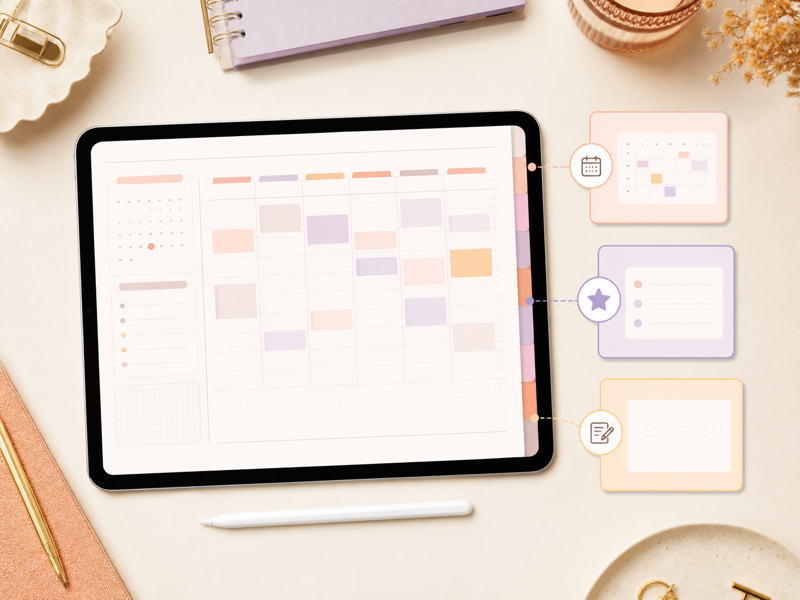
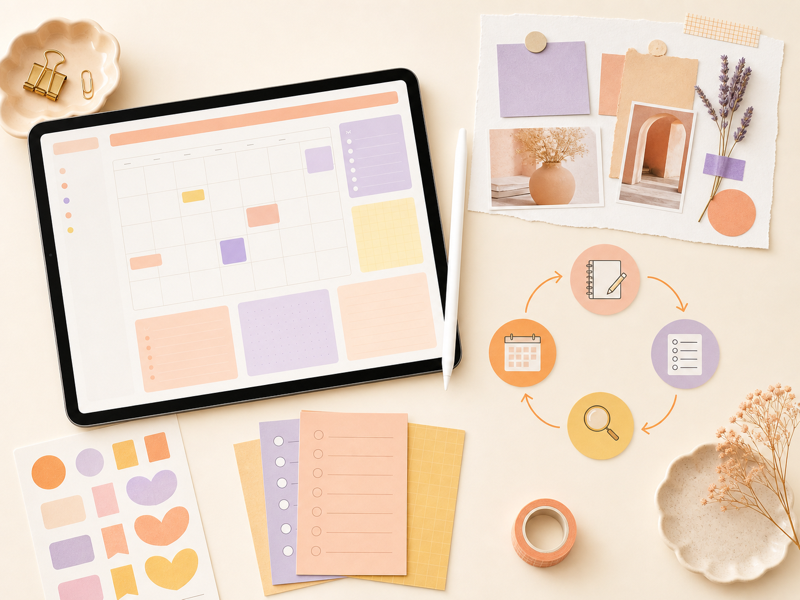
Use only photos you have permission to store and share. Avoid private client, patient or children’s information in shared planners; check app and storage permissions before importing.
What to decide before you begin
Before you begin, choose the specific example below and keep any original file or record intact. Use only photos you have permission to store and share. Avoid private client, patient or children’s information in shared planners; check app and storage permissions before importing.
- What is the next action after this page or file is complete?
- Which details must be visible without extra clicking or searching?
- What source copy, permissions, or original file must be preserved?
- Which file, page or record will you check after completing this workflow?
Step-by-step workflow
- 1. Save a permitted test photo in Photos and duplicate a planner page so the original layout stays available. This example is scoped to Goodnotes on iPad, not every planner app.
- 2. Open the duplicate page in editing mode and choose the Image tool. Select the photo from Photos; if access is denied, review the device’s Photos permission for the app.
- 3. Tap or select the inserted image and use its resize handles to make it fit an empty area. Keep the aspect ratio so faces or objects do not look stretched.
- 4. Move the image away from writing space, dates and navigation tabs. Try a smaller photo rather than covering the whole page.
- 5. Return to the app’s link-navigation mode and test a nearby tab. If a photo blocks a link, move it and check again.
- 6. If you share a PDF copy, open that export separately to check the image, page layout and any links you need. Keep the working notebook and original download separately.
Check the worked example before repeating the process: If you share a PDF copy, open that export separately to check the image, page layout and any links you need. Keep the working notebook and original download separately.
Use a small checklist to protect quality
- The title, filename, and first instruction describe the same purpose.
- The important information is readable at the intended screen or paper size.
- The original or editable source is stored separately from the final export.
- Links, permissions, dimensions, formats, and stated compatibility are verified.
- Any third-party claim is linked to the relevant official documentation.
- The final version tells the next person what is included and what is not included.
Common mistakes to avoid
- Choosing a decorative layout before deciding what must be visible.
- Adding trackers that create maintenance without a clear decision.
- Editing the only copy of a downloaded file.
- Assuming every pdf or hyperlink behaves identically in every app.
- Using vague labels that make a page hard to scan later.
How this fits a reusable system
For the next review, keep the original record and a dated working version. Check whether the app has permission to access the intended Photos items and whether the page is in editing mode. Use the current official guide for your Goodnotes version if the Image control differs.
Continue with the Digital Planning hub, or review the related Temply Studio products and their individual file details before choosing a template.
For platform-specific details, consult Goodnotes Help Center. Use the official source for current feature, file, licensing, or policy information instead of relying on an old screenshot or an unverified claim.
Frequently asked questions
Why can I not select a photo?
Check whether the app has permission to access the intended Photos items and whether the page is in editing mode. Use the current official guide for your Goodnotes version if the Image control differs.
Should I keep an editable source copy?
Keep the original file or record and a dated working copy. If you share a PDF copy, open that export separately to check the image, page layout and any links you need. Keep the working notebook and original download separately.
What should I check before relying on the result?
Return to the app’s link-navigation mode and test a nearby tab. If a photo blocks a link, move it and check again.
What should I review next time?
If you share a PDF copy, open that export separately to check the image, page layout and any links you need. Keep the working notebook and original download separately.
Conclusion
Start with the worked example above and adapt it to your own records. Check whether the app has permission to access the intended Photos items and whether the page is in editing mode. Use the current official guide for your Goodnotes version if the Image control differs. Review individual product specifications before choosing a Temply Studio template; the workflow does not establish features in any specific product.
Related guide
Continue with the Digital planning guides, or read A Practical Digital Planner Evening Review for another focused workflow.
Temply Studio
Stop chasing your goals with sticky notes and scattered notebooks. Our premium digital planners and Canva templates are designed to help you plan with intention, stay consistent, and actually enjoy the process.

Questions about this guide?
Ask about the planner, share how you use it, or tell us what to cover next. Your email stays private.