
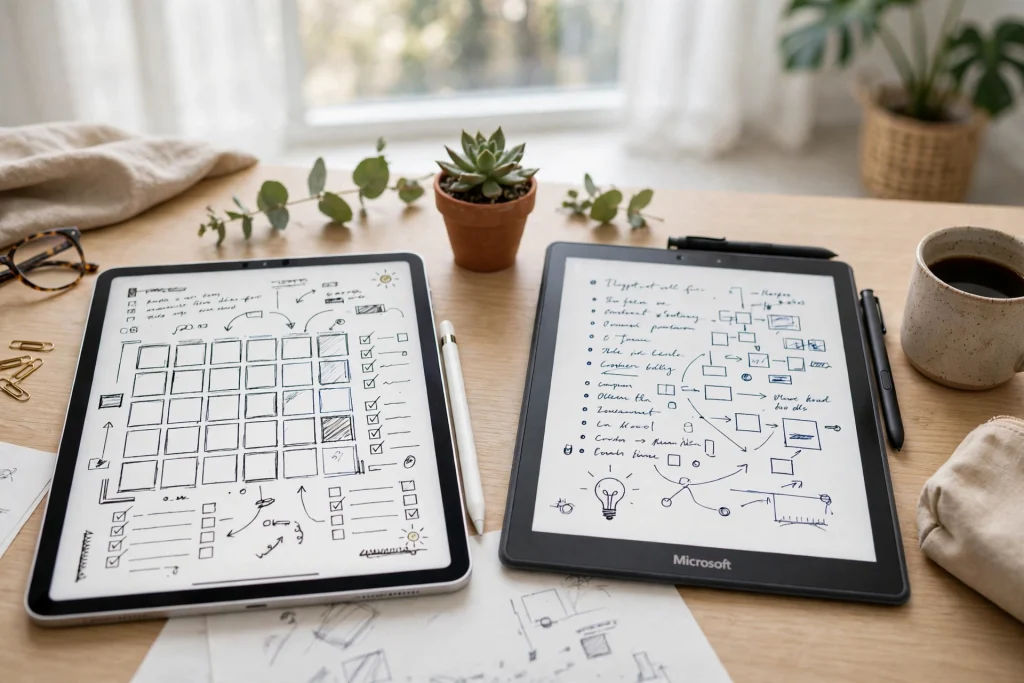
If you are choosing a digital planning app, the GoodNotes vs OneNote decision matters more than it first appears. Both apps let you write by hand, organise notes, and keep your plans in one place, but they were built for different kinds of planning. GoodNotes is designed around handwriting and hyperlinked PDF planners that feel like a paper planner. OneNote is designed around a free-form digital notebook that works everywhere and syncs through Microsoft 365. Pick the wrong one and you will spend months fighting the app instead of using your planner.
Quick answer: For most people who want a true digital planner on an iPad, GoodNotes is the better choice, because it supports hyperlinked PDF planners, realistic handwriting, and paper templates out of the box. OneNote is the better choice if you plan mainly on Windows or Android, share plans with a family or team inside Microsoft 365, or want a capable planner system without paying for an app. Your devices and your planning style should decide, not the brand name.
GoodNotes vs OneNote at a Glance
The table below summarises the differences that matter most for digital planning. The rest of this guide explains each row in detail, so you can see which trade-offs affect your daily routine and which ones you can safely ignore.
| Feature | GoodNotes 6 | OneNote |
|---|---|---|
| Price | Free plan limited to 3 notebooks; Essential $11.99/year; Pro $35.99/year | Free with any Microsoft account; Microsoft 365 Personal $9.99/month adds Copilot and 1 TB OneDrive |
| Platforms | iPad, iPhone, Mac, Windows (Microsoft Store), Android tablets, and web | Windows, Mac, iPad, iPhone, Android, and web |
| Handwriting | Best-in-class Apple Pencil handwriting, with handwriting search and smooth ink | Good pen support, especially on Windows; Ink to Text on Windows only, not on iPad |
| Planner templates | Built-in paper templates plus full support for hyperlinked PDF planners and stickers | Limited built-in paper templates; no native hyperlinked digital planner support |
| PDF annotation | Import, write on, and navigate hyperlinked PDF planners like a paper book | PDFs inserted as printouts; pages become images you write over, without planner hyperlinks |
| Sync | iCloud, with cross-platform sync on paid plans | Sync via OneDrive on every platform |
| Search | Searches handwriting and typed text, including inside PDF planners | Searches typed text and handwriting, with strong search across notebooks |
| Collaboration | Sharing available, but built mainly for personal planning | Strong sharing and real-time collaboration through Microsoft 365 |
| AI features | AI tools in Pro, including handwriting and study aids | Copilot with Microsoft 365 Personal; deeper AI inside the Microsoft 365 apps |
Price and Long-Term Cost
OneNote is free with any Microsoft account, which makes it the obvious starting point if you want to try digital planning without spending anything. You can create notebooks, write by hand, add images and checklists, and sync everything through OneDrive at no cost. That free version is genuinely useful, not a trial that stops working after a few weeks.
GoodNotes 6 takes a different approach. The free plan is limited to 3 notebooks, which is enough to test the app and run one small planner, but most regular planners will outgrow it quickly. Essential costs $11.99 per year, while Pro costs $35.99 per year. Those are US list prices, checked November 2026. Essential covers the core planning features most people need, while Pro adds the full AI toolset and extra features for heavy users.
Microsoft 365 Personal costs $9.99 per month and adds Copilot and 1 TB of OneDrive storage. You do not need it to use OneNote, but it changes the value calculation if you already pay for Microsoft 365 for Word, Excel, or Outlook. In that case, OneNote and its AI features are effectively already included in a subscription you own.
Handwriting Feel: Apple Pencil vs Windows Ink
Handwriting is where GoodNotes earns its reputation. On an iPad with an Apple Pencil, GoodNotes feels closer to writing on paper than any other mainstream planning app. The ink is smooth, the pressure response is natural, and palm rejection is reliable enough that you can rest your hand on the screen and write for a long session without stray marks. For people who journal, sketch plans, or write longhand notes every day, that feel is not a small detail. It is the reason they open the app.
GoodNotes also makes your handwriting useful after you write it. Handwriting search lets you find a word you wrote weeks ago, even inside a PDF planner.
OneNote handwriting is good, particularly on Windows, where pen support is mature and the app has been refined over many years. On a Surface or another Windows tablet, writing in OneNote feels natural. On an iPad, the experience is still solid, but it does not match GoodNotes for smoothness and responsiveness. The gap is most obvious during long writing sessions, when small differences in latency and ink rendering add up.
OneNote also has a platform gap that matters for planners. Ink to Text, which converts your handwriting into typed text, works on Windows only, not on iPad. If you plan on an iPad and want to convert handwritten notes into searchable typed text, you will not get that feature in OneNote. GoodNotes handles handwriting recognition and search on iPad without that restriction.
Planner Templates and Hyperlinks
This is the biggest functional difference between the two apps, and the one that decides the GoodNotes vs OneNote question for most planners. A digital planner is not just a blank notebook. It is a structured system with a calendar, daily pages, weekly spreads, habit trackers, and goal pages, all linked together so you can tap a date and jump straight to that day. GoodNotes supports that system natively. OneNote does not.
In GoodNotes, you can import a hyperlinked PDF planner and use it exactly as its designer intended. Tap a month on the yearly calendar and you land on that month. Tap a day and you land on the daily page. Tabs along the side take you to your habits, your budget, or your notes. The planner behaves like a well-made paper planner, except that it never runs out of pages, your handwriting is searchable, and you can duplicate a page whenever you need more space.
OneNote gives you notebooks divided into sections and pages, and you can build a planning structure from those pieces. You can create a section for each month, a page for each week, and a page for each day, and you can link between pages. That works, and many people plan successfully in OneNote this way. But it is a system you build yourself, page by page, rather than a ready-made planner you open and start using.
OneNote also has limited built-in paper templates, and it has no native support for hyperlinked digital planners. You cannot import a PDF planner and tap through it the way you can in GoodNotes.
PDF Planners: Import, Annotate, and Navigate
In GoodNotes, a PDF planner is a first-class citizen. You import the file, and every hyperlink works. You can write directly on the pages, add stickers, highlight important dates, and search your handwriting across the whole planner. The app treats the PDF as a planner, not as an attachment.
OneNote handles PDFs differently. When you insert a PDF into OneNote, it becomes a printout: each page is inserted as an image that you can write over. You can annotate those pages and add notes beside them, which is useful for marking up a worksheet or a document. But it is not the same as using a planner. The hyperlinks in the PDF do not work, because the pages are images rather than a navigable document. You lose the tap-to-jump navigation that makes a PDF planner fast.
Organisation: Structure vs Freedom
GoodNotes organises your work around documents and folders. Each planner, notebook, or PDF is a document, and you can group documents into folders by year, project, or area of life. Inside a planner, the structure is fixed by the planner design: months, weeks, and days in a set order. That structure is a strength if you want consistency. You always know where to find today, this week, and this month.
OneNote organises your work around notebooks, sections, and pages, with a free-form canvas on every page. A page has no fixed size and no fixed layout. You can put a checklist at the top, a handwritten note in the middle, a photo on the side, and a table at the bottom, all on the same page. You can drag items around, resize them, and rearrange them freely. That flexibility is liberating if you like to design your own pages, and it is one reason OneNote appeals to people who plan visually and change their layout often.
Sync and Platforms
GoodNotes runs on iPad, iPhone, Mac, Windows through the Microsoft Store, Android tablets, and the web. OneNote runs on Windows, Mac, iPad, iPhone, Android, and the web. On paper, the lists look similar. In practice, each app is strongest on its home platform.
GoodNotes is strongest on iPad and Apple devices, where the Apple Pencil experience is best and the app feels most polished. The Windows and Android versions exist and are improving, but they are not yet as refined as the iPad version. If you plan mainly on an iPad and check your planner occasionally on a Mac or iPhone, GoodNotes syncs well through iCloud and feels consistent across Apple devices.
OneNote is strongest on Windows, where it is deeply integrated with the operating system and the rest of Microsoft 365. It also works well on Android, which makes it a better choice if your main devices are a Windows laptop and an Android phone or tablet. Sync runs through OneDrive on every platform, so your notes are available wherever you sign in. That cross-platform consistency is a real advantage if your household or workplace uses a mix of devices.
Collaboration and Sharing
Most planners work alone, but sharing matters when you plan with a partner, a family, or a team. This is where OneNote pulls ahead clearly. Sharing a OneNote notebook is straightforward, and multiple people can edit the same page at the same time. Changes sync through OneDrive, and you can see who added what. That makes OneNote a good fit for a shared family planner, a household calendar, a team project notebook, or a study group that needs one shared set of notes.
OneNote also benefits from its place inside Microsoft 365. You can link a note to a Word document, pull data from Excel, or share a page in Teams without leaving the Microsoft ecosystem. If your work or family already lives in Microsoft 365, OneNote slots into that workflow naturally.
Search and AI Features
A planner is only useful if you can find what you wrote. GoodNotes searches your handwriting and typed text, including inside PDF planners, which means a note you scribbled in March is findable in November. That is particularly valuable in a planner, where you often need to look back at an old goal, a past appointment, or a habit you tracked months ago.
AI is becoming part of both apps, but it plays a different role in each. GoodNotes Pro includes AI tools aimed at handwriting and study, such as help with organising notes and summarising content. Those tools are useful if you take a lot of handwritten notes and want help turning them into summaries or study aids. They are an addition to the core planning experience, not the reason to buy the app.
OneNote AI comes through Copilot, which is included with Microsoft 365 Personal at $9.99 per month. Copilot can summarise notes, draft content, answer questions about your notebooks, and help you organise material. It is more powerful than the AI in GoodNotes, because it draws on the wider Microsoft 365 ecosystem, including Word, Excel, and Teams.
How to Choose: A Simple Decision Guide
- What device do you plan on most? iPad points to GoodNotes. Windows or Android points to OneNote.
- Do you want a ready-made PDF planner? If yes, choose GoodNotes. If you prefer to build your own structure, OneNote works well.
- Is handwriting central to your routine? If you write by hand every day, GoodNotes feels better, especially with an Apple Pencil.
- Do you share plans with others? If you plan as a family or team, OneNote collaboration is stronger.
- Do you already pay for Microsoft 365? If yes, OneNote and Copilot are already included. If no, GoodNotes Essential is the cheaper paid option.
- Do you need to search handwriting inside a planner? GoodNotes handles that smoothly on iPad, including inside PDF planners.
If you are new to digital planning, it helps to learn the basics in the app you choose before you invest in a planner. Our guide to using a digital planner in GoodNotes walks through importing a planner, writing on daily pages, and using hyperlinks, so you can get started without guessing.
Verdict by User Type
iPad-First Planner
If your iPad is your main planning device, choose GoodNotes. The Apple Pencil experience, handwriting search, and hyperlinked PDF planners make it the best tool for daily planning on iPad. Pair it with a well-designed planner and you have a system you can use for years. A good starting point is the 12-Tab Digital Notebook for GoodNotes, which gives you a structured notebook with tabs you can navigate quickly, or the Minimalist Undated Digital Life Planner for GoodNotes if you want a clean, undated planner you can start on any day of the year.
Windows or Android User
If you plan mainly on Windows or Android, choose OneNote. It is free, it syncs through OneDrive, and it works well on the devices you already own. You can build a planning system from notebooks, sections, and pages, and you can add checklists, tables, and images wherever you need them.
Microsoft 365 Household
If your household or workplace already pays for Microsoft 365, choose OneNote. You already have Copilot, 1 TB of OneDrive storage, and the full Office apps, so OneNote fits into a system you own. Shared notebooks work well for family calendars, household tasks, and team projects, and you can move between Word, Excel, Teams, and OneNote without friction.
Budget-First Planner
If you want to spend as little as possible, choose OneNote. It is free with a Microsoft account, and you can plan for years without paying for an app or a subscription. GoodNotes Essential at $11.99 per year is affordable, and it is worth the price if you want a true PDF planner, but it is still a cost OneNote does not have.
Team Sharing and Collaboration
If you share plans with a partner, a family, or a team, choose OneNote. Real-time collaboration, shared notebooks, and Microsoft 365 integration make it the better tool for group planning. You can keep a shared calendar, track tasks together, and see changes as they happen. GoodNotes is a personal planner first, and it is not designed for the same kind of shared work.
Frequently Asked Questions
Is GoodNotes or OneNote better for digital planners?
GoodNotes is better for most digital planners, especially on iPad, because it supports hyperlinked PDF planners, realistic Apple Pencil handwriting, and handwriting search. OneNote is better if you plan on Windows or Android, share plans inside Microsoft 365, or want a free planner system without paying for an app.
Can I use a PDF planner in OneNote?
You can insert a PDF into OneNote as a printout and write over the pages, but the hyperlinks in the PDF will not work, because each page becomes an image.
Is GoodNotes worth paying for if OneNote is free?
GoodNotes is worth paying for if you use a hyperlinked PDF planner every day, write by hand on an iPad, and value handwriting search inside your planner. Essential at $11.99 per year is a modest cost for that experience.
Can I switch from OneNote to GoodNotes later?
Yes, you can switch, but you should expect some manual work. You can export notes from OneNote and import PDFs or images into GoodNotes, but your notebook structure, links, and formatting will not transfer perfectly.
Final Thoughts
The GoodNotes vs OneNote choice is not about which app is better in general. It is about which app fits your planning life. GoodNotes gives you a beautiful, focused planner that feels like paper and works brilliantly on iPad. OneNote gives you a free, flexible notebook that works everywhere and shares well inside Microsoft 365.
Ready to start planning in GoodNotes? Explore the 2027 Life Planner and set up a complete year of daily, weekly, and monthly pages with hyperlinked navigation, so your next year of planning starts organised from day one.
Temply Studio
Stop chasing your goals with sticky notes and scattered notebooks. Our premium digital planners and Canva templates are designed to help you plan with intention, stay consistent, and actually enjoy the process.
Questions about this guide?
Ask about the planner, share how you use it, or tell us what to cover next. Your email stays private.