




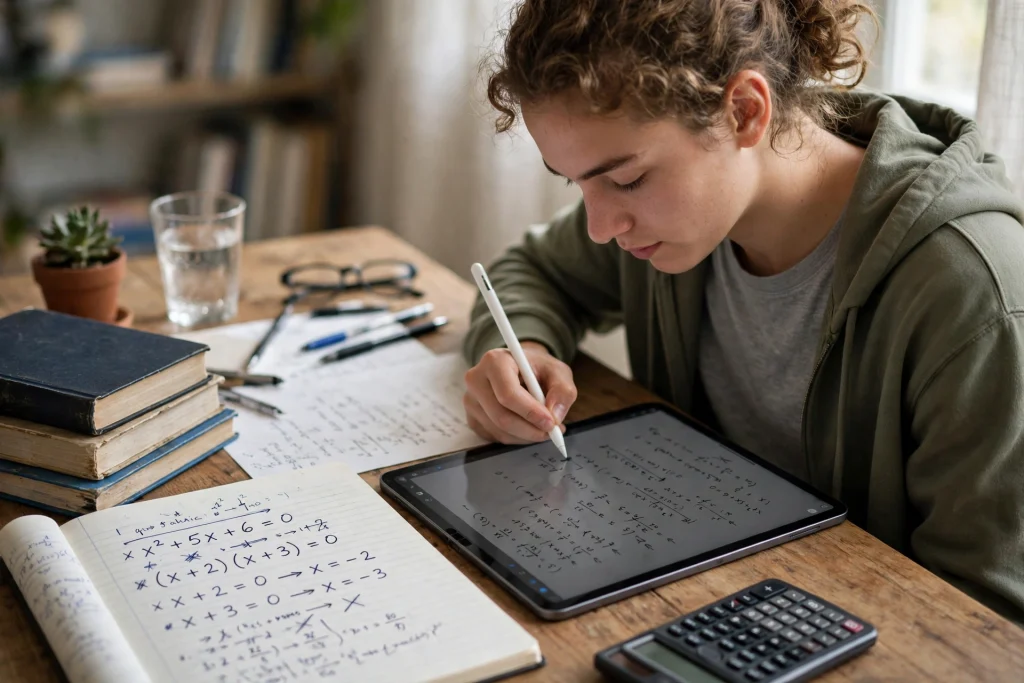
Quick answer: To use GoodNotes Math Assistance, write a line of maths by hand in a GoodNotes notebook, followed by an equals sign. The feature instantly recognises your equation and offers a quick calculation or a suggested next step. For trigonometry and calculus, it can also show hints with explanations and step-by-step help. Inside the free maths prep courses from the Marketplace, it checks your work in real time and flags wrong equations with a red underline.
If you take handwritten maths notes in GoodNotes, you know the problem: a page full of working and a final answer you are not sure about. GoodNotes Math Assistance was built for that gap. Launched in October 2024, it turns handwritten equations into something the app can understand, so it can calculate, check and guide you while you keep writing by hand.
What Is GoodNotes Math Assistance?
GoodNotes Math Assistance instantly recognises handwritten equations in your notes and responds to them. Instead of switching to a calculator app or retyping your working, you write the maths exactly as you normally would.
For straightforward problems, it offers quick calculations. Write a line of maths followed by an equals sign, and GoodNotes Math Assistance completes the calculation on the spot. For harder material, it goes further: with trigonometry and calculus problems, it offers suggested next steps, hints with explanations, and step-by-step help.
Math Assistance runs locally on your device, so your handwritten work and your data stay private. It suits students who take maths notes by hand, and it is especially relevant for exam preparation: it is built into GoodNotes’ free maths prep courses for the SAT, the Hong Kong DSE and the South Korean CSAT, downloadable from the Marketplace under the Education tab.
GoodNotes Math Assistance vs Math Conversion: What Is the Difference?
GoodNotes has two features for handwritten maths, and they are easy to confuse. Math Conversion changes the format of your writing; Math Assistance understands what you wrote and does something with it.
Math Conversion is the simpler of the two. Select a handwritten equation with the lasso tool, tap the selection, and choose Convert > Math to turn it into typed text. The equation looks neater and is easier to read or share, but the app has not solved or checked anything.
GoodNotes Math Assistance, by contrast, works with the meaning of the equation. It recognises what you wrote, calculates where a calculation is needed, suggests a next step for harder problems, and checks your working inside the exam prep courses. Conversion is about presentation; Assistance is about understanding.
In practice, the two complement each other: use Math Assistance while working through a problem, then Math Conversion to tidy the final answer. Our guide to converting handwriting to text in GoodNotes covers the wider conversion tools.
How to Turn On GoodNotes Math Assistance and Where to Find It
GoodNotes Math Assistance is built into GoodNotes 6, so there is no separate app to install. Quick calculations work directly in your notebooks, and the exam-prep checking works inside the maths prep courses, which you download from the Marketplace.
- Open GoodNotes 6 and start a notebook. Any notebook will do for quick calculations.
- Write a line of maths followed by an equals sign. This is the trigger for on-the-fly calculations. Once the app recognises the equation, it offers the calculation or a suggested next step.
- For exam prep, open the Marketplace. Go to the Marketplace tab, open the Education section, and download one of the free maths prep courses — SAT, Hong Kong DSE or South Korean CSAT.
- Work inside the course. Open the downloaded course and work through its problems by hand.
- Check your access level. The free tier of GoodNotes includes limited access to Interactive Exam Prep content and AI Math Assistance, while paid users have unlimited access. GoodNotes 6 is free for up to 3 notebooks; Essential costs $11.99 per year and Pro costs $35.99 per year, based on prices checked in October 2026.
How to Use GoodNotes Math Assistance for Quick Calculations
Quick calculations are the simplest way to use GoodNotes Math Assistance, and the one you will probably reach for most often. Write the maths, add an equals sign, and let the app finish the calculation.
- Write your equation by hand, one line at a time. Keep digits and symbols spaced so the app can read them.
- Add an equals sign at the end. The equals sign tells GoodNotes Math Assistance you want an on-the-fly calculation. Without it, the app may not know you are asking for a result.
- Read the result the app offers. When the equation is recognised, the feature offers a quick calculation. Accept it when it matches what you expected.
- Compare the result with your own working. A match confirms your working; a mismatch means looking again at the steps, not copying the offered answer.
Tips for Calculations That Work First Time
- Use clear symbols. Form plus, minus, division and multiplication signs distinctly. Ambiguous symbols are the most common reason a calculation is not recognised.
- Check the recognised equation before accepting. Make sure the app has read your numbers correctly, especially similar-looking digits such as 1 and 7, or 0 and 6. A wrongly read digit produces a confidently wrong answer.
Using GoodNotes Math Assistance Inside Exam Prep Courses
The most powerful version of GoodNotes Math Assistance lives inside the maths prep courses. These are Interactive Exam Prep courses for the SAT, the Hong Kong DSE and the South Korean CSAT, free to download from the Marketplace, under the Education tab. Once a course is on your device, AI Math Assistance works inside it as you practise.
Inside a course, the feature behaves like spellcheck for maths: it checks your work in real time as you write, so errors are caught while you are still on the same question.
- Download a prep course from the Marketplace. Open the Marketplace, go to the Education tab, and choose the course that matches your exam: SAT, Hong Kong DSE or South Korean CSAT.
- Open the course and start a practice set. Work through the problems by hand, as you would on a paper exam.
- Watch for red underlines as you write. When an equation is wrong, the feature flags it with a red underline, in real time.
- Tap the underlined line. Tapping shows you where you went wrong, so you can see the mistake instead of only knowing that one exists.
- Correct the line and keep going. Fix the error, then continue from the corrected step. One early mistake no longer silently ruins ten lines of working.
- Ask for a hint when you are stuck. Use a suggested next step or hint to get moving again, then finish the problem yourself.
How Mistake Flagging Works
Mistake flagging is the part of GoodNotes Math Assistance that most changes how you practise. In a normal notebook, a wrong line sits quietly on the page until you notice it, if you ever do. Inside the exam prep courses, the feature checks each equation as you write it and underlines a wrong one in red.
The red underline is deliberately simple. It does not rewrite your answer. It marks the line that is wrong, so you know exactly where the problem is. Tap the line to see where you went wrong, then correct it yourself.
This changes the order of your work: instead of finishing a whole question, finding it wrong and starting over, you catch the error at the line where it happened, and your later steps are built on corrected working.
Pause when you see a red underline, rather than writing past it, and ask yourself which step you just took. Keep a short list of the mistakes flagged most often for you — usually sign errors, dropped brackets or arithmetic slips — and slow down on the habit that repeats.
How to Use Hints Without Getting the Full Answer
For trigonometry and calculus problems, GoodNotes Math Assistance offers suggested next steps, hints with explanations and step-by-step help. Use them in the right order: the goal of a hint is to get you unstuck, not to hand you the solution.
- Write down what you have tried so far. Before asking for a hint, put your working on the page, even if incomplete, so you can see exactly where your thinking stopped.
- Read the suggested next step only. Start with the smallest piece of help available. A suggested next step tells you which direction to move in, without doing the move for you.
- Try the next step yourself. Work the step out by hand and write it down before asking for more help. If the hint was enough, you have just solved the hard part yourself.
- Read the explanation if you are still stuck. If the next step alone is not enough, read the explanation of why that step is the right one. Understanding the reason beats copying the move.
- Use step-by-step help as a last resort. Step-by-step help walks through the problem in detail. Use it after trying the problem yourself, so you can compare its route with yours.
The mistake to avoid is reading the full step-by-step help before you have attempted the problem at all. That feels productive, but you have watched a solution rather than practised one. On exam day, there is no hint button.
Study Workflows: Homework, Revision and Exam Prep
Homework: Check as You Go
For homework, use quick calculations to check your answers line by line: write a line of maths, add the equals sign, and compare the offered result with your own. When they disagree, stop and find the error before it carries into the next line. Mark corrected lines in the margin, so a later review shows where you struggled.
Revision: Turn Mistakes Into a Checklist
For revision, the red underlines in the exam prep courses are your raw material: each flagged line is a mistake you actually made. Keep a running page of the errors flagged for you, grouped by type — sign errors, bracket errors, wrong method, arithmetic slips — and work through that page before a test instead of rereading the whole textbook.
Exam Prep: Practise Under Real Conditions
For exam preparation, use the prep courses as timed practice: a set time, no notes open, your working written by hand. Let the feature flag mistakes as you go, but resist fixing every underline mid-run. Fix them in a review pass afterwards, then rework the questions you needed hints for using fewer hints.
Students who organise study around GoodNotes often pair maths practice with a planner tracking revision sessions and exam dates. Our student planner for GoodNotes is built for that routine. Researchers can adapt the same habit to their own working; our guide to GoodNotes for researchers shows how the app fits a research workflow.
Limits: What GoodNotes Math Assistance Cannot Do
GoodNotes Math Assistance is an assistant, not a replacement for learning maths.
It assists and checks; it does not replace learning. The feature can calculate, flag a wrong equation and suggest a next step, but it cannot build the understanding that lets you choose the right method for a new problem. That only comes from working through problems yourself.
It depends on reading your handwriting correctly. Like any recognition system, it can misread unclear writing, and a wrong reading can produce a confidently wrong result. Always check that the app has read your equation as you intended before trusting its answer.
It works best inside its designed contexts. Quick calculations happen when you write a line of maths followed by an equals sign, and real-time mistake flagging happens inside the maths prep courses. Outside those contexts, do not expect a red underline on every page of every notebook.
Access depends on your tier. The free tier of GoodNotes has limited access to Interactive Exam Prep content and AI Math Assistance, while paid users have unlimited access.
Note: Word Complete, a feature that predicted words as you wrote, was discontinued on 31 March 2025, so do not expect to find it in current versions of the app. Math Assistance is a separate, current feature.
Tips for Getting the Best Results from GoodNotes Math Assistance
- Write legibly, especially digits and symbols. Clear, well-spaced characters are the biggest factor in whether an equation is recognised correctly the first time.
- Fix flagged lines straight away in practice. In the prep courses, a red underline is a live signal. Correcting it immediately stops the error from spreading through the rest of the question.
- Keep an error log. A single page listing the mistakes that get flagged for you, updated after each practice session, becomes one of the most useful revision tools you own.
Frequently Asked Questions
What is GoodNotes Math Assistance?
GoodNotes Math Assistance instantly recognises handwritten equations in GoodNotes. It offers quick calculations when you write a line of maths followed by an equals sign, and for trigonometry and calculus it offers suggested next steps, hints with explanations and step-by-step help. Inside the maths prep courses, it checks your work in real time and flags wrong equations with a red underline.
How do I use GoodNotes Math Assistance for quick calculations?
Write a line of maths by hand in a GoodNotes notebook, followed by an equals sign. The feature recognises the equation and offers a quick calculation on the spot. Write clearly and check the app has read your numbers correctly before accepting.
Which exams do the GoodNotes maths prep courses cover?
The free maths prep courses in the Marketplace, under the Education tab, cover the SAT, the Hong Kong DSE and the South Korean CSAT. AI Math Assistance works inside them, checking your work in real time like spellcheck for maths.
Is GoodNotes Math Assistance free?
GoodNotes 6 is free for up to 3 notebooks, and the maths prep courses are free to download. But the free tier has limited access to Interactive Exam Prep content and AI Math Assistance; paid users have unlimited access. Essential is $11.99 per year and Pro is $35.99 per year, based on prices checked in October 2026.
What is the difference between Math Assistance and Math Conversion?
Math Conversion only changes the format of your writing: select a handwritten equation with the lasso tool, tap it and choose Convert > Math to turn it into typed text. GoodNotes Math Assistance goes further by understanding the equation: it calculates, suggests next steps, gives hints and checks your work. Conversion tidies your notes; Assistance helps you solve and check problems.
GoodNotes Math Assistance works best when you treat it as a study partner rather than a shortcut. Write your working by hand, let it check your calculations, and use hints to get unstuck instead of asking for the full answer. Over a few weeks, you should need fewer hints and see fewer flagged lines — the real sign the feature is doing its job. To keep your study routine organised while you practise, our 2027 Life Planner gives you a full year of planning pages in GoodNotes for your revision sessions, deadlines and exam dates.
Temply Studio
Stop chasing your goals with sticky notes and scattered notebooks. Our premium digital planners and Canva templates are designed to help you plan with intention, stay consistent, and actually enjoy the process.



Questions about this guide?
Ask about the planner, share how you use it, or tell us what to cover next. Your email stays private.