

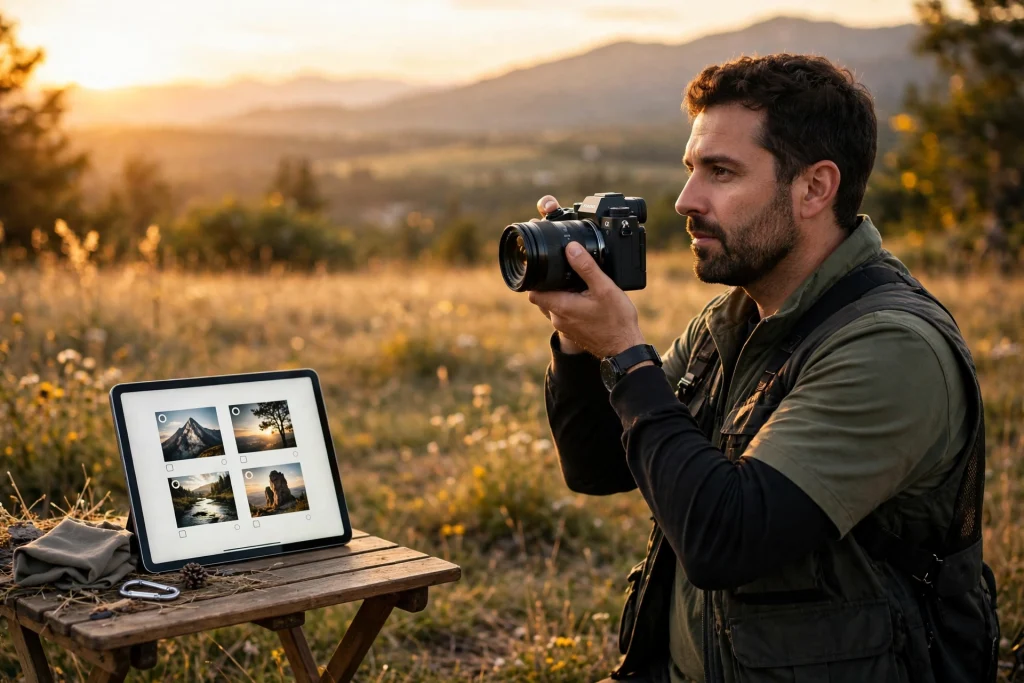
GoodNotes for photographers turns an iPad into a complete shoot-planning studio. Instead of juggling paper shot lists, scattered phone notes, and printed timelines, you can keep every detail for every session in one hyperlinked notebook — from the first client enquiry to the final gallery delivery.
Whether you shoot weddings, portraits, families, or products, the planning before the shutter clicks matters as much as the shoot itself. A missed grouping or a forgotten lens can cost time, money, and trust. GoodNotes helps you plan once and walk into every session calm and prepared.
Quick Answer: How Do Photographers Use GoodNotes?
Photographers use GoodNotes on iPad as a digital planning hub: one hyperlinked planner holds the shot list, client details, session timeline, gear checklist, location notes, and delivery tracker for each shoot. You write by hand or type, tap links to jump between sections, tick off shots as you take them, and search handwritten notes later. It replaces paper notebooks and scattered phone notes with one searchable system you can carry to every session.
Why Photographers Choose GoodNotes on iPad
Photography is visual, fast-moving, and detail-heavy. You need a tool that keeps up on location, in changing light, and under time pressure. GoodNotes fits because it feels like paper but works like a searchable digital system.
First, handwriting matters. You can sketch a lighting setup, draw a family-grouping diagram, circle a must-have shot, or jot an idea during a client call — all in seconds. Your handwriting stays searchable, so you can find a client name, a venue, or a shot idea weeks later without flipping through pages.
Second, hyperlinked PDF planners make navigation instant. Tap a tab for Shot Lists, Client Notes, or Gear, and you jump straight there. That speed matters during a wedding or a busy portrait day when every minute counts.
Third, everything stays in one place, with iCloud sync keeping your plans available on iPad and iPhone. Plan at your desk, check the timeline on your phone on the way to the venue, and review client notes after the shoot. GoodNotes does not replace your editing software or gallery platform. It replaces the messy middle — the planning, the lists, and the notes that hold a shoot together.
What You Need to Set Up GoodNotes for Photography
You do not need an elaborate setup. Start simple, use it for two or three real shoots, and refine only what slows you down.
- iPad and Apple Pencil: Any iPad that runs GoodNotes and supports handwriting works well. The Pencil makes sketching layouts and ticking shot lists much faster than typing.
- GoodNotes: Import PDF planners, write and draw freely, add typed text where you prefer it, and organise notebooks by client, shoot type, or month.
- A hyperlinked planner: A planner with tabs and links saves the most time. Sections for clients, shoots, shot lists, and delivery tracking keep every session consistent.
- A reusable template page: Create one master session page, then duplicate it for each new shoot. The same layout every time means you never miss a field.
A good starting point is the 12-Tab Digital Notebook for GoodNotes, which gives you tabbed sections you can adapt for clients, shoots, and checklists. Pair it with the pillar guide to using a digital planner in GoodNotes if you are new to hyperlinked planners and want a step-by-step introduction to tabs, links, and page templates.
Build a Shot List System That Works on Shoot Day
A shot list is not a wish list. It is a working checklist that tells you what to capture, in what order, and for whom — and lets you tick shots off as you go so nothing important is missed.
Start with the must-have shots
Before every shoot, ask the client for their top five to ten must-have images. Write them at the top of the shot list in their own words. For a wedding, that might be a specific family grouping. For a portrait session, it might be a particular pose or location. For a product shoot, it might be a hero angle or a detail close-up.
Putting client priorities first shows the client you listened, and it gives you a clear order of work when time runs short. If light fades or a toddler loses patience, you already know which shots cannot be skipped.
Group shots by setup, not by random order
Group your list by location, lighting setup, or people involved. Group all family formals together, all couple portraits together, and all detail shots together. This avoids running back and forth across a venue and keeps the flow natural for your subjects.
- Arrival and details: Venue, rings, invitations, flat-lay items, or product packaging.
- People and groupings: Family groups, team photos, or client portraits, listed in the order you will call them.
- Creative portraits: Couple shots, individual portraits, or hero product angles that need more time.
- Candid and closing shots: Natural moments, venue wide shots, and final requests before you wrap.
Write each shot on its own line with a small checkbox beside it. On shoot day, tick each box as you capture the shot. If a setup changes, use the lasso tool to circle a group of shots and move them together — no rewriting, no messy arrows. Leave blank lines between groups for on-the-day additions, and after the shoot your ticked list becomes a culling guide.
Client Notes: Remember Every Detail Without Relying on Memory
Good client notes are the difference between a good session and a great one. Clients notice when you remember their child’s name, their preferred side, or the photo they loved from your portfolio.
What to record for every client
Create one client page per booking and keep it updated from enquiry to delivery. Include contact details, session date, start time, and location; names and ages for children; preferences and sensitivities, such as preferred angles or accessibility needs; style and inspiration, including colour preferences and outfit notes; logistics such as parking, entry instructions, and venue rules; and payment and delivery notes, including deposit status and promised delivery date.
Write in short phrases, not paragraphs. You need to scan this page in ten seconds on location, not read an essay. Use headings, bold names, and bullet points so the key facts stand out.
Capture notes during the call, not after it
Open the client page during the enquiry or planning call and write as you talk. If the client mentions a favourite location, a must-have grouping, or a time constraint, note it immediately. Details fade fast after a call. Later, use handwriting search to find a surname, a venue, or a word such as “grandmother” — useful when a past client rebooks and you want to recall what worked last time.
Session Plans: A Timeline You Can Follow Without Stress
A session plan turns a shot list and client notes into a timeline. It tells you where to be, when, and what to prioritise at each stage. Use the same layout for every shoot so you can fill it in quickly:
- Session header: Client names, date, start and end times, location, and session type.
- Arrival checklist: Arrive early, scout light, confirm parking, check gear, and greet the client.
- Timeline blocks: Divide the session into 15- or 30-minute blocks with a goal for each — details, group formals, couple portraits, then candids.
- Key shots per block: Two to four priority shots per block so you stay on track without over-planning.
- Buffer time: Ten minutes of flex time for delays, outfit changes, or a location move.
- Wrap-up notes: Final shots, thank-you, next steps, and delivery timeline to confirm before you leave.
Also note the direction of light, the golden-hour window, and any indoor backup. A quick sketch of the location — where the sun sets, where the shade falls, where the best background sits — helps you choose the order of shots before you arrive.
Gear Checklists: Never Forget a Battery, Card, or Lens Again
A gear checklist is the cheapest insurance in photography. It takes two minutes to check and saves you from arriving without a charged battery or a formatted card.
Create a master gear page with checkboxes for your usual kit, then duplicate it for each shoot and tick only what that session needs: cameras and lenses, charged batteries and spares, formatted memory cards, flash and diffuser, tripod, props, and backup essentials such as a phone charger and the client’s phone number written down — not only on your phone.
Tick the list the night before, not on the morning of the shoot — packing in a rush is when things get missed. Use the zoom window for neat checkboxes and small labels if you write small.
Location Scouting Notes in GoodNotes
Location notes turn a quick visit into a usable plan. Keep one page per regular location, and add a fresh page for a new venue. Record the best backgrounds, the cleanest angles, and the spots to avoid — a bright wall, a cluttered corner, or a busy background that distracts from your subject.
Note where the light is best at your session time, where shade falls, and where you can move indoors if the weather changes. Sketch a simple layout with parking, meeting spot, and backup area, and add notes about permits, fees, and restrictions on tripods or flash. Over time, your location pages become a personal library you can reuse for new clients.
Posing Guides and Reference Ideas
Posing guides in GoodNotes are not about copying poses rigidly. They are gentle prompts that help you direct people who feel awkward in front of a camera. Build a few pages of simple ideas for the sessions you shoot most: couples, families, individuals, and groups.
Use quick stick-figure sketches or short written prompts such as “walk toward me, look at each other” or “sit on the step, lean in together.” Add notes about what works for different group sizes, and for families, note groupings that keep children engaged — a walk or a game — rather than stiff standing poses.
The Elements feature lets you save a favourite pose sketch as a reusable sticker, so you can drop it into a new session plan in seconds. On shoot day, glance at your posing page between setups — a quick prompt is often enough to relax your subjects and get a natural expression.
Delivery Tracking: From Culling to Gallery Without Losing Track
Delivery is where many photographers lose time. The shoot went well, but the gallery is late or a print order is forgotten. A simple tracker in GoodNotes solves that. Create a table with one row per client and columns for each stage, and update it after each work session.
| Client | Shoot date | Culling | Editing | Gallery sent | Prints / album |
|---|---|---|---|---|---|
| Nguyen family | 15 Nov | Done | In progress | Not yet | To order |
| Wedding — Linh & Minh | 22 Nov | Not yet | Not yet | Not yet | Album consult |
| Product — Café Lan | 28 Nov | Done | Done | Sent | N/A |
Add a promised delivery date beside each client name so you can prioritise by deadline, not by who emailed most recently. If a client has a print credit or an album included, note it in the same row, and use the tracker for follow-ups such as thank-you messages and review requests.
GoodNotes vs Paper vs a Notes App
Paper notebooks feel good, but they cannot be searched, backed up, or rearranged. A basic notes app can store text, but it rarely handles handwriting, sketches, and hyperlinked planners as smoothly as GoodNotes.
| GoodNotes on iPad | Paper notebook | Basic notes app | |
|---|---|---|---|
| Handwriting and sketching | Yes | Yes | Limited |
| Searchable notes | Yes — handwriting search | No | Text only |
| Hyperlinked planner tabs | Yes | No | Rarely |
| Rearrange pages | Easy — lasso, duplicate | No | Copy and paste only |
| Backup and sync | iCloud sync | None if lost | Usually cloud-based |
| Import PDFs and images | Yes | Print and glue | Sometimes |
For most photographers, GoodNotes offers the best balance: the freedom of paper with the search, structure, and backup of a digital system.
How to Set Up Your Photography System: Step by Step
Set aside one hour to build the system, then use it for your next three shoots before changing anything. A system you actually use beats a perfect system you never open.
- Choose one notebook for active shoots. Name it by year or season, for example “Shoots — 2026–2027.”
- Create your session template. Build one page with header, timeline, shot list, gear checklist, and notes. Duplicate it for each booking.
- Add tabs for Clients, Shoots, Locations, and Delivery. Use a hyperlinked planner such as the 12-Tab Digital Notebook for GoodNotes to jump between sections quickly.
- Import your posing and location references. Save your most-used sketches as Elements so you can reuse them without redrawing.
- Plan your next shoot end to end. Fill in the client page, timeline, shot list, and gear checklist for one real booking.
- Use it on location. Tick shots as you take them and add notes as they come up.
- Review after delivery. Note what worked, what ran late, and what to change next time. One line per shoot is enough.
For daily planning around your shoots — admin, editing blocks, client follow-ups, and personal time — the Minimalist Daily Planner pairs well with your shoot notebook. Keep shoot details in GoodNotes for photography, and keep your day and priorities in the daily planner so nothing else slips through.
A Real Workflow Example: From Enquiry to Delivery
Here is how the system works for a typical family portrait session. Enquiry and planning: A client messages about a session. You open a new client page, note names, ages, and must-have shots, then duplicate your session template, fill in the timeline, group the shot list, and tick your gear checklist.
Shoot day and delivery: You open the session page on iPad, follow the timeline, and tick shots as you take them. Afterwards, you update the delivery tracker, cull using the ticked list, edit, and send the gallery. You send a thank-you message, request a review, and note the rebooking reminder. The whole workflow lives in one place.
Tips to Keep Your System Working
- Keep it short: If a page takes more than five minutes to fill in, simplify it.
- Use the same template every time: Change it only after three shoots, not after one.
- Back up regularly: Keep iCloud sync on and export important notebooks periodically.
- Review monthly: Spend fifteen minutes checking the delivery tracker and archiving finished shoots.
- Separate active and archive: Move finished shoots to an archive notebook so your active notebook stays fast to open on location.
Frequently Asked Questions
Is GoodNotes good for photographers?
Yes. GoodNotes for photographers works well because it combines handwriting, sketching, searchable notes, hyperlinked planners, and PDF import in one place. You can plan shot lists, track clients, sketch lighting and location layouts, and tick off shots on location — all from an iPad you already carry.
Can I use GoodNotes for wedding shot lists?
Yes, and weddings are where a structured shot list helps most. Group shots by family grouping and setup, list must-have images at the top, and tick each shot as you capture it. Use the lasso tool to move groupings if the timeline changes, and leave blank lines for last-minute requests.
How do I organise client notes in GoodNotes?
Create one page per client with contact details, session date and location, people in the shoot, preferences, style notes, and delivery status. Use headings and bullets so you can scan the page in seconds, and search handwriting later by name or venue to find past sessions quickly.
Can I import PDFs and reference images into GoodNotes?
Yes. GoodNotes supports PDF import, so you can bring in contracts, location maps, posing references, or a hyperlinked planner PDF and annotate directly on the page. You can also add images beside your notes and use Elements to save reusable sketches and diagrams.
Do I need a separate planner for photography and daily life?
It helps to separate them. Keep shoot plans, shot lists, and client notes in a dedicated photography notebook in GoodNotes, and use a daily planner such as the 2027 Life Planner for your calendar, tasks, editing blocks, and business admin. The life planner holds your day, and the shoot notebook holds the detail for each session.
GoodNotes for photographers is not about adding more planning work. It is about doing the planning once, in one place, and trusting it on shoot day. Start with one template, use it for your next three sessions, and refine only what slows you down.
Ready to plan your next shoot with less stress? Explore the 2027 Life Planner and build a planning system that keeps your shoots, clients, and delivery dates organised all year.
Temply Studio
Stop chasing your goals with sticky notes and scattered notebooks. Our premium digital planners and Canva templates are designed to help you plan with intention, stay consistent, and actually enjoy the process.



Questions about this guide?
Ask about the planner, share how you use it, or tell us what to cover next. Your email stays private.