

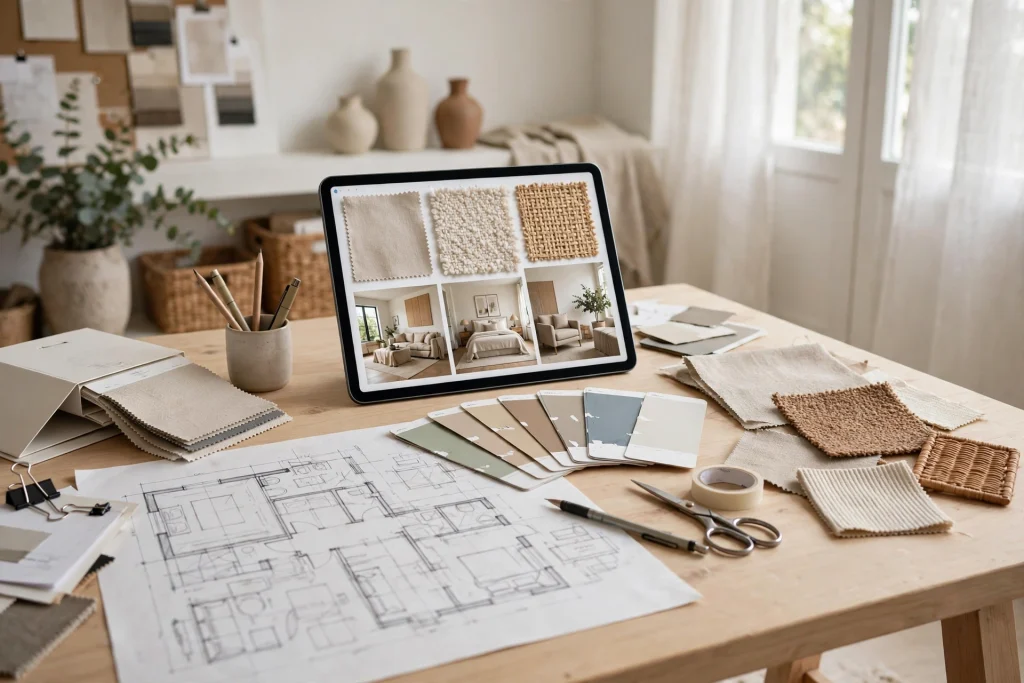
Quick answer: GoodNotes for interior designers turns your iPad into a portable studio: one notebook per project holds mood boards, annotated floor plans, swatches, budgets and client notes. Sketch over photos on site, present concepts from the same file, and export clean PDFs your clients can approve on the spot.
Interior design runs on visuals, but the business runs on organisation. Samples in one bag, floor plans in another app, client notes in a chat thread, budget numbers in a spreadsheet — and the one detail you need is always in the place you are not looking. GoodNotes for interior designers brings it together: one notebook per project, every sketch, swatch, plan and decision in the same searchable file.
This guide shows you how to build a project notebook that works from the first site visit to the final install: mood boards your clients actually understand, floor plans you can mark up on site, a budget page that stays honest, and a presentation flow that closes decisions instead of creating more meetings.
GoodNotes for Interior Designers: Why It Works
Design work is visual and mobile. You are in showrooms, on site with a contractor, and in a client’s living room — rarely at a desk. GoodNotes fits that rhythm because it behaves like paper, with the advantages of a digital file: you can sketch, annotate, rearrange and search, and nothing gets lost between the studio and the site.
The practical wins show up fast. You can import a photo of a room and draw directly on it. You can paste fabric swatches next to paint colours and see whether they actually work together. You can hand a client the iPad and let them circle the sofa they love. And when the meeting ends, the notes, the decisions and the photos are already filed — no retyping, no scanning, no “I’ll send you my notes later”.
Compared with a paper binder, the difference is search. Need the tile the client chose in March? Search the notebook instead of flipping through a folder. Compared with a design app, the difference is freedom: GoodNotes does not force your ideas into its templates, and there is no monthly fee per project.
Build a Project Notebook That Works
Start with one notebook per project, named for the client and the room: “Nguyen — Living Room” beats “Project 14” every time. Keep the same page order in every project so you can find things under pressure:
- Brief page: the client’s goals, must-haves, deal-breakers, budget range and deadline.
- Mood board pages: images, colours and textures for the concept.
- Floor plan pages: the plan itself, with your annotations layered on top.
- Swatches and materials: fabrics, paints, finishes and samples, photographed and labelled.
- Budget and orders: every item, its supplier, price, status and delivery date.
- Meeting notes: dated, with decisions circled so they are easy to find later.
Use GoodNotes folders to separate “Active projects”, “Proposals” and “Completed”. When a project finishes, the notebook becomes your portfolio and your reference: the next time a client asks for “something like the Nguyen living room”, you open the file instead of relying on memory.
Mood boards clients actually understand
A good mood board answers one question: “Will my home feel like this?” Import inspiration images, photos of the client’s existing furniture, and pictures of fabrics and finishes onto a single page. Arrange them loosely, add handwritten labels, and keep the palette visible — three to five colours, no more.
The trick is curation. Ten images that tell one story beat forty images that tell five. When you present, walk the client through the board in order: the feeling first, then the colours, then the materials. If they hesitate on one image, lasso it and move it aside — the board updates in front of them, and the client feels heard instead of sold to.
Save a separate “rejected” page for ideas the client did not choose. They often come back in a later room, and you will be glad you kept them.
Floor plans you can mark up on site
Import the floor plan as a PDF or image, then annotate directly on it with Apple Pencil: furniture positions, lighting points, outlet locations, measurements. On a site visit, this is where GoodNotes earns its keep — you stand in the actual room, measure the actual wall, and write the actual number on the plan. No more guessing from memory back at the studio.
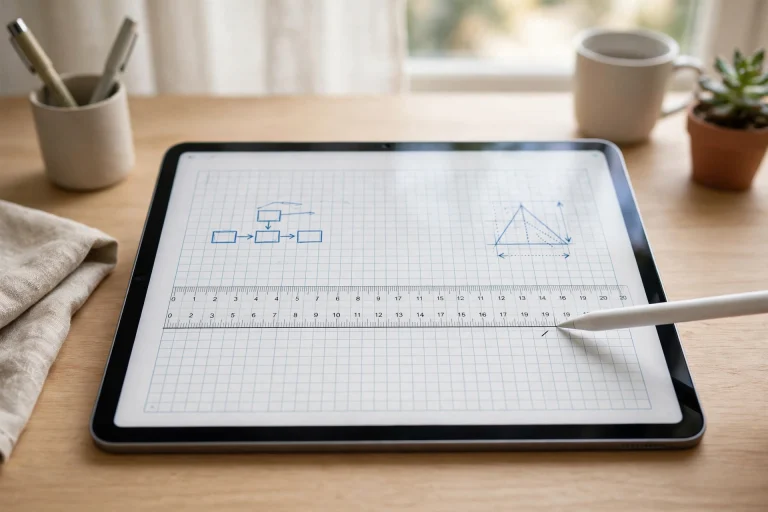
Use the ruler tool for straight lines and the shapes tool for clean rectangles when you sketch a layout, and keep a consistent colour code: one colour for furniture, one for lighting, one for changes the contractor must see. Photograph the room from each corner and paste the photos next to the plan, so the drawing and the reality sit side by side.
Swatches, samples and finishes
Photograph every sample the moment it arrives — fabric, tile, wood, paint chip — and paste it onto the materials page with the supplier, product name, price and lead time written beside it. GoodNotes keeps the photo and the note together, so a sample in a bag at the studio is never separated from the decision it belongs to.
Build one “palette page” per project: the wall colour, the floor finish, the main fabric and the accent metal, all in one place. When a supplier asks “which white?”, you open the palette page and read the exact code instead of guessing between five similar whites.
Present Concepts That Get Approved
A presentation is not a slideshow — it is a decision meeting. Structure it so the client can say yes, and GoodNotes gives you a natural flow:
- Start with the brief page. Remind the client what they asked for, in their own words.
- Show the mood board. One page, one feeling, no scrolling through forty images.
- Walk the floor plan. Point at the furniture, the flow, the light — the client sees their room, not a drawing.
- Show the palette and materials. Let them touch the real samples while the iPad shows the prices.
- End with the budget page. One number, one page, no surprises.
- Circle the decisions on the spot. Write “approved” next to each choice with the date, and export the page as a PDF before you leave.
That last step matters more than the rest. A decision written down and sent the same day cannot be unremembered. Export the annotated pages as a PDF and email them to the client before you get home — it becomes the project record, and it protects both of you when memories differ later.
If you want a ready-made structure for the business side of a project — timelines, tasks and client follow-ups — the 2027 Life Planner imports into GoodNotes and gives you dated pages you can adapt per project, while the Minimalist Daily Planner keeps site visits, supplier calls and install days in one daily view.
Track Budgets and Orders Without a Spreadsheet
Design budgets fail quietly: a lamp here, a delivery fee there, and suddenly the project is over budget and nobody knows when it happened. A simple budget page in GoodNotes prevents that, because you see it every time you open the project.
Keep one table per project: item, supplier, quoted price, actual price, status (ordered / in transit / delivered / installed) and a running total at the bottom. Update it the moment an order is placed, not at the end of the week. Highlight anything over budget in red so it is visible before the next client meeting, not after.
For the business behind the projects — proposals, invoices, quarterly goals — a business planner helps more than a project notebook. The 2027 Business Planner gives you dedicated pages for clients, revenue and goals, so the creative work and the commercial work stop competing for the same notebook.
Site Visits Without Paper
Site visits are where paper systems die: measurements on a scrap of card, a contractor’s number on the back of a sample, a photo that never gets filed. With GoodNotes, the visit is the filing.
Before you go, open the project notebook to the floor plan page and the meeting-notes page. On site, photograph each wall and each problem area and paste the photos straight onto the plan page. Measure twice, write the number once, and circle anything the contractor must fix. Record the contractor’s answers in the notes page with the date — “plumber confirms Friday” is a commitment, not a conversation, once it is written down.
When you leave, export the updated pages as a PDF and send them to the contractor and the client. Everyone works from the same drawing, and the next visit starts where this one ended instead of starting over.
Handle Revisions and Change Requests Gracefully
No design survives first contact with the client unchanged — and that is normal. What separates a smooth project from a stressful one is not the number of revisions, but how they are handled. GoodNotes gives you a paper trail that keeps revisions calm, clear and billable.
When a client asks for a change, write it on the meeting-notes page with the date, in their words: “Client wants the sofa in navy instead of sage, 21 Nov”. Then note the impact beside it: new fabric, new price, new lead time. Reading the change and its cost back to the client in the same conversation prevents the most common design argument — “I didn’t know it would cost extra” — because the client approved the change with the number next to it.
Keep a visible revision count on the brief page. Most designers include two or three revision rounds in their fee; when the count is written down, the conversation about a fourth round is easy and professional instead of awkward. Clients respect a boundary they can see.
Finally, record what was decided, not just what was discussed. At the end of every meeting, read the circled decisions back: “So we agreed on the navy sofa, the oak table, and the pendant lights — correct?” When the client nods, export the page and send it. That PDF is the project: everything after it is execution. Designers who do this stop losing hours to “I thought we said the other one” — and their clients feel looked after, which is what brings referrals.
5 Mistakes Designers Make With GoodNotes
- One notebook for all projects. It feels fast until two clients’ fabrics get mixed up. One notebook per project, always.
- Importing images without labels. A beautiful swatch photo means nothing in three months without the supplier and product name beside it.
- No budget page. If the numbers live in your head, the project is already over budget — you just do not know it yet.
- Presenting from a camera roll. Scrolling through photos in a meeting looks unprepared. Present from the notebook, in order.
- Forgetting to back up. Your project files are your portfolio and your legal record. Turn on iCloud sync and keep a monthly export.
Frequently Asked Questions
Can I use GoodNotes instead of a professional design tool?
For concept work, client presentations and site notes, yes — GoodNotes handles the visual, mobile part of design beautifully. For technical drawings, CAD and 3D renders, you still need dedicated software. Most designers use both: CAD for the technical file, GoodNotes for everything the client actually sees and approves.
How do I share a mood board with a client who does not have GoodNotes?
Export the mood board page as a PDF or an image and send it by message or email. The client sees exactly what you see, on any device. Keep the working notebook for yourself — the client only needs the finished pages.
Can clients annotate the plans themselves?
Yes, if they have GoodNotes and you share the notebook — but most designers prefer to keep control. The simpler workflow is to hand them the iPad in the meeting, let them circle what they like, and export the annotated page as the agreed record.
How do I organise samples and suppliers across many projects?
Keep a separate “Suppliers” notebook with one page per supplier: contact details, lead times, price ranges and the projects you have used them on. Link to it from each project notebook so you can jump between a project and its suppliers in two taps.
Ready to run your next project from one notebook? Start with a single project: one brief page, one mood board, one floor plan and one budget page. See how the meeting feels when everything is in front of you — then roll the system out to every project. Your studio fits in your bag, your decisions are written down, and your clients get the calm, organised designer they hired. Pair the creative work with a structured business system like the 2027 Business Planner and the GoodNotes planner basics and you have a studio that scales without the chaos.
Temply Studio
Stop chasing your goals with sticky notes and scattered notebooks. Our premium digital planners and Canva templates are designed to help you plan with intention, stay consistent, and actually enjoy the process.
Questions about this guide?
Ask about the planner, share how you use it, or tell us what to cover next. Your email stays private.