



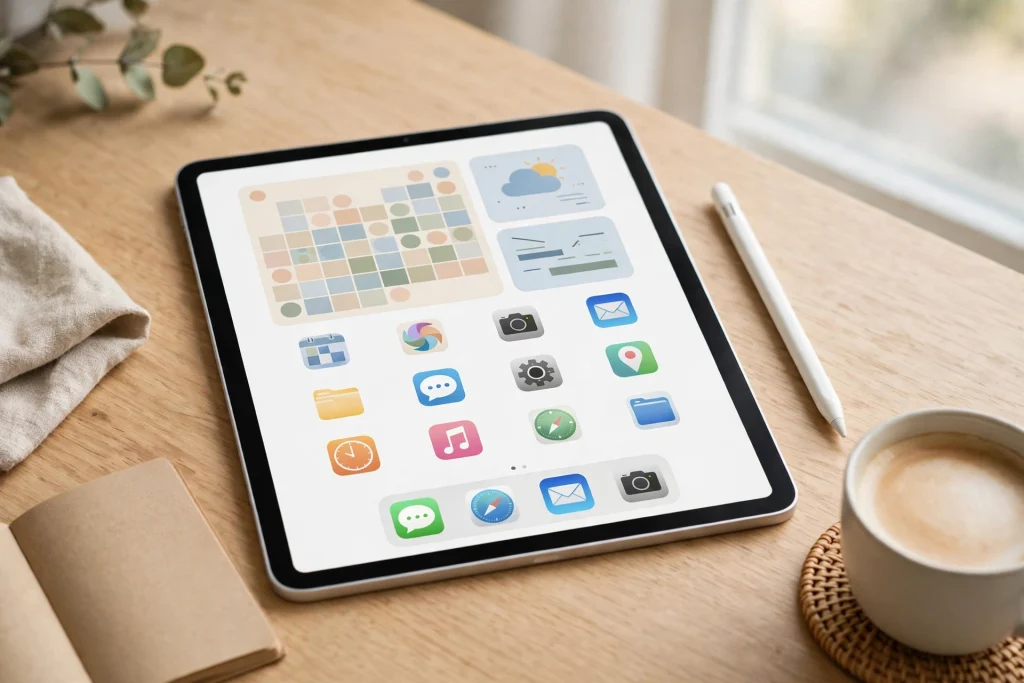
Quick answer: GoodNotes widgets on iPad give you one-tap access to your planner from the Home Screen. Add the QuickNote widget to start a new note instantly, and add the Favorites widget to open up to four of your most recently modified favourite notebooks or folders. To add either one, touch and hold an empty area of the Home Screen, tap Edit, then Add Widget, choose Goodnotes, pick QuickNote or Favorites, and tap Done.
Your planner is only useful if you can reach it in seconds. Too often, opening it takes five or six taps: unlock the iPad, find GoodNotes, wait for the Library, then scroll to the right notebook. By the time you arrive, the idea is gone. GoodNotes widgets on iPad remove most of that friction by putting your planner and a blank note right on your Home Screen, one tap away.
This guide shows you how to set up both widgets, choose what appears in the Favorites widget, and use them in daily routines — plus sizing, Focus modes, common fixes, and honest limits.
What Are GoodNotes Widgets?
A widget is a small panel on your iPad Home Screen that gives you a shortcut into an app without opening it first. GoodNotes offers two widgets, and each does one job well. Neither replaces the GoodNotes Library, and neither shows a full notebook page on the Home Screen. Instead, they are fast doors into the parts of GoodNotes you use most: a blank note, and the notebooks you have marked as favourites.
That distinction matters. A widget is a launcher, not a miniature planner: it will not display today’s planner page on the Home Screen, but it cuts the trip to your planner down to a single tap. Check one detail first: GoodNotes widgets are available only on iPhone, iPad and Mac — not on Windows, Android or the Web version of GoodNotes.
The Two GoodNotes Widgets, Compared
GoodNotes gives you two widget types, and most planners benefit from having both. They serve different moments: one is for capturing something new, the other is for returning to something you already use.
| Widget | What it does | Best for |
|---|---|---|
| QuickNote widget | Creates a new QuickNote with one tap | Capturing ideas and reminders fast |
| Favorites widget | Opens up to 4 of your most recently modified favourite items | One-tap access to your planner or journal |
The QuickNote widget is the simpler of the two. Tap it, and GoodNotes opens straight into a fresh QuickNote — a blank note you can scribble in immediately. There is no need to choose a notebook or a page first. It is built for the ten-second thought: a book title a friend mentions, an errand you must not forget, or an idea for tomorrow’s meeting.
The Favorites widget turns your Home Screen into a planner dashboard. It lists your favourite documents and folders, ordered by how recently you modified them, with a maximum of four items. Tap a title and GoodNotes opens it directly; tap outside the list and GoodNotes opens the full Favorites view; tap the QuickNote icon inside the widget and you get an instant blank note.
Note the limit: the widget shows your most recently modified favourites, not a fixed set you pick item by item. Keep your favourites list short, and the four items shown will almost always be the things you need today.
How to Add the QuickNote Widget on iPad
Adding the QuickNote widget takes less than a minute. These steps follow the official GoodNotes method for iPhone and iPad.
- Go to your iPad Home Screen and find an empty area between apps.
- Touch and hold the empty area until the app icons start to jiggle.
- Tap Edit in the top-left corner, then choose Add Widget.
- Choose Goodnotes in the left sidebar of the widget gallery.
- Swipe to choose the QuickNote widget and pick a size. A small square is enough for a single-tap capture button.
- Tap Add Widget, drag it into position, then tap Done.
Test it straight away. Tap the widget and a fresh QuickNote should open within a second or two. Write one line, then go back to the Home Screen. If the note opens immediately, your widget works.
Placement matters: put the QuickNote widget on your first Home Screen page, where your thumb naturally reaches. A capture tool buried on page three is a capture tool you will not use.
How to Add the Favorites Widget on iPad
The Favorites widget uses the same adding steps, with one extra preparation: mark the right items as favourites first. A Favorites widget with no favourites behind it shows an empty list.
Step 1: Mark your key notebooks as favourites
Open GoodNotes and go to the Library. Find the notebook or folder you want on your Home Screen — for most people, the daily planner, a journal, or a current project notebook. Tap the star to mark it as a favourite. Repeat for the others you want, but keep the list tight: your daily planner, your journal, and one or two active project notebooks is a good starting set.
Think of this as curating a shelf, not tagging everything you own. The widget only shows your four most recently modified favourites, so every extra favourite pushes the others down.
Step 2: Add the widget to your Home Screen
- Touch and hold an empty area of the Home Screen until the icons jiggle.
- Tap Edit in the top-left corner, then choose Add Widget.
- Choose Goodnotes in the left sidebar of the widget gallery.
- Swipe to choose the Favorites widget and pick a size. Medium is usually the sweet spot: large enough to show all four items with readable titles, small enough to leave room for other widgets.
- Tap Add Widget, position it, then tap Done.
Your favourites should appear immediately. Tap a title and GoodNotes should open that document directly. If the list looks empty or out of date, send GoodNotes to the background and check again — that refreshes the widget in most cases. The full fix is in the troubleshooting section below.
Daily Workflows That Make Widgets Worth It
Widgets only earn their Home Screen space if they change what you actually do. Here are the routines where they help most.
The two-minute morning planner check
Start the day with one tap on your daily planner in the Favorites widget. Check today’s appointments, your top three tasks, and anything carried over from yesterday. Because the planner opens directly, this takes under two minutes, so you will actually do it every morning. Opening it each morning also keeps it at the top of the widget, because every check refreshes its position.
Capture ideas with QuickNote before they disappear
Most ideas arrive at inconvenient moments: mid-conversation, while reading, or just before sleep. The QuickNote widget is built for that moment. One tap, one scribble, done. You do not need to decide which notebook the idea belongs in. Capture first, sort later.
Build a small weekly habit around sorting: once a week, move the keepers into the right notebook and delete the rest. Without that tidy-up, QuickNotes become a second inbox you never look at. For a system that ties capture, planning and review together, the guide to using a digital planner in GoodNotes shows how daily capture fits into a weekly rhythm.
One-tap access during the day, and an evening journal check
The Favorites widget is most valuable mid-day, when you need your planner for thirty seconds: checking your next meeting, ticking off a task, or adding a reminder. With the widget, it is one tap, a quick edit, and back to what you were doing.
Put your journal in the Favorites widget too, and the evening review becomes as easy as the morning check: tap the journal, write three lines — what went well, what did not, what tomorrow needs — and close it. If you plan on your iPhone as well, the same widgets work there with the same steps; our GoodNotes on iPhone guide covers the smaller-screen differences.
Widget Size, Layout and Home Screen Tips
Keep both GoodNotes widgets on your first Home Screen page. Widgets on later pages are widgets you forget, and a forgotten widget is wasted space. Put the Favorites widget where your eye lands first — usually the top half of the screen — because it is the one you will read before you tap.
Think in zones: a morning zone might hold the Favorites widget, a calendar widget and the weather, while a capture zone holds the QuickNote widget next to your voice recorder. Revisit the layout once a month — remove a finished project’s notebook from favourites and add the new one. The Minimalist Daily Planner is a good example of a single, focused notebook that works well as a permanent favourite: one daily spread, no clutter, and a clear place for today’s tasks.
Combining Widgets With Focus Modes
Widgets become more powerful when they change with your context, and that is what iPadOS Focus modes are for. A Focus mode can control which Home Screen pages are shown, which apps can send notifications, and which people can reach you. Used well, it means your planner widgets appear when you need them and step aside when you do not.
A simple setup is a Work Focus that shows your planning Home Screen page, with the Favorites widget front and centre, while hiding pages full of games and social apps. One caution: a Focus mode changes which pages and notifications you see, not what the GoodNotes widget displays. Your favourites are still your favourites, and the QuickNote widget still opens a blank note.
Troubleshooting GoodNotes Widgets
Widgets are usually reliable, but three problems come up again and again — all with simple fixes.
The widget is not updating
This is the most common complaint: you edited a notebook, but the Favorites widget still shows the old list. The fix is simple. Send GoodNotes to the background — swipe up from the bottom of the screen to leave the app — and check the widget again. iPadOS refreshes widgets when the app moves to the background, and the list usually updates within a few seconds.
If it still does not update, open GoodNotes, make a small change in the notebook you expect to see, then send the app to the background again. That change refreshes the item’s position in the recently modified order.
A favourite is not appearing in the widget
Check two things. First, confirm the item is actually marked as a favourite: open the Library and look for the star. It is easy to tap the star on the wrong copy of a notebook, especially if you keep a current planner and an older version with a similar cover. Second, remember the four-item limit and the recency order. If you have five favourites and the one you want is the least recently modified, it will not appear until you open it and make a small change.
The practical fix is to keep your favourites list short. Remove the star from items that do not need Home Screen access; they stay in your Library and you can still open them in seconds. If a favourite still refuses to appear, remove the widget and add it again — re-adding forces a fresh load of the list.
The widget is missing after an update
After an iPadOS or GoodNotes update, a widget can disappear or show as a blank placeholder. Your favourites are stored in GoodNotes, not in the widget, so your notebooks are safe. Check that GoodNotes opens normally, then re-add the widget from the gallery; in almost every case it returns with your favourites intact. If it does not appear in the gallery at all, check that you are on a supported platform (iPhone, iPad or Mac only) and that GoodNotes is up to date in the App Store.
What GoodNotes Widgets Cannot Do
Honest limits matter, because expecting a widget to do something it cannot do is the fastest way to be disappointed by it. First, a widget cannot display a specific notebook page. The Favorites widget shows a list of favourite documents and folders — their titles, in recency order — not the inside of any notebook. You cannot pin today’s planner page to the Home Screen and read it there. If you want a glanceable view of today, use a calendar or reminder widget alongside GoodNotes, not instead of it.
Second, widgets are not available on every platform. They exist only on iPhone, iPad and Mac, and not on Windows, Android or Web. If your setup spans a Windows computer and an iPad, the iPad gets widgets and the Windows machine does not. Plan for that split instead of assuming every device works the same way.
Third, the Favorites widget shows at most four items, in most-recently-modified order. You cannot pin a fixed set of four favourites in place, and you cannot reorder them manually. Keep the favourites list short and the widget stays predictable. Finally, widgets do not sync instantly: edits can take a few seconds to appear, and the fix is to send GoodNotes to the background and check again. Widgets remove friction; they do not remove the work. Their value is that they make the work so easy to start that you actually start it, day after day.
Frequently Asked Questions
Are GoodNotes widgets available on Windows or Android?
No. GoodNotes widgets are available only on iPhone, iPad and Mac. They are not available on Windows, Android or the Web version of GoodNotes, so you will not find them in the widget gallery on those platforms.
How many items can the Favorites widget show?
Up to four: your most recently modified favourite documents or folders. To change which items appear, mark items as favourites in the Library, then open and modify the ones you want to see so they move into the most recently modified group.
How do I make a notebook appear in the Favorites widget?
Mark it as a favourite in GoodNotes first. In the Library, tap the star on the document or folder you want. Then add the Favorites widget to your Home Screen. If it still does not appear, open it, make a small change, then send GoodNotes to the background and check the widget again.
What does the QuickNote widget do?
The QuickNote widget creates a new QuickNote with one tap. It opens GoodNotes straight into a blank note, so you can capture an idea, reminder or to-do immediately without choosing a notebook or a page first.
Why is my GoodNotes widget not updating?
Widgets refresh when GoodNotes moves to the background, so send the app to the background and check again after a few seconds. If the list is still stale, open the notebook, make a small change, and send GoodNotes to the background again.
Ready to make your planner one tap away? Add both widgets today — the QuickNote widget for capturing ideas the moment they arrive, and the Favorites widget for opening your daily planner without digging through the Library. Keep your favourites short, give the widgets pride of place on your first Home Screen, and build the two-minute morning check into your routine. A planner you can reach in one tap is a planner you will actually use, and a structured daily planner makes that one tap count: the 2027 Life Planner gives you a clean daily, weekly and monthly system that works beautifully as your permanent Home Screen favourite.
Temply Studio
Stop chasing your goals with sticky notes and scattered notebooks. Our premium digital planners and Canva templates are designed to help you plan with intention, stay consistent, and actually enjoy the process.

Questions about this guide?
Ask about the planner, share how you use it, or tell us what to cover next. Your email stays private.