
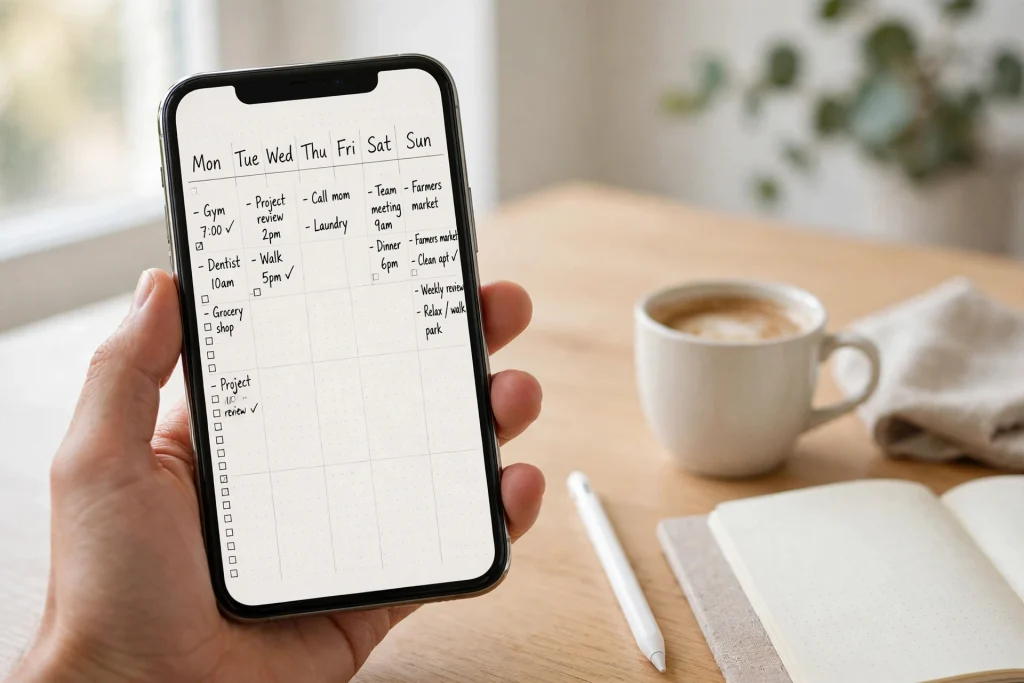
Quick answer: GoodNotes on iPhone works best as a pocket companion to your iPad planner, not a replacement for it. Turn on iCloud sync, pin your daily planner to the top of your library, and use your iPhone for quick capture, checking today’s plan, and small edits — then do your long weekly planning sessions on the iPad. The small screen is a real limit, but the zoom window, handwriting search, widgets, and Shortcuts make the phone surprisingly capable for day-to-day planning on the go.
GoodNotes on iPhone is the version of your planner that is always in your pocket. Your iPad may be where you do your weekly planning and map out the month, but your phone is the device you actually have with you in the grocery store, in the waiting room, on the train, and in the middle of a conversation when a good idea strikes. If your planner only lives on the iPad, it is not there when you need it most.
The good news is that GoodNotes on iPhone is the same app, with the same notebooks and the same iCloud sync. The planner you set up on your iPad opens on your phone, and anything you write on your phone shows up on your iPad. The bad news is that a phone screen is a fraction of the size of an iPad screen, and no amount of cleverness turns a 6-inch display into a full planner spread. This guide shows you how to set up GoodNotes on iPhone properly, keep it in sync, capture ideas in seconds, and know when to put the phone away and reach for the iPad instead. If you are still learning the basics, start with our beginner’s guide to using a digital planner in GoodNotes.
Why GoodNotes on iPhone Works Despite the Small Screen
The first objection everyone has is the obvious one: the screen is too small. A weekly planner spread designed for a 10- or 11-inch iPad becomes a postage stamp on a phone. That is true, and it is also beside the point, because planning on your iPhone is a different job from planning on your iPad.
On the iPad, you plan. On the iPhone, you check, capture, and adjust. You glance at today’s schedule while you wait for coffee. You add a task the moment someone asks you to do it, instead of trusting yourself to remember it until you get home. You jot down an idea before it evaporates. You tick off a grocery item in the store. None of these needs a full weekly spread — they need your planner to be open in under three seconds, and that is exactly what the iPhone is good at.
That shift in purpose changes how you should set the phone up. You do not need every notebook and every archive on your phone. You need today’s planner, one notebook for quick notes, and a setup that opens the right page in one tap. Everything else can stay on the iPad, where you have the space to use it properly. A phone planner that tries to do everything becomes a cramped mess; a phone planner that does three things well becomes a habit you rely on every day.
There is also a less obvious benefit: the phone removes the friction that kills most planning systems. A planner you have to sit down at a desk to use is a planner you use twice a week. A planner in your pocket gets opened a dozen times a day, and each opening is a small reinforcement of the plan. You check the day, you tick a task, you add a note — and the plan stays alive instead of going stale between sessions.
Set Up GoodNotes on iPhone in 10 Minutes
Setting up GoodNotes on iPhone takes about ten minutes, and most of that is waiting for your notebooks to download. Do it once, do it properly, and the phone becomes a reliable second home for your planner.
- Install GoodNotes and sign in with the same Apple ID. Download the app from the App Store and sign in with the same Apple ID you use on your iPad. This is what makes iCloud sync work — different Apple IDs on the two devices means two separate libraries that will never meet.
- Turn on iCloud sync. In GoodNotes, open Settings, go to iCloud Settings, and make sure “Use iCloud” is switched on. Do the same on your iPad if you have not already. Your notebooks should start appearing in the library as they download — large planners can take a few minutes on Wi-Fi, so be patient and stay on a stable connection for this first sync.
- Pin your daily planner to the top. In the library, tap and hold your main planner and add it to your favorites, or keep it at the top of your recents. The planner you use every day should be the first thing you see when the app opens — if you have to hunt for it, you will stop opening it.
- Keep one quick-capture notebook. Create a simple notebook called “Inbox” or “Quick Notes” and keep it next to your planner. This is where ideas, phone numbers, and half-formed thoughts go when you do not have time to file them properly. A five-second capture beats a perfect filing system you never use.
- Set your pen defaults. Choose your preferred pen color and thickness, and set the eraser and highlighter the way you like them. On a small screen you will switch tools less if the defaults are right, so spend a minute getting them comfortable.
- Turn on handwriting search. GoodNotes can search your handwritten notes, which matters even more on a phone, where scrolling through pages is slow. Write key words legibly — search works best on clear handwriting — and you will be able to find a note from three weeks ago in seconds.
- Add the widget. A home screen widget that opens today’s page in one tap is the single best thing you can do for your phone setup. It turns “open the app, find the planner, find the page” into one touch.
One more setup choice matters: decide whether your phone is a reader or an editor. Most people do best treating the iPhone as a reader and quick-capture device, and the iPad as the editor where real planning happens. That is not a rule — it is a default that keeps the small screen from frustrating you. You can always edit on the phone when you need to; you just should not have to.
Sync Your Planner Between iPhone and iPad with iCloud
iCloud sync is the feature that makes GoodNotes on iPhone worth using at all. Without it, your phone planner and your iPad planner are two different planners, and you will eventually trust neither. With it, they are one planner that lives on two screens.
How iCloud sync works
When iCloud sync is on, GoodNotes keeps a copy of each notebook in iCloud and pushes changes between your devices. Write a task on your iPhone and it appears on your iPad; tick off an item on the iPad and it is ticked on your phone. The sync runs in the background, so in most cases you never think about it — you just open the planner on whichever device is in your hand and it is up to date.
There are two things to know. First, the first sync is the slow one: a planner with a hundred pages can take a while to download onto a fresh device. Do it on Wi-Fi, plug the phone in, and let it finish. Second, sync is not a backup. If a page is deleted on one device, the deletion can sync to the other before you notice. Export a PDF copy of important notebooks regularly — once a week, or at each milestone — and keep those exports in a folder you control. It takes a minute and protects weeks of planning.
What to do when sync lags
Sometimes you open your phone and the change you made on the iPad five minutes ago is not there yet. Before you panic, work through this short checklist:
- Check your connection. Sync needs the internet. If you are on a weak signal or offline, changes will queue and appear once you reconnect.
- Make sure iCloud is on in both places. Check Settings on both devices: the same Apple ID, and “Use iCloud” switched on in GoodNotes. A device signed in with a different Apple ID will silently maintain its own library.
- Leave the app open for a minute. Opening the app and waiting a few seconds often triggers the pending sync. Avoid force-quitting the app right after making a change — give it a moment to upload.
- Check your iCloud storage. If your iCloud storage is full, sync stalls. Check in your iPhone Settings under your Apple ID, and free space or upgrade if needed.
- Restart the app, then the device. Close GoodNotes completely and reopen it; if that does not help, restart the phone. This clears most stuck syncs.
- Update the app. An old version of GoodNotes can fall out of step with the current sync service. Check the App Store for updates on both devices.
If a notebook still will not sync after all of that, export the most recent version as a PDF from the device that has it, so you do not lose anything, and then contact GoodNotes support. Do not delete and reinstall the app as a first step — that can erase local copies that have not uploaded yet.
Make this a habit: before you switch devices, open GoodNotes on the device you are leaving and wait a few seconds. That gives the app time to upload your latest changes. Most sync confusion comes from closing the iPad immediately after writing something and opening the phone before the upload has finished. A five-second pause at the switch is cheaper than ten minutes of wondering which version is current.
Quick-Capture Workflows: Catch Ideas Anywhere
The iPhone earns its place in your planning system through capture. Ideas do not wait for a planning session — they arrive in the middle of a conversation, in the checkout line, or while you are half asleep. If capturing them takes more than a few seconds, they are gone. The goal is to make capture so fast that you never have to decide whether an idea is worth saving.
The three-tap capture
Your capture workflow should be: open GoodNotes, open the inbox notebook, write. Three taps, no decisions. Anything longer and you will start skipping it. Keep the inbox notebook reachable from your home screen with a widget or a Shortcuts shortcut, write the idea in whatever form it arrives — a sentence, a sketch, a photo pasted in — and sort it during your next planning session. The sorting is a job for the iPad, where you have the space to think.
Then process the inbox in your weekly review. Once a week, open the inbox on your iPad and move each note to its proper home: a task goes on the task list, a date goes on the calendar page, a project idea goes in the project notebook. Then clear the inbox. An inbox that is never emptied becomes a second junk drawer.
Capture beyond handwriting
Handwriting is not always the fastest way to capture something, and GoodNotes on iPhone gives you other options:
- Typed notes are best for anything you will search for later — a name, an address, a reference number. Typed text is searchable instantly, with no handwriting-recognition guesswork.
- Photos are best for things you want to remember visually: a whiteboard after a meeting, a flyer, a receipt. Paste the photo into your inbox notebook and add one line of handwriting explaining what it is and why you kept it.
- Scanned documents are best for paper that arrives in your life — a form, a letter, a business card. GoodNotes can scan a page with the camera and add it to a notebook, so the paper can go in the recycling and the information stays in your planner.
- Imported PDFs are best for reference material: a schedule someone emailed you, a contract, a set of meeting notes. Import the PDF into the relevant notebook, annotate it with the pen, and it becomes part of your planning instead of a forgotten attachment.
The common thread is that capture should be thoughtless and filing should be deliberate. Do the thoughtless part on the phone, the moment the idea arrives, and the deliberate part on the iPad, when you have time to think. That split is what makes the two-device system work.
Writing on a Small Screen: Finger, Stylus, and the Zoom Window
Writing by hand on a phone screen is the part most people worry about, and the honest answer is that it is fine for short notes and awkward for long ones. A few techniques make it much better.
Use the zoom window for legible writing
GoodNotes includes a zoom window — a magnified writing area at the bottom of the screen that lets you write at a comfortable size while the page stays small above it. This is the single most important tool for phone handwriting. Turn it on, write in the magnified window, and the page advances automatically as you fill each line. Your writing stays legible, and you stop fighting the size of the screen. If you have never used it, spend five minutes practicing with it before you judge phone handwriting — most people who hate writing on their phone have never tried it.
Finger or stylus: what actually works
You do not need an Apple Pencil to use GoodNotes on iPhone — in fact, Apple Pencil does not work with iPhone at all. Your options are your finger or a third-party capacitive stylus, and both are workable for short writing. A finger is always available and perfectly fine for checkmarks, short notes, and circling things; it is less good for long paragraphs, because your fingertip covers what you are writing. A cheap capacitive stylus gives you a finer point and a clearer view of the page, and for many people it is the difference between phone writing feeling possible and feeling like a chore. If you plan to write more than a few lines at a time on your phone, a stylus is worth the small cost — but do not buy an expensive one expecting iPad-level precision, because the phone’s screen and palm rejection were never designed for it.
Whatever you write with, keep phone notes short. Use keywords, abbreviations, and bullet points. “Call dentist Tue 10am” is a perfect phone note. A three-paragraph journal entry is a job for the iPad, or for typed text. The phone is for capturing, not composing.
Handwriting search still works — if you write clearly
GoodNotes can search your handwriting, and on a phone that feature is worth more, not less, because flipping through pages on a small screen is slow. The catch is that search works best on clear, reasonably sized writing. Write a little larger than feels natural, keep your letters separated, and use consistent words for things you search for — always “dentist,” never “dentist” one week and “teeth doctor” the next. And for anything you know you will need to find again — names, dates, reference numbers — type it instead of writing it. Typed text is always searchable.
Widgets and Shortcuts: Open Your Planner in One Tap
The difference between a planner you use and a planner you forget is usually one tap. If opening your planner takes four taps and a scroll, you will check it less; if it takes one, you will check it constantly. Widgets and Shortcuts are how you get to one tap on the iPhone.
Add a GoodNotes widget to your home screen
GoodNotes offers widgets that show a recent notebook or a quick-access link to your library. Add one to your home screen, ideally on the first page, next to the apps you open every day. A widget that shows your daily planner is a gentle prompt every time you unlock your phone — it puts today in front of you without you having to remember to look for it. If you keep your home screen minimal, put the widget on the lock screen or in the Today view instead; the point is that the planner is visible, not buried three screens deep.
Build a Shortcut that opens today’s page
Apple Shortcuts can open a specific GoodNotes notebook directly. Create a shortcut that opens your daily planner, add it to your home screen as an icon, and you have a one-tap button labeled “Today” that goes straight to the page you need. You can also build a shortcut that opens your inbox notebook for quick capture, and keep both icons side by side: one for checking the plan, one for adding to it. It takes a few minutes to set up and saves you that time many times over in the first week.
You can also tie a shortcut to a time of day or a location, so the planner opens when you arrive at work, or your evening review page appears at 9 p.m. Keep it simple: one shortcut you actually use beats five clever ones you forgot you built.
Reading vs. Editing: Know Which Mode You Are In
GoodNotes on iPhone is genuinely good at reading and reviewing, and merely adequate at editing. Knowing which mode you are in saves a lot of frustration.
Reading on the phone is excellent. Your planner is always with you, so you can check today’s schedule, review tomorrow’s tasks, or re-read meeting notes while you wait. Pinch to zoom lets you read any page comfortably, even a dense weekly spread — you just view it a section at a time instead of all at once. For reviewing, the small screen costs you almost nothing.
Editing is where the screen size starts to bite. Ticking off a task, adding a one-line note, or moving an item with the lasso tool are all fine. Rewriting a whole page, redesigning a layout, drawing a timeline, or doing a weekly review are all slow and fiddly on a phone. That is not a failure of the app — it is geometry. A weekly review needs you to see the week, the task list, and the calendar at the same time, and a phone cannot show you all three.
So use the phone for what it is good at: checking the plan, capturing the idea, ticking the task, making the small correction. And save the real editing — the weekly review, the monthly setup, the project planning — for the iPad, where you can see what you are doing. If you find yourself doing a twenty-minute planning session on your phone and getting annoyed, the problem is not the app. It is that you are using the wrong screen for the job.
GoodNotes on iPhone: The Honest Limits
A guide that only lists the benefits would be a sales pitch, not advice. Here are the limits of GoodNotes on iPhone, stated plainly, so you can plan around them instead of discovering them at the worst moment.
- The small screen. A weekly or monthly spread designed for iPad is cramped on a phone. You can zoom in and scroll around it, but you cannot see the whole week at once, and that overview is half the value of a planner. Accept this: the phone is for the day, the iPad is for the week.
- No Apple Pencil. Apple Pencil works with iPad, not iPhone. Finger or a third-party stylus is the best you get, and neither matches the precision of the Pencil. Long handwriting sessions belong on the iPad.
- Typing is often faster than writing. On a phone, the keyboard is fast, accurate, and searchable. If you find yourself fighting with handwriting for a long note, switch to a text box. There is no rule that a digital planner must be handwritten.
- Multi-window work is limited. On an iPad you can have your planner open next to a reference document. On a phone, you switch between apps one at a time. Research and anything that needs two documents open at once is slower.
- Battery and storage. A library full of large planners and imported PDFs takes up storage, and syncing uses battery. If your phone is short on space, keep only the notebooks you actively use on the phone and leave the archive on the iPad.
- No reminders. GoodNotes will not remind you about a deadline or a task. That is true on every device, but it matters more on the phone, because the phone is the device you expect to tap you on the shoulder. Pair your planner with the Reminders or Calendar app for anything time-critical.
None of these limits makes GoodNotes on iPhone a bad tool. They make it a specific tool: a pocket companion for checking, capturing, and small edits, backed by the iPad for the serious planning work. Used that way, it is excellent. Used as a full replacement for the iPad, it will disappoint you — and the disappointment will be yours, not the app’s.
Choose the Right Planner for Your iPhone
Not every planner works equally well on a phone. The planner that is perfect on an iPad can be miserable on a 6-inch screen, and the difference is usually layout, not content.
Look for planners with a clean, uncluttered layout and plenty of white space — they survive shrinking far better than dense, decorative pages. A portrait daily page usually reads better on a phone than a landscape weekly spread, because you can zoom to one column and scroll down naturally. Hyperlinked tabs matter even more on the phone than on the iPad: tapping a tab to jump to the right section beats swiping through forty pages on a small screen, so choose a planner with working hyperlinks and a clear tab structure.
For an all-round planner that works across both devices, the 2027 Life Planner covers daily, weekly, and monthly planning in one hyperlinked book, and its daily pages are the ones you will live on when you are on your phone. If you want something lighter for the small screen, the Minimalist Daily Planner is a good match: its clean, uncluttered daily pages are easy to read and write on at phone size, with nothing competing for the little space you have. And if you want a dedicated space for notes, ideas, and meeting scribbles that is separate from your dated planner, a tabbed GoodNotes notebook lets you jump between sections with one tap — ideal for the quick-capture inbox habit described above.
Whatever planner you choose, test it on your phone before you commit to it. Open it on the iPhone, go to a weekly page, zoom in, try writing a task in the zoom window, and tap the tabs. If it feels usable in that five-minute test, it will feel usable every day. If it feels cramped and fiddly, it will not get better with time — pick a simpler layout.
Frequently Asked Questions
Can I use GoodNotes on iPhone without an iPad?
Yes. GoodNotes on iPhone is a complete app on its own — you can create notebooks, import planners, write, type, and sync through iCloud without ever owning an iPad. The iPad makes long planning sessions more comfortable, but it is not required. If the phone is your only device, choose a planner with simple daily pages, rely on the zoom window for handwriting, and use typed text for longer notes.
Why is my GoodNotes planner not syncing to my iPhone?
The most common causes are a different Apple ID on the two devices, iCloud sync switched off in GoodNotes settings on one device, no internet connection, or full iCloud storage. Check those four things first, then leave the app open for a minute so the sync can run, and restart the app if it still has not appeared. Make sure the notebook actually finished uploading from the iPad before you look for it on the phone — a large planner can take several minutes on the first sync.
Can I use Apple Pencil with GoodNotes on iPhone?
No. Apple Pencil works with iPad models, not with iPhone. On the phone you write with your finger or a third-party capacitive stylus. For short notes, checkmarks, and quick capture, a finger works fine; for longer writing, a basic stylus and the zoom window make a real difference. If handwriting is central to how you plan, do your long writing sessions on the iPad and keep the phone for short notes.
Is GoodNotes on iPhone good for daily planning?
Yes, for daily planning — checking today’s schedule, ticking off tasks, capturing ideas, and making small changes. It is less good for weekly reviews, monthly setup, and anything that needs you to see a whole spread at once. The setup that works best for most people is a two-device rhythm: plan the week on the iPad, then live the day on the iPhone, with iCloud sync keeping the two in step.
GoodNotes on iPhone is at its best when you treat it as what it is: the pocket version of a planner that lives on your iPad. Set up iCloud sync once and it mostly takes care of itself. Keep your daily planner and a quick-capture notebook one tap away, use widgets and Shortcuts to make opening them effortless, and let the phone do the jobs it is good at — checking today, catching ideas, ticking things off — while the iPad handles the weekly review and the bigger planning sessions. Accept the limits honestly: the screen is small, there is no Apple Pencil, and a weekly spread will never feel spacious on a phone. Work inside those limits and the phone becomes the part of your system you use most, simply because it is the part that is always there.
Ready to plan on the go? Browse the planner collection and pick a planner with clean daily pages and hyperlinked tabs — then set it up on your iPhone today, and your plan will be in your pocket tomorrow.
Temply Studio
Stop chasing your goals with sticky notes and scattered notebooks. Our premium digital planners and Canva templates are designed to help you plan with intention, stay consistent, and actually enjoy the process.
Questions about this guide?
Ask about the planner, share how you use it, or tell us what to cover next. Your email stays private.