
Quick answer
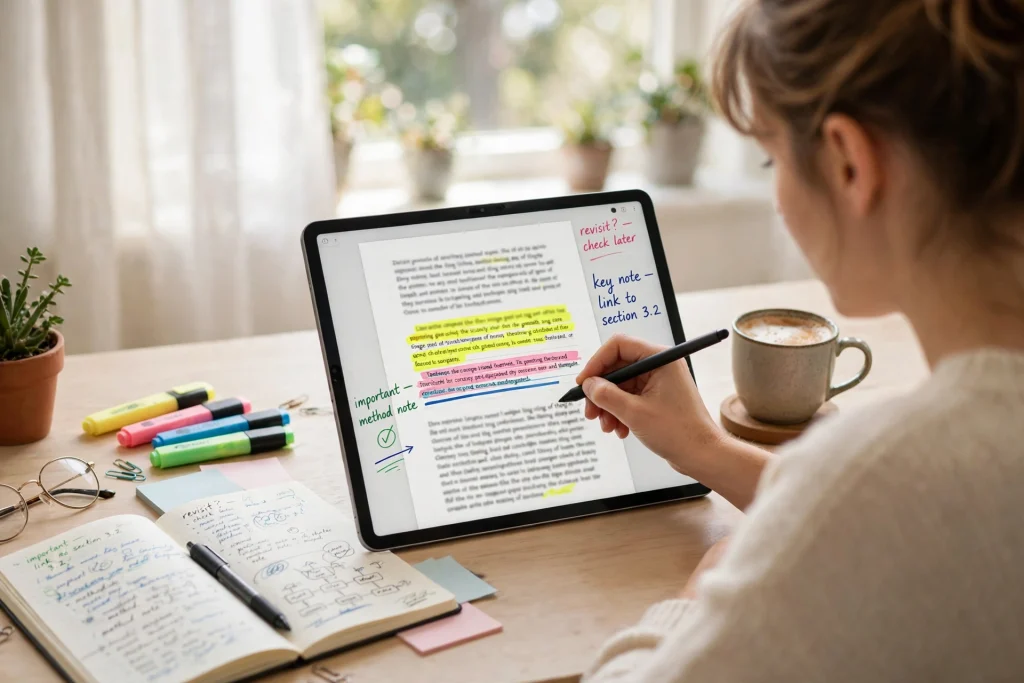
To annotate PDF GoodNotes files, import the PDF into GoodNotes, use the pen, highlighter and text tools to mark it up, then export the annotated copy as a new PDF. GoodNotes keeps your original file safe, lets you search handwritten notes, and exports flattened or editable copies depending on what you need next.
Learning how to annotate PDF GoodNotes documents well can change the way you study, review contracts, mark up lesson plans and give feedback. Instead of printing pages, losing loose sheets and re-scanning everything, you keep one living copy of the document on your iPad, with every highlight, margin note and sketch exactly where it belongs. This guide walks through the whole workflow, from importing a PDF the right way to exporting a clean, shareable version, and it flags the mistakes that cost people time.
Why annotate PDFs in GoodNotes instead of on paper
Paper annotations are hard to search, hard to share and impossible to back up. When you annotate PDF GoodNotes files, your notes travel with the document. You can search handwriting, jump to a bookmarked page, duplicate a page before a messy edit, and send the finished file to a colleague or teacher in seconds.
GoodNotes also gives you tools paper cannot match. You can zoom in to write neatly in a narrow margin, erase a single stroke without damaging the page, change ink colour to code different kinds of notes, and add a whole blank page of notes after a dense paragraph. For students, that means lecture slides become a study system. For professionals, it means contracts, reports and briefs become working documents rather than files you only read once.
The habit that makes the biggest difference is consistency. Pick one colour for key ideas, one for questions and one for actions, and use the same system in every document. After a week, you will be able to scan a 40-page PDF and see instantly what matters, what is unresolved and what you still have to do.
Import your PDF the right way
GoodNotes accepts PDFs from Files, Mail, Safari, Google Drive, Dropbox and most other apps through the Share Sheet. Tap Share, choose GoodNotes, then pick whether to import as a new document or into an existing notebook. For annotation work, import as a new document so the page size and layout stay true to the original.
Before you start marking up, check three things. First, confirm the page orientation and size look right, because a squashed import makes handwriting awkward. Second, turn on the right paper template background only if you are adding notebook pages, not for the PDF pages themselves. Third, make a habit of duplicating the original before heavy edits, or keep an untouched copy in Files, so you can always start again.
If the PDF is very large, such as a 300-page textbook, GoodNotes handles it well, but you will work faster if you split it into chapters. Import only the chapter you are studying this week, annotate it, export it, then move on. Smaller files open faster, sync faster and are easier to search.
If you are new to planning in GoodNotes generally, start with our beginner guide to using a digital planner in GoodNotes, which covers navigation, toolbars and page management that this annotation workflow builds on.
The annotation toolkit: pen, highlighter, shapes and text
Pen and ball pen for margin notes
Use the fountain pen or ball pen for margin notes, underlining and short comments. Keep your handwriting a little larger than you would on paper, because zoomed-out pages make small writing hard to read later. The zoom window is your friend: write in the magnified box and let GoodNotes place neat text on the page.
Highlighter for what matters
The highlighter in GoodNotes draws behind text rather than over it, so highlighted passages stay readable. Many people highlight far too much. A useful rule is to highlight only the sentence you would quote back to someone, not whole paragraphs. If everything is yellow, nothing stands out.
Shapes, lines and arrows
Draw a rough circle or arrow and GoodNotes snaps it into a clean shape. This is ideal for pointing at a diagram, circling a figure in a report, or drawing a simple flowchart in the margin. Hold the stroke for a second after drawing and it converts automatically.
Text boxes for typed comments
Typed text boxes are better than handwriting when someone else will read your annotations, or when you want to search the comment later. Use them for summaries, questions for a colleague, and action items. Keep each box short, and place it close to the passage it refers to.
Images, stickers and extra pages
You can paste a screenshot, a photo of a whiteboard, or a diagram into the margin, and insert a blank or ruled page after any PDF page for longer notes. This turns a static document into a workspace. Students often add a summary page after each chapter, and reviewers add a decision page at the end of a contract.
A step-by-step annotation workflow that actually sticks
- First pass: read without marking. Skim the document once to understand its structure. Add bookmarks or an outline note listing the main sections.
- Second pass: highlight and question. Highlight key claims and write questions in the margin wherever something is unclear or needs checking.
- Third pass: summarise. At the end of each section, write a two- or three-line summary in your own words. This is the step most people skip, and it is the one that makes revision work.
- Review pass: turn notes into actions. Go back through your questions and highlights, resolve what you can, and list the follow-ups separately.
- Export and file. Export the annotated PDF, name it clearly with a date, and store it where you will actually find it again.
This workflow feels slower than highlighting everything on the first read, but it produces notes you can use weeks later. The summary step is what converts a marked-up PDF into knowledge you can recall under exam or meeting pressure.
Colour-coding and organisation systems
A simple colour system beats a complicated one you abandon. Try yellow for key facts, pink for things to memorise, blue for questions, and green for actions or decisions. Write the legend on the first page of your notebook so you stay consistent across documents.
Use GoodNotes outlines and bookmarks to navigate long files. Bookmark the pages you return to most, such as a key table, a definition page or a signature page. If you work across many PDFs, keep a master index notebook with links to each annotated file and a one-line note about what is inside it.
For students building a study system, a dedicated notebook pairs well with annotated PDFs. The 12-Tab Digital Notebook for GoodNotes gives you tabbed sections for subjects, so your summaries and revision notes live in one searchable place alongside your annotated readings.
Search, share and collaborate on annotated PDFs
GoodNotes can search your handwriting, which means a word you wrote in the margin of page 47 is findable in seconds. This only works well if your handwriting is reasonably clear, so slow down slightly when writing words you will search for later, such as names, dates and key terms.
When you share an annotated PDF, think about who will open it. Exporting with annotations flattened into the page guarantees the recipient sees exactly what you see, even without GoodNotes. Exporting as an editable file keeps the layers separate but may look different in another app. For feedback and marking, flattened exports are usually the safer choice.
If you collaborate, agree on a convention before you start: who uses which colour, whether comments go in the margin or on added pages, and how decisions are recorded. A five-minute agreement saves hours of confusion when three people have marked up the same report.
Exporting your annotated PDF without losing anything
Tap Share, choose Export All or selected pages, and pick PDF as the format. Check the page range, and decide whether to include only annotated pages or the whole document. Most of the time, exporting the whole document is safer, because a recipient who only gets the marked pages loses context.
Watch out for two common export mistakes. The first is exporting at a low image quality to save space and ending up with blurry handwriting. The second is forgetting to check that added pages, such as your summary pages, are included in the export range. Do a quick preview of the first and last exported pages before you send the file.
Back up annotated PDFs the same way you back up anything important: let iCloud sync finish before you close the iPad, and keep a copy in a second location for critical documents such as signed agreements. GoodNotes backups protect your library, but an exported PDF is the version other people can actually open.
Common annotation mistakes and how to fix them
Over-highlighting is the most common mistake. If a page looks like a rainbow, re-read it and keep only the highlights that answer the question the document is trying to solve. Under-annotating is the opposite problem: a PDF with no summaries is just a PDF you have read, not a document you have learned from.
Another frequent mistake is writing notes that only make sense today. “Check this” means nothing in three weeks. Write the full question instead: “Check whether the 2026 figure includes VAT.” Future you will be grateful.
Finally, many people annotate on a copy that is never exported or filed, so the work is lost when they switch devices. Build export into your routine: when you finish a document, export it immediately, name it well, and file it. Annotation without filing is work you will repeat.
Annotate PDF GoodNotes: a routine for students and professionals
For students, annotate lecture slides before class with questions, then add answers during the lecture. After class, summarise each section in two lines and link the summary to your revision system. For professionals, annotate reports with decisions and actions, export the marked copy for the record, and keep the action list visible until it is done.
The tool matters less than the routine. GoodNotes gives you excellent pens, highlighters and search, but the value comes from reading twice, summarising in your own words, and filing the finished document where you can find it. Start with one PDF this week, use the colour system above, and judge the workflow by whether you can find and use your notes a month from now.
Ready to build a complete digital planning setup? Explore the 2027 Life Planner and turn your annotated readings, notes and goals into one organised system in GoodNotes.
Frequently asked questions
Can I annotate PDF GoodNotes files without changing the original?
Yes. GoodNotes imports a copy of the PDF, so the original file in Files or your email stays untouched. Keep an unmarked copy elsewhere if you want an extra safety net.
Does GoodNotes search handwritten annotations?
Yes, GoodNotes can search your handwriting across documents. Clear, slightly larger handwriting searches more reliably, especially for names and key terms.
How do I share an annotated PDF with someone who does not use GoodNotes?
Export the document as a PDF with annotations included. The recipient can open it in any PDF reader and will see your highlights and notes exactly as placed.
Can I add extra pages for notes inside a PDF?
Yes. You can insert blank, ruled or grid pages after any PDF page, which is ideal for chapter summaries, feedback and longer comments.
Why do my highlights look different after export?
This usually happens when an export flattens layers or another app renders colours differently. Export a test page first, and use standard highlight colours for documents you share widely.
Temply Studio
Stop chasing your goals with sticky notes and scattered notebooks. Our premium digital planners and Canva templates are designed to help you plan with intention, stay consistent, and actually enjoy the process.
Questions about this guide?
Ask about the planner, share how you use it, or tell us what to cover next. Your email stays private.