
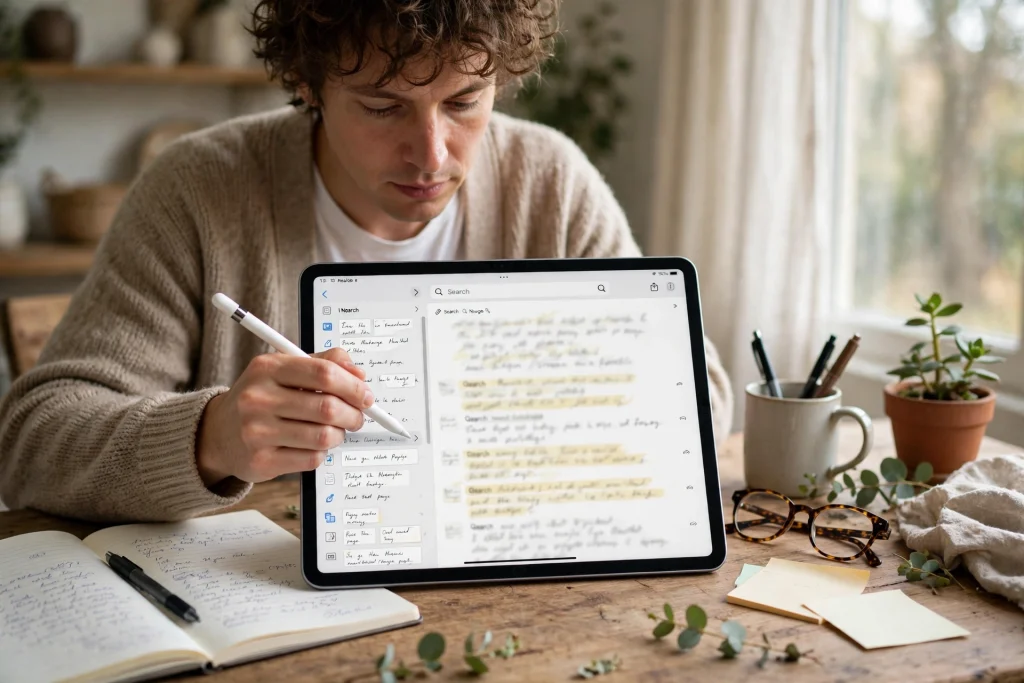
Quick answer: To search handwritten notes in GoodNotes 6, tap the search icon in the library or inside a notebook, type your word, and GoodNotes matches it against your handwriting using its built-in recognition. Search works best when your handwriting is reasonably clear, the notebook language is set correctly, and the pages have had a moment to index after syncing.
Handwritten notes feel private and flexible, but they have one famous weakness: you cannot find anything later. A typed document can be searched in a second; a notebook full of handwriting used to mean flipping pages and hoping. GoodNotes 6 changes that, because it can read your handwriting and let you search it like text. When it works, it feels like magic. When it does not, it feels broken, and the fix is usually a setting, not a fault.
This guide explains exactly how to search handwritten notes in GoodNotes 6, what to do when a search finds nothing, and how to organise your notebooks so search keeps working as they grow. If you are still setting up your first planner, our guide to using a digital planner in GoodNotes covers the basics first.
How to search handwritten notes in GoodNotes 6
There are two kinds of search in GoodNotes, and knowing which one you are using explains most confusion.
Search inside one notebook
- Open the notebook you want to search.
- Tap the magnifying-glass search icon in the top toolbar.
- Type the word you are looking for. GoodNotes searches your handwriting on every page of that notebook.
- Tap a result to jump straight to that page, with the matching word highlighted.
Search across your whole library
- From the library view, tap the search field at the top.
- Type your word. GoodNotes searches notebook titles, typed text, and handwritten content across documents.
- Results are grouped by notebook, so you can see at a glance whether a word lives in your planner, your meeting notes, or your journal.
Library search is the one to use when you remember writing something but not where you wrote it. Notebook search is faster and more precise when you know roughly which notebook holds it.
What GoodNotes actually searches
GoodNotes recognises handwriting on the device and indexes it so search can find it. A few details matter:
- Handwriting recognition needs a language. GoodNotes matches your writing against the language you write in. If you write in English but the notebook is set to another language, recognition accuracy drops sharply. Check the language setting for the notebook if search keeps missing obvious words.
- Typed text and handwriting are both searchable. Text boxes, typed annotations, and handwritten words all appear in results. Outlines and document titles are searchable too, which is why naming notebooks clearly helps.
- Images of handwriting are not searchable. A photo of a paper page pasted into GoodNotes is a picture, not handwriting, and search will not read it. The same applies to screenshots of notes. Only strokes written with the pen tool inside GoodNotes are recognised.
- Very small or cramped writing is harder to read. Recognition works best on normal-sized writing with clear spaces between words. Tiny margin scribbles are the first thing search misses.
When search finds nothing: the 6 most common fixes
Work through these in order. Most search problems are fixed by step three.
- Wait for indexing after syncing. After a large import or an iCloud sync, GoodNotes needs time to index new pages. If you just imported a big notebook, give it a few minutes, then search again.
- Check the notebook language. Open the notebook settings and confirm the handwriting language matches what you actually wrote. This single setting fixes a surprising number of “search is broken” reports.
- Search a word you can see. Pick a clear, common word on a page you can see, and search for it. If that works, recognition is fine and the missing word is probably written unclearly or spelled differently. If even that fails, the problem is with the notebook, not the word.
- Try a shorter search term. Long phrases fail when one word in the phrase is misread. Search one distinctive word instead, then scan the results.
- Check whether the page is a scanned image. If the page came from a PDF scan or a photo import, it may be an image rather than ink. You can still read it, but search cannot. Rewriting key headings by hand on those pages makes them findable.
- Restart GoodNotes and re-check iCloud sync. If search fails across every notebook, a stuck sync is a likely culprit. Make sure the notebook is fully downloaded and synced, then restart the app and try again. Our backup and sync guide covers how to back up your GoodNotes planner if sync worries you.
How to organise notebooks so search stays useful
Search works best in notebooks that are organised for it. Three habits make a real difference:
Write searchable headings
Start each meeting or study page with a clear handwritten heading: the topic, the date, and the project name. Headings are the words you will search for later, so write them larger and more carefully than the body notes. A page titled “Budget review March” is findable; a page that starts mid-sentence is not.
Use one notebook per area, not one notebook for everything
A single notebook with two years of mixed notes makes search results noisy. Separate notebooks for work, study, and personal planning keep results relevant. The 12-Tab Digital Notebook for GoodNotes is built for exactly this kind of separation, with tabbed sections you can search within.
Add a few typed keywords to important pages
For pages you know you will need again — a decision, a contract note, a key idea — add a small typed text box with two or three keywords. Typed text is recognised perfectly, so it acts as an anchor that search will always find, even if the handwriting around it is messy.
Search tips for students, professionals, and planner users
Students: search lecture topics, not whole questions. One distinctive term per topic beats a full sentence. Pair search with a notebook per subject, and revision becomes a search task instead of a page-flipping task.
Professionals: search client names and project codes. If you start every meeting page with the client name as a heading, a library search for that name pulls up every meeting with them in seconds.
Planner users: daily planner pages are short, so search across the planner works best for recurring items: search “dentist” or “invoice” to find every mention across months. The Minimalist Undated Digital Life Planner for GoodNotes keeps those daily pages consistent, which makes search results easier to scan.
Search handwritten notes FAQ
Does GoodNotes search handwriting on every device?
Handwriting search is available on iPad, iPhone, and Mac versions of GoodNotes 6, using the same recognition engine. Results should match across devices once a notebook has fully synced, though a device that has not finished downloading a notebook may show fewer results until sync completes.
Can I search handwriting in a PDF I imported?
Only if the PDF contains real ink annotations made in GoodNotes. A scanned PDF is an image, so its printed or handwritten content is not searchable unless you annotate over it or add typed keywords.
Why does search find some words but not others?
Recognition is word-by-word, so a word written unclearly, abbreviated, or joined to the next word may be missed while clearer words on the same page are found. Writing keywords and headings carefully is the most reliable fix.
Does handwriting search need an internet connection?
No. Recognition and search run on the device, so they work offline. An internet connection is only needed for iCloud sync between devices, not for searching a notebook that is already on your iPad.
Handwriting search turns a pile of notes into a searchable archive, but only if you write with search in mind: clear headings, the right language setting, and separate notebooks per area. Set those three things up once, and finding a note from six months ago takes seconds instead of an afternoon. For a planner base that keeps daily pages consistent and searchable, browse the 2027 Life Planner and the rest of the shop.
For official GoodNotes help with searching handwriting, see GoodNotes Support.
Temply Studio
Stop chasing your goals with sticky notes and scattered notebooks. Our premium digital planners and Canva templates are designed to help you plan with intention, stay consistent, and actually enjoy the process.
Questions about this guide?
Ask about the planner, share how you use it, or tell us what to cover next. Your email stays private.