




Table of Contents
If you just got your first digital planner, learning how to use a digital planner in GoodNotes is the fastest way to turn your iPad into a complete planning system.
GoodNotes is the most popular note-taking app for iPad, and paired with a hyperlinked digital planner, it replaces bulky paper planners with something lighter, searchable, and reusable year after year.
In this beginner’s guide, you’ll learn exactly how to import your planner into GoodNotes, navigate hyperlinked tabs, write and plan with the Apple Pencil, tweak the settings that matter, and choose the right digital planner for your needs.
What Is a Digital Planner, Exactly?
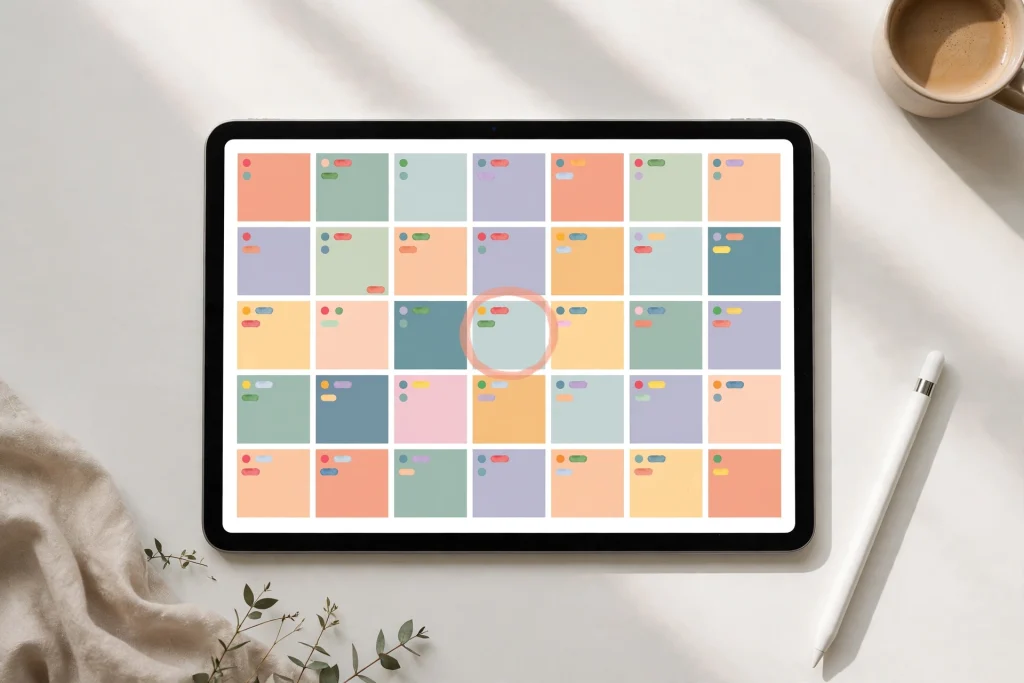
A digital planner is a PDF document designed to look and feel like a paper planner — monthly calendars, weekly spreads, daily pages, habit trackers, and goal-setting sections included. The difference: instead of printing it, you write directly on it with a stylus inside an app like GoodNotes.
The best digital planners include hyperlinked tabs. Tap “January”, “Week 12”, or a tab labeled “Goals” and you jump straight to that page — like flipping through a binder, but instant. Many planners are undated, meaning you can start them any day of the year and reuse them forever.
Once you know what a digital planner is, learning how to use a digital planner in GoodNotes is simply a matter of importing the PDF and getting comfortable with a few core gestures.
What You’ll Need Before You Start
You don’t need much:
- An iPad — any model that supports the Apple Pencil works, from the base iPad to the iPad Pro.
- An Apple Pencil (or stylus) — for natural handwriting. Typing works too, but handwriting is where GoodNotes shines.
- The GoodNotes app — download GoodNotes 6 from the App Store. It’s also available on Android and Windows now.
- A digital planner PDF — choose one with hyperlinked tabs. You can browse our digital planner collection to find a style you love.
How to Import a Digital Planner into GoodNotes (Step-by-Step)
Importing is the first real step in learning how to use a digital planner in GoodNotes, and it takes less than a minute:
- Save the planner PDF to your iPad. After purchase, download the file via email, AirDrop, iCloud Drive, or straight into the Files app. Keep a backup copy somewhere safe.
- Open GoodNotes and tap the New… button, then choose Import.
- Select your planner PDF from the Files browser.
- Choose “Import as New Document” and pick a folder (or leave it in Documents).
- Open your planner — you’re ready to plan.
Tip: if your planner arrives as a ZIP file, unzip it first — just tap the ZIP in the Files app — then import the PDF inside.
How to Use Hyperlinks and Tabs
Hyperlinks are what make a digital planner feel magical. Here’s how they work:
- Tap a tab to jump. Monthly tabs, weekly spreads, and index pages are all tappable links.
- Toggle Read-Only mode while navigating. Tap the pen icon to switch between writing and navigating — in read-only mode, taps follow links instead of leaving marks.
- Pinch to zoom when writing in small boxes.
If links don’t respond, you’re probably still in handwriting mode — that’s the number-one beginner mistake. Mastering tabs and links is the biggest leap in learning how to use a digital planner in GoodNotes — it’s what turns a static PDF into a fully navigable system.
Writing, Typing & Customizing Your Planner
GoodNotes gives you a full toolkit:
- Pen & highlighter: fountain, ballpoint, and brush pens with adjustable thickness and color.
- Text boxes: tap and hold, choose Text, and type — great for neat, searchable entries.
- Stickers & elements: use GoodNotes’ built-in sticker collections or import your own PNG stickers.
- Lasso tool: circle anything to move, resize, or copy it.
- Duplicate pages: need more room? Long-press a page thumbnail and hit Duplicate.
Together, these tools cover nearly everything about how to use a digital planner in GoodNotes for everyday planning.
GoodNotes Settings Worth Tweaking
A few quick settings changes will make learning how to use a digital planner in GoodNotes even smoother:
- Palm rejection is on by default — rest your hand on the screen confidently.
- Enable iCloud sync in GoodNotes settings so your planner survives a lost or broken iPad.
- Try the “Study Set” flashcards if you’re a student — handwriting converts to reviewable cards.
- Dark mode: GoodNotes follows your iPad’s appearance; many planners look great in both.
How to Use a Digital Planner in GoodNotes: 7 Practical Tips
- Start with a weekly review. Every Sunday, spend 10 minutes reviewing last week and sketching the next one.
- Color-code your life. Assign colors to work, personal, health, and money — your planner becomes scannable at a glance.
- Keep a “parking lot” page for random ideas so they don’t clutter your daily pages.
- Reuse templates for repeating routines: morning rituals, workout logs, meal plans.
- Search your handwriting. GoodNotes can search handwritten notes — circle back to old ideas in seconds.
- Try an undated planner if you hate wasting pages. Start any day of the year — our Minimalist Daily Planner is undated for exactly this reason.
- Make it yours. Change covers, add stickers, rename sections — a planner you love looking at is a planner you’ll actually use.
Choosing the Best Digital Planner for GoodNotes
Not all planners are equal. Look for:
- Hyperlinked tabs — non-negotiable for easy navigation.
- Dated vs. undated — dated is ready for a specific year; undated is reusable forever.
- Layout — portrait or landscape, daily or weekly focus.
- GoodNotes-optimized — correct page size with tested, working links.
The right planner makes learning how to use a digital planner in GoodNotes much easier — a poorly linked PDF will frustrate you no matter how good the app is.
A few favorites from our shop:
- Minimalist Daily Planner — clean, undated, perfect for beginners.
- 12-Tab Digital Notebook for GoodNotes — lined and grid pages for notes, journaling, and planning.
- Light Grey Hyperlinked Digital Planner — calm, elegant, fully hyperlinked.
- Kawaii Undated Digital Planner — cute and fun, a student favorite.
Frequently Asked Questions
Can I use a digital planner without an iPad?
Yes. GoodNotes now runs on Android and Windows too, so the basics of how to use a digital planner in GoodNotes carry over to any device, and most planner PDFs work in any annotation app (Noteshelf, Penly, Xodo). The iPad + Apple Pencil combo is still the smoothest experience, though.
Do I really need an Apple Pencil?
Not strictly — you can type everything with text boxes. But handwriting makes planning faster and more personal, and a stylus pays for itself if you plan daily.
Dated or undated planner — which is better?
Dated planners are ready to go for a specific year. Undated planners start any day and can be reused, so they’re more flexible and economical in the long run — a forgiving pick while you’re still learning how to use a digital planner in GoodNotes, since restarting wastes nothing.
How long does it take to learn how to use a digital planner in GoodNotes?
About fifteen minutes for the basics — importing, navigating tabs, and writing your first entry. Most beginners feel fully comfortable after a week of daily planning.
Can I print my digital planner?
Absolutely — every planner PDF can be printed at home or at a print shop whenever you want paper pages.
Is GoodNotes free?
GoodNotes offers a free tier with limited notebooks; the full version is a one-time purchase (or subscription). Either way, importing a planner PDF works the same, and the basics of how to use a digital planner in GoodNotes are identical on either tier.
Start Planning Today
Learning how to use a digital planner in GoodNotes takes about fifteen minutes: import the file, tap through the tabs, write your first entry. From there, it’s just habit. Pick a planner you love, set up a weekly review, and enjoy a planning system that lives in your bag without the bulk.
Find your perfect digital planner →
Temply Studio
Stop chasing your goals with sticky notes and scattered notebooks. Our premium digital planners and Canva templates are designed to help you plan with intention, stay consistent, and actually enjoy the process.



Questions about this guide?
Ask about the planner, share how you use it, or tell us what to cover next. Your email stays private.