




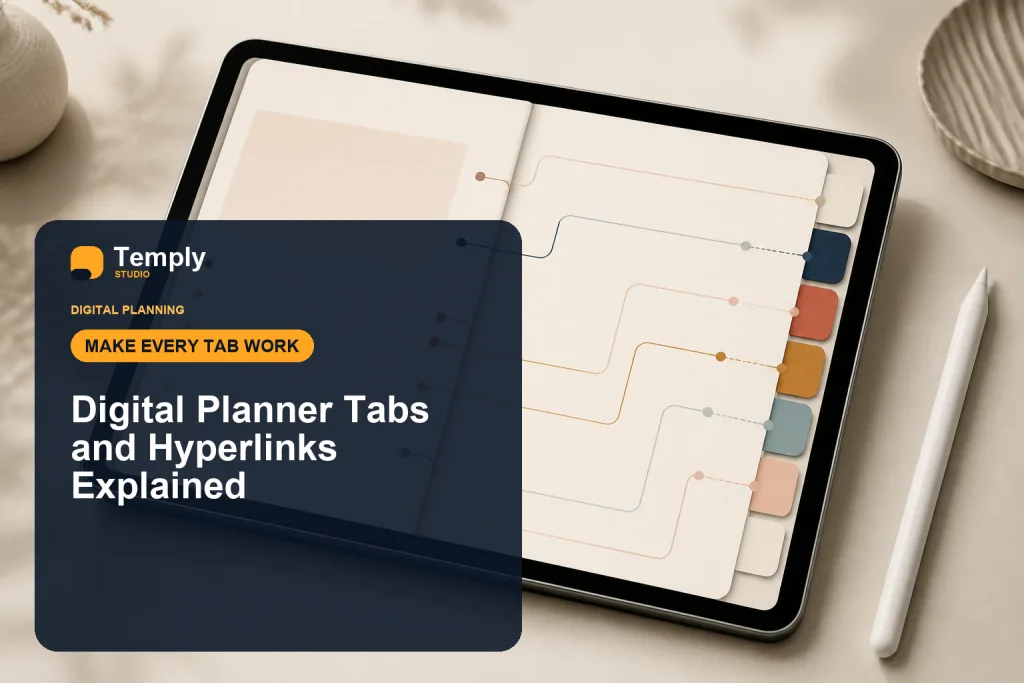
Quick answer: Digital planner tabs are visual navigation labels, while hyperlinks are clickable areas embedded in a PDF that can jump to another page or open an external website. In a hyperlinked planner, a tab may look like a paper divider, but the hyperlink underneath it is what makes the jump to a monthly, weekly, daily, notes, or index page possible.
This guide focuses on hyperlinked PDF planners rather than links you create manually inside a note-taking app. The exact controls can vary by app and platform, so use the current documentation for the app where you plan to use the file.
What are digital planner tabs?
Digital planner tabs are visual shortcuts placed along the edge or inside a planner page. Common labels include months, weeks, days, notes, goals, projects, and an index or home page.
A tab does not automatically make a PDF interactive. The planner creator must attach a hyperlink to the tab or another clickable object before exporting the PDF. That distinction matters when troubleshooting: a tab can be visible even when the underlying link is missing or no longer preserved.
What are hyperlinks in a digital planner?
A PDF hyperlink is an interactive area that points to another destination. In a planner, an internal hyperlink normally jumps to another page in the same PDF. An external hyperlink can open a website.
Goodnotes’ official documentation uses digital planners as an example of PDFs with linked tabs or index pages that can jump to monthly, weekly, or daily sections. The navigation method depends on the Goodnotes platform.
Tabs vs hyperlinks: what is the difference?
| Feature | What it does | Does it create navigation? |
|---|---|---|
| Planner tab | Shows a visual label such as Jan, Week, Notes, or Home | Only when a hyperlink is attached |
| Internal PDF hyperlink | Points to another page inside the PDF | Yes |
| External hyperlink | Points outside the planner, usually to a website | Yes |
| Index page | Groups several destinations in one place | Only when its buttons or text are linked |
This is why two planners can look similar but behave differently. One may contain functioning internal links while another may use tabs only as visual decoration.
How to use hyperlinked planner tabs in Goodnotes
For imported PDFs, Goodnotes currently documents different ways to follow links depending on platform and editing state.
- Open the planner as a document. If you have received a PDF planner, import it into Goodnotes using the app’s supported import workflow.
- Try the tab in the appropriate navigation mode. Goodnotes says PDF links on iOS can be tapped. On Android, Windows, and Web, its current navigation guide instructs users to enter read-only mode and then tap the link.
- If you are editing, use the link action when available. Goodnotes also documents long-pressing a PDF hyperlink in edit/pen mode and choosing the option to open the link.
- Check more than one tab. Test a month tab, a weekly or daily link, and a home/index link if the planner includes them. This helps distinguish one broken destination from a broader navigation problem.
Goodnotes also provides a document sidebar for moving through pages and outlines. That can be a useful fallback for navigation, but it is separate from the planner’s embedded tab hyperlinks.
Why a digital planner hyperlink may not work
You are using the wrong interaction mode
In some Goodnotes workflows, tapping while actively editing does not behave the same way as following a link in read-only/navigation mode. Check the app’s current instructions before assuming the PDF itself is broken.
The original PDF does not contain a hyperlink
A visible tab is not proof that a link exists. If the source PDF was exported without an interactive link attached to that tab, changing settings in the note-taking app cannot recreate the missing destination automatically.
The PDF was re-exported in a format that removed original links
This is an important Goodnotes-specific issue. Goodnotes states that when an imported PDF is exported as a flattened PDF, hyperlinks and outlines from the original PDF are not preserved. Its documentation says the Editable PDF format should be used when preserving those original PDF hyperlinks and outlines matters.
The issue may be specific to the file or app
If a link does not respond, Goodnotes recommends checking the PDF in an external PDF viewer as part of troubleshooting. If the original file works elsewhere but not in the app, use the app developer’s current support guidance rather than repeatedly modifying the source file.
How to test a hyperlinked planner before relying on it
- Keep an untouched copy of the original downloaded PDF.
- Open the original PDF and test several representative links.
- Import a working copy into your intended annotation app.
- Test month, week, day, notes, and home/index navigation where those sections exist.
- Add a small test annotation to confirm that writing and navigation fit your workflow.
- If you export a copy, check whether the export option preserves the hyperlink behavior you need.
This small test is more useful than assuming that every PDF planner, every export option, or every note-taking app handles navigation identically.
How to choose a planner with useful navigation
Before choosing a planner, look beyond the number of tabs. Consider whether the navigation structure matches how often you move between sections. A planner with dozens of destinations is not automatically easier to use than one with a smaller, predictable structure.
- Home or index access: Can you return to a central navigation page easily?
- Time-period links: Are monthly, weekly, and daily sections connected in a way that fits your planning routine?
- Consistent tab placement: Do the main navigation controls stay in predictable locations?
- Readable labels: Can you identify tabs comfortably at the screen size you normally use?
- App fit: Does the product page state the intended file format and compatible workflow?
If you are still deciding which planner structure suits you, read How to Choose a Digital Planner for Beginners. You can also browse the Digital Planning hub for related setup and workflow guides.
Frequently asked questions
Are digital planner tabs the same as hyperlinks?
No. A tab is the visible navigation label or design element. A hyperlink is the interactive connection attached to it. A tab can exist without a functioning hyperlink.
Do hyperlinks work after importing a PDF into Goodnotes?
Goodnotes documents support for navigating hyperlinks in imported PDFs. The exact interaction differs by platform and mode, so follow its current PDF hyperlink instructions for your device.
Why did my planner links disappear after export?
If the links were part of the original imported PDF, check the export format. Goodnotes states that flattening an imported PDF does not preserve its original hyperlinks and outlines, while its Editable PDF option preserves them.
Can every digital planner be assumed to have clickable tabs?
No. Hyperlinking is product-specific. Check the product description and the actual file rather than assuming that visible tabs are interactive.
Sources and next steps
For current app behavior, see the official Goodnotes guide to navigating PDF hyperlinks, Goodnotes import documentation, and its explanation of Editable vs Flattened PDF formats.
When you are ready to compare planner options, browse the Temply Studio digital planner collection. Confirm the exact file format, navigation, included pages, and stated software compatibility on the individual product page before purchase.
Temply Studio
Stop chasing your goals with sticky notes and scattered notebooks. Our premium digital planners and Canva templates are designed to help you plan with intention, stay consistent, and actually enjoy the process.



Questions about this guide?
Ask about the planner, share how you use it, or tell us what to cover next. Your email stays private.