

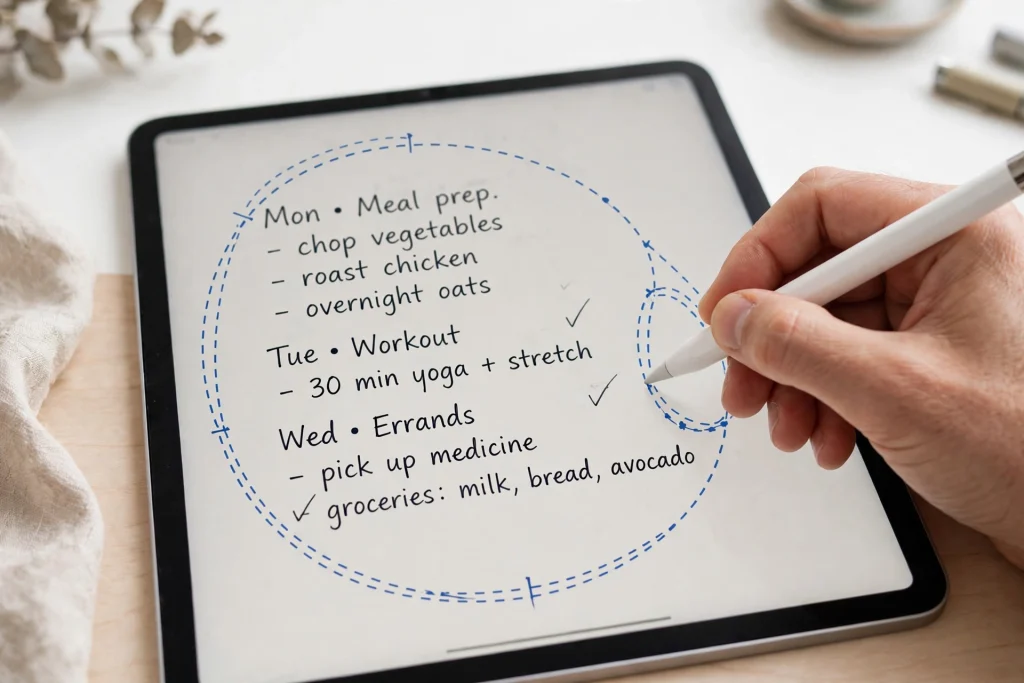
Quick answer: The GoodNotes lasso tool selects anything on a page — handwriting, drawings, images, or text boxes. Tap the lasso icon in the toolbar, draw a loop around what you want, then drag it to move it, drag a corner handle to resize it, or tap the selection to cut, copy, change its colour, or convert handwriting to text.
Every GoodNotes user meets the same small moment of frustration: you have written a perfect note — and then realised it is in the wrong place. Or too big. Or the wrong colour. Or it belongs on the next page entirely. Without the lasso tool, your only option is to erase it and write it again.
The GoodNotes lasso tool is the fix. It is the single most useful tool in the app that most people ignore for months, and once you learn it, you will use it every day. This guide covers everything: how to select, move, resize, copy, recolour, and convert your handwriting — plus the tricks that make the lasso feel effortless, and the fixes for the times it seems not to work at all.
What the GoodNotes Lasso Tool Does
The lasso tool is a selection tool. Instead of acting on the page (like a pen) or removing things (like an eraser), it lets you grab a piece of your page and do something with it. With a selection active, you can:
- Move it — drag it anywhere on the page, or to another page entirely.
- Resize it — make handwriting bigger or smaller without rewriting it.
- Copy and paste it — duplicate a diagram, a checklist, or a heading wherever you need it again.
- Change its colour — recolour handwriting in one tap.
- Change its style — switch a stroke’s thickness, or convert a scribble’s appearance.
- Convert handwriting to text — turn your writing into typed text you can paste anywhere.
- Rotate it — tilt a selection to fit a slanted space (on newer versions).
- Delete it — remove exactly what you selected, and nothing else.
Think of it as the “undo the layout mistake” button. It is what makes digital handwriting forgiving in a way paper never is.
How to Use the GoodNotes Lasso Tool: The Basics
Step 1: Switch to the lasso tool
Look at the toolbar at the top of the page. The lasso icon looks like a dotted loop (a dashed lasso shape). Tap it once. It highlights to show it is active, and your Apple Pencil or finger now draws selection loops instead of writing.
Tip: you can double-tap your Apple Pencil (2nd generation) to switch between your last tool and the eraser — but the lasso is not part of that shortcut by default. Go to iPad Settings → Apple Pencil → Double Tap and check what yours is set to; many people set it to “switch between current tool and eraser” and reach the lasso from the toolbar instead.
Step 2: Draw a loop around what you want
Draw a closed loop around the handwriting, drawing, or image you want to select. You do not need a neat circle — a rough loop works, as long as it fully encloses the target. The moment you close the loop, GoodNotes selects everything inside it and shows a bounding box with handles.
A useful alternative: instead of drawing a loop, you can simply tap once on a stroke to select it — GoodNotes selects the whole connected stroke or word. For a single word or a single drawn shape, a tap is faster than a loop.
Step 3: Do something with the selection
With the bounding box showing, you have three options:
- Drag the selection to move it. Put your pencil or finger inside the bounding box and drag.
- Drag a corner handle to resize it. The selection scales proportionally, so your writing stays the same shape — just bigger or smaller.
- Tap the selection (or the small menu that appears) to open the action menu: Cut, Copy, Duplicate, Delete, Change Colour, Convert to Text, and more.
To deselect, tap anywhere outside the bounding box, or switch back to the pen tool. That is the whole workflow — and after a day of using it, it becomes muscle memory.
Moving Notes Between Pages
One of the lasso’s best tricks is moving content between pages — for example, when you start a note on the daily page and realise it belongs in your project notebook, or when a meeting note needs to move from a scratch page into the right section.
- Select the content with the lasso tool.
- Tap the selection and choose Copy (or Cut if you want to remove it from the current page).
- Navigate to the destination page.
- Long-press on the page and choose Paste — or tap the page with the lasso tool active and use the paste option.
- Drag the pasted content into position and tap outside it to drop it.
The same copy-paste flow works between notebooks, too. Copy a diagram from your 12-Tab Digital Notebook for GoodNotes, open your planner, and paste it onto today’s page. It is the fastest way to reuse anything you have already drawn once.
Resizing Handwriting Without Rewriting It
Resizing is where the lasso earns its keep for planner users. Common situations:
- You wrote too big for the box on your daily page. Lasso it, drag a corner handle inward, and it shrinks to fit.
- You wrote too small and cannot read it later. Lasso it and scale it up.
- A heading needs emphasis. Select it, scale it up by about 30%, and it becomes a heading without rewriting.
- A diagram needs to fit beside text. Shrink the diagram, move it to the margin, and your notes stay tidy.
One caution: scaling handwriting up too far makes it look fuzzy, because GoodNotes scales the stroke rendering. Up to about 150% looks fine; beyond that, rewriting is cleaner. Scaling down, by contrast, almost always looks perfect — small writing stays crisp.
Changing Colour and Style After the Fact
Wrote your entire meeting notes in black and now want the action items in red? You do not need to rewrite them.
- Select the text with the lasso tool.
- Tap the selection to open the menu.
- Choose the colour option and pick your new colour.
- Everything in the selection changes colour instantly.
This is also the fastest way to fix a pen mistake — for example, when you wrote with the wrong pen thickness all morning. Select the block, change the style, and carry on. Colour-coding after the fact is one of the quiet superpowers of digital planning: write first, organise later.
Converting Handwriting to Text
The lasso tool is also the gateway to one of GoodNotes’ most requested features: turning your handwriting into typed text.
- Select the handwriting with the lasso tool.
- Tap the selection and choose Convert to Text.
- GoodNotes shows its best reading of your writing. Check it — and fix any misread words before confirming.
- Tap to convert. The handwriting is replaced by a typed text box you can edit, resize, and restyle like any other text.
This is genuinely useful when you want to copy notes into an email, a document, or a task manager. It is also how many people clean up their planner pages at the end of the week: convert the week’s scruffy notes into tidy typed summaries.
A few realities to know: conversion works best with neat, spaced handwriting and worst with rushed cursive. Mixed languages in one selection confuse it — convert one language at a time. And always proofread the conversion before you delete the original; the tool is good, not perfect. For a full walkthrough of handwriting conversion, see our guide to converting handwriting to text in GoodNotes 6 (linked at the end of this article).
Selecting Images, Stickers, and Text Boxes
The lasso does not only select handwriting. It grabs anything on the page:
- Images: lasso a photo or a scanned document to move or resize it. (You can also just tap an image directly to select it.)
- Stickers: lasso a sticker to move it, resize it, or copy it to another page. This is the quickest way to reuse a favourite sticker.
- Text boxes: lasso a typed text box to move it or change its formatting.
- Mixed selections: one loop can grab handwriting, a drawing, and a sticker together — useful when you want to move a whole annotated diagram as a unit.
When a selection contains several types of content, the action menu shows the options that apply to all of them (move, copy, delete, resize). Options that only apply to handwriting — like Convert to Text — appear only when the selection contains handwriting.
5 Lasso Tricks Most People Miss
1. Select a whole line by drawing a long, thin loop
You do not need to circle each word. Draw one long loop around an entire line of writing and GoodNotes selects the whole line. This is the fastest way to move a line down when you need to squeeze something in above it.
2. Use the lasso to “cut and insert” space
Need to add a line between two paragraphs? Lasso the lower paragraph, drag it down a few centimetres, and write in the gap. It is faster than rewriting everything below the insertion point — and it is the digital equivalent of the blank-line trick paper never allowed.
3. Duplicate instead of rewriting repeated items
Weekly checklist? Daily routine? A diagram you use in every project meeting? Lasso it, tap Duplicate, and drag the copy where you need it. Duplicating beats rewriting, and it keeps your repeated items identical.
4. Tap to select a single stroke, loop to select a group
A single tap selects one connected stroke — handy for deleting one word or moving one arrow. A loop selects everything inside it. Knowing the difference saves a lot of accidental selections.
5. Combine the lasso with the zoom window
For precise selections on a crowded page, open the zoom window (the magnifier icon), write or select at large size, and your selection is far more accurate. This matters most when your page has small handwriting packed close together.
Troubleshooting: When the Lasso Tool Seems Broken
The lasso selects the wrong thing — or everything
The lasso selects everything the loop encloses, including strokes that cross the loop’s edge. If your loop accidentally clips a neighbouring word, that word comes along. Fix it by drawing a tighter loop, or by selecting with a tap instead. If the page is very crowded, zoom in before you lasso.
The lasso draws instead of selecting
You are not actually on the lasso tool — you are still on the pen. Check the toolbar: the lasso icon should be highlighted. This happens most often after switching tools quickly. Tap the lasso icon again and try.
Also check your Apple Pencil double-tap setting: if double-tap is set to switch tools, an accidental double-tap can silently switch you back to the pen mid-selection.
You cannot select something — it seems “stuck”
A few things cannot be lassoed:
- The planner’s printed template (the page background, lines, and printed headings that came with the PDF) is part of the page image, not an object. You cannot move it. This is by design — your planner’s structure stays put while your writing moves freely.
- Locked objects — if you locked an element, unlock it first (tap it and choose Unlock).
- Content on a different layer — GoodNotes keeps handwriting and images on the same working layer, so this is rarely the cause; but if you pasted something as a “page background”, it becomes unselectable.
Converted text looks wrong
Handwriting conversion depends on legibility. If the conversion keeps misreading a word, try selecting a smaller chunk — one line instead of a paragraph — and converting that. Shorter selections convert more accurately.
The selection menu disappears too fast
The menu appears when you tap the selection. If you tap and drag instead, GoodNotes interprets it as a move. Tap once, lift your pencil, and the menu stays. If you are using your finger, make sure you tap inside the bounding box, not on its edge.
Building a Lasso Habit Into Your Planning Workflow
The lasso tool pays off most when it becomes automatic. Here is a simple workflow for daily planning that uses it naturally:
- Morning: open today’s page in your 2027 Life Planner and write your top three tasks. If they do not fit the boxes, lasso and shrink them — do not rewrite.
- During the day: capture notes wherever they land. Do not worry about neatness; the lasso fixes layout later.
- Evening tidy-up (2 minutes): lasso any notes that ended up in the wrong place, move them, recolour action items, and convert anything you want to copy into an email or task app.
- Weekly: duplicate next week’s page template, lasso-copy any repeating items (routines, recurring meetings), and plan the week in one sitting.
That evening tidy-up is the habit that separates people who love their digital planner from people who abandon it after a month. Paper forgives nothing; GoodNotes forgives everything — but only if you use the lasso.
If you are still learning the app, our beginner’s guide — How to Use a Digital Planner in GoodNotes — covers the pen, eraser, shapes, and the daily workflow that the lasso fits into. And if your notes are getting hard to find, the Minimalist Undated Digital Life Planner for GoodNotes gives you a clean, structured home for everything the lasso helps you organise.
Frequently Asked Questions
Where is the lasso tool in GoodNotes?
In the toolbar at the top of the page — the icon that looks like a dotted loop. Tap it once to activate it. In GoodNotes 6 it sits near the pen, highlighter, and eraser icons.
Can I lasso select on iPhone?
Yes. The lasso tool works the same way on iPhone — tap the lasso icon, draw a loop with your finger, and use the selection menu. The smaller screen makes precise selections harder, so zoom in for crowded pages.
Does the lasso tool work on typed text?
Yes. Lasso a text box to move or resize it. To edit the words inside, double-tap the text box after selecting it. To convert handwriting to text, the selection must contain handwriting — typed text is already text.
Can I undo a lasso move?
Yes — tap the undo arrow (or use a two-finger tap) immediately after moving, resizing, or deleting a selection. GoodNotes keeps a full undo history for the current session, so a bad move is one tap away from fixed.
Why does my lasso selection include extra strokes?
Because the loop crossed them. The lasso selects everything inside the loop plus anything the loop’s edge touches. Draw a tighter loop, zoom in, or select with single taps instead of a loop for precise work.
Can I lasso a whole page at once?
Draw a loop around the entire page contents and everything gets selected. But if you want to copy a whole page, the thumbnail view is faster: long-press the page thumbnail and tap Duplicate, or Copy and Paste Page from the page menu.
The GoodNotes lasso tool is small, quiet, and easy to overlook — and it is the difference between a planner that tolerates your mistakes and one that punishes them. Learn the loop, learn the tap, and learn the evening tidy-up. Your notes will stop being a record of where things landed, and start being a system you actually control.
Ready to put it into practice? Open your 2027 Life Planner, pick today’s messiest page, and lasso something into its right place. It takes ten seconds — and you will wonder why you waited so long.
Temply Studio
Stop chasing your goals with sticky notes and scattered notebooks. Our premium digital planners and Canva templates are designed to help you plan with intention, stay consistent, and actually enjoy the process.

Questions about this guide?
Ask about the planner, share how you use it, or tell us what to cover next. Your email stays private.