




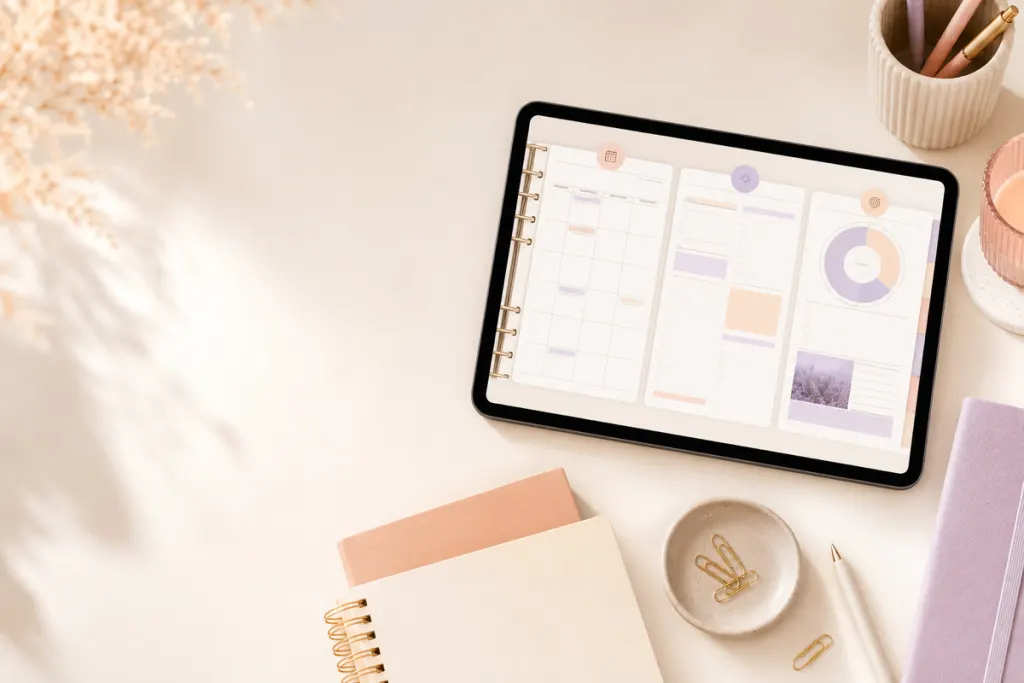
Quick answer: After exporting planner pages from Goodnotes, open the exported PDF and verify the page selection, order, annotations, orientation, and any links that matter. A successful export command does not by itself prove that the final PDF contains everything you intended.
Use this checklist after the export finishes
- Open the exported PDF from the location where you saved or shared it.
- Check the first and last page of the selected range.
- Confirm the page count and page order.
- Review handwriting, typed text, images, and annotations that should be visible.
- Check page orientation and cropping.
- Test important navigation links in the PDF reader where the file will actually be used.
- Rename and store the file so you can distinguish it from the working Goodnotes document.
Start with the export method, then verify the output
If you still need the export steps, use the detailed How to Export GoodNotes Planner Pages as PDF guide. Goodnotes documents current export controls for different platforms in its Export documents or pages documentation.
This page focuses on the quality check after export. The goal is to verify the file you produced, not to assume that an export behaves identically to the source document.
1. Confirm the selected pages
Check whether the PDF contains the intended single page, selected range, or document. Open the first and last expected page and compare the page count with your selection. If the order is wrong, repeat the export rather than manually rearranging a file you have not yet verified.
2. Check annotations and visible content
Review representative pages that contain handwriting, typed text, images, highlights, or other annotations. Confirm that the elements you expect to share or archive are visible. If the output is going to a printer, recipient, or another app, inspect the file in that destination when possible.
3. Test important hyperlinks
Do not assume every navigation feature is preserved. Goodnotes maintains specific guidance for cases where PDF outlines or hyperlinks are missing after export. Test the final PDF in the reader where it will be used and treat the observed output as the evidence.
4. Review orientation, margins, and page appearance
Open a few pages with different layouts. Check that portrait or landscape orientation is correct, content is not clipped, and page backgrounds or images appear as expected. If the PDF will be printed, run a separate print-preview check because export quality and printer settings are different steps.
5. Name and store the file clearly
A useful export name can identify the planner, date or period, page range, and export date. Keep the exported PDF separate from the native or working Goodnotes document so the two files are not mistaken for each other later.
PDF export is not automatically a complete backup
A PDF is useful for viewing, sharing, printing, and archiving, but it may not preserve the same editable or native features as the source document. For recovery planning, use the digital planner backup and file organization guide and the current Goodnotes backup documentation.
Frequently asked questions
Why should I open the PDF after exporting?
Opening the output confirms that the file exists, can be read, and contains the selected pages. It also gives you a chance to spot missing annotations, wrong page ranges, or layout issues before sharing or deleting anything.
Will hyperlinks always work in the exported PDF?
Do not assume so. Export behavior can depend on the document, app version, export settings, and reader. Test the links that matter in the final file.
Can I use the PDF as my only recovery copy?
Only if a readable PDF archive is all you need. If you need a native editable document or full library recovery, use the backup method documented for that purpose.
Next step
When the PDF passes the checklist, store it with a clear filename and keep the working source separately. For import or re-import steps, see the Goodnotes import guide.
Temply Studio
Stop chasing your goals with sticky notes and scattered notebooks. Our premium digital planners and Canva templates are designed to help you plan with intention, stay consistent, and actually enjoy the process.

Questions about this guide?
Ask about the planner, share how you use it, or tell us what to cover next. Your email stays private.