




Quick answer: GoodNotes for engineers works best as a single digital notebook for field notes, calculations, sketches, and project files. You can write by hand on site, annotate PDF drawings, search your handwriting later, and keep every project version in organised folders — all in one place you can carry in your bag.
GoodNotes for engineers is not a CAD program, a calculation package, or a document control system, and it should not try to be one. Its strength is simpler: one reliable notebook where the messy, handwritten, day-to-day work of engineering happens. Site visits, quick calculations, sketched details, punch lists, and marked-up drawings all land in the same place, in your own handwriting, and you can find them again weeks later.
Most engineers already carry an iPad or tablet to site. The question is whether it holds a scattered pile of photos and loose notes, or a working system you trust. This guide builds that system with GoodNotes’ real tools — the pen, shapes, lasso, PDF annotation, folders, handwriting search, and export.
Why GoodNotes for Engineers Works on Real Projects
Engineering work is rarely neat. A day can start with a design review at your desk, move to a noisy site where you sketch a detail on a concrete wall, and end with a client call where you need the exact dimension you measured at 10 a.m. Paper notebooks handle the first part well and fail at the second: they cannot be searched, they cannot hold a PDF drawing, and they are easy to lose.
GoodNotes for engineers solves the storage problem without changing how you think. You still write, sketch, and annotate by hand. The difference is that your handwriting becomes searchable, your drawings sit beside your notes, and a full project history fits on one device. That matters most on long projects, where a note from month two can decide a dispute in month nine. You can also export a marked-up drawing as a PDF or share a punch list with a contractor, so the notebook stays yours while the outputs travel easily.
Setting Up GoodNotes for Engineering Work
A good setup takes about thirty minutes. The goal is a structure you can use half-asleep on site, without stopping to decide where something belongs: a folder per project, a notebook per purpose, and a consistent naming habit.
Create a folder for each active project, named with the project number and a short name, such as “P-2041 Riverside Bridge”. Inside each one, keep the same notebooks every time:
- Field Notes — dated site visit notes, measurements, and observations.
- Calculations — worked calculations, checks, and assumptions.
- Drawings — imported PDF drawings for markup and review.
- Meetings & Actions — meeting notes, decisions, and open items.
- Punch Lists — inspection lists, defects, and close-out items.
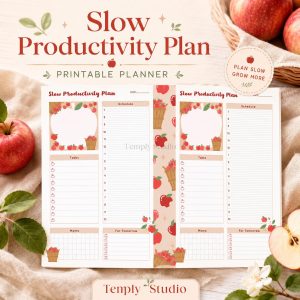
When a project closes, move its folder into an “Archive” folder rather than deleting it. Old calculations and site notes are the records you need when a question comes up a year later. For paper, use ruled paper for meeting notes and grid paper for calculations and sketches, where alignment matters. Set up three pen presets — fine in black for notes, medium for headings, thick for sketching — plus a yellow highlighter for key dimensions and a second colour for action items. The 2027 Business Planner adds dated daily and weekly pages for planning site visits and tracking project actions.
Field Notes on Site
Field notes are the raw material of engineering, and the easiest thing to get wrong — because the detail that seems obvious on site becomes ambiguous back at your desk. Start every visit the same way: a fresh page with the date, project name or number, location, and who is with you. Add the weather if it matters, since rain, temperature, and wind affect pours, crane work, and survey readings.
Write in short, dated entries as you walk the site rather than saving everything for the end. A note written the moment you see a defect is more accurate than one reconstructed from memory in the car park. Use bullet points, short sentences, and plenty of white space.
Sketch what words cannot describe
Some things are faster to draw than to describe: a crack pattern, a clash between services, or the route of a cable tray. A thirty-second sketch with dimensions beside it often says more than a paragraph. Use grid paper, snap straight edges with the shapes tool, and number your sketches — “Sketch 3, north elevation, crack at window head” — so you can refer to them in the text. If a sketch needs more room, use the lasso tool to circle it, drag it to a fresh area, and keep drawing.
Photograph, then annotate
Insert photos directly onto the page, then write on top of them: circle the defect, add an arrow, write the measurement beside it. The photo and your comment stay together, so nobody has to guess which image matches which note. Keep photos purposeful — one annotated photo of a defect beats ten unlabelled ones — and write one line under each: what it shows, where it was taken, and what action follows.
Calculations and Worked Examples
Hand calculations are still core engineering work. A quick check by hand catches input errors, proves a concept before you build a model, and records your thinking in a way a software output file does not. Write each calculation the same way every time: title and element, assumptions and the standard used, inputs with units, working step by step, and the result with a clear pass or fail. Leave units on every line — a missing unit is a common source of error.
Keep one calculation per page or clearly headed section, on grid paper. If a value changes, cross it out once, write the new value beside it, and note why it changed. That visible history shows a checker you spotted the change and understood it.
Build a library of worked examples
Over time your Calculations notebook becomes a library: a beam check, a footing sizing, a bolt group. When a similar problem appears on the next project, copy the method with the lasso tool and adapt the numbers instead of starting from scratch. Add an index page at the front listing each calculation type and its page, and mark checked work clearly — highlight the final result, write “Checked” with the date and initials, and note any corrections. For daily planning around this work, the Minimalist Daily Planner gives you one page per day with space for your top three checks and the decisions that follow.
Sketching and Markups on PDF Drawings
PDF annotation is where GoodNotes for engineers earns its place on a project. Drawings arrive as PDFs, and the fastest way to review one is to write on it: circle a clash, sketch an alternative detail, add a dimension, flag a missing note. GoodNotes for engineers imports PDFs as notebooks you can write on, page by page.
Import each drawing set as a separate document, named with the drawing number and revision — “S-101 Rev C, General Arrangement”. When Rev D arrives, import it as a new document and keep Rev C with its markups intact. Never overwrite a marked-up revision, or you lose the record of what you flagged.
Markup with a consistent system
Agree on a markup system with your team: red for errors that must change, blue for queries, green for items verified, and the highlighter for dimensions needing attention. Write short, specific comments — “Clash with duct at grid B/3, raise beam 150 mm” — rather than vague marks nobody can act on. Use the shapes tool for clean clouds and boxes, and the lasso tool to move a misplaced comment. When your review is done, export the marked-up PDF: the annotations travel with it, so any colleague can read your comments in a standard PDF reader. Keep the original in GoodNotes for engineers as the record.
Organising Project Files and Versions
GoodNotes for engineers will not replace your document management system, and it should not try. Its job is to hold the working copies you need every day — the current drawings, your notes, and the checklists — in a structure you can navigate without thinking.
For each document you use regularly, keep one copy in GoodNotes for engineers and know where the master lives. When a new revision arrives, import it, rename the old one with its revision number, and move it to an “Old Revisions” folder. Nothing is deleted, but nothing is confused either. Add the documents you open daily to favourites, and use the outline feature to bookmark key pages in long notebooks — the index, the latest site visit, the governing calculation.
Spend fifteen minutes at the end of each week on maintenance: archive finished punch lists, move closed revisions aside, and check that the week’s field notes carry a date and project name. A structured notebook helps too — the 12-Tab Digital Notebook for GoodNotes gives you tabbed sections you can label by project area or work type, so field notes, calculations, and meeting notes each have a visible home.
Checklists: Punch Lists, Inspections, and RFIs
A good punch list item has four parts: what is wrong, where it is, who is responsible, and by when. Write each on its own line with a checkbox beside it, specific enough that a contractor can act without calling you: “Replace cracked tile, bathroom 2, north wall, contractor A, by 18 Nov” works; “Fix bathroom” does not. Highlight priority — yellow for items due this week, orange for items blocking the next stage.
Before an inspection, copy the checklist onto a fresh page with the date, area, and attendees. Tick items off as you verify them, add new ones as you find them, and photograph each defect beside its item. Export the completed list as a PDF the same day — a punch list that waits a week loses its urgency.
Keep a running RFI log in your Meetings & Actions notebook: number, date raised, question, who it went to, and the answer or the date chased. Highlight unanswered RFIs until they are closed and review the log weekly. When an answer arrives, write it beside the original question with the date, so the question and the answer stay together.
Searching Handwritten Notes
The most useful feature of GoodNotes for engineers is handwriting search. Type a word — “footing”, “pump”, “RFI 12” — and GoodNotes for engineers finds the pages where you wrote it. On a long project, that turns your notebook into a searchable database of your own thinking.
Search works best with consistent handwriting and consistent terms: if you call it a “retaining wall” on Monday, do not call it a “retaining structure” on Friday. One honest limit: search reads text you wrote with the pen tool, not text inside photos or scanned PDFs with no text layer. Add your own handwritten label — “Photo: north elevation crack” — to make those pages findable.
Backing Up and Sharing With the Team
A notebook holding your only copy of a project’s field notes is a risk. Back it up automatically — GoodNotes for engineers can back up to iCloud — and export key documents as PDFs to your company file system at regular points in the project. Back up weekly and export the week’s key outputs every Friday, so the worst case is losing a week, not a whole project. Before a long site trip, check the backup has run and the notebooks you need are downloaded; do not rely on site Wi-Fi.
When sharing, export as PDF: everyone can open it, and your annotations stay exactly where you placed them. Send the PDF, not a GoodNotes file, unless the recipient also uses GoodNotes and needs to edit your notes. Name exported files clearly — project number, document, revision, date — so the recipient can file them without asking what they are.
A Simple Daily Workflow
Tools only help when they fit a routine. Here is one that ties the pieces above together:
- Morning: Open your planner, check today’s site visits and meetings, and open the notebooks you will need.
- On site: Start a dated field-notes page, sketch and photograph as you go, and add punch list items the moment you see them.
- Back at the desk: Spend ten minutes tidying the day’s notes — add headings, circle action items, highlight follow-ups.
- Calculations: Do the day’s checks with assumptions, units, and a clear result. Mark anything unchecked.
- End of day: Export any markups or punch lists the team needs today. Check the backup has run.
- End of week: Review the RFI log, count open punch list items, archive closed revisions, and plan next week’s visits.
This routine takes minutes a day and prevents the two most common failures in engineering notebooks: notes that are never written up, and notes that are written but never found again. If you already use a digital planner in GoodNotes for your daily schedule, slot these steps into its daily and weekly pages.
Common Mistakes to Avoid
Do not treat GoodNotes for engineers as a filing cabinet for files you never open — if a project folder sits untouched for a month, the setup is too complicated, so simplify it. Do not mix revisions: always import a new revision as a new document. Do not write notes only you can read; a checker, client, or colleague covering your holiday may need them, so write legibly and label sketches and photos. And do not force GoodNotes for engineers to do work it is not built for — it is a notebook, not a structural analysis program or a BIM tool. Use it for capture, annotation, organisation, and retrieval, and let specialist software do the rest.
Frequently Asked Questions
Is GoodNotes for engineers a replacement for CAD or calculation software?
No. GoodNotes for engineers is a notebook for field notes, hand calculations, sketches, and PDF markups — not a replacement for CAD, structural analysis, or BIM software. Do the formal modelling in specialist software, and use GoodNotes for engineers to capture the thinking, checks, and site observations around it.
Can I search my handwritten engineering notes in GoodNotes?
Yes, GoodNotes for engineers can search handwriting you wrote with the pen tool, so you can find a word like “footing” or “RFI 12” across your notebooks. It works best with legible, consistent handwriting and consistent terms. It does not read text inside photos or scanned PDFs without a text layer, so add a handwritten label to those pages.
How do I organise project files in GoodNotes?
Create one folder per project, with the same notebooks inside each one — field notes, calculations, drawings, meetings, and punch lists. Name imported drawings with their number and revision, keep old revisions in a separate folder, and use favourites and outlines for the documents you open every day.
Can I share marked-up drawings with colleagues who do not use GoodNotes?
Yes. Export the marked-up drawing as a PDF and your annotations travel with it, so any colleague can open and read your comments in a standard PDF reader. Keep the original GoodNotes document as your record, and name the exported file with the drawing number, revision, and date.
GoodNotes for engineers works when it stays simple: one notebook system, one naming habit, and a short daily routine. Set up your project folders, use the pen and PDF tools for the work you already do by hand, and let search and backup do the remembering. Start with your current project, and build the habit one site visit at a time.
Ready to organise your engineering notes? Try the 2027 Business Planner — plan your site visits, track project actions, and keep your daily engineering workflow in one place.
Temply Studio
Stop chasing your goals with sticky notes and scattered notebooks. Our premium digital planners and Canva templates are designed to help you plan with intention, stay consistent, and actually enjoy the process.


Questions about this guide?
Ask about the planner, share how you use it, or tell us what to cover next. Your email stays private.