
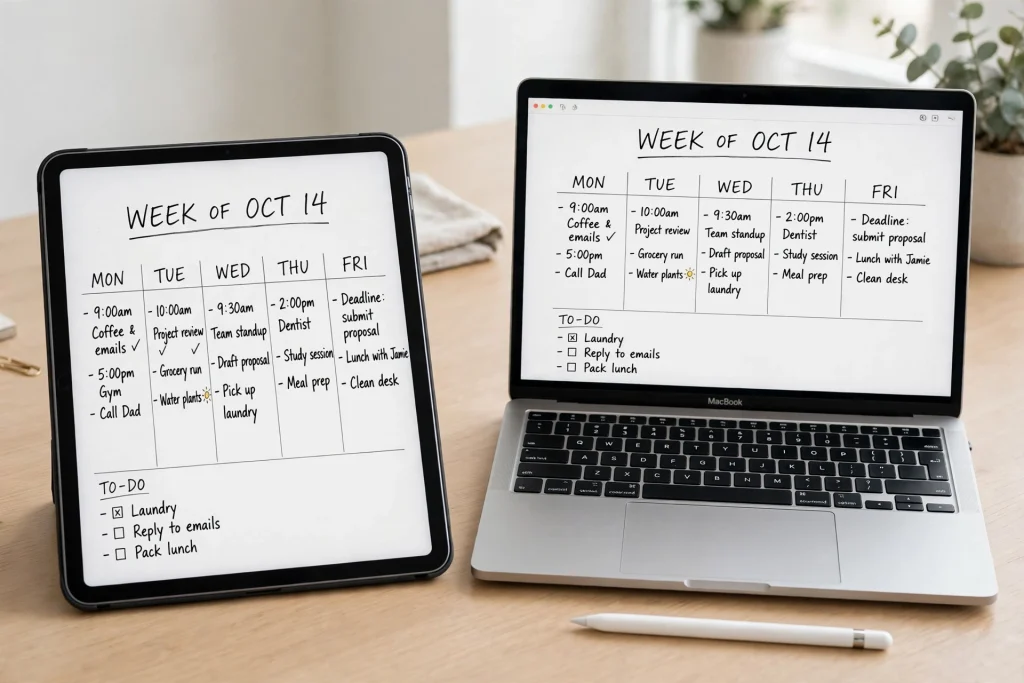
Quick answer: Yes — GoodNotes on Mac opens the same notebooks you use on your iPad, synced through iCloud, so you can type, annotate PDFs, and print from your desktop. It cannot do handwriting: with no Apple Pencil on a Mac, writing with a trackpad or mouse is slow and imprecise. Use the Mac for typing, organising, and printing; keep the iPad for handwriting.
If you plan your life in GoodNotes on an iPad, you have probably wondered whether your notebooks can live on your computer too. GoodNotes on Mac is the answer: a macOS version of the app that opens the same notebooks, planner pages, and handwritten notes you already have on your iPad. Open the app on your Mac, and your planner is there, ready to type in, annotate, and print.
The Mac version is not a mirror image of the iPad version, though. Typing a long journal entry, searching a year of notes, or printing a weekly spread is faster on a Mac; writing a handwritten note with a trackpad is not. This guide covers what GoodNotes on Mac can and cannot do, how to set up sync, how to edit and print planner pages, and how to fix sync problems.
Table of Contents
What Is GoodNotes on Mac?
GoodNotes on Mac is the macOS version of the app, built for a larger screen, a menu bar, keyboard shortcuts, and a mouse or trackpad instead of a stylus. It is not a separate product with separate notebooks — it is the same app on a different device, looking at the same library.
When you sign in with the same Apple ID and turn on iCloud sync, your notebooks, folders, and documents appear on your Mac just as they do on your iPad. A planner you set up on the iPad opens on the Mac with its tabs, hyperlinks, and handwritten notes intact. An annotation you add on the Mac shows up on the iPad.
It suits people who plan on an iPad but work at a desk: students type lecture notes on a MacBook and handwrite on the iPad in class, and teachers prepare lesson plans on a big screen and carry the iPad into the classroom. If you are new to digital planning, start with our beginner’s guide to using a digital planner in GoodNotes, which explains how hyperlinked planners work and how to set up your first one.
How to Set Up GoodNotes on Mac
Setup takes only a few minutes: install the app from the Mac App Store, sign in with the same Apple ID you use on your iPad, and switch iCloud sync on in both places. Check the iPad side as well as the Mac side — most sync problems come from a setting that is right on one device and wrong on the other.
- Install GoodNotes on your Mac from the App Store, signed in with your Apple ID.
- Use the same Apple ID on both devices. On the Mac, open System Settings and check the Apple ID at the top. On the iPad, open Settings and check the Apple ID there. They must match exactly — sync only works between devices on the same account.
- Turn on iCloud Drive on both devices. On the Mac, go to System Settings, click your Apple ID, then iCloud, and switch on iCloud Drive. On the iPad, go to Settings, tap your Apple ID, tap iCloud, and confirm iCloud Drive is on.
- Enable iCloud sync inside GoodNotes on both the Mac and the iPad, in the app’s settings.
- Wait for the first sync. The first time you open GoodNotes on the Mac, it downloads your whole library from iCloud. With many notebooks or large PDFs, this can take several minutes. Stay on Wi-Fi and let it finish before judging whether anything is missing.
- Open a notebook and check it. Pick a planner you know well, flip through a few pages, and tap a hyperlinked tab to confirm the links still work.
One habit saves trouble: keep GoodNotes open for a minute or two after a big editing session, so iCloud can upload your latest changes before you close the lid.
How iCloud Sync Works Between iPad and Mac
iCloud sync is the bridge that makes GoodNotes on Mac useful. Every notebook in your library lives in iCloud, and each device keeps its own copy up to date: write on the iPad and the change uploads; open GoodNotes on the Mac and it downloads. In normal use this happens in the background within seconds or minutes.
A few details matter. Sync works per document, so a large planner updates more slowly than a short note. Both devices need an internet connection; changes made offline upload when you reconnect. And if your iCloud storage is full, sync stalls silently and GoodNotes cannot upload new changes.
Because sync is automatic, never work around a slow sync by importing a PDF copy of a notebook onto the other device — you will end up with two copies of the same planner, and changes in one will never reach the other. If a notebook seems out of date, the fix is almost always a settings or connection issue. Keep a backup outside iCloud too, because sync is not a backup — our GoodNotes backup guide shows how to export your notebooks safely.
What Works Well on Mac
The Mac version shines whenever the job involves a keyboard, a big screen, or a printer.
Typing Long Notes
This is the biggest reason to use GoodNotes on Mac. Typing on a full physical keyboard is faster and less tiring than typing on an iPad screen, and far faster than handwriting for long passages. Journal entries, meeting minutes, and lecture summaries are all easier to type on a Mac, in text boxes you can drop anywhere on a planner page. Typed notes are also easier to edit: on the iPad, fixing handwriting means erasing and rewriting it, while on the Mac you click into a text box and retype.
Shapes, Images, and PDF Annotation
A mouse is a precise pointing tool, which makes it excellent for the fiddly parts of a page: drawing a straight line, resizing an image, aligning a shape, or dragging a text box into exactly the right spot. PDF work is another strength. You can import a PDF from Finder, annotate it with highlights and typed comments, and export it again as a PDF. Students marking up lecture slides and professionals reviewing reports will find the larger screen a real advantage.
Searching and Organising Your Library
GoodNotes can search your handwritten notes as well as your typed text, and searching on a Mac is more comfortable: type a term on a real keyboard, scan the results on a large screen, and jump between notebooks quickly. Housekeeping is a desktop job too — creating folders, renaming notebooks, and moving documents are quicker with a mouse and keyboard, and dragging a new planner PDF from Finder into GoodNotes is the fastest way to add it to your library.
What Is Limited on Mac
GoodNotes on Mac is not the iPad app with a bigger screen. Some things are weaker, and you should know about them before building a workflow around the Mac version.
No Apple Pencil, No Real Handwriting
The biggest limitation is handwriting. A Mac has no Apple Pencil, no touchscreen, and no pressure-sensitive stylus. You can draw with a mouse or trackpad — GoodNotes offers a pen tool on the Mac — but the result is slow, wobbly, and tiring. Short marks are fine; a handwritten journal entry is not. This is a limit of the hardware, not the app. If handwriting is the heart of your planning system, the iPad has to stay your primary device.
Fewer Gestures and a Different Feel
On the iPad you pinch to zoom and swipe between pages without thinking. On the Mac those gestures are replaced by trackpad gestures, scroll bars, and shortcuts, and flipping through a planner with a mouse is less fluid than swiping with a finger. Expect a short adjustment period when you switch devices.
Editing Planner Pages on Mac
Editing a planner on the Mac suits a different task than editing on the iPad: on the iPad you write, sketch, and doodle; on the Mac you type, arrange, and refine. To fill in next week’s schedule, open the planner, click into each day box, and type your appointments and tasks. Copy a recurring task from last week and paste it into this week, drag a text box so it lines up with the border, and add a highlight to mark a deadline. Then sync, and the typed detail is waiting on your iPad.
A few tips help. Zoom in to 125% or 150%: planner boxes are small, and clicking precisely into a day box is easier up close. Use the lasso tool to select and move handwritten elements. And learn the text box workflow: click, type, and press Escape to finish. When mixing handwriting and typing on one page, keep typed additions short, use a consistent font size, and match your pen colour.
Choose a planner with clear, well-spaced boxes that work for typing as well as handwriting. The Minimalist Undated Digital Life Planner is a good example: its clean layouts have room for typed entries, and because it is undated you can start it on any day, on either device. The 12-Tab Digital Notebook for GoodNotes is another solid choice, with tabbed sections that are easy to navigate with a mouse.
How to Print from GoodNotes on Mac
Printing is one of the best reasons to use GoodNotes on Mac. The iPad can print, but the Mac gives you a bigger preview, easier page selection, and the full print dialogue.
- Go to the page you want — you can print a single page or a range of pages.
- Press Command-P or choose Print from the File menu, and check the preview.
- Check margins and scale. Planner pages are designed for a specific paper size, and the wrong scale can shrink the boxes or cut off the edges.
- Choose your pages and print a single test page first if you are printing a planner for the first time — paper size and colour settings vary between printers.
Try this: print your weekly spread on Sunday evening, fill in appointments by hand during the week, and keep the digital version as the master copy. Hyperlinks do not work on paper — a printout is a snapshot, so keep using the digital version when you need the tabs and links.
GoodNotes on Mac Keyboard Shortcuts
Shortcuts are the Mac version’s quiet superpower. Start with Command-P to print, Command-F to search, Command-Z to undo (add Shift for redo), Command-C / Command-V to copy and paste, Command-A to select all, and the arrow keys to move between pages. Most follow standard Mac conventions. One habit worth building: press Escape to finish a text box before clicking elsewhere, so you never type into the wrong box.
Troubleshooting Sync Problems
Most of the time sync just works. When it does not, the cause is usually one of these settings — work through them in order.
- Same Apple ID? Check the Apple ID at the top of System Settings on the Mac and Settings on the iPad. If they differ, sync cannot work.
- iCloud Drive on? Confirm it is switched on under your Apple ID on both devices, and that iCloud sync is enabled inside GoodNotes too.
- iCloud storage full? If storage is full, sync stops, often without any warning inside GoodNotes. Free up space, then reopen GoodNotes on both devices.
- Internet connection? A weak or captive Wi-Fi network can look connected while iCloud cannot reach Apple’s servers. Load a web page to confirm the connection is real, and give a large first sync ten or fifteen minutes.
- Restart the app. Quit GoodNotes completely on the Mac — not just close the window — and reopen it. A fresh launch forces the app to check iCloud again.
- Update the app. One device running an older GoodNotes version than the other can cause sync problems — install any available updates on both.
When to Use Mac vs iPad
Reach for the Mac to type a long note, search months of notes, organise folders, import a planner PDF, annotate a PDF, or print a weekly spread. Reach for the iPad to handwrite notes, sketch, annotate with Apple Pencil, or capture a thought on the move. Use both together: plan the week at the desk on Sunday, then live the week on the iPad — sync carries your notes between them.
Frequently Asked Questions
Is GoodNotes free on Mac?
No — it is a paid app, and the Mac version is usually sold separately from the iPad and iPhone versions, so buying it on one platform does not automatically give you the other. Check the Mac App Store listing before you buy, as pricing can change.
Does GoodNotes sync automatically between Mac and iPad?
Yes, as long as both devices use the same Apple ID, have iCloud Drive switched on, and have iCloud sync enabled inside GoodNotes. Changes then sync automatically in the background, usually within seconds or minutes. If sync stops, check the troubleshooting list above.
Can I handwrite on a Mac in GoodNotes?
Technically yes, but practically no. GoodNotes on Mac has a pen tool, and you can draw with a mouse or trackpad, but it is slow and imprecise compared with Apple Pencil on an iPad. Short marks are fine; a page of handwritten notes is not realistic.
How do I print a planner page from GoodNotes on Mac?
Open the page, press Command-P or choose Print from the File menu, and check the preview. Adjust the paper size and scale until the preview looks right, select the pages you need, and print a test page first if you are printing that planner for the first time.
GoodNotes on Mac Is a Desk, Not a Replacement
GoodNotes on Mac puts your planning system on the big screen, with a real keyboard, a precise cursor, and a printer — and it makes typing, searching, organising, and printing faster than on the iPad. What it does not do is replace the iPad: handwriting belongs there. Use both, each doing what it is good at, and keep a backup so your planners are safe.
If you want a planner that works well on both devices, start with the Minimalist Undated Digital Life Planner — its clean, spacious layouts suit typed entries on the Mac and handwritten notes on the iPad, and because it is undated, you can start today on either device without wasting a single page.
Temply Studio
Stop chasing your goals with sticky notes and scattered notebooks. Our premium digital planners and Canva templates are designed to help you plan with intention, stay consistent, and actually enjoy the process.
Questions about this guide?
Ask about the planner, share how you use it, or tell us what to cover next. Your email stays private.