

Quick answer: The best free GoodNotes templates for students cover three page types: a daily study page (class schedule, top-3 priorities, assignment boxes), a weekly overview (timetable, deadlines, exam countdown), and Cornell notes pages (cue column, notes area, summary strip). Build the three layouts once, duplicate the set for each week, and import them into GoodNotes as a single PDF.
Finding genuinely useful free GoodNotes templates for students is harder than it should be. Most “free template” pages hand you a pretty but generic to-do list that ignores how student life actually works: back-to-back classes, assignment deadlines scattered across syllabi, and lecture notes that need reviewing — not just writing. This guide gives you three student-specific page layouts you can build free in minutes, shows you how to import them into GoodNotes, and explains when it’s worth upgrading to a complete student planner system.
The layouts below are designed around real study workflows, not decoration. Each one takes under ten minutes to recreate in Canva, GoodNotes’ own templates, or even the Shapes tool — and together they form a complete weekly study system that costs nothing.
Why student templates beat generic planner pages
A standard daily planner page asks “what are your top 3 priorities?” — fine for office work, useless when your day is six lectures, two labs, and a problem set due at midnight. Student planning has three jobs that generic pages don’t handle:
- Time-blocking around fixed classes. Your timetable is non-negotiable; study blocks must fit around it, not the other way round.
- Deadline tracking across courses. Five syllabi, five different deadline formats. You need one surface where they all land.
- Notes that get reviewed. Lecture notes written and never revisited are just handwriting practice. The Cornell method builds review into the page itself.
The three templates below each solve one of these jobs. Used together for a week, they replace the scattered sticky notes, phone reminders, and “I’ll remember it” system that fails every midterm season.
Template 1: The daily study page
This is your command center for a single day. Build it as a portrait page with four zones:
- Class schedule strip (top). Time blocks from 8 AM to 10 PM with your fixed classes pre-written. Seeing lectures as immovable blocks forces realistic study planning — you stop scheduling “study 2–4 PM” on top of a lab.
- Top-3 study priorities. Not a 15-item to-do list. Three outcomes, written as finished states: “Problem set 7 complete,” not “work on problem set.”
- Assignment inbox. A small box for anything due in the next 48 hours, copied from your syllabi each Sunday. This is the single highest-leverage student habit: a rolling 48-hour deadline view.
- Evening review (bottom). Three lines: what got done, what’s carried to tomorrow, one thing to review before sleep. Takes two minutes, prevents the “where did the day go” feeling.
Duplicate this page for each weekday. Keep weekends on a lighter variant — just the schedule strip and one priorities box — or you’ll abandon the system by week three.
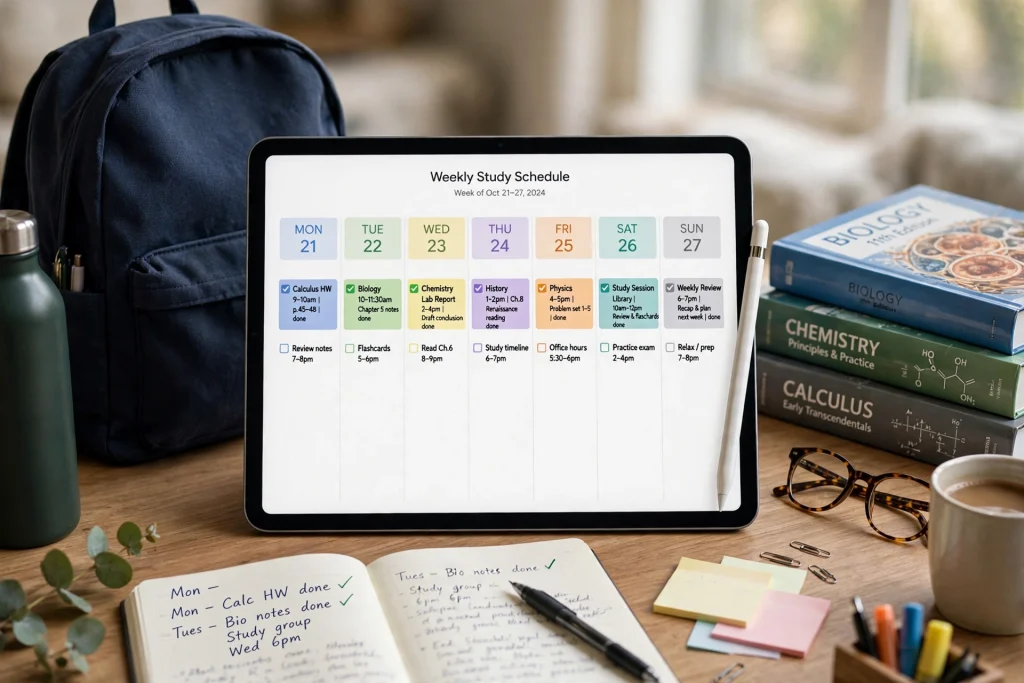
Template 2: The weekly overview page
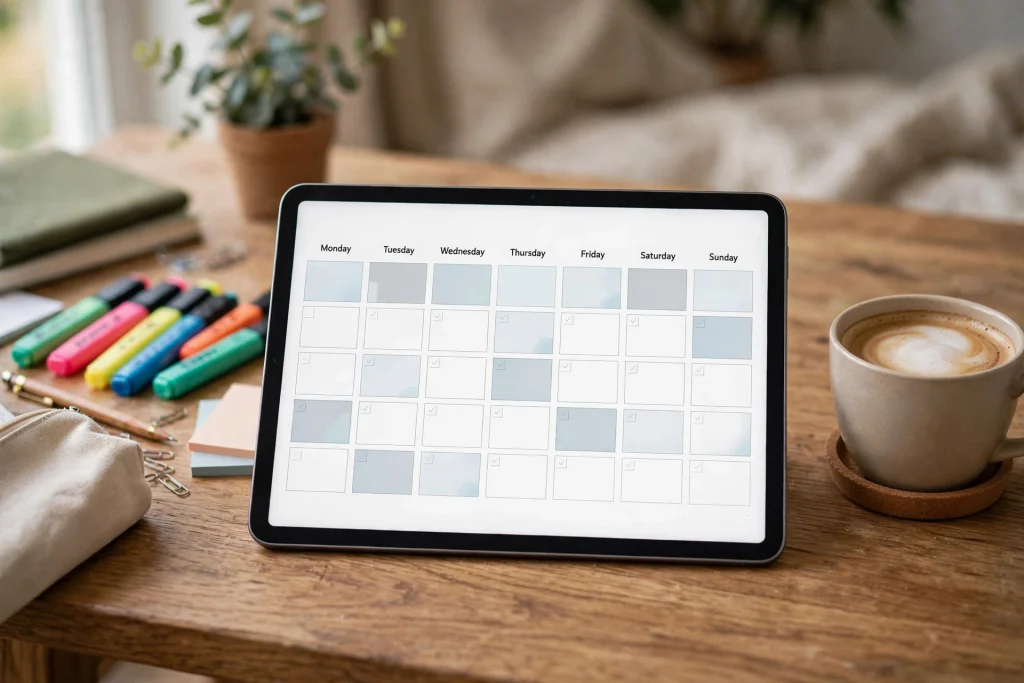
The weekly page is where the semester stops feeling chaotic. Lay it out as a 7-column grid with three rows:
- Row 1 — Timetable. Your recurring weekly class schedule, color-coded by course. Write it once, duplicate weekly.
- Row 2 — Deadlines. Every assignment, quiz, and exam due that week, with the course name attached. Pull these from your syllabi during a 20-minute Sunday reset.
- Row 3 — Exam countdown. A simple “days until” tracker for upcoming midterms and finals. Watching “Finals: 23 days” shrink each week is a better motivator than any productivity quote.
Pair this with our complete college study planner guide, which covers the Sunday reset routine that keeps the weekly page accurate all semester.
Template 3: Cornell notes pages for GoodNotes
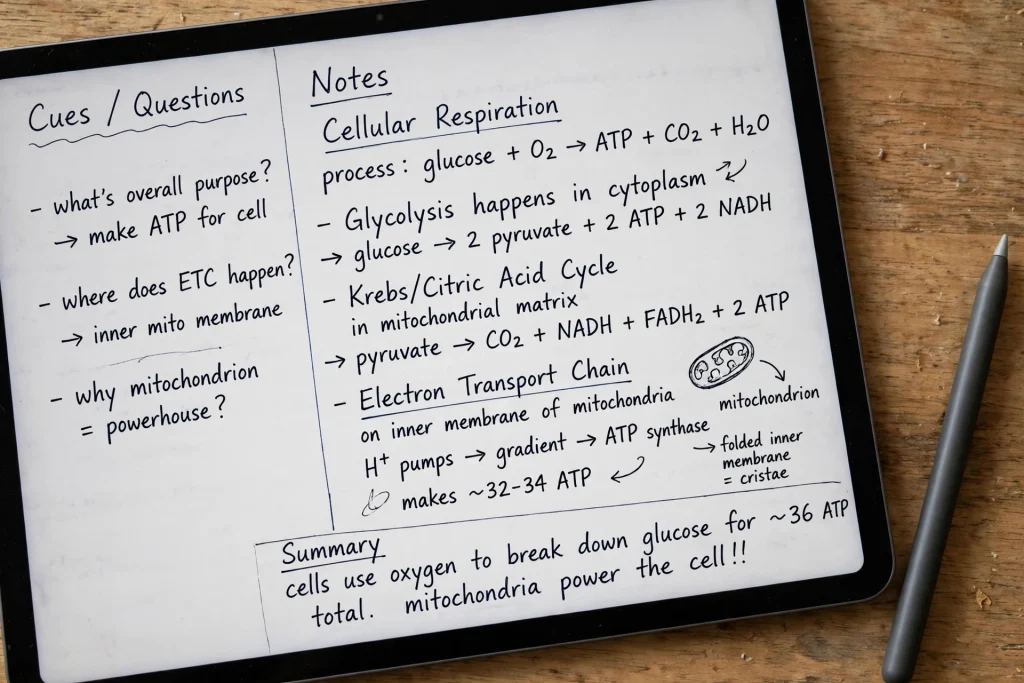
The Cornell method is the most evidence-backed note format for students, and it translates perfectly to GoodNotes. Divide the page into three areas:
- Cue column (left third). Keywords, questions, and formulas — written after the lecture, when you review. This column becomes your self-testing tool: cover the notes, quiz yourself from the cues.
- Notes area (right two-thirds). Your actual lecture notes, taken normally during class.
- Summary strip (bottom). 2–3 sentences summarizing the page in your own words. If you can’t summarize it, you didn’t understand it — that’s the point.
In GoodNotes, build one Cornell page, then duplicate it per lecture. Use the lasso tool to resize the cue column for formula-heavy courses (wider cues) versus discussion courses (narrower cues). Students who review using the cue column consistently outperform re-readers — the page layout literally enforces active recall.
How to build these templates free (3 options)
Option A — Canva (fastest). Create a custom design at 2048 × 2732 px, use grids and text boxes for the layouts above, and export as PDF. Ten minutes per template once you know the layout.
Option B — GoodNotes shapes. Build directly in a GoodNotes notebook using the Shapes tool for boxes and lines. Less pretty, zero export friction, and you can tweak the layout mid-semester.
Option C — Start from a notebook. The 12-Tab Digital Notebook for GoodNotes gives you lined and grid pages with tabbed sections — dedicate tabs to each course and use the grid pages as structured Cornell layouts. It’s a paid product, but the tabbed organization solves the “100 loose pages” problem free templates create.
How to import your templates into GoodNotes
- Export your three layouts as a single PDF (one page per template, or a duplicated weekly set).
- On your iPad, open the Files app, tap the PDF, then Share → Open in GoodNotes (or in GoodNotes: New → Import).
- Choose Import as New Document and name it clearly, e.g., “Study System – Fall 2027”.
- Duplicate the weekly set: tap the thumbnail view, select the daily + weekly pages, duplicate them for as many weeks as you need.
- Write on a test page first to confirm the Apple Pencil feel, then start your first real week.
Keep the clean, un-annotated PDF in iCloud Drive. When a semester ends, you re-import a fresh copy instead of erasing a year’s worth of notes page by page.
From free pages to a complete student system
Free templates handle the weekly workflow beautifully. What they don’t handle is the semester: 500+ pages of dated planners, assignment trackers per course, grade calculators, and exam planners that stay organized for four months. That’s the gap a purpose-built student planner fills.
Keep using the undated layouts above for your current term. Duplicate your weekly pages, add a semester overview, and keep a clean master PDF so you can reuse the system. Before choosing a paid academic planner, check its dates, included files, app compatibility and availability.
Frequently asked questions
Are there really free GoodNotes templates for students that are actually useful?
Yes — but the useful ones are structural (daily study pages, weekly overviews, Cornell layouts) rather than decorative. A pretty freebie with no deadline-tracking or review workflow won’t survive midterm season. Build the three layouts in this guide and you have a genuinely functional free system.
How do I add these templates to GoodNotes?
Export your layouts as a PDF, then open the PDF in GoodNotes via the Share sheet or New → Import. Import as a new document, duplicate the weekly pages as needed, and keep the clean PDF as a reusable master copy.
What’s the best free GoodNotes template for lecture notes?
The Cornell notes layout — cue column, notes area, summary strip. It’s the only common free template backed by real learning science: the cue column forces active recall during review instead of passive re-reading.
Should I use dated or undated student templates?
Undated for free templates, always. Dated pages expire and force a rebuild every term; undated daily and weekly pages duplicate forever. Save dated planners for a complete product like an academic planner where the date math is done for you.
Build your student planning system
Create your daily study, weekly overview and Cornell notes layouts, then export them as a PDF and test a page in GoodNotes. This guide provides DIY instructions rather than a ready-made template download. Keep an unmarked copy so you can reuse your layouts each term.
Just browsing? Explore all planners and notebooks →
Temply Studio
Stop chasing your goals with sticky notes and scattered notebooks. Our premium digital planners and Canva templates are designed to help you plan with intention, stay consistent, and actually enjoy the process.
Questions about this guide?
Ask about the planner, share how you use it, or tell us what to cover next. Your email stays private.