
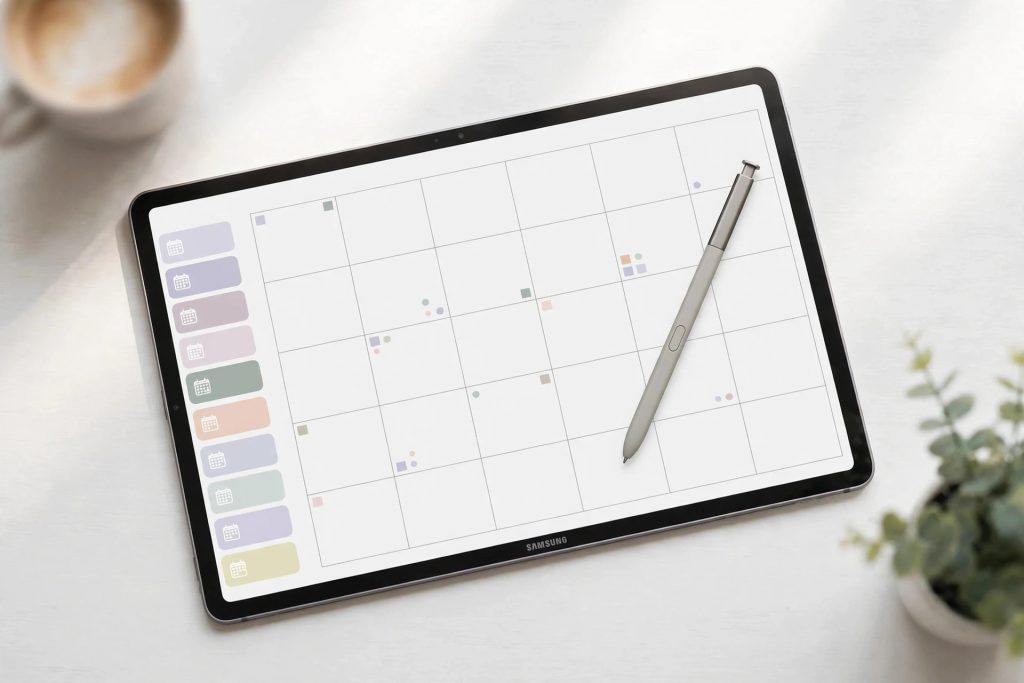
Quick answer: Yes — a hyperlinked digital planner works beautifully on Android and Samsung Galaxy Tabs, as long as you pick the right app. Penly is the best all-round digital planner for Android (built for planners, hyperlinks just work). Noteshelf is the best premium handwriting experience. Samsung Notes is free and great for notes, but its PDF hyperlink support is unreliable. Xodo is the best free option for following planner links. Any standard hyperlinked planner PDF — including the ones in our shop — works in all four.
Most digital planning advice online assumes you own an iPad. But if your tablet is a Galaxy Tab, you are not left out: choosing a digital planner for Android and Samsung devices simply means pairing a hyperlinked planner PDF with an app that can follow those links. Get that pairing right, and the experience — tapping tabs to jump between months, weeks and days, writing with your S Pen, decorating pages with stickers — feels every bit as smooth as the iPad setup you see all over social media. This guide compares the four apps that matter — Penly, Noteshelf, Samsung Notes and Xodo — so you can pick the right home for your planner.
What You Need for Digital Planning on a Galaxy Tab
Before the app comparison, here is the basic kit. First, a tablet with pen support: any Galaxy Tab with an S Pen (Tab S series, or Tab A models with pen support) gives you the natural handwriting feel that makes digital planning addictive. Second, a hyperlinked planner PDF. The hyperlinks are baked into the file itself — tabs, calendars and index pages are tappable — so the same planner file works on iPad, Android and even desktop PDF readers. If you are new to the concept, our beginner walkthrough on how to use a digital planner explains how hyperlinked planning works step by step; the workflow translates directly to Android, only the app names change. Third, one of the four apps below.
Digital Planner Android Samsung Comparison: The 4 Apps at a Glance
| App | Hyperlinks | Stickers | Sync | Price | Best for |
|---|---|---|---|---|---|
| Penly | Excellent — built for planner PDFs, tap-to-jump navigation | Built-in sticker collections + import your own PNGs | Google Drive backup | One-time purchase | Best all-round planner app on Android |
| Noteshelf | Very good — follows PDF links in reading mode | Import PNG stickers; smaller built-in library | Auto-backup to Google Drive, Dropbox, OneDrive | One-time purchase | Best handwriting feel and notebooks + planner mix |
| Samsung Notes | Limited — links inside imported PDFs are often not tappable | Basic — paste images manually | Samsung Cloud + OneDrive sync across Galaxy devices | Free (pre-installed) | Free notes and light PDF annotation |
| Xodo | Good — reliably follows internal PDF links | Limited — no sticker workflow, image stamps only | Xodo Drive, Google Drive, Dropbox | Free tier; subscription for premium tools | Best free way to use a hyperlinked planner |
Penly: The Planner-First App
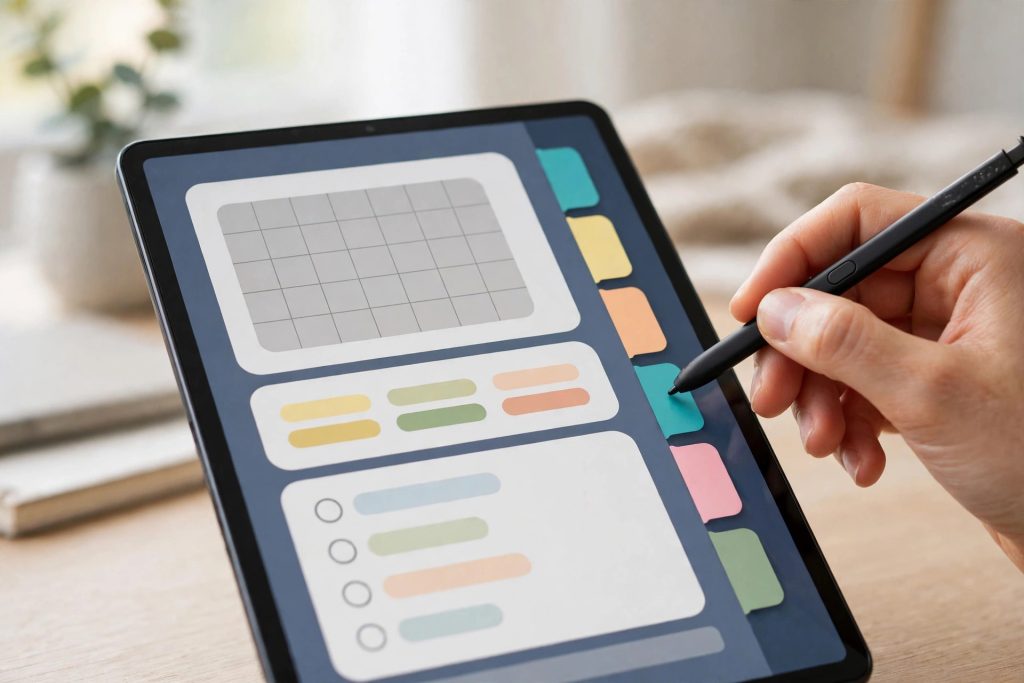
Penly was designed from the ground up for digital planner users on Android, and it shows. Hyperlinks are the headline feature: import a planner PDF and every tab, calendar date and button works with a simple tap — no special reading mode, no long-press workarounds. Penly even ships with built-in hyperlinked planners and lets you create your own internal links, something no other app on this list offers so directly.
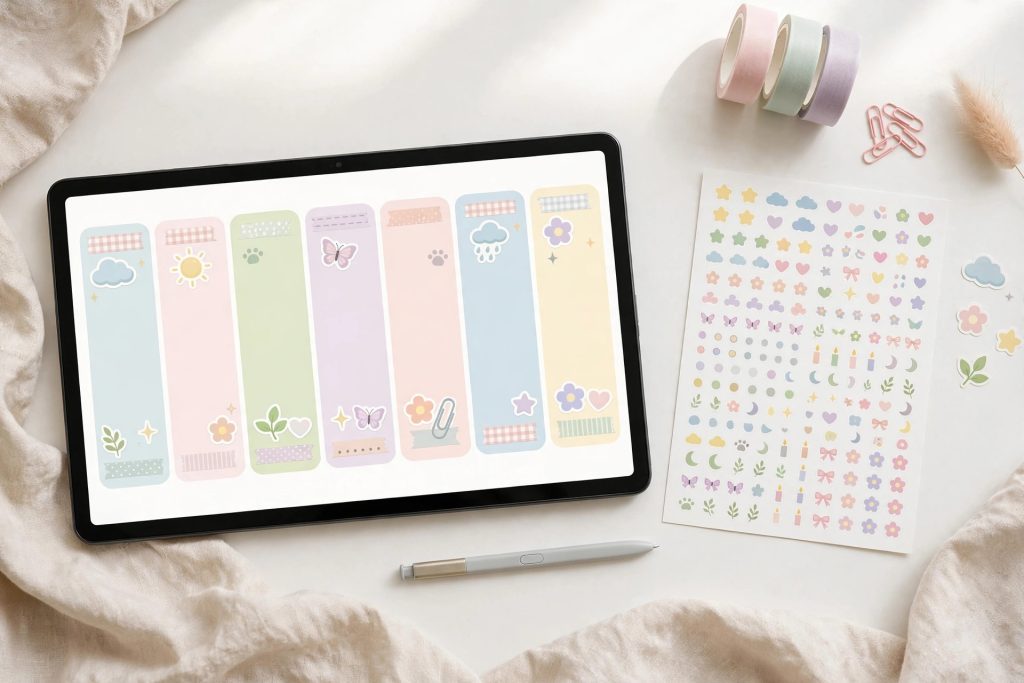
For stickers, Penly includes ready-made sticker collections inside the app, and you can import PNG sticker files or pre-cropped sticker sheets bought from planner shops. Your library stays organised inside the app, so decorating a weekly spread takes seconds. Sync is handled through Google Drive backup — not live multi-device sync, but enough to keep your planner safe and move it between a tablet and a phone. The price model is a single one-time purchase, which planner users consistently prefer over subscriptions. If you buy one app for planning on a Galaxy Tab, this is the one.
Noteshelf: The Best Handwriting Experience
Noteshelf is the polished all-rounder. It started as a note-taking app, and its pen engine is arguably the nicest on Android — smooth, natural strokes with very little lag on S Pen devices. Hyperlinked PDFs are properly supported: import your planner, switch to reading mode, and taps follow links to months, weeks and sections as expected.
Sticker support is more manual than Penly: you import PNG images and place them on the page, which works fine but lacks a built-in sticker book. Where Noteshelf pulls ahead is organisation and backup — notebooks and planners sit side by side, and automatic backup to Google Drive, Dropbox or OneDrive keeps everything current without you thinking about it. Noteshelf is also a one-time purchase on Android, with an iOS version available if you ever mix devices. Choose Noteshelf if you split your time between planner pages and handwritten study or meeting notes.
Samsung Notes: Free, Familiar — With One Big Catch
Samsung Notes is already on your Galaxy Tab, it is completely free, and for ordinary notes it is genuinely excellent: fast S Pen writing, easy PDF import for annotating documents, and seamless sync across your Galaxy phone and tablet through Samsung Cloud and OneDrive. For lecture notes, work documents and quick lists, it may be all you need.
The catch is hyperlinks. Samsung Notes treats an imported planner PDF mostly as a stack of pages to write on, and links inside the file are frequently not tappable — the tab navigation that makes a digital planner feel magical simply does not jump. You can still swipe page by page and use a planner in Samsung Notes, but you lose the tap-to-jump system the file was designed around. Our honest advice: keep Samsung Notes for notes, and run your planner in Penly, Noteshelf or Xodo.
Xodo: The Best Free Option
Xodo is a powerful PDF reader and editor that happens to be a very capable free planner app. It reliably follows internal PDF hyperlinks, so your planner’s tabs and calendars navigate properly, and its annotation tools — pens, highlighters, shapes, text boxes — cover everything daily planning requires.
What Xodo does not do is stickers as a workflow: there is no sticker library, only image insertion and stamps, so decorating pages feels clunky compared with Penly. Sync is a strength, with Xodo Drive plus Google Drive and Dropbox connections, and the free tier is generous enough for planner use; a subscription unlocks advanced editing tools most planner users will never need. If you want to test digital planning before spending anything, Xodo plus a planner PDF is the perfect zero-cost trial.
How to Import a Planner Into Each App
The flow is nearly identical everywhere: download the planner PDF to your tablet (from your email or the shop’s download link), open your app, choose Import, and select the file. A minute later your planner is ready. A few per-app notes:
- Penly: Tap + on the home screen, choose Import PDF, and your planner appears with links active immediately. Set a Google Drive backup under Settings once, and forget about it.
- Noteshelf: Use New → Import, pick the PDF, and it becomes a notebook. To follow links while planning, toggle reading mode so taps navigate instead of drawing.
- Samsung Notes: Import via the PDF icon on the notes list. The file annotates well, but remember links may not respond — use the page overview to jump around instead.
- Xodo: Open the PDF from device storage or connect Google Drive/Dropbox and open it in place — no duplicate copies, and your annotations save back to the same file.
Whichever app you choose, the planner file itself is the same. A clean, undated option like our Minimalist Daily Planner is ideal for a first test because you can start any day of the year, while a full dated system such as the 2027 Life Planner gives you the complete hyperlinked month-week-day structure once you are ready to commit.
So, Which App Should You Choose?
Keep it simple. Buy Penly if planning is the main event — it is the only app here designed around planner PDFs. Buy Noteshelf if your planner lives next to heavy handwritten notes and you want the best pen feel plus effortless backups. Start with Xodo if you want it free today. And keep Samsung Notes for what it does best — notes — rather than fighting its link limitations. The real mistake is not picking the “wrong” app; it is waiting for an iPad you do not need. Your Galaxy Tab and S Pen are already a complete digital planning setup.
Frequently Asked Questions
Do hyperlinked planners really work on Android?
Yes. Hyperlinks live inside the PDF file itself, so any app that supports PDF link navigation — Penly, Noteshelf and Xodo all do — will jump between tabs, months and pages with a tap. The planner files sold for GoodNotes are standard PDFs and work the same way on Android.
What is the best digital planner app for Samsung Galaxy Tab?
Penly is the best dedicated planner app for Galaxy Tab users because it was built for hyperlinked planner PDFs, includes sticker collections, and is a one-time purchase. Noteshelf is a close second if you also take a lot of handwritten notes.
Can I use a GoodNotes planner on a Samsung tablet?
Yes — “GoodNotes planner” simply means a hyperlinked planner PDF designed with GoodNotes in mind. The same file opens in Penly, Noteshelf or Xodo on a Samsung tablet, with links and layouts intact. You only miss GoodNotes-exclusive features, not the planner itself.
Why don’t the links in my planner work in Samsung Notes?
Samsung Notes imports PDFs mainly for annotation and frequently does not make internal links tappable. Your file is not broken — open the same planner in Penly, Noteshelf or Xodo and the tabs will respond normally.
Do I need an S Pen for digital planning?
An S Pen (or any quality stylus) makes handwriting, highlighting and precise tab tapping far nicer, and every Galaxy Tab S model includes one in the box. You can start with touch alone in Xodo, but a pen is what makes a digital planner feel like paper.
Are my planner pages backed up?
That depends on the app: Penly offers Google Drive backup, Noteshelf auto-backs up to Google Drive, Dropbox or OneDrive, Xodo can work directly on files stored in cloud drives, and Samsung Notes syncs within the Samsung ecosystem. Turn backup on once — a year of planning is worth protecting.
Ready to plan on your Galaxy Tab? Browse our Minimalist Daily Planner and the full 2027 Life Planner — both are standard hyperlinked PDFs that work in Penly, Noteshelf and Xodo from the moment you import them. Pick your app, import your planner, and tap your first tab today.
Temply Studio
Stop chasing your goals with sticky notes and scattered notebooks. Our premium digital planners and Canva templates are designed to help you plan with intention, stay consistent, and actually enjoy the process.
Questions about this guide?
Ask about the planner, share how you use it, or tell us what to cover next. Your email stays private.